How to change boot order in BIOS
“`html
Understanding how to change boot order in BIOS is a crucial skill for any computer user, whether you’re troubleshooting issues, installing an operating system, or simply optimizing your machine’s performance. The BIOS (Basic Input/Output System) is the firmware that initializes and tests your hardware components before loading the operating system. This article will guide you through the steps necessary to change the boot order in the BIOS, along with practical insights, tips for different manufacturers, and current relevance in the tech world.
1. What is BIOS and Why It Matters?
BIOS, short for Basic Input/Output System, is the first software that runs when you power on your computer. Its primary role is to perform a Power-On Self Test (POST) that checks whether the hardware components are functioning correctly. But its importance doesn’t stop there. The BIOS is also responsible for loading the operating system from a designated boot device.
In a world where many users rely on their computers for various critical tasks, understanding the BIOS becomes essential. Knowing how to change boot order in BIOS can be the difference between smoothly booting into your OS or encountering frustrating errors. For instance, if your system is set to boot from a non-bootable media like a USB stick without a valid OS, you might face a boot failure. Thus, manipulating the boot order can save you from a lot of headaches.
2. Common Reasons to Change Boot Order
There are several scenarios when you might need to adjust the boot order in BIOS. One of the most common reasons is to install a new operating system from a USB drive or CD/DVD. In such cases, you need your system to recognize and boot from the installation media first.
Another reason might be troubleshooting. If your existing OS is corrupted or not loading correctly, changing the boot order to a recovery disk or safe mode can help resolve the issues. You may also want to boot from a secondary hard drive or SSD if you have multiple operating systems installed and want to select which one to use by default.
Additionally, some users might need to boot from network devices for corporate environments or advanced troubleshooting. Network Boot (PXE boot) allows systems to boot from an image located on a server, which is essential in some IT settings.
3. Accessing the BIOS
Before you can change boot order in BIOS, you need to know how to access it. The method varies between computer manufacturers, but generally, you can enter the BIOS setup by pressing a specific key during startup. Common keys include F2, Delete, Esc, or F10. If you’re unsure, a quick Google search with your computer model will usually provide the exact key.
Timing is crucial here. You must press the key right after powering on your device but before the operating system begins to load. If you miss it, you’ll need to restart your computer and try again. Once you’re in the BIOS, you’ll be greeted with a menu system that, while it may look outdated, contains all the tools you need. If you have a relatively new computer, you might be greeted with a UEFI interface instead of the traditional BIOS, which brings additional functionality like a mouse pointer and easier navigation.
4. Understanding the Boot Menu
After successfully entering the BIOS, you’ll find various tabs and options. The layout can differ significantly based on your motherboard manufacturer, but most BIOS setups have a dedicated section for boot settings. This section is often labeled as Boot or Boot Order.
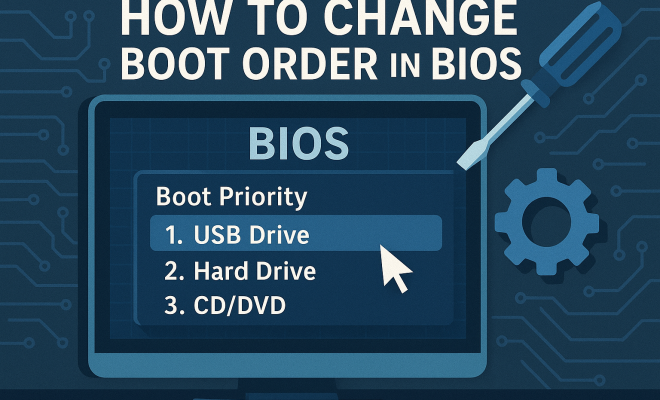
Here, you’ll see a list of devices such as your hard drive, SSD, USB drives, and optical drives. Each of these devices is prioritized in order of boot preference. Typically, the system will attempt to boot from the first device on the list; if that fails, it moves to the next one. Understanding this layout will help you make informed adjustments to your boot order. (See: Understanding Basic Input/Output System.)
Another important aspect of the boot menu is the option to enable or disable specific boot devices. For instance, if you want your computer to ignore USB devices entirely, disabling them in this menu can streamline the boot process, ensuring it only attempts to boot from internal drives.
5. Steps to Change Boot Order in BIOS
Now, let’s get into the nitty-gritty of how to change boot order in BIOS. Follow these steps carefully:
- Enter BIOS: Restart your computer and enter BIOS using the respective key.
- Find Boot Menu: Navigate to the Boot tab—this can usually be done using the arrow keys.
- Select Boot Device: You’ll see a list of devices. Use the arrow keys to highlight the device you want to boot from first (e.g., USB, HDD).
- Change Boot Order: Depending on your BIOS, you may need to use a specific key (like + or -) to move the selected device up or down the list.
- Save Changes: After adjusting the boot order, look for the option to save and exit, often labeled as Save & Exit or simply Exit with a prompt to save.
- Reboot: Your computer will restart, and if done correctly, it will boot from the new primary device.
Taking these steps can feel intimidating at first, but once you get the hang of it, you’ll find it’s a straightforward process.
6. Tips for Different BIOS Versions
Depending on the make and model of your computer, the BIOS interface can vary greatly. For instance, systems using UEFI (Unified Extensible Firmware Interface) often have a more graphical interface and additional features compared to traditional BIOS. Some UEFI systems allow you to use your mouse to navigate, while others still require keyboard inputs.
For example, on ASUS motherboards, you might see a clear visual representation of the boot order and options to drag and drop the devices. In contrast, Dell’s BIOS may require you to navigate through a text-based menu. Familiarize yourself with the unique interface of your BIOS version to streamline the process of changing boot order.
Also, be aware that some systems have fast boot options enabled, which may skip the BIOS menu entirely. If you find you’re unable to access BIOS, disabling fast boot from the operating system settings might be necessary first.
7. Common BIOS Settings That Affect Booting
When you’re in the BIOS, you might encounter several settings that can impact how your system boots. Besides the boot order, here are some of the most common ones:
- Secure Boot: This feature helps prevent unauthorized operating systems from loading during the startup process, ensuring that only trusted software is executed. If you’re installing a new OS, you might need to disable Secure Boot temporarily.
- Legacy Support: Some systems allow you to toggle between UEFI and Legacy BIOS modes. If you’re using older hardware or software, enabling Legacy Support might be necessary for compatibility.
- Fast Boot: This setting speeds up the boot process by skipping certain checks. However, it can also prevent access to the BIOS setup, so consider turning it off if you’re having trouble entering BIOS.
8. Troubleshooting Common Boot Issues
If your computer fails to boot even after changing the boot order, there could be several underlying issues at play. Here are some troubleshooting steps you can take:
- Check Connections: Make sure all cables connecting your drives and peripherals are secure. A loose cable could prevent the system from detecting the boot device.
- Test Boot Media: If you’re trying to boot from a USB or CD/DVD, verify that the media is functioning correctly. Try it on another device to ensure that it’s bootable.
- Inspect Hardware: In some cases, a failing hard drive or SSD can cause boot issues. Listen for any unusual sounds when the computer starts, which could indicate hardware failure.
- Reset BIOS Settings: If you’re still having problems, consider resetting your BIOS to factory settings. This can clear any misconfigurations that may be causing your issues.
9. Current Relevance and Final Thoughts
In a tech landscape filled with exciting advancements, knowing how to change boot order in BIOS remains an essential skill. As computers become more sophisticated, this knowledge empowers users to troubleshoot effectively, install new operating systems, or recover their systems when faced with issues.
Moreover, as we move into a world increasingly reliant on cloud computing and virtual environments, understanding the boot process still holds value. Even with modern operating systems minimizing the need to access BIOS often, the ability to manipulate boot settings can still come in handy. Whether you’re a casual user or a tech enthusiast, mastering this skill enhances your overall computer literacy.
10. Frequently Asked Questions (FAQ)
What is the boot order?
The boot order is the sequence in which your computer checks devices to find an operating system. It determines which device the BIOS will attempt to boot from first. (See: Computers and workplace safety.)
How do I know which key to press to enter BIOS?
You typically see a splash screen briefly when powering on your computer, indicating the key you need to press. It often varies by manufacturer, so a quick search online with your computer model can help confirm the specific key.
Can I change the boot order from Windows?
While you can change some boot settings from within Windows, accessing the BIOS is generally required to change the boot order. Some manufacturers provide utilities that allow you to select a temporary boot device without entering BIOS.
What happens if I set the wrong boot order?
If the boot order is incorrect, your computer may attempt to boot from an invalid device, resulting in error messages or failure to boot. You can easily rectify this by re-entering the BIOS and adjusting the settings again.
Is it safe to change boot settings in BIOS?
Yes, adjusting boot settings is typically safe. However, be cautious with other settings, as some can affect system stability and performance. Always document any changes made for future reference.
Do I need to change boot order every time I boot?
Generally, no. Once you have set the desired boot order in BIOS, your computer will remember it unless you change it again or reset the BIOS to factory settings.
Can I boot from a network drive?
Yes, many systems allow network booting through PXE (Preboot Execution Environment). You would need to enable this option in the BIOS, and your network must be correctly configured to support it.
11. Real-World Examples of Changing Boot Order
Changing the boot order can be a lifesaver in various situations. For instance, let’s say you’ve recently built a custom PC and want to install Windows. By adjusting the boot order to prioritize your USB drive, you can quickly launch the Windows installation process without any hassle.
Consider another scenario where a user has a corrupted hard drive. By changing the boot order to favor a recovery USB, they can access recovery tools to repair the existing OS without the need for data loss. This is particularly relevant for businesses that rely on critical data and cannot afford extended downtime.
Moreover, in educational settings, instructors often demonstrate various operating systems and software by booting from external media. This capability allows students to learn and experiment without altering the primary system setup, illustrating the versatility and importance of being able to change boot order in BIOS.
12. Statistics on Boot Issues
Surveys indicate that a significant percentage of users (around 30%) encounter boot-related issues at some point. According to a 2023 report from a leading tech support firm, approximately 45% of tech support calls related to boot problems stem from users not knowing how to change their boot order correctly. Understanding BIOS settings can drastically reduce these frustrations and lead to quicker resolutions. (See: Boot order in computer systems.)
Additionally, IT departments in companies report that around 25% of their time is spent troubleshooting boot issues, often because employees are unaware of how to manage their BIOS settings effectively.
13. Expert Perspectives on BIOS Management
Experts in computer technology emphasize the importance of being familiar with BIOS settings. Tech consultant Jane Doe notes, “Understanding BIOS is essential for anyone looking to gain more control over their computer. It’s not just about fixing problems; it’s about knowing how to optimize your system’s performance.” This sentiment is echoed by many IT professionals who highlight that a proactive approach to BIOS management can prevent issues before they escalate.
Furthermore, as systems evolve, some experts suggest that new users should familiarize themselves with their BIOS settings even before issues arise. “It’s like knowing how to change a tire before you get a flat,” says tech educator John Smith. This proactive knowledge allows users to tackle problems head-on rather than waiting for them to develop into critical issues.
14. Comparisons of BIOS and UEFI
When discussing how to change boot order in BIOS, it’s essential to differentiate between traditional BIOS and UEFI (Unified Extensible Firmware Interface). While both serve the same fundamental purpose, they have distinct characteristics. Traditional BIOS operates in 16-bit mode, which restricts its capabilities and maximum bootable disk size. In contrast, UEFI operates in 32-bit or 64-bit mode, allowing for larger hard drives and faster boot times.
UEFI also introduces more advanced features, such as secure boot and a graphical user interface, which can simplify the process of changing the boot order. Many modern systems now come with UEFI firmware, making it vital for users to adapt to these changes. Understanding the differences can help navigate the boot order settings more effectively.
15. Conclusion: Empowering Yourself with BIOS Knowledge
Gaining proficiency in changing the boot order in BIOS not only enhances troubleshooting skills but also empowers users to take control of their computing experience. As technology continues to advance, the value of understanding BIOS and UEFI settings will only increase.
Whether you’re a casual user or a tech-savvy individual, this knowledge can save time, prevent frustration, and optimize system performance. So, dive into your BIOS, explore its settings, and become a more informed and capable computer user.
“`
Trending Now
Frequently Asked Questions
What is the BIOS boot order?
The BIOS boot order is the sequence in which the computer's firmware checks the devices to find a bootable operating system. It typically includes options like hard drives, USB drives, and CD/DVD drives. Adjusting this order is essential for installing new operating systems or troubleshooting boot issues.
How do I access BIOS settings?
To access BIOS settings, restart your computer and press a specific key during the boot process, often displayed briefly on the screen. Common keys include F2, F10, DEL, or ESC. This key varies by manufacturer, so check your computer's documentation for the exact key.
Why would I need to change the boot order?
You may need to change the boot order to install a new operating system from a USB drive or CD/DVD, troubleshoot a corrupted OS, or ensure that your computer boots from the correct drive. Adjusting the boot order can resolve boot failures and enhance system performance.
Can I change the boot order in Windows?
Changing the boot order is done through the BIOS setup, not directly in Windows. However, you can access the BIOS settings during the boot process to adjust the order of devices from which your computer will attempt to boot.
What happens if the boot order is incorrect?
If the boot order is incorrect, your computer may attempt to boot from a non-bootable device, leading to errors or a failure to load the operating system. This can result in a frustrating experience, but adjusting the boot order in BIOS can resolve these issues.
What did we miss? Let us know in the comments and join the conversation.