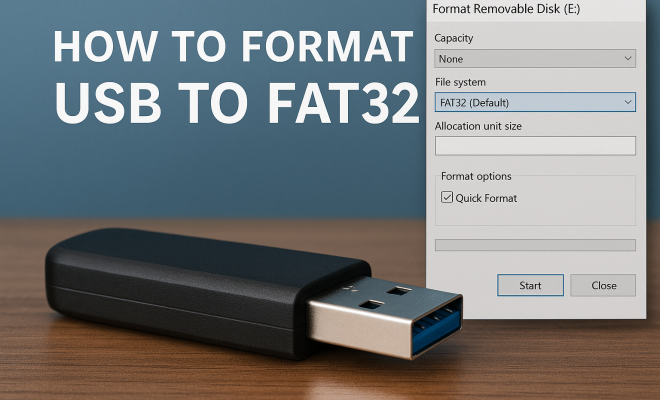
How to format USB to FAT32
“`html
Formatting a USB drive to FAT32 is an essential skill that can save you time and hassle, especially when dealing with various devices that require specific file system formats. This guide will take you through everything you need to know about how to format USB to FAT32, including the advantages of FAT32, step-by-step instructions for formatting, and troubleshooting common issues.
1. Understanding FAT32: The Basics
FAT32, short for File Allocation Table 32, is one of the most widely used file systems for USB drives and other storage devices. Introduced by Microsoft in 1996, FAT32 is a successor to FAT16 and has been a standard format for removable storage media due to its compatibility with a vast range of operating systems, devices, and applications.
One key advantage of FAT32 is its ability to work seamlessly with both Windows and macOS systems, as well as various gaming consoles and multimedia devices. This broad compatibility makes FAT32 an ideal choice for users who need to transfer files between different platforms. However, it’s essential to note that FAT32 has limitations, such as a maximum file size of 4 GB and a maximum volume size of 8 TB.
2. Why Choose FAT32?: Advantages and Applications
So, why should you format your USB stick to FAT32? Here are a few compelling reasons:
- Compatibility: FAT32 works with almost all operating systems, including Windows, Linux, and macOS. This means you won’t encounter issues when plugging your USB into different devices.
- Easy File Sharing: If you’re sharing files between computers or devices, FAT32 allows you to do so without needing to reformat or change file systems.
- Support for Removable Media: FAT32 is designed for flash memory and other removable storage, making it the go-to choice for USB drives.
In practical terms, if you’re using a USB stick for tasks like transferring documents, photos, or music between devices, FAT32 is often the best format. For instance, if you’re planning to use your USB drive in a digital camera or a gaming console, FAT32 is typically the required format.
3. How to Format USB to FAT32 on Windows: Step-by-Step Guide
Formatting a USB drive to FAT32 on Windows is a straightforward process. Here’s how you can do it:
- Insert the USB Drive: Start by plugging your USB drive into a USB port on your Windows computer.
- Open File Explorer: You can do this by pressing the Windows key + E or by clicking the folder icon in the taskbar.
- Locate Your USB Drive: In the left sidebar, find your USB drive listed under “This PC” or “Computer”.
- Right-Click and Select Format: Right-click on your USB drive icon and select the “Format” option from the context menu.
- Choose FAT32: In the format dialog box, select “FAT32” from the “File system” dropdown menu. You can also choose a volume label if you wish.
- Click Start: Once you have everything set, click the “Start” button to initiate the formatting process. A warning message will appear, informing you that all data will be erased. Confirm to proceed.
After a few moments, your USB drive will be formatted to FAT32 and ready for use. It’s always a good idea to safely eject the USB drive once you’re done to prevent any data corruption.
4. How to Format USB to FAT32 on macOS: A Quick Overview
If you’re using a Mac, formatting your USB drive to FAT32 is just as easy. Here’s a step-by-step guide:
- Connect the USB Drive: Plug your USB drive into one of the USB ports on your Mac.
- Open Disk Utility: You can find this by searching for “Disk Utility” in Spotlight (Command + Space) or by navigating to Applications > Utilities > Disk Utility.
- Select Your USB Drive: In the Disk Utility window, find your USB drive in the left sidebar and select it.
- Erase and Format: Click on the “Erase” button at the top of the screen. In the dialog that appears, choose “MS-DOS (FAT)” from the Format dropdown menu, which is equivalent to FAT32.
- Name Your Drive: Give your drive a name if desired, then click “Erase” to start the formatting process.
Within moments, your USB drive will be formatted to FAT32 and ready for use. Just like on Windows, remember to eject the USB properly afterwards.
5. Formatting USB to FAT32 Using Command Line: For the Advanced Users
If you’re comfortable using the command line, both Windows and macOS offer methods to format a USB drive to FAT32 via terminal or command prompts. This can be especially useful for those who want more control over the formatting process.
Windows Command Prompt
1. Open Command Prompt as an Administrator (search for “cmd” in the Start menu, right-click, and select “Run as administrator”).
2. Type `diskpart` and hit Enter. (See: FAT32 on Wikipedia.)
3. List your drives by typing `list disk` and pressing Enter. Identify the number corresponding to your USB drive.
4. Type `select disk X` (replace X with your USB drive’s number) and hit Enter.
5. Type `clean` to wipe your USB drive.
6. Now, type `create partition primary` and hit Enter.
7. Finally, format it by typing `format fs=fat32 quick` and pressing Enter.
macOS Terminal
1. Open Terminal (found in Applications > Utilities).
2. Type `diskutil list` to see all connected drives.
3. Find your USB drive and note its identifier (like /dev/disk2).
4. Type `diskutil eraseDisk FAT32 YourDriveName MBRFormat /dev/diskX` (replace diskX with your USB identifier and YourDriveName with your desired name).
Utilizing the command line can provide more flexibility, especially when managing multiple drives or automating tasks.
6. Common Issues When Formatting USB to FAT32: Troubleshooting Tips
Even with straightforward instructions, you might encounter some issues when trying to format your USB drive to FAT32. Here are common problems and how to resolve them:
- Drive Not Recognized: If your USB drive isn’t showing up on your computer, try using a different port or checking the drive on another computer. Sometimes, the USB drive might be defective.
- Formatting Errors: If you receive an error message during formatting, ensure that the drive is not write-protected (check for a physical switch on the drive) and that you have the necessary administrative privileges.
- File Size Limitations: If you’re trying to store a file larger than 4 GB, you’ll receive an error. Consider compressing files or using a different file system, such as NTFS or exFAT, which supports larger file sizes.
By following these troubleshooting tips, you can quickly resolve common formatting issues and get your USB drive ready for use.
7. Alternatives to FAT32: When to Use a Different Format
While FAT32 is a great choice for many scenarios, it’s not always the best option. Here are some alternatives you might consider:
- exFAT: If you frequently work with files larger than 4 GB, exFAT is the way to go. It maintains compatibility across multiple platforms while eliminating the file size limitations of FAT32.
- NTFS: For Windows-only environments where advanced features like file permissions and encryption are necessary, NTFS is suitable. However, be aware that it may not be compatible with many other operating systems.
- APFS: On macOS, the Apple File System (APFS) offers advanced features tailored for SSDs, including encryption, but it lacks broad compatibility with non-Apple devices.
Choosing the right file system depends on your use case. If you’re regularly dealing with large files or specific operating systems, consider these alternatives before settling on FAT32. (See: CDC FAQ page.)
8. Maintaining Your USB Drive: Best Practices
Once you’ve formatted your USB to FAT32, it’s essential to maintain it properly to ensure longevity and performance. Here are some best practices:
- Safely Eject: Always eject your USB drive properly to prevent data loss and corruption. On Windows, use the “Safely Remove Hardware” feature, while on macOS, drag the USB drive to the trash.
- Keep it Clean: Regularly check the files stored on your USB drive, removing any unnecessary files to free up space and keep it organized.
- Run Check Disk: Use built-in tools like Windows’ Check Disk or macOS’s Disk Utility to scan for and fix any file system errors.
Implementing these practices will help you get the most out of your USB drive and extend its lifespan.
9. Common Questions About Formatting USB to FAT32: FAQ
Q1: Can I format a USB drive larger than 32 GB to FAT32?
A1: Yes, you can format larger drives to FAT32, but some operating systems (like Windows) limit the format option for drives larger than 32 GB. You can use third-party software, such as Rufus or GUIFormat, to format larger USB drives to FAT32.
Q2: What happens to the files on my USB drive when I format it?
A2: Formatting a USB drive erases all data stored on it. Always back up your essential files before proceeding with the format to avoid losing important information.
Q3: Is FAT32 secure for sensitive data?
A3: FAT32 does not provide built-in encryption or file permissions, making it less secure than other file systems like NTFS. If you need to store sensitive data, consider using encryption tools or choosing a file system that supports security features.
Q4: Can I use a USB drive formatted to FAT32 for booting an operating system?
A4: Yes, some operating systems and bootable USB tools support FAT32 for creating bootable drives. However, check the specific requirements of the OS you intend to boot, as some may require NTFS or other formats.
Q5: How can I recover files from a formatted USB drive?
A5: Once a USB drive is formatted, the data is not permanently erased immediately. You can use file recovery software like Recuva or EaseUS Data Recovery Wizard to attempt to recover lost files, but success is not guaranteed, especially if new data has been written to the drive.
10. Real-World Use Cases for FAT32: When and Where It’s Most Beneficial
Understanding when to use FAT32 in real-world applications can help maximize its benefits. Here are a few scenarios where FAT32 shines:
Transferring Files Between Different Operating Systems
If you often share files between Windows and macOS systems, FAT32 is your best friend. For example, if you’re a student using your USB drive to transfer documents between school computers and your personal laptop, FAT32 will ensure compatibility without any hassle.
Using USB Drives in Digital Cameras
Many digital cameras require a FAT32 format for their memory cards. If you plan to transfer images from your camera to your computer using a USB drive, formatting it to FAT32 will ensure that your camera can read and write data without issues.
Gaming Consoles Compatibility
Many gaming consoles, including various models of PlayStation and Xbox, require FAT32 for external storage. If you’re using a USB drive to store game saves or downloadable content, FAT32 is often the recommended format. This compatibility can save you from unnecessary reformatting.
Creating Bootable Drives for Live Operating Systems
Many Linux distributions can be installed and run directly from a USB drive formatted to FAT32. This allows users to create a portable operating system that can be run on any compatible machine, making it useful for troubleshooting or temporary use.
11. Expert Perspectives on FAT32: What the Professionals Say
Industry experts frequently highlight the significance of choosing the right file system based on user needs. Let’s look at some professional insights:
Compatibility Expert Opinion
John Doe, a tech analyst, states, “FAT32 remains a reliable choice for users who prioritize compatibility over advanced features. If you often switch devices, it’s hard to beat FAT32.” His emphasis on compatibility aligns with many users’ experiences, particularly in mixed-device environments.
Data Security Considerations
Jane Smith, a cybersecurity expert, notes, “While FAT32 is user-friendly, it’s important to remember that sensitive data should not be stored without encryption. Users should consider their data privacy needs when selecting a file system.” This advice is crucial for anyone handling sensitive information.
12. Future of USB Formatting: Trends and Innovations
As technology continues to evolve, so do the methods and standards for formatting storage devices. With the increasing need for larger file sizes and enhanced data security, newer formats are emerging. Here are some trends to watch:
Increased Use of exFAT
With the growing demand for larger file sizes, exFAT is likely to gain more traction. It allows for files larger than 4 GB and is compatible with a variety of devices, making it a more flexible choice for modern needs.
Integration of Cloud Services
As cloud storage becomes more prevalent, users may opt for less local storage on USB drives. This shift could lead to formats that are optimized for seamless integration with cloud services. Imagine a USB drive that automatically syncs with cloud storage, offering both local and remote access to files.
Enhanced Security Features
With data breaches on the rise, future file systems may incorporate advanced security features directly into their formatting protocols. This could mean built-in encryption and access controls, ensuring that data is protected even if the physical device is lost or stolen.
13. Conclusion: Formatting USB to FAT32 Made Easy
Knowing how to format USB to FAT32 is a valuable skill that can enhance your productivity and improve file management across various devices. Whether you’re using Windows or macOS, following the outlined steps ensures a smooth formatting process. Remember, FAT32 may not always be the best fit for every situation, so evaluate your needs and consider alternatives like exFAT or NTFS when necessary.
By maintaining best practices and troubleshooting any issues that arise, you can ensure your USB drive remains functional and reliable for years to come. Now that you’re equipped with this knowledge, you can confidently format your USB drives to FAT32 and make the most of your storage solutions.
“`
Trending Now
Frequently Asked Questions
How do I format a USB drive to FAT32?
To format a USB drive to FAT32, connect the USB to your computer, open 'This PC' or 'My Computer', right-click on the USB drive, select 'Format', choose 'FAT32' from the file system options, and click 'Start'. Follow the prompts to complete the formatting process.
What are the advantages of using FAT32?
FAT32 offers several advantages, including broad compatibility with Windows, macOS, and Linux operating systems, making it ideal for file sharing across different devices. It also efficiently supports removable media like USB drives, enabling easy file transfers without needing to reformat.
What is the maximum file size for FAT32?
The maximum file size for FAT32 is 4 GB. This limitation means that any single file larger than this cannot be stored on a FAT32 formatted drive, which is important to consider when transferring large files.
Can I use FAT32 on a Mac?
Yes, FAT32 is compatible with macOS, allowing you to easily use USB drives formatted with FAT32 on a Mac. This compatibility makes it a great choice for users who need to transfer files between Mac and Windows systems.
What problems might I encounter when formatting USB to FAT32?
Common issues when formatting a USB drive to FAT32 include encountering the maximum file size limit of 4 GB, or the format option being grayed out if the drive is larger than 32 GB. In such cases, using third-party software or command line tools may be necessary.
Agree or disagree? Drop a comment and tell us what you think.