Stop Wasted Prints: Your Guide to Canceling Print Jobs
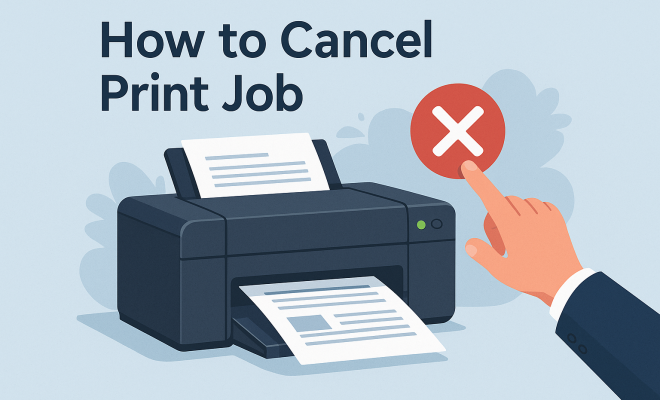
We’ve all been there—you’re at the printer, eagerly waiting for a document to print, when suddenly, it starts printing the wrong file or a lengthy document you didn’t intend to print. The frustration mounts as you realize you need to cancel the print job, but you’re not entirely sure how to do it. Don’t worry; you’re not alone in this battle against technology. In this guide, we’ll explore ten essential tips that will equip you with the know-how to effectively cancel print jobs across various platforms and scenarios. Whether you’re using Windows, macOS, or even mobile devices, these insights will help you regain control of your printing tasks.
1. Understanding Print Queues
Before diving into the methods to cancel a print job, it’s crucial to understand the concept of a printing queue. When you send a document to print, your computer communicates with the printer and places the job in a queue. This queue is managed by the operating system, which handles multiple print tasks efficiently.
Understanding this can help you appreciate why some jobs take longer than others and why you may need to hit “cancel” when things go awry. If a job is stuck in the queue, it can hinder others from printing, making it essential to know how to manage it effectively.
2. How to Cancel a Print Job on Windows
For Windows users, canceling a print job is usually straightforward. Here’s how you can do it:
- Open the Control Panel and navigate to Devices and Printers.
- Right-click on your printer and select See what’s printing.
- This will open the print queue window. Here, you can see all pending jobs. Right-click on the job you want to cancel and choose Cancel.
If the job doesn’t cancel immediately, select Printer from the top menu and click Cancel All Documents. This should clear all jobs from the queue, effectively stopping any unwanted prints.
3. Canceling a Print Job on macOS
Mac users have a similar process to follow. If you need to cancel a print job on macOS, here’s what to do: (See: Understanding print queues.)
- Click on the Apple menu and select System Preferences.
- Go to Printers & Scanners, then select your printer.
- Click on Open Print Queue. You’ll see a list of all pending print jobs.
- Select the job you want to cancel and hit the X button or right-click and select Cancel.
By following these steps, you can maintain control over your printing tasks and ensure that the right documents are printed at the right time.
4. Mobile Devices: Canceling Print Jobs on iOS and Android
In our increasingly mobile world, knowing how to cancel a print job from your smartphone is crucial. If you’re using an iOS device, you can easily manage print jobs through the AirPrint feature:
- Open the document you were printing and tap the Share icon.
- Scroll down and select Print.
- From the Printer Options menu, tap on Print Jobs to review queued documents.
- Swipe left on a job to reveal the Cancel option.
For Android users, the process varies slightly depending on the manufacturer and the printing app used. However, the general steps include:
- Open the notification panel where print jobs are listed.
- Tap on the print notification to access the print queue.
- Select the job you want to cancel and hit Cancel.
By familiarizing yourself with your mobile device’s printing capabilities, you can easily manage print jobs directly from your phone.
5. When Print Jobs Get Stuck
Sometimes, a print job may get stuck in the queue, causing frustration and delays. If you find yourself in this situation, the first step is to attempt to cancel the job as described previously. If that fails, restart your printer and computer. This can often reset the connection and allow you to manage the queue effectively.
Additionally, you might need to check your printer’s connection. If you’re using a wireless printer, ensure that the Wi-Fi is working correctly. If there’s a connection issue, it might prevent the print job from being canceled properly. (See: CDC printing guidelines.)
6. Clearing the Print Queue
In some cases, you may find it necessary to clear the entire print queue, especially if multiple jobs are misfiring. On Windows, this can be done by navigating to the print queue and selecting Cancel All Documents as mentioned earlier. On macOS, you can accomplish this by selecting Cancel All from the print queue window.
After clearing the queue, consider restarting your print spooler service. On Windows, you can do this by typing services.msc in the Run command, finding ‘Print Spooler’, and clicking ‘Restart’. This action can resolve lingering issues and ensure a fresh start for your printer.
7. Alternative Methods: Using Command Prompt and Terminal
If you’re comfortable with more technical solutions, you can cancel print jobs using the Command Prompt or Terminal. For Windows users, open Command Prompt and type net stop spooler to stop the spooler service, then net start spooler to restart it. This can help in cases where jobs won’t cancel through the standard method.
For macOS, open the Terminal and type cancel -a to cancel all print jobs. This can be particularly handy for users who prefer command-line interfaces over graphical interfaces.
8. Preventing Future Print Job Issues
To avoid the headache of needing to cancel print jobs in the future, consider a few preventative measures. First, always double-check the document you’re sending to print. Ensure you select the correct printer, particularly in environments with multiple printers. (See: How to cancel a print job.)
Secondly, keep your printer drivers updated. Manufacturers often release updates that fix bugs and improve performance. Regularly check your printer manufacturer’s website for updates.
9. Common Printing Problems and Their Solutions
Along with needing to cancel print jobs, various common issues can arise. For example, if your printer isn’t responding, check if it’s powered on and connected to the network. If a job is processing but not printing, try restarting both the printer and your computer.
Another frequent issue is paper jams. If this occurs, carefully remove the jammed paper, ensuring that no bits remain inside the printer. Regular maintenance, like cleaning the printer and checking for updates, can help prevent these problems and keep your device running smoothly.
10. Conclusion: Mastering Your Printing Tasks
Knowing how to cancel a print job is an invaluable skill that can save time and frustration. By following the steps outlined in this guide, you’ll be well-equipped to manage your printing tasks effectively across various devices. Always remember to stay proactive in managing your print jobs, from ensuring the correct documents are sent to maintaining your printer in optimal condition. With these tips, you’ll navigate the world of printing with confidence, ready to tackle any job that comes your way.
Trending Now
Frequently Asked Questions
How do I cancel a print job on Windows?
To cancel a print job on Windows, open the Control Panel and navigate to Devices and Printers. Right-click on your printer, select 'See what's printing,' and right-click on the job you want to cancel. If needed, you can also select 'Printer' from the top menu and choose 'Cancel All Documents' to clear all jobs.
What to do if my print job is stuck?
If your print job is stuck, check the print queue by going to Devices and Printers in the Control Panel. Right-click on your printer and select 'See what's printing.' From there, you can cancel the stuck job or use the 'Cancel All Documents' option to clear the queue.
Can I cancel a print job from my smartphone?
Yes, you can cancel a print job from your smartphone if you are using a mobile printing app connected to your printer. Open the app, navigate to the print jobs section, and select the job you wish to cancel. Look for an option to delete or cancel the job.
How to cancel a print job on macOS?
To cancel a print job on macOS, go to the Apple menu and select 'System Preferences.' Click on 'Printers & Scanners,' select your printer, and click 'Open Print Queue.' Here, you can select the job you want to cancel and click the 'X' button to remove it from the queue.
Why is my printer not responding to cancel commands?
If your printer is not responding to cancel commands, it may be due to a communication issue between your computer and the printer. Try restarting both your printer and computer. If the problem persists, check the print queue for any stuck jobs and manually clear them.
What did we miss? Let us know in the comments and join the conversation.