How to set up Alexa
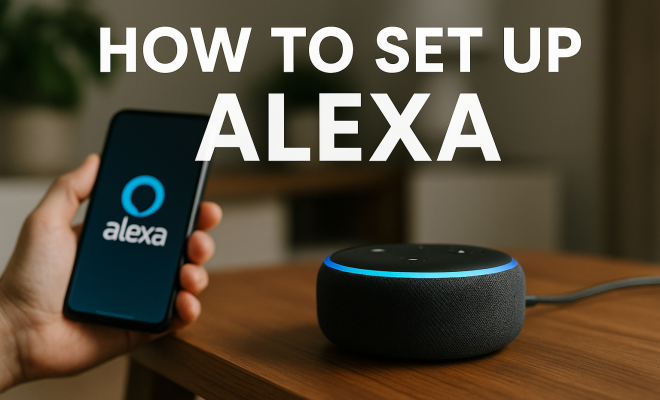
“`html
In today’s tech-savvy world, voice assistants have become an integral part of our daily lives. One of the most popular and versatile options is Amazon’s Alexa. Whether you’re looking to control smart devices, play music, or get instant information, setting up Alexa can transform your home into a smart hub. This guide will walk you through everything you need to know to effectively set up Alexa, optimize its features, and make the most out of this powerful assistant.
1. Understanding Alexa
Alexa is Amazon’s cloud-based voice service, available on a wide range of devices, including the Echo line of smart speakers, smart displays, and third-party products. Launched in 2014, Alexa was initially designed to control basic tasks but has since evolved to manage complex smart home systems, perform voice commands, and even learn your preferences over time.
Its extensive capabilities include playing music, providing weather updates, setting reminders, and even ordering products from Amazon. Alexa works through a series of voice commands, making it an intuitive tool for users of all ages. The integration of Alexa into various products has made it a household name, making the task of setting up Alexa an essential skill for anyone looking to enhance their living space.
2. Gathering Your Equipment
Before diving into the setup process, it’s crucial to gather all the necessary equipment. You’ll need an Alexa-enabled device, such as an Amazon Echo, Echo Dot, or Echo Show, along with a stable Wi-Fi connection.
- Alexa Device: Choose the appropriate Alexa device based on your needs. For example, the Echo Show offers a screen for video calls and recipes, while the Echo Dot is a compact speaker for audio tasks.
- Smartphone or Tablet: You’ll use the Amazon Alexa app, available on iOS and Android, to set up and manage your device.
- Wi-Fi Connection: Ensure you have a reliable Wi-Fi network as Alexa requires internet access to function.
Once you have everything ready, you can start the process of setting up Alexa.
3. Downloading the Alexa App
The first step to set up Alexa is to download the Amazon Alexa app on your smartphone or tablet. The app is essential for managing settings, controlling devices, and customizing your Alexa experience. Simply head to the Apple App Store or Google Play Store, search for “Amazon Alexa,” and install the app.
Once downloaded, open the app and log in with your Amazon account. If you don’t have an account, you’ll need to create one. This account will be tied to your Alexa device, enabling you to access your preferences and settings from anywhere.
4. Setting Up Your Device
With the app ready, it’s time to set up your Alexa device. Plug in your device and wait for the light ring to turn orange, indicating that it’s in setup mode. If it doesn’t, you can manually put it into setup mode by pressing and holding the action button until the light changes.
Once your device is in setup mode, return to the Alexa app. Select “Devices” from the bottom menu, tap the plus sign (+), and choose “Add Device.” Follow the on-screen instructions to select your device type and connect it to your Wi-Fi network. Enter your Wi-Fi password to complete the connection.
5. Configuring Your Preferences
After successfully connecting your device to Wi-Fi, you can customize your preferences in the Alexa app. This includes setting the default music service, managing calendar integration, and adjusting language preferences. To set a default music service, go to “Settings” > “Music & Podcasts” and choose your preferred provider, such as Spotify or Amazon Music.
Additionally, you can link your calendar accounts, such as Google or Apple, so Alexa can manage your appointments and reminders. Just go to “Settings” > “Calendar” and follow the prompts to link your account. Customizing these settings will help Alexa serve you better and make your experience more enjoyable.
6. Exploring Alexa Skills
One of the most exciting aspects of setting up Alexa is the ability to enable various skills, which are akin to apps for your voice assistant. Amazon has a vast library of skills that can help you do everything from ordering food to controlling your smart home devices. To explore skills, go to the Alexa app and select “Skills & Games” from the menu. (See: Amazon Alexa on Wikipedia.)
You can browse categories, read reviews, and enable skills that pique your interest. For instance, if you’re into fitness, you might want to enable a workout skill. Enabling skills is as simple as selecting one and tapping “Enable.” After that, you’ll be able to use voice commands related to that skill, broadening the functionality of your Alexa device significantly.
7. Integrating Smart Home Devices
If you have other smart home devices, integrating them with Alexa can transform your living space into a cohesive smart ecosystem. Popular devices include smart lights, thermostats, and security cameras, which can all be controlled via Alexa. To set up smart home integration, ensure your smart devices are compatible with Alexa.
In the Alexa app, go to “Devices” and select “Add Device.” Choose the type of smart device you want to add and follow the instructions to connect it. For instance, connecting Philips Hue lights requires you to enable the Philips Hue skill and link your account. After setup, you can control your devices using voice commands like “Alexa, turn on the living room lights” or “Alexa, set the thermostat to 72 degrees.”
8. Using Routines to Simplify Tasks
Routines are a powerful feature within Alexa that allows you to automate a series of actions with a single command. For example, you can create a “Good Night” routine that turns off your lights, sets the thermostat, and plays soothing music—all with one command. To set up a routine, go to the Alexa app, select “More,” then “Routines.”
You can define the trigger (like a specific voice command or a time of day) and the actions you’d like Alexa to perform. This feature not only simplifies daily tasks but also enhances your overall smart home experience by integrating multiple devices into seamless operations.
9. Managing Privacy Settings
While Alexa is designed to make your life easier, it’s essential to manage your privacy settings effectively. Alexa devices are always listening for commands, which may raise privacy concerns for some users. In the Alexa app, you can review, delete, or manage voice recordings. To access this, go to “Settings” > “Alexa Privacy.”
Here, you can listen to your recordings, delete specific ones, or clear all voice history. Additionally, you can adjust settings related to voice purchasing and notifications to enhance your privacy further. Being proactive about these settings ensures that you enjoy the benefits of Alexa without compromising your personal information.
10. Keeping Alexa Updated
Amazon regularly updates Alexa’s software to introduce new features, enhance performance, and improve security. Keeping your Alexa device updated is crucial to ensure you’re getting the best experience possible. Fortunately, Alexa updates automatically, but you can check for updates manually if needed.
To check for updates, make sure your device is connected to Wi-Fi and simply ask, “Alexa, check for software updates.” If an update is available, Alexa will inform you and proceed to install it. Regularly updating your device helps you take full advantage of new skills and features that can enrich your smart home experience.
11. Advanced Alexa Features
Once you’ve set up Alexa, you might want to explore some of the advanced features that can enhance your experience. For instance, Alexa can recognize different voices in your household, allowing for personalized responses. This voice recognition feature can be particularly useful if multiple family members have their own Amazon accounts linked to the device.
To enable this, go to the Alexa app, select “Settings,” then “Account Settings,” and finally “Recognized Voices.” Follow the prompts to teach Alexa your voice. Once set up, you can ask, “Alexa, what’s my flash briefing?” and receive personalized news updates tailored to your interests.
12. Creating Custom Skills
For those who want a truly personalized experience, creating a custom skill for Alexa is an exciting option. This requires some programming knowledge, but the Alexa Skills Kit (ASK) provides resources to help you get started. Custom skills allow you to tailor Alexa’s responses and actions to fit your specific needs.
For instance, if you’re a business owner, you can create skills that provide customers with information about your products or services. The Alexa Developer Console is where you can build and test your skills before publishing them, making it a great way to engage with your audience directly. (See: CDC tips on using voice assistants.)
13. Alexa and Music Streaming
While you can easily set up Alexa to play music, diving deeper into its music capabilities can elevate your listening experience. Alexa integrates with numerous music streaming services, including Amazon Music, Spotify, Apple Music, and more. To set a default music service, simply go to the Alexa app, select “Settings,” then “Music & Podcasts,” and choose your preferred service.
To get the most out of your music streaming experience, you can also create playlists using voice commands. Just say, “Alexa, create a new playlist,” and follow up with the name of the playlist and the songs you wish to include. This way, you can easily manage your music library without lifting a finger.
14. FAQs about Setting Up Alexa
What types of devices can I set up with Alexa?
You can set up a variety of Alexa-enabled devices, including Amazon Echo, Echo Dot, Echo Show, and Echo Studio. Additionally, many third-party smart home devices, like Philips Hue lights, smart thermostats, and security cameras, are compatible with Alexa.
Can Alexa work without Wi-Fi?
No, Alexa requires a Wi-Fi connection to function effectively. It needs access to the internet to process voice commands, stream music, and connect with other smart home devices.
How do I reset my Alexa device?
If you need to reset your Alexa device, press and hold the action button for about 20 seconds until the light ring turns off and then turns back on. After the reset, the light ring will turn orange, indicating it’s in setup mode.
Can I use Alexa in multiple rooms?
Absolutely! You can set up multiple Alexa devices in different rooms, allowing you to control them individually or as a group. With the Alexa app, you can create groups so that you can control all devices in a room with a single command.
What if Alexa doesn’t understand my commands?
If Alexa struggles to understand your commands, ensure you speak clearly and use specific keywords. You may also want to check your device’s microphone. Sometimes, simply moving closer to the device can help. If problems persist, consider updating your device or resetting it.
15. Tips for Enhancing Your Alexa Experience
To make the most out of your Alexa device, consider these tips:
- Use Voice Profiles: Create distinct voice profiles for different family members to personalize responses and experiences.
- Regularly Check for New Skills: The Alexa Skills Store frequently updates with new and exciting skills; make a habit of checking regularly.
- Explore Multi-Room Music: If you have multiple Echo devices, set up multi-room music for a synchronized listening experience throughout your home.
- Engage with Games and Quizzes: Alexa offers various games and quizzes that can be fun for family gatherings or parties.
- Stay Informed: Use Alexa to stay updated with news, traffic reports, and even local events by asking about daily briefings.
16. Common Issues and Troubleshooting Tips
While setting up Alexa is generally a straightforward process, you might run into some common issues. Here are some tips on how to troubleshoot:
Device Not Responding
If your Alexa device isn’t responding to commands, check the following:
- Ensure that the device is powered on and connected to Wi-Fi.
- Check if the microphone is muted. The light indicator will be red if the microphone is off.
- Try restarting the device by unplugging it and plugging it back in.
Wi-Fi Connectivity Issues
If your Alexa device has trouble connecting to Wi-Fi: (See: New York Times article on Alexa.)
- Make sure your router is functioning properly and that other devices can connect.
- Move your Alexa device closer to the router to rule out range issues.
- In the Alexa app, navigate to “Settings” and select your device to check if it is still connected to the correct Wi-Fi network.
Software Update Problems
If your Alexa device isn’t updating, try the following:
- Check your Wi-Fi connection; if it’s weak or unstable, the update may fail.
- Manually check for updates by saying, “Alexa, check for software updates.”
- If the update fails repeatedly, you may need to reset the device and set it up again.
17. Leveraging Alexa for Productivity
Besides entertainment and home automation, Alexa can significantly boost your productivity. Here are some features you can use to stay organized:
Creating To-Do Lists
Using Alexa to manage your tasks can keep you on top of your daily responsibilities. Simply say, “Alexa, add [task] to my to-do list.” You can also ask, “Alexa, what’s on my to-do list?” to review your tasks effortlessly.
Setting Reminders
Setting reminders is another powerful feature. You can say things like, “Alexa, remind me to call Mom at 5 PM.” Alexa will notify you at the specified time, ensuring you never miss an important task.
Calendar Management
By linking your calendar, you can ask Alexa for your schedule. Just say, “Alexa, what’s on my calendar today?” This feature can help you manage appointments and keep your day organized.
18. Future of Smart Assistants
The landscape of smart assistants, including Alexa, is continually evolving. With advancements in artificial intelligence and machine learning, we can expect even more personalized and intuitive interactions in the future. Features like emotion recognition, improved contextual understanding, and seamless integration with emerging smart home technologies are on the horizon.
As Alexa becomes smarter, its ability to assist you in daily tasks will only grow. From managing smart home devices to providing tailored recommendations based on your preferences, the future of voice assistants looks promising.
19. Conclusion
Setting up Alexa not only enhances your home with cutting-edge technology but also offers convenience that can simplify your daily life. By following these steps, you can seamlessly integrate Alexa into your routine, manage your smart home, and utilize its many features to their fullest. Whether you’re a tech novice or a seasoned enthusiast, Alexa is ready to assist you in making your home smarter.
“`
Trending Now
Frequently Asked Questions
How do I set up my Alexa device?
To set up your Alexa device, first download the Amazon Alexa app on your smartphone or tablet. Then, plug in your Alexa-enabled device and follow the app's instructions to connect it to your Wi-Fi network. Once connected, you can start using voice commands to interact with Alexa.
What equipment do I need to set up Alexa?
To set up Alexa, you'll need an Alexa-enabled device such as an Amazon Echo, Echo Dot, or Echo Show, a stable Wi-Fi connection, and a smartphone or tablet with the Amazon Alexa app installed. This equipment will allow you to manage and optimize your Alexa experience.
Can I use Alexa without Wi-Fi?
No, Alexa requires a stable Wi-Fi connection to function properly. It relies on internet access to process voice commands, control smart devices, and provide information. Without Wi-Fi, Alexa will not be able to perform any tasks.
What can I do with Alexa?
Alexa can perform a variety of tasks, including playing music, providing weather updates, setting reminders, controlling smart home devices, and even ordering products from Amazon. Its capabilities continue to expand as it learns your preferences over time.
Is Alexa easy to set up for beginners?
Yes, setting up Alexa is designed to be user-friendly, even for beginners. The Amazon Alexa app guides you through the setup process step-by-step, making it easy to connect your device and start using voice commands right away.
Have you experienced this yourself? We’d love to hear your story in the comments.