How to create fillable PDF forms
“`html
Creating fillable PDF forms has become an essential skill in both professional and personal settings. Whether you’re looking to streamline a business process, collect data, or simply make life a bit easier for yourself and others, understanding how to create these forms is invaluable. This guide will break down the intricacies of creating fillable PDF forms, covering everything from software options to design tips and best practices.
1. Understanding Fillable PDF Forms
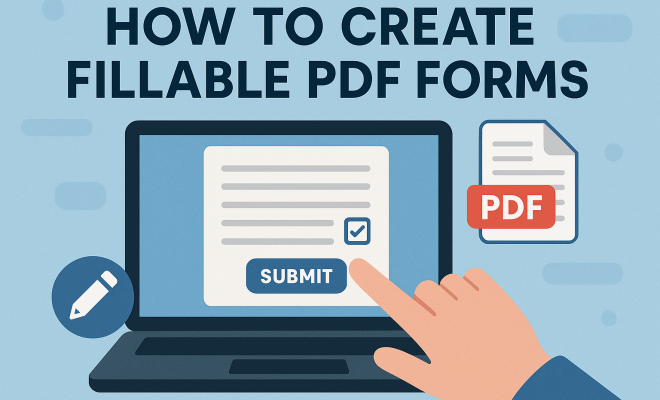
Before diving into the creation process, it’s crucial to understand what fillable PDF forms are. Essentially, these are documents formatted in Portable Document Format (PDF) that contain fields where users can input data. Unlike standard PDFs, which are static and unchangeable, fillable PDFs allow users to enter information directly into the document.
This functionality is particularly useful in scenarios where data collection is necessary—think job applications, surveys, or client information sheets. Users appreciate the ease of digital input, which reduces the risk of errors associated with handwritten documents and streamlines data processing.
2. Why Use Fillable PDF Forms?
There are numerous advantages to using fillable PDF forms. For starters, they enhance efficiency by allowing users to complete forms electronically, thereby eliminating the need for printing, scanning, and faxing back and forth. Businesses can save resources and time, leading to quicker turnaround on projects and client responses.
Furthermore, fillable PDF forms can be designed to automatically validate data inputs, ensuring that users provide the correct information in the right format. For instance, a form can be set to accept only numeric inputs in a phone number field, preventing errors that could delay processing. This feature adds a layer of reliability that is often absent in traditional forms.
3. Essential Tools for Creating Fillable PDF Forms
To create fillable PDF forms, you’ll need the right tools. Several software options exist, ranging from dedicated PDF editors to comprehensive document management systems. Here are some popular options:
- Adobe Acrobat: As one of the leading software solutions, Adobe Acrobat provides robust features for creating and editing fillable PDF forms. Its intuitive interface and extensive toolset make it a favorite among professionals.
- PDFescape: This free online tool allows users to create and edit fillable PDF forms easily. While it may lack some advanced features, it’s an excellent choice for those on a budget.
- JotForm: A versatile online form builder that can convert forms into fillable PDFs. JotForm is user-friendly and offers numerous templates to help get you started.
- Microsoft Word: Surprisingly, you can create a fillable PDF form using Microsoft Word by designing the form first and then saving it as a PDF. This method is accessible for users familiar with Word’s interface.
4. Step-by-Step Guide to Creating Fillable PDF Forms
Creating fillable PDF forms can seem daunting, but following these steps will simplify the process: (See: CDC Ergonomics Forms.)
- Choose Your Software: Select the tool that best fits your needs and comfort level.
- Design Your Form: Start with a clear layout. Include only necessary fields to avoid overwhelming users. Use headings and subheadings to organize sections logically.
- Add Form Fields: Insert fields for text input, checkboxes, radio buttons, and dropdown lists as needed. Ensure that each field is labeled clearly for user understanding.
- Set Field Properties: Customize each field’s properties, such as character limit, required fields, and validation rules. This step is crucial for ensuring data accuracy.
- Test Your Form: Before finalizing, test the form thoroughly to ensure all fields work correctly and that the document is user-friendly.
- Distribute the Form: Once completed, save your document as a PDF and distribute it via email or upload it to your website.
5. Design Tips for User-Friendly Fillable PDF Forms
Even the most functional fillable PDF form can fall flat if it’s not designed well. Here are some design tips to enhance usability:
- Keep It Simple: A clean, minimalist design reduces cognitive load. Use whitespace effectively to separate sections and guide users through the form.
- Use Logical Flow: Arrange the fields in the order that users would naturally complete them. Start with personal information, followed by specific details relevant to the form’s purpose.
- Provide Guidance: If certain fields require specific formats (like date formats), include placeholder text or tooltips to guide users.
6. Common Mistakes to Avoid
As with any project, there are pitfalls to watch out for when creating fillable PDF forms. Here are some common mistakes:
- Overloading with Information: Excessive fields or complex questions can deter users from completing the form. Stick to essential information.
- Poor Field Labeling: Ensure that all fields are clearly labeled. Ambiguous labels can lead to user confusion and errors.
- Neglecting Mobile Users: With a significant number of users accessing forms via mobile devices, ensure your PDF is optimized for mobile viewing.
7. Best Practices for Distributing Fillable PDF Forms
Once your form is ready, distributing it effectively is key to gathering the responses you need. Consider these best practices:
- Use Multiple Channels: Email is effective, but don’t limit yourself. Share the form on social media, your website, or through QR codes to maximize visibility.
- Follow Up: If you’re expecting responses, don’t hesitate to send a polite reminder after a week or so. Sometimes, a gentle nudge is all it takes to get the responses you need.
- Make It Accessible: Ensure your form is accessible to all users, including those with disabilities. Consider using accessible design features, such as properly labeled form fields and keyboard navigation options.
8. Integrating Fillable PDF Forms with Other Tools
In the digital age, integration is key. Consider linking your fillable PDF forms with other tools to streamline processes even further. For instance, you might integrate your forms with:
- Data Management Systems: Sync your forms with customer relationship management (CRM) systems to automatically populate data and keep track of responses.
- Email Marketing Tools: Use platforms like Mailchimp or Constant Contact to gather responses and follow up with respondents through automated emails.
- Cloud Storage: Save your forms to cloud services such as Google Drive or Dropbox for easy access and sharing.
9. The Future of Fillable PDF Forms
As technology continues to evolve, so too will the capabilities and applications of fillable PDF forms. With advancements in artificial intelligence and machine learning, we can expect forms to become even more intuitive, with predictive text features and automated data analysis becoming commonplace.
Moreover, integration with mobile apps and real-time data synchronization will likely enhance the user experience, making fillable PDF forms an even more valuable tool for businesses and individuals alike. Staying updated with trends in document management will ensure you’re using the best practices as they emerge.
10. Statistics on the Use of Fillable PDF Forms
The adoption of fillable PDF forms has seen a significant rise in various sectors. A recent survey found that over 70% of businesses utilize electronic forms to collect customer data. In industries like healthcare and finance, the figure is even higher, with 85% of organizations reporting that they rely on digital forms for data collection and processing.
Additionally, companies have noted a reduction in processing time by up to 50% when transitioning from paper forms to fillable PDFs. This efficiency not only improves productivity but also enhances customer satisfaction, as clients appreciate the speed and ease of electronic submissions. (See: NIST Guide to Fillable PDF Forms.)
11. Case Studies: Successful Implementation of Fillable PDF Forms
Several businesses have successfully integrated fillable PDF forms into their processes, leading to remarkable improvements. For instance, a local healthcare provider switched from paper-based patient intake forms to fillable PDFs. This change resulted in a 60% decrease in data entry errors and improved patient experience, as new patients could complete forms from the comfort of their homes before arrival.
Another example involves a nonprofit organization that used fillable PDF forms to streamline volunteer applications. By digitizing the application process, they increased volunteer engagement by 40% within six months, as potential volunteers found the online process convenient and straightforward.
12. Tips for Maintaining Security in Fillable PDF Forms
While fillable PDF forms offer convenience, security must also be a top priority, especially when dealing with sensitive information. Here are some tips to keep your forms secure:
- Use Encryption: Protect your PDF files with encryption to prevent unauthorized access. Most PDF creation tools offer options for adding passwords or encrypting files.
- Limit Data Collection: Only ask for essential information. This minimizes the risk of compromising sensitive data and simplifies the form for users.
- Regularly Update Software: Ensure that your PDF editing software is up to date to protect against security vulnerabilities that could be exploited by malicious actors.
13. Frequently Asked Questions (FAQ)
What software can I use to create fillable PDF forms?
There are several options including Adobe Acrobat, PDFescape, JotForm, and Microsoft Word. Each offers distinct features that cater to different needs and skill levels.
Are fillable PDF forms compatible with mobile devices?
Yes, many fillable PDF forms are designed to be compatible with mobile devices. However, ensure that your design considers mobile usability to enhance user experience on these platforms.
Can I track responses from fillable PDF forms?
While standard fillable PDFs do not typically offer built-in tracking features, integrating them with tools like Google Forms or CRM systems can help you track responses effectively.
How can I ensure my fillable PDF form is accessible?
To make your form accessible, use clear labels for all fields, provide alternate text for images, and ensure that it can be navigated using a keyboard. Testing with accessibility tools can also help identify areas needing improvement.
What are some best practices for testing my fillable PDF form?
Testing should include checking all interactive fields, ensuring validation works as intended, and gathering feedback from a small group of users to identify any usability issues. It’s wise to revise based on their input before a wider distribution.
14. Advanced Features of Fillable PDF Forms
In addition to basic fields and validation options, many software solutions offer advanced features that can significantly enhance the functionality of your fillable PDF forms. These include:
- Conditional Logic: This feature allows you to show or hide fields based on user input. For example, if a user selects “Yes” to a question, additional fields may appear for them to provide more details. This not only keeps the form clean but also ensures users provide relevant information.
- Digital Signatures: Incorporating digital signature fields can facilitate the signing process right within the PDF. This is especially useful for contracts or agreements where a signature is required.
- Calculated Fields: For forms that require calculations (like order forms), you can set up fields that automatically compute totals based on user inputs. This feature enhances accuracy and saves users from manual calculations.
- Submission Options: Many software options allow users to submit the completed forms via email or directly to a database. This feature simplifies data collection and ensures that responses are directed to the right place.
15. Examples of Fillable PDF Forms in Various Industries
Fillable PDF forms are widely used across numerous industries, each requiring specific features tailored to their needs. Here are some examples:
- Healthcare: Patient intake forms, insurance claim forms, and consent forms are commonly created as fillable PDFs, enabling patients to provide necessary information conveniently.
- Education: Schools and universities utilize fillable PDF forms for applications, enrollment, and event registrations, allowing prospective students and parents to easily complete and submit required documentation.
- Human Resources: HR departments use fillable PDFs for employee onboarding forms, performance reviews, and exit interviews, streamlining administrative processes and ensuring consistency in data collection.
- Finance: Financial institutions create loan applications, account opening forms, and transaction requests in fillable PDF format, making it easier for clients to provide detailed information efficiently.
16. Future Trends in Fillable PDF Forms
As the business landscape evolves, so do the tools and techniques for data collection. Future trends indicate a move towards more dynamic fillable PDF forms, enhanced by technology such as:
- Artificial Intelligence: AI could enable forms to adapt in real-time, suggesting fields or altering questions based on user responses, creating a personalized experience.
- Enhanced Mobile Compatibility: As smartphones and tablets become more prevalent, the demand for forms that work seamlessly on these devices will increase. Expect more sophisticated mobile-friendly designs and features.
- Integration with Other Software: The need for forms that connect with various applications will grow. This means forms that can directly integrate with accounting software, project management tools, or customer service platforms will become more common.
- Data Analytics: Organizations will likely start using advanced data analytics to interpret the information gathered from fillable PDF forms, allowing for strategic decision-making based on real user data.
Mastering how to create fillable PDF forms is not just a technical skill; it’s an investment in efficiency and professionalism. By understanding the tools available and adhering to best practices, you can create forms that enhance data collection and user experience significantly. So, whether you’re a small business owner or a freelancer, embracing fillable PDF forms will undoubtedly streamline your processes and improve the way you gather information.
“`
Trending Now
Frequently Asked Questions
What software do I need to create fillable PDF forms?
To create fillable PDF forms, popular software options include Adobe Acrobat, Nitro Pro, and online tools like JotForm and PDFescape. These tools provide user-friendly interfaces and various features to design and customize your forms effectively.
How do fillable PDF forms work?
Fillable PDF forms contain interactive fields where users can input data directly. These forms allow for easy data collection and validation, enhancing the user experience by reducing errors associated with handwritten documents.
What are the benefits of using fillable PDF forms?
Using fillable PDF forms enhances efficiency by allowing electronic completion, which eliminates printing and scanning. They also provide data validation features, ensuring users input the correct information, which streamlines processing and reduces errors.
Can I create fillable PDF forms for free?
Yes, there are free tools available for creating fillable PDF forms, such as PDFescape and JotForm. While they may have limitations compared to paid software, they can still effectively meet basic form creation needs.
What types of forms can I create as fillable PDFs?
You can create various types of forms as fillable PDFs, including job applications, surveys, registration forms, and client information sheets. These forms are versatile and can be tailored to fit numerous professional and personal needs.
Have you experienced this yourself? We’d love to hear your story in the comments.