How to backup iPhone to iCloud
“`html
In an age where our smartphones hold an immense amount of personal data, knowing how to backup iPhone to iCloud has never been more important. Whether it’s your cherished photos, crucial contacts, or important app data, an iCloud backup ensures you won’t lose anything if your device is lost, stolen, or damaged. This guide will walk you through the ins and outs of iCloud backups, their relevance, and practical steps to ensure your data remains safe.
1. Understanding iCloud and Its Importance
iCloud is Apple’s cloud storage service that offers users a seamless way to store and sync data across all their devices. Launched in 2011, it was designed to provide a secure and efficient solution for backing up data and keeping it accessible from anywhere. The significance of regular backups cannot be overstated, particularly as smartphones have evolved from simple communication devices to essential tools for managing our lives.
One of the primary advantages of using iCloud to backup your iPhone is the peace of mind it offers. If your iPhone is ever lost or damaged, restoring your data from iCloud is often quicker and easier than attempting to recover it from a physical device or local computer. Additionally, iCloud allows you to have an automatic backup option, meaning that you can set it up once and forget about it, knowing that your data is being securely backed up regularly.
2. How iCloud Backups Work
When you backup iPhone to iCloud, the data is encrypted and stored on Apple’s secure servers. This includes data such as your photos, app data, device settings, home screen, and more. iCloud backups are different from syncing — backing up means saving a copy of your data, while syncing involves keeping your data up-to-date across different devices.
Apple offers 5GB of free iCloud storage, which is often insufficient for most users, especially those with large photo libraries or extensive app data. Users can purchase additional storage plans, which range from 50GB to 2TB, making it easier to store all the necessary data without hitting a storage ceiling.
3. Preparing Your iPhone for iCloud Backup
Before you begin the backup process, ensure that your iPhone is ready. First, check your iCloud storage to see if you have enough space for the backup. To do this, navigate to Settings > [your name] > iCloud > Manage Storage. Here, you’ll find a breakdown of your storage usage and can determine if you need to upgrade your plan.
Additionally, make sure your device is connected to Wi-Fi and plugged into a power source. Backing up via cellular data can be slow and may incur charges, so Wi-Fi is preferred. It’s also wise to check if your iPhone is running the latest version of iOS, as updates often include improvements related to backup functions.
4. Steps to Backup iPhone to iCloud
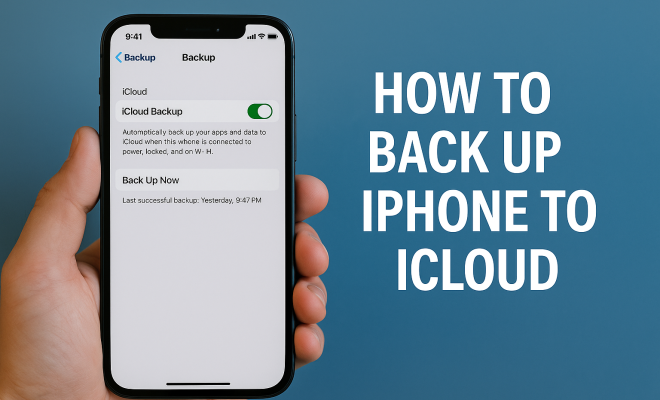
Backing up your iPhone to iCloud is a straightforward process. Here’s a step-by-step guide:
- Open the Settings app on your iPhone.
- Tap on your name at the top of the screen to access your Apple ID settings.
- Select iCloud.
- Tap on iCloud Backup.
- Toggle on iCloud Backup if it’s not already enabled.
- Tap Back Up Now to start the backup process immediately.
- Wait for the backup to finish. You can check the progress and confirm that the backup was successful by returning to the iCloud Backup menu.
Once you’ve completed these steps, your iPhone will be backed up to iCloud. If you have enabled automatic backups, your device will automatically back up daily when it is connected to Wi-Fi, plugged in, and locked.
5. What Data is Included in an iCloud Backup
Understanding what data gets included in your iCloud backup is crucial. By default, iCloud backups typically include:
- App data (including data from purchased apps)
- Device settings (such as Wi-Fi passwords and wallpapers)
- HomeKit configurations
- Messages (iMessage, SMS, and MMS)
- Photos and videos (if not using iCloud Photos)
- Ringtones
- Call history
- Visual Voicemail
However, some data is not included in iCloud backups, such as Apple Music songs, movies, or TV shows that you’ve purchased or downloaded. It’s also worth noting that if you use iCloud Photos, your photos and videos are stored in iCloud rather than being included in your backup. This can save a significant amount of space on your backup. (See: New York Times on iCloud backup.)
6. Managing Your iCloud Backup Storage
After setting up your iCloud backups, you might find yourself running into storage issues. If you notice your iCloud storage is nearly full, you can manage it effectively. Start by reviewing what’s backed up by going to Settings > [your name] > iCloud > Manage Storage.
From there, you can select specific apps to exclude from future backups. This can significantly reduce the size of your backups. For instance, you might decide to disable backups for apps that you can easily reinstall, such as social media apps. You can also delete old backups of previous devices that you no longer use.
If you find yourself consistently running out of storage, consider upgrading your storage plan. Apple offers several tiers, and honestly, data security is worth the investment.
7. Troubleshooting iCloud Backup Issues
Sometimes, things don’t go as planned. If your iPhone won’t back up to iCloud, it can be frustrating. The first step is to ensure you have a stable internet connection. Check your Wi-Fi settings and confirm that you can access the internet. If you are connected but still having issues, you might need to restart your device.
If the problem persists, check your iCloud storage. If it’s full, the backup won’t complete. You’ll need to free up space as discussed in the previous section. Another common issue is related to your Apple ID; ensure you’re signed in correctly and that your account is active.
For those who encounter persistent problems, signing out of iCloud and then signing back in can resolve numerous issues. Just remember to back up your data in another way before you do this, just to be safe.
8. Restoring from iCloud Backup
Knowing how to backup iPhone to iCloud is essential, but equally important is understanding how to restore your iPhone from an iCloud backup. This process is particularly useful when you set up a new device or want to reset your current one. To restore from iCloud, follow these steps:
- Turn on your new or reset iPhone.
- Follow the setup instructions until you reach the Apps & Data screen.
- Select Restore from iCloud Backup.
- Sign in to your iCloud account.
- Select the backup you want to restore from the list.
- Wait for the restore process to finish, then complete the setup steps.
Keep in mind that restoring from a backup can take some time, depending on the size of the backup and the speed of your internet connection. It’s always wise to have your device plugged in during this process to avoid any interruptions.
9. Future of iCloud Backups and Emerging Trends
As technology continues to evolve, so do the methods and importance of data backup. With the rise of cloud computing and the increasing digitization of personal information, Apple is likely to enhance iCloud services further. Features such as advanced security measures, integration with other services, and improved user interfaces are anticipated as companies compete in the cloud storage market.
Moreover, the potential for artificial intelligence to optimize backup processes is on the horizon. Imagine an iCloud backup system that anticipates what files you’ll need based on your usage patterns or a system that can automatically delete old backups after a certain period. These innovations could streamline the backup process, making it even more user-friendly.
Ultimately, learning how to backup iPhone to iCloud is just the beginning. Staying informed about new features and best practices will ensure that your data remains secure and accessible, no matter what happens to your device.
10. Comparing iCloud with Other Backup Solutions
When considering how to backup iPhone to iCloud, it’s useful to compare this service with other backup options available. While iCloud is tailored for Apple users and seamlessly integrates with iOS devices, several alternative cloud storage services have their own unique features.
For instance, Google Drive offers 15GB of free storage and is accessible on various platforms, including Android and Windows. This broader compatibility makes it a versatile option for users who own multiple devices across different operating systems. On the other hand, Dropbox provides robust file-sharing capabilities and strong collaboration tools, making it a preferred choice for business users.
When choosing a backup solution, consider the following factors:
- Storage Capacity: How much storage do you need? iCloud starts with 5GB free but can be expanded for a fee, while Google Drive provides more free space initially.
- Accessibility: Will you be accessing your files from multiple devices outside of the Apple ecosystem? In that case, services like Google Drive or Dropbox may be more suitable.
- Ease of Use: iCloud is incredibly user-friendly for Apple devices, but if you use a mix of devices, you might find other services easier to navigate.
- Collaboration Features: If you plan to share files and collaborate with others, Dropbox or Google Drive might offer more advanced functionalities.
11. Statistics and Key Facts about iCloud Usage
Understanding how iCloud is received among users can provide insight into its effectiveness. According to a recent survey, approximately 50% of iPhone users actively use iCloud for backups. This figure highlights the importance that many users place on ensuring their data is backed up securely. Additionally, Apple reported that in 2022, it had over 850 million iCloud subscribers worldwide. This significant growth shows that users are increasingly recognizing the value of cloud-based storage solutions.
Interestingly, security is a major concern for users regarding cloud storage. Surveys indicate that 76% of participants express concern over the safety of their data in the cloud. Apple has responded to this by implementing advanced encryption and two-factor authentication for iCloud accounts, significantly enhancing security and user trust.
12. Expert Perspectives on Data Backup
Experts in data management often emphasize the importance of redundancy in backup strategies. “Having multiple backup solutions ensures that you won’t lose data due to service outages or technical failures,” says tech analyst Sarah Thompson. “Relying solely on one service, like iCloud, may not be sufficient if something goes wrong.” This perspective encourages users to consider combining iCloud with external hard drives or alternative cloud services for additional security.
Another expert, David Romero, a cybersecurity consultant, points out that understanding what data is essential for backup is critical. “Many users back up everything, but it’s more efficient to prioritize what truly matters,” he notes. “This way, you can optimize your storage and ensure that your most important files are protected.”
13. Frequently Asked Questions about iCloud Backup
What happens if I exceed my iCloud storage limit?
If you exceed your iCloud storage limit, your backups will not complete. You will need to either purchase additional storage or delete some data to free up space.
Can I backup my iPhone to iCloud without Wi-Fi?
While it is technically possible to backup your iPhone using cellular data, it is not recommended due to potential data charges and slower speeds. Always use Wi-Fi for backups when possible.
How often does iCloud backup my iPhone?
If you have automatic backups enabled, iCloud will back up your iPhone daily, provided your device is connected to Wi-Fi, plugged in, and locked.
Can I access my iCloud backup from a different device?
You can access your iCloud account from any device by logging in with your Apple ID. However, to restore a backup, you must do so on an iOS device.
Is iCloud backup secure?
Yes, iCloud backups are encrypted both in transit and on the server. Apple employs robust security measures, including two-factor authentication, to protect user data.
What should I do if my iCloud backup fails?
If your backup fails, check your internet connection, ensure you have enough storage, and verify that you’re signed in with the correct Apple ID. Restarting your device may also help resolve the issue.
14. Common Mistakes to Avoid When Using iCloud Backup
Even with a straightforward process, users can sometimes make mistakes that could jeopardize their data. Here are some common pitfalls to watch out for:
- Ignoring App Data Backup: Some users neglect to check if all critical applications are included in their backup settings. Always review your app backups to ensure all the necessary data is saved.
- Forgetting to Update iOS: Running an outdated version of iOS can lead to compatibility issues that affect backup. Regularly update your device to avoid any interruptions in the backup process.
- Not Monitoring Storage Usage: Regularly check your iCloud storage space. If your storage is nearly full, it can prevent new backups from completing. Set reminders to manage your storage effectively.
- Neglecting Password Management: Ensure that your Apple ID password is secure and updated. If your account is compromised, your data becomes vulnerable.
15. How to Ensure Your Backup is Successful
To guarantee that your iPhone backup to iCloud goes smoothly, consider these steps:
- Regular Check-ins: Schedule routine check-ups to confirm that your backups are completing successfully. This can help you catch any issues before they become bigger problems.
- Use Multiple Backup Methods: While iCloud is reliable, consider complementing it with a local backup to a computer using iTunes or Finder. This redundancy minimizes the risk of data loss.
- Stay Informed: Follow Apple’s updates regarding iCloud and data management practices. Changes in policies or features can affect how you back up your data.
16. Alternatives to iCloud for iPhone Backup
If you find that iCloud doesn’t meet your needs, there are several alternative backup solutions worth considering:
- Google Drive: Offers cross-platform access and integrates well with Google services. It’s a great option if you use Google apps frequently.
- Dropbox: Well known for its collaboration features, making it ideal for teamwork and sharing large files.
- Microsoft OneDrive: If you’re an Office 365 user, OneDrive provides an excellent option for backing up documents and files.
- External Hard Drives: For those who prefer tangible storage, local backups on external hard drives provide a physical alternative to cloud solutions.
Regardless of the method you choose, regularly backing up your data is crucial to safeguarding your information.
All in all, knowing how to backup iPhone to iCloud is a crucial skill in today’s digital world. By understanding the features, limitations, and best practices for iCloud backups, you can ensure that your important data remains safe and accessible when you need it most.
“`
Trending Now
Frequently Asked Questions
How do I backup my iPhone to iCloud?
To backup your iPhone to iCloud, go to Settings, tap on your name, select iCloud, then choose iCloud Backup. Make sure it's turned on and tap 'Back Up Now' to initiate the backup process. Ensure your device is connected to Wi-Fi during the backup.
What does iCloud backup include?
iCloud backup includes your photos, app data, device settings, home screen layout, and more. It securely stores a copy of your data on Apple’s servers, allowing you to restore it easily if your device is lost or damaged.
How much iCloud storage do I get for free?
Apple offers 5GB of free iCloud storage. However, this may not be sufficient for users with extensive photo libraries or app data. You can purchase additional storage plans if needed.
Is iCloud backup automatic?
Yes, iCloud backup can be set to automatic. Once enabled, your iPhone will back up your data regularly without requiring manual intervention, ensuring your information is consistently protected.
Can I restore my iPhone from iCloud backup?
Yes, you can restore your iPhone from an iCloud backup. During the setup process of a new or reset device, select 'Restore from iCloud Backup' and sign in with your Apple ID to retrieve your data.
What’s your take on this? Share your thoughts in the comments below — we read every one.