How to create Trello board
“`html
Trello is a powerful tool that has transformed the way teams and individuals manage tasks and projects. If you’re looking to boost your productivity and keep your projects organized, understanding how to create a Trello board is essential. In this guide, we’ll walk you through the steps to set up your very own Trello board, explore its features, and provide tips on how to make the most out of this versatile platform.
1. Understanding Trello: The Basics
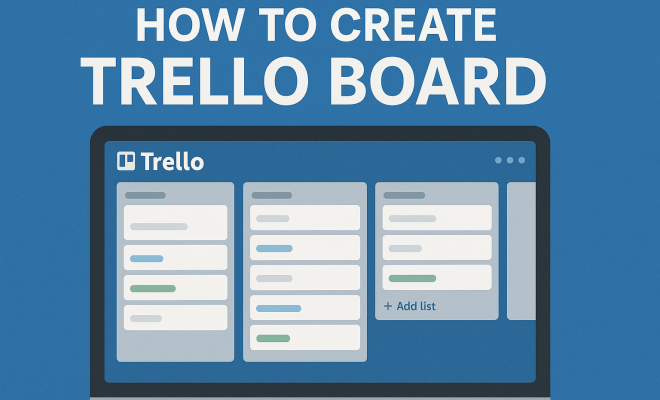
Before diving into the specifics of how to create a Trello board, it’s crucial to grasp what Trello is and how it operates. Trello is a visual collaboration platform that uses boards, lists, and cards to help you organize tasks and projects. Each board can represent a project, and the lists can be used for different stages of that project, while cards within those lists represent tasks.
This structure mimics a Kanban system, which is popular in project management because it allows for clear visualization of progress and workflows. With millions of users across various industries, Trello has proven itself to be adaptable and user-friendly, making it a top choice for both personal and professional task management.
2. Creating Your First Trello Board
Now that you understand the foundational concepts, let’s get into the nitty-gritty of how to create a Trello board. The process is straightforward and can be broken down into a few simple steps:
- Sign Up or Log In: If you don’t already have a Trello account, visit trello.com and sign up for free. If you’re already a user, simply log in.
- Create a New Board: Once you’re logged in, look for the “Create new board” button on your Trello homepage or dashboard.
- Name Your Board: Choose a descriptive name that reflects the project or purpose of the board. You can also select a background color or image to personalize it.
- Set Privacy Settings: Decide whether your board will be private, workspace-visible, or public. This is important for team collaboration.
- Click “Create Board”: After adjusting your settings, click the button to create your board. Congratulations, you now have your first Trello board!
This straightforward process is just the beginning. Trello offers vast customization options that you can explore as you get comfortable with the platform.
3. Adding Lists to Your Board
With your board created, the next step is to add lists. Lists are essential for organizing your workflow and should align with the stages of your project. For example, you might have lists titled “To Do,” “In Progress,” and “Completed.”
To add a list, simply click on the “Add a list” option on your board. Type in the name of your list and hit enter. You can create as many lists as you need. The flexibility of Trello allows users to adapt their boards to their specific project needs, whether that means having a simple three-list setup or a more complex arrangement with multiple lists for different phases or categories of tasks.
4. Creating Cards: The Heart of Your Board
Cards are where the magic happens—the core of your Trello board. They represent individual tasks or items that need attention. To create a card, navigate to the list where you want to add it, click on “Add a card,” and enter the task name.
Once you create a card, you can click on it to open a detailed view. Here, you can include descriptions, checklists, due dates, labels, attachments, and comments. This level of detail makes it easy to track the progress of each task. Additionally, you can assign members to cards, making collaboration simple and straightforward. You can even integrate Trello with other tools like Google Drive and Slack for enhanced functionality.
5. Utilizing Labels and Filters
As your board grows, keeping it organized becomes increasingly critical. This is where labels come in handy. You can assign different colors to labels based on categories, priorities, or phases of tasks. For instance, you might use red for high-priority items and green for completed tasks.
To create a label, click on a card, find the “Labels” option, and choose from pre-existing labels or create new ones. Once you have labels set up, you can use Trello’s filtering options to view cards based on specific labels, making it easy to focus on what matters most at any given time.
6. Integrating Power-Ups for Enhanced Functionality
Trello offers a variety of Power-Ups—add-ons that enhance your board’s functionality. Depending on your needs, you can add features such as calendar views, voting systems, or time tracking. Some popular Power-Ups include Google Drive for file sharing, Slack for communication, and Butler for automating repetitive tasks. (See: Trello Overview on Wikipedia.)
To access Power-Ups, click on the “Show Menu” button on the right side of your board, then select “Power-Ups.” Explore the available options and activate the ones that will make your workflow more efficient. Keep in mind that while some Power-Ups are free, others might require a subscription based on your usage.
7. Collaboration and Sharing Your Board
One of Trello’s biggest advantages is its collaborative capabilities. Sharing your board with team members is simple. You can invite others by clicking on “Invite” from the board menu and entering their email addresses. Once they accept the invitation, they can access the board, add their input, and help move tasks along.
Collaboration features also include commenting on cards, which allows team members to provide updates, ask questions, or give feedback. This creates a central hub for project communication, reducing the need for endless email threads and meetings. Utilizing Trello for teamwork enhances accountability, as everyone can see who is responsible for which tasks and their progress.
8. Best Practices for Trello Board Management
Creating a Trello board is just the beginning; effectively managing it is key to achieving your goals. Here are some best practices to keep your board organized and productive:
- Regularly Review and Update: Set aside time weekly or bi-weekly to review your board. Archive completed cards to reduce clutter and ensure that only the most relevant tasks are visible.
- Use Due Dates: Assign due dates to cards to keep track of deadlines. Trello can send notifications to remind you and your team about upcoming due dates.
- Limit Work in Progress: To maintain focus, limit the number of tasks in the “In Progress” list. This helps prevent burnout and ensures that tasks are completed efficiently.
- Utilize Checklists: For more complex tasks, create checklists within cards to break down the work into manageable steps.
By following these practices, you can ensure that your Trello board remains a dynamic and effective tool for managing your projects.
9. Exploring Advanced Trello Features
As you become more comfortable with Trello and want to take your project management skills to the next level, consider exploring advanced features. This includes using automation tools like Butler to automate repetitive actions on your board. For instance, you could set up rules that automatically move cards between lists based on due dates or completed checklists.
Additionally, familiarize yourself with Trello’s mobile app, which allows you to manage your boards on the go. The app maintains all the functionality of the desktop version, meaning you can add cards, collaborate, and stay updated wherever you are. This flexibility is crucial in today’s fast-paced environment, where the ability to adapt quickly can significantly impact productivity.
Finally, consider exploring Trello’s templates for different types of projects. Whether it’s a marketing campaign, an event planning board, or a content calendar, Trello offers a variety of templates that can save you time setting up your boards. These templates provide a head start, with pre-defined lists and cards tailored to specific workflows.
10. Real-World Use Cases of Trello
Trello’s versatility makes it suitable for a wide range of projects across various industries. Let’s look at some real-world use cases that demonstrate how different teams leverage Trello boards for maximum efficiency.
Project Management
Many project managers utilize Trello to break down complex projects into manageable components. For instance, a software development team may create a board to track features, bugs, and testing phases. Lists could include “Backlog,” “In Development,” “Testing,” and “Released.” Cards can include detailed descriptions of each feature or bug, along with assigned developers, due dates, and checklists for quality assurance tests.
Event Planning
Event planners can also benefit significantly from Trello. A wedding planner, for example, can create a board that includes lists for “Venue,” “Catering,” “Guest List,” “Decor,” and “Day-of Coordination.” Each list would contain cards detailing specific tasks, vendor information, budgets, and timelines. This visual approach helps planners ensure that no detail is overlooked and that all tasks are completed on time.
Content Creation and Editorial Calendar
Writers and marketing teams often use Trello as an editorial calendar. A content team might create a board that includes lists such as “Ideas,” “In Progress,” “Editing,” and “Published.” Each card can represent a blog post, video, or social media update, with comments for feedback, due dates for publishing, and labels to indicate priority. This structure keeps the entire team aware of what’s being created and what’s ready for publication.
Personal Productivity
Individuals can also leverage Trello for personal task management. You might create a board titled “Daily Tasks” with lists for “Today,” “This Week,” and “Completed.” Cards can represent everyday tasks, from grocery shopping to completing work assignments. This visual organization can help you stay focused and motivated as you move tasks from “Today” to “Completed.” (See: Trello and Task Management Research.)
11. Statistics and Benefits of Using Trello
Understanding the impact of using Trello can reinforce its value as a project management tool. Here are a few statistics:
- According to a survey from Trello, teams using the platform report a 42% improvement in productivity.
- The same survey indicated that 83% of users find Trello easy to use, which enhances team collaboration.
- Businesses that adopt visual project management tools like Trello often see a 25% reduction in project delivery times.
These statistics highlight the benefits of using Trello, not only for managing tasks but also for fostering collaboration among teams. The visual nature of the platform makes it easier for team members to stay aligned with project goals and deadlines.
12. Common Challenges and Solutions in Trello
While Trello is a powerful tool, users sometimes encounter challenges. Here are some common issues and how to solve them:
Lack of Structure
Some users might feel overwhelmed by the flexibility of Trello, leading to boards that lack structure. To address this, consider creating a clear framework for your board. Establish guidelines for naming lists and cards, and encourage team members to follow these conventions to maintain consistency.
Overwhelming Information
As boards grow, they can become cluttered, making it hard to focus. Regularly review and archive completed or irrelevant cards. Using labels and filters can also help keep your board organized and make it easier to find what you need quickly.
Engagement Issues
If team members aren’t engaging with the board, it can lead to productivity drop-offs. To combat this, encourage regular updates and discussions around tasks. You can even schedule periodic meetings to review the board together and ensure everyone is on the same page.
13. Frequently Asked Questions (FAQ)
How much does Trello cost?
Trello offers a free tier with basic features. However, for advanced features, such as unlimited Power-Ups and higher automation limits, users can opt for Business Class or Enterprise plans, which come with a subscription fee.
Can I use Trello offline?
Yes! Trello’s mobile app allows you to access your boards offline. Any changes made will sync once you’re back online.
Is Trello suitable for large teams?
Absolutely! Trello scales well for larger teams. Using additional features like advanced checklists, Power-Ups, and team boards can enhance collaboration and project tracking.
What types of projects are best suited for Trello?
Trello is adaptable for various project types, including marketing campaigns, product development, event planning, and personal task management. Its flexibility allows teams to customize their boards to fit their specific needs.
Can Trello integrate with other tools?
Yes! Trello integrates with numerous tools such as Google Drive, Slack, and Dropbox, among others, to enhance functionality and streamline workflows. This makes it easy to share files, communicate, and keep everything organized in one place. (See: New York Times on Trello's Impact.)
How can I make my Trello board more visually appealing?
Using custom backgrounds, adding images to cards, and utilizing stickers can make your board visually appealing. Colors and labels can also help differentiate tasks and make the board easier to navigate.
14. Tips for Optimizing Your Trello Experience
To ensure you’re getting the most out of Trello, consider these additional tips:
- Use Keyboard Shortcuts: Trello offers various keyboard shortcuts to speed up your workflow. Familiarize yourself with these shortcuts to create cards and navigate your boards more efficiently.
- Set Up Notifications: Customize your notification settings to stay updated on card activity and due dates. This way, you won’t miss important updates or deadlines.
- Regular Team Check-Ins: Schedule regular meetings to discuss board progress. These meetings can help to address any issues and keep everyone aligned on project goals.
- Explore Third-Party Apps: In addition to Power-Ups, look into third-party applications that can enhance Trello’s functionality, such as time tracking or reporting tools.
15. How Trello Compares to Other Project Management Tools
While Trello is a favorite for many, it’s essential to understand how it stacks up against other project management tools:
Asana vs. Trello
Asana offers a more structured approach with projects and tasks, which might be better suited for teams that require more detailed planning. On the other hand, Trello’s visual layout is more flexible and can be more intuitive for users who prefer a less rigid structure.
Monday.com vs. Trello
Monday.com provides extensive customization and is great for larger teams needing advanced features. However, Trello is much simpler and can be more accessible for smaller teams or individual users looking for basic project management.
ClickUp vs. Trello
ClickUp combines tasks, docs, goals, and chat in one platform, making it powerful for comprehensive project handling. Trello, however, excels with its visual approach and simplicity, making it easier for casual users or smaller teams to adopt.
16. Getting Started with Trello: A Beginner’s Checklist
If you’re new to Trello, using a checklist can help you get started effectively:
- Create an account and log in.
- Set up your first board with a clear project title.
- Add at least three lists to represent your workflow stages.
- Create your first few cards with tasks, including due dates and assigned members.
- Explore Power-Ups that align with your project needs.
- Invite team members and discuss your board setup together.
- Review and adjust your board regularly to keep it organized.
By understanding how to create a Trello board and utilizing its features effectively, you can improve your productivity and project management skills. With its user-friendly interface and flexible structure, Trello is an ideal solution for individuals and teams looking to stay organized and collaborate efficiently.
“`
Trending Now
Frequently Asked Questions
How do I create a Trello board?
To create a Trello board, sign up or log in to your Trello account. Click on the 'Create new board' button, name your board, choose a background, and set privacy settings. This simple process will help you get started with organizing your tasks and projects effectively.
What is a Trello board used for?
A Trello board is used for organizing tasks and projects visually. It employs lists and cards to represent different stages and tasks, making it ideal for project management, team collaboration, and personal productivity across various industries.
Can you have multiple boards in Trello?
Yes, you can create multiple boards in Trello to manage different projects or tasks. Each board can be customized with its own lists and cards, allowing you to organize and track various workflows simultaneously.
What are the privacy settings for a Trello board?
When creating a Trello board, you can set privacy settings to private, workspace-visible, or public. This controls who can view and interact with your board, ensuring that sensitive information remains secure while collaborating with your team.
Is Trello free to use?
Trello offers a free version that provides essential features for task and project management. While there are paid plans with additional features, the free version is sufficient for many users looking to boost productivity and organization.
What did we miss? Let us know in the comments and join the conversation.