Master Trello: Your Guide to Boards, Lists & Cards
“`html
1. Understanding Trello: The Basics
Trello is a web-based project management tool that employs a card-based system to help users organize tasks and collaborate efficiently. Launched in 2011 by Fog Creek Software, it quickly gained traction due to its user-friendly interface and flexibility. At its core, Trello uses boards, lists, and cards to facilitate project management, making it suitable for individuals and teams alike.
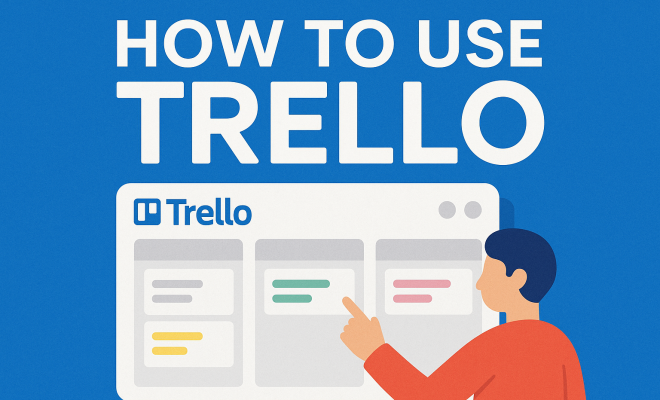
The basic structure of Trello is intuitive: each project is represented by a board, which can contain multiple lists that track various stages of a project. Within these lists, users create cards that represent tasks, notes, or ideas. This visual approach is what sets Trello apart, enabling users to see the status of their projects at a glance.
2. Setting Up Your Trello Account
Creating a Trello account is a straightforward process. You can sign up using your email, a Google account, or even an Apple ID. Once you’re in, the first step is to create your first board. This is where you’ll start organizing your projects.
To set up your board, you’ll need to choose a name and a background. Trello allows for customization, from different color themes to background images, giving your board a personal touch. This visual customization can help you differentiate between various projects or simply make the interface more enjoyable to use.
3. Creating Boards, Lists, and Cards
Now that you’ve set up your account, it’s time to dive into the structure of Trello. Boards represent projects, while lists within these boards signify stages or categories of tasks. For example, you might have lists labeled ‘To Do,’ ‘In Progress,’ and ‘Completed.’ This allows for a clear workflow visualization.
Creating cards is where the magic happens. Each card can contain checklists, due dates, attachments, and comments, making it a robust tool for tracking task details. To create a card, simply click on the desired list and select ‘Add a card.’ You can also drag cards between lists as their status changes, embodying the essence of Trello’s flexibility.
4. Utilizing Labels and Filters for Organization
As projects grow in complexity, organization becomes key. Trello offers labeling options that allow you to categorize cards based on priority, type, or team member. You can create custom labels—color-coded for easy identification—to help you quickly assess task statuses at a glance.
In addition to labels, Trello provides filtering options to help you view only the cards that matter. By applying filters based on labels, due dates, or members assigned to tasks, you can effectively streamline your focus, making it easier to manage your workload without feeling overwhelmed.
5. Integrating Power-Ups for Enhanced Functionality
Trello’s functionality can be significantly expanded through its Power-Ups. These are integrations with other applications, adding features that suit specific project needs. For instance, you can integrate tools like Google Drive for file storage or Slack for team communication directly into your Trello boards.
While Trello offers a limited number of Power-Ups for free accounts, upgrading to a paid plan allows access to an unlimited number. This means you can tailor your boards to fit your workflow, whether you need time tracking, automation, or advanced reporting features.
6. Collaboration Features: Working as a Team
Trello shines as a collaborative tool, allowing users to invite team members to boards. Once invited, team members can comment on cards, assign tasks, and update statuses in real-time. This level of interactivity fosters communication within the team, ensuring everyone stays on the same page.
Additionally, team members can receive notifications for any updates or comments on cards they are associated with, keeping them engaged and informed. The ability to assign tasks to specific team members encourages accountability and enhances overall productivity. (See: Trello on Wikipedia.)
7. Mobile Access: Trello on the Go
With the Trello mobile app, you can take your project management on the go. Available for both iOS and Android, the app allows you to create boards, manage tasks, and communicate with your team from anywhere. This flexibility is especially beneficial for remote teams or individuals who travel frequently.
The mobile app retains much of the functionality of the web version, making it easy to update tasks and stay connected. You can receive push notifications for important updates, ensuring you’re never out of the loop, even when you’re not in front of your computer.
8. Best Practices for Using Trello Effectively
To get the most out of Trello, consider implementing some best practices. Start by keeping your boards organized and decluttered. Regularly archive completed cards and boards to maintain a clean workspace. This practice not only helps in focusing on ongoing tasks but also makes it easier to track progress over time.
Another tip is to regularly review your boards with your team. This could be done through weekly stand-up meetings where you assess what has been completed, what needs attention, and any roadblocks team members are facing. This can foster a culture of accountability and collective problem-solving.
9. The Current Relevance of Trello in Project Management
As businesses continue to adapt to remote and hybrid working environments, tools like Trello remain invaluable. Its ease of use and visual layout make it accessible for both tech-savvy and non-tech-savvy individuals. Furthermore, its integration capabilities with other tools ensure that it fits seamlessly into various workflows.
Today, Trello has become more than just a task management tool; it’s a collaborative platform that supports various industries, from software development to marketing. Its continual updates and improvements keep it relevant in a competitive market, appealing to teams looking for an efficient, organized way to manage their projects.
10. Advanced Features of Trello
Trello isn’t just for basic task management; it has several advanced features that can be game-changers for teams looking to enhance their productivity. One such feature is the automation tool, Butler. Butler allows you to create custom rules and triggers to automate repetitive tasks within your boards. For instance, you can set rules to automatically move cards from ‘In Progress’ to ‘Completed’ once all checklist items are checked off. This saves time and reduces the chance of forgetting tasks.
Another advanced feature is the Calendar view, which provides a visual layout of all due dates across your boards. This is particularly useful for teams that need to manage deadlines and ensure that everyone is on track. By having a clear view of what’s due when, you can better allocate resources and adjust priorities as needed.
11. Trello vs. Other Project Management Tools
When considering how to use Trello effectively, it’s essential to evaluate it against other popular project management tools like Asana, Monday.com, and ClickUp. While all these platforms have their strengths, Trello’s simplicity and visual appeal often make it a preferred choice for smaller teams or individuals who need straightforward organization without extensive features.
Asana, for example, offers more robust reporting and project tracking capabilities, but can be overwhelming for new users. Monday.com provides a customizable interface that offers numerous templates, which may be ideal for more complex projects but could complicate things for teams looking for simplicity.
ClickUp stands out with its multitude of features that cater to large teams, including time tracking, goal tracking, and a built-in document editor. However, its extensive functionalities may lead to a steeper learning curve compared to Trello’s straightforward approach. Understanding the specific needs of your team is crucial when choosing the right tool.
12. Security and Privacy in Trello
When using any online tool, security is a primary concern, especially when dealing with sensitive project information. Trello employs several security measures to protect user data. All data is encrypted in transit and at rest, and Trello is compliant with GDPR, protecting the personal data of users. For teams that require higher security, Trello offers enterprise-level features, including single sign-on (SSO) and advanced permission settings to control who can see and edit boards.
It’s also a good practice to regularly review member permissions on your boards to ensure that only the necessary people have access to sensitive information. This can help mitigate the risk of data breaches or unauthorized access.
13. Real-world Examples of Trello in Use
Understanding how to use Trello can be enhanced by looking at real-world applications. Many companies across various industries use Trello to manage projects efficiently. For instance, a marketing team might use Trello to plan a product launch. They could create a board with lists for ‘Pre-launch,’ ‘Launch Day,’ and ‘Post-launch,’ adding cards for each task, such as drafting press releases, scheduling social media posts, and organizing events. (See: Technology in project management.)
In a software development environment, teams can use Trello to track bug reports and feature requests. A board can be set up with lists such as ‘Backlog,’ ‘In Development,’ and ‘In Testing,’ allowing for clear visibility on what needs attention at any given time. Additionally, some educational institutions utilize Trello to manage course assignments and project deadlines, making it easier for students to keep track of their work.
The versatility of Trello allows it to adapt to various workflows, making it a suitable choice for many different teams.
14. Frequently Asked Questions about Trello
Q1: Is Trello free to use?
A1: Yes, Trello offers a free tier that allows users to create boards, lists, and cards. However, certain advanced features and integrations require a paid subscription.
Q2: Can I collaborate with others on Trello?
A2: Absolutely! You can invite team members to your boards, allowing them to collaborate in real-time. They can comment, assign tasks, and update card statuses.
Q3: What types of projects is Trello best for?
A3: Trello is versatile and can be used for various types of projects, including marketing campaigns, software development, event planning, and personal task management.
Q4: How do I track progress in Trello?
A4: You can track progress by moving cards between lists, using checklists within cards, and setting due dates. The Calendar view feature also helps visualize deadlines.
Q5: Can I use Trello offline?
A5: Trello does not have a fully offline mode, but you can still access your boards if you have previously loaded them. Changes will sync once you reconnect to the internet.
Q6: Are there any integrations available with Trello?
A6: Yes, Trello offers many integrations known as Power-Ups, including Google Drive, Slack, and Dropbox, which can enhance your workflow.
Q7: What are Trello templates, and how do I use them?
A7: Trello templates are pre-designed boards that can help you get started quickly. You can find templates for various projects in the Trello Template Gallery. Simply select a template to create a new board based on it.
15. Advanced Tips for Trello Users
Once you’re comfortable with the basics of Trello, consider these advanced tips to further enhance your productivity:
1. Create Checklists for Task Management
Within cards, you can utilize checklists to break down tasks into smaller, manageable steps. This not only helps you visualize progress but also ensures that no detail is overlooked. You can even assign due dates to specific checklist items, giving you better control over your workflow.
2. Use Trello for Personal Projects
Trello isn’t just for teams; it’s also a fantastic tool for personal task management. Whether you want to track your daily chores, plan a vacation, or organize your reading list, Trello can help you create boards tailored to your everyday life. (See: Trello and productivity in The New York Times.)
3. Set Reminders and Notifications
Stay on top of tasks by setting reminders for due dates. You can receive notifications via email or mobile, helping you keep deadlines in check and ensuring that tasks don’t slip through the cracks.
16. Understanding How to Use Trello for Agile Methodologies
If your team follows Agile principles, Trello can be an excellent tool for managing sprints and backlogs. Here’s how to adapt Trello for Agile methodologies:
1. Set Up a Scrum Board
Create lists for different phases of your sprint: ‘Backlog,’ ‘To Do,’ ‘In Progress,’ and ‘Done.’ Each card can represent a user story or task, and team members can move cards through the lists as work progresses.
2. Implement Daily Stand-ups
Use Trello to facilitate daily stand-up meetings. Review the board together to discuss what each team member accomplished the previous day, what they’re working on today, and any blockers they might face.
17. Leveraging Trello for Remote Teams
With remote work becoming more common, Trello can bridge communication gaps among dispersed teams. Here are some strategies:
1. Utilize Comments and Mentions
Encourage team members to use comments on cards to provide updates, feedback, or ask questions. Using ‘@’ mentions will notify specific team members, ensuring that crucial messages don’t go unnoticed.
2. Schedule Regular Check-ins
Set up scheduled check-ins to review the Trello board together. This can help maintain team cohesion and clarify any misunderstandings about tasks or project timelines.
18. Final Thoughts: Mastering Trello
Using Trello effectively comes down to understanding its features and customizing it to suit your workflow. Whether you’re working solo or as part of a team, Trello’s adaptability makes it an ideal project management tool. By implementing best practices, exploring advanced features, and leveraging Power-Ups, you can maximize Trello’s potential to keep your projects organized and on track.
Remember, the key to mastering Trello is to stay engaged with the tool and continuously adapt your boards to meet the evolving needs of your projects. With a little creativity and consistency, you can transform your Trello boards into powerful productivity enhancers that keep your work flowing smoothly.
“`
Trending Now
Frequently Asked Questions
What is Trello used for?
Trello is a web-based project management tool that uses a card-based system to help users organize tasks and collaborate effectively. It allows individuals and teams to visualize project stages through boards, lists, and cards.
How do I create a Trello account?
Creating a Trello account is simple. You can sign up using your email, Google account, or Apple ID. After signing up, you can create your first board to start organizing your projects.
What are boards, lists, and cards in Trello?
In Trello, boards represent projects, lists signify stages or categories of tasks, and cards are individual tasks or ideas. This structure helps users visualize workflow and track progress effectively.
Can I customize my Trello boards?
Yes, Trello allows for customization of boards. You can choose names, background colors, and images to personalize your boards, making it easier to differentiate between various projects.
How do I create a card in Trello?
To create a card in Trello, click on the desired list and select 'Add a card.' Each card can include checklists, due dates, attachments, and comments for detailed task management.
Agree or disagree? Drop a comment and tell us what you think.