The Tech Edvocate

Top Menu

  • Advertisement
  • Apps
  • Home Page
  • Home Page Five (No Sidebar)
  • Home Page Four
  • Home Page Three
  • Home Page Two
  • Home Tech2
  • Icons [No Sidebar]
  • Left Sidbear Page
  • Lynch Educational Consulting
  • My Account
  • My Speaking Page
  • Newsletter Sign Up Confirmation
  • Newsletter Unsubscription
  • Our Brands
  • Page Example
  • Privacy Policy
  • Protected Content
  • Register
  • Request a Product Review
  • Shop
  • Shortcodes Examples
  • Signup
  • Start Here
    • Governance
    • Careers
    • Contact Us
  • Terms and Conditions
  • The Edvocate
  • The Tech Edvocate Product Guide
  • Topics
  • Write For Us
  • Advertise

Main Menu

  • Start Here
    • Our Brands
    • Governance
      • Lynch Educational Consulting, LLC.
      • Dr. Lynch’s Personal Website
      • Careers
    • Write For Us
    • The Tech Edvocate Product Guide
    • Contact Us
    • Books
    • Edupedia
    • Post a Job
    • The Edvocate Podcast
    • Terms and Conditions
    • Privacy Policy
  • Topics
    • Assistive Technology
    • Child Development Tech
    • Early Childhood & K-12 EdTech
    • EdTech Futures
    • EdTech News
    • EdTech Policy & Reform
    • EdTech Startups & Businesses
    • Higher Education EdTech
    • Online Learning & eLearning
    • Parent & Family Tech
    • Personalized Learning
    • Product Reviews
  • Advertise
  • Tech Edvocate Awards
  • The Edvocate
  • Pedagogue
  • School Ratings

logo

The Tech Edvocate

  • Start Here
    • Our Brands
    • Governance
      • Lynch Educational Consulting, LLC.
      • Dr. Lynch’s Personal Website
        • My Speaking Page
      • Careers
    • Write For Us
    • The Tech Edvocate Product Guide
    • Contact Us
    • Books
    • Edupedia
    • Post a Job
    • The Edvocate Podcast
    • Terms and Conditions
    • Privacy Policy
  • Topics
    • Assistive Technology
    • Child Development Tech
    • Early Childhood & K-12 EdTech
    • EdTech Futures
    • EdTech News
    • EdTech Policy & Reform
    • EdTech Startups & Businesses
    • Higher Education EdTech
    • Online Learning & eLearning
    • Parent & Family Tech
    • Personalized Learning
    • Product Reviews
  • Advertise
  • Tech Edvocate Awards
  • The Edvocate
  • Pedagogue
  • School Ratings
  • A Visitors Guide to Long Beach (CA), United States

  • A Visitor’s Guide to Fresno (CA), United States

  • A Visitors Guide to New Orleans (LA), United States

  • A Visitors Guide to Sacramento (CA), United States

  • A Visitors Guide to Lyon, France

  • JisuLife Ultra2 Portable Fan: A Powerful Multi-Function Cooling Solution

  • A Visitors Guide to Viña del Mar, Chile

  • A Visitors Guide to Århus, Denmark

  • A Visitors Guide to Bakersfield (CA), United States

  • A Visitors Guide to Aurora (CO), United States

Google ClassroomGoogle Classroom Tips
Home›Google Classroom›What is the Easiest Way to Set Up Google Classroom?

What is the Easiest Way to Set Up Google Classroom?

By Matthew Lynch
October 7, 2020
0
Spread the love

Google Classroom is an innovative online learning platform that is easy for educators to implement, and engaging for learners. You will find it is easy to set up and intuitive. Here is how you can set up your Google Classroom educator account:

1. Sign up

After you go to classroom.google.com, you can use Classroom by logging in using a G suite email address or using it without “claiming” to use it for education. Everything works just fine that way too. It is just harder to manage your learners if you have hundreds of them. You will add them one by one, which can be very time-consuming.

2. Create your first Class

Click on the “+” button, which is located in the right upper corner. Choose to “Create a class.” Here, you fill in information about your Class. Write down an amazing class name and section. Then click on “Create.”

3. Invite learners to your Class

Once you have developed your Class, you can invite your learners. Let learners sign in using the Google Classroom app by entering the unique code you give them. You will find the class code in your developed Classroom. Go to the tab “People” and under “Students” it will list your class code. Another option is to invite your learners one by one by entering their email address. One thing you must keep in mind: your learners need to have a G Suite for education email or a  Google email address.
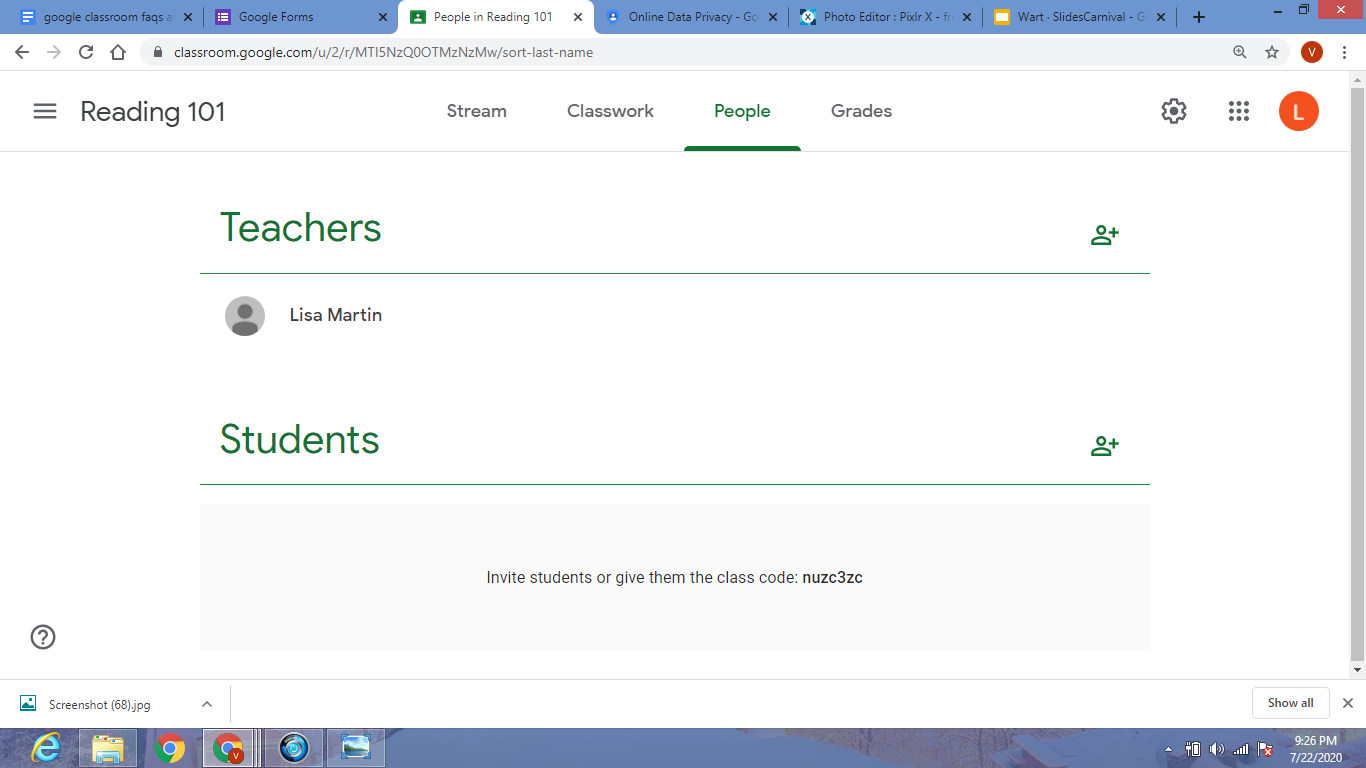
You can also let your learners go to classroom.google.com. Learners can click on “Join class,” enter the classroom code, and that’s it. This might be a bit quicker as you don’t have to manually type in every learner’s email address. 

Now your online Class is ready! At least, it is there, and everyone can access it. There are several other things you must do before you can take off.

  • Create your first assignment, or you make an announcement. You can share the initial announcement in the Stream, or go to Classwork to create an assignment. Click on the “+ Create” button and disseminate your first Google Classroom learning activity (assignment). Don’t forget to number your learning activities (assignments). It is easier for your learners to see which one comes first as you are unable to reorder learning activities (assignments) in the Stream. You can move learning activities (assignments) around to the top. Click on the title to determine if any learners have handed in the learning activity (assignment) and give grades and feedback. Afterward, you can return the learning activities (assignments) to your learners to start editing again.
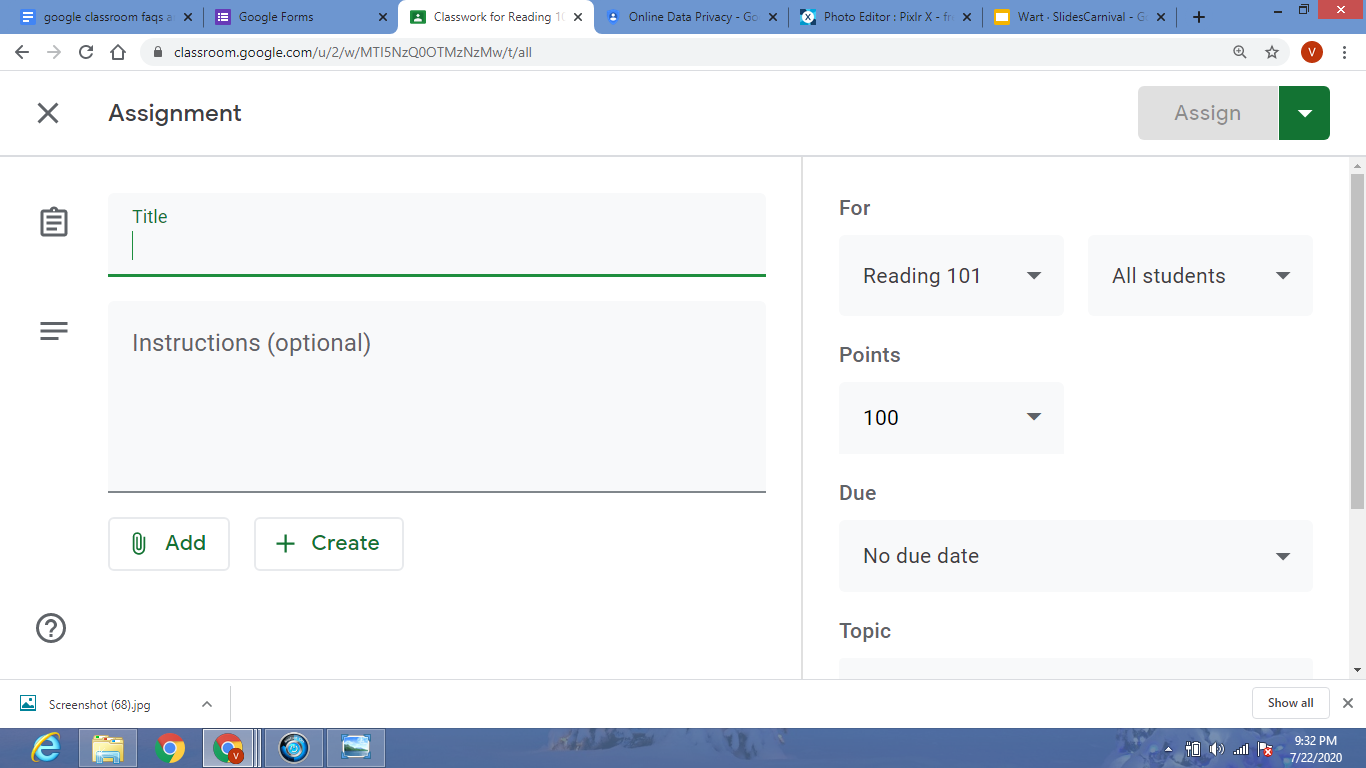
  • Add lesson content to your learning activity (assignment)/ class. Add content from Google Drive or add a video, a file, a link, etc. These options can be found right beneath the due date. If you just want to share a class presentation that is not linked to a learning activity (assignment), you can post it on the Stream instead of under the Classwork tab. You can add lesson content such as slides, interesting articles, and examples. 
  • Access the Drive folder. Every time you create a class, Google Classroom creates a Drive folder for that Class. You can access the folder by going to the tab “Classwork”. You will find a folder icon titled “Class Drive Folder” on the right-hand side. Click on it, and you’re in the folder. Here you can add class content too. All your learner’s learning activities (assignments) automatically end up in the Google Drive folder, so it will always be easy to locate.
Previous Article

How Do I Delete a Google Classroom ...

Next Article

How Do I Create a Spreadsheet of ...

Matthew Lynch

Related articles More from author

  • Early Childhood & K-12 EdTechGoogle ClassroomHigher EducationHigher Education EdTech

    6 Must-Have Google Classroom Skills for Teachers

    September 12, 2018
    By Matthew Lynch
  • Google ClassroomGoogle Classroom Tips

    How Do I Place My Worksheet in Google Classroom?

    August 13, 2020
    By Matthew Lynch
  • Google ClassroomGoogle Classroom Tips

    How Does My Child Access Google Classroom?

    September 29, 2020
    By Matthew Lynch
  • Google Classroom Tips

    Google Classroom Tip #27: Creating a Digital Classroom

    November 28, 2018
    By Matthew Lynch
  • Google Classroom Tips

    Google Classroom Tip #17: How to Boost Parental Involvement

    November 19, 2018
    By Matthew Lynch
  • Google Classroom

    How to Add Dates Automatically in Google Sheets

    February 19, 2024
    By Matthew Lynch

Search

Login & Registration

  • Register
  • Log in
  • Entries feed
  • Comments feed
  • WordPress.org

Newsletter

Signup for The Tech Edvocate Newsletter and have the latest in EdTech news and opinion delivered to your email address!

About Us

Since technology is not going anywhere and does more good than harm, adapting is the best course of action. That is where The Tech Edvocate comes in. We plan to cover the PreK-12 and Higher Education EdTech sectors and provide our readers with the latest news and opinion on the subject. From time to time, I will invite other voices to weigh in on important issues in EdTech. We hope to provide a well-rounded, multi-faceted look at the past, present, the future of EdTech in the US and internationally.

We started this journey back in June 2016, and we plan to continue it for many more years to come. I hope that you will join us in this discussion of the past, present and future of EdTech and lend your own insight to the issues that are discussed.

Newsletter

Signup for The Tech Edvocate Newsletter and have the latest in EdTech news and opinion delivered to your email address!

Contact Us

The Tech Edvocate
910 Goddin Street
Richmond, VA 23231
(601) 630-5238
[email protected]

Copyright © 2025 Matthew Lynch. All rights reserved.