Master Zapier: Automate Your Workflow & Boost Productivity
“`html
1. What is Zapier?
Zapier is a powerful automation tool that connects different apps and services, allowing you to automate repetitive tasks without any coding knowledge. Founded in 2011 by Wade Foster, Bryan Helmig, and Mike Knoop, this platform has grown to integrate with over 3,000 applications, including popular tools like Gmail, Slack, and Trello. The primary function of Zapier is to create ‘Zaps’—automated workflows that trigger actions in one app based on an event in another.
The beauty of Zapier lies in its simplicity. You don’t need to be a programming whiz or IT expert to set it up. With a user-friendly interface, even those unfamiliar with automation can begin streamlining their workflows efficiently. In short, Zapier helps save time, reduce manual errors, and enhance productivity by linking your favorite tools seamlessly.
2. How to Get Started with Zapier
To dive into the world of automation, the first step is creating a Zapier account. Signing up is a breeze—simply visit the Zapier website and register using your email or social media accounts. Once you’re in, you’ll have access to a dashboard that displays your existing Zaps, recommended workflows, and various app integrations.
Once your account is set up, it’s essential to familiarize yourself with the dashboard. Here, you can explore the ‘Zap’ gallery, showcasing popular Zaps that other users have created. This feature is especially handy for beginners, as it provides inspiration and practical examples to get started. You can also navigate to the ‘Explore’ section to discover new integrations that could benefit your specific workflow.
3. Understanding Triggers and Actions
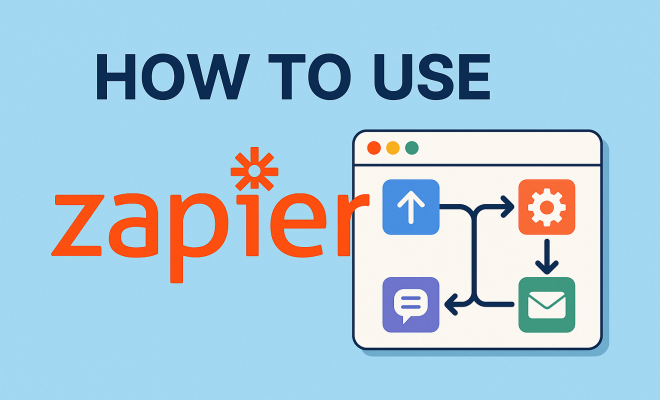
At the heart of how to use Zapier effectively are the concepts of triggers and actions. A trigger is an event that initiates the Zap. For instance, when a new email arrives in your Gmail account, that can act as a trigger for a subsequent action. An action is the outcome that occurs in response to the trigger. For example, if an email is received, the action could be to send a notification to a Slack channel.
It’s crucial to understand that Zaps can have multiple actions. This means one trigger can lead to several actions. For instance, when you add a new contact to your CRM, you could set a Zap to notify you via email, add the contact to a mailing list, and schedule a follow-up task in your project management tool. This multi-action capability significantly enhances productivity.
4. Creating Your First Zap
Now that you understand the foundational concepts, let’s dive into the steps for creating your first Zap. Start by clicking on the ‘Make a Zap’ button in your dashboard. You’ll first need to select a trigger app. This could be anything from your email service to a social media platform. After choosing your trigger app, specify the exact trigger event you want to initiate your Zap.
Next, you’ll connect your app account to Zapier. This typically involves logging in and granting permissions for Zapier to access your app. Once connected, you can set up any necessary filters or conditions that might be required before the action is executed. After that, select the action app and the specific action you want to happen when the trigger occurs. Finally, test your Zap to ensure everything functions correctly before publishing it.
5. Utilizing Filters and Paths
Zapier offers advanced features such as filters and paths that take your automation to the next level. Filters allow you to create conditional statements within your Zaps. For instance, you can set a filter that only triggers an action if the email subject line contains a specific keyword. This ensures that only the relevant emails will prompt a response, saving you from unnecessary notifications. (See: Learn more about Zapier on Wikipedia.)
Paths, on the other hand, let you build branching workflows. This means you can create different outcomes based on various conditions. For example, if someone fills out a contact form, you could set a path that depends on whether they choose ‘Yes’ or ‘No’ on a specific question. Each path can lead to different actions, such as sending a welcome email or adding them to a follow-up list. These features are perfect for complex workflows that require tailored responses.
6. Exploring Popular Integrations
One of the most appealing aspects of how to use Zapier is its extensive library of integrations. With over 3,000 apps available, the possibilities are nearly limitless. Some of the most popular integrations include Google Suite applications (like Google Sheets and Google Forms), CRMs like Salesforce and HubSpot, and project management tools such as Asana and Trello.
For instance, you can create a workflow that automatically adds new leads from your website form into your CRM, sends an email notification to your sales team, and schedules a follow-up task in your project management tool—all without lifting a finger. These integrations not only save time but also ensure a seamless flow of information between different platforms, minimizing the risk of data loss or human error.
7. Best Practices for Maximizing Your Zapier Experience
To truly harness the power of how to use Zapier, it’s essential to follow some best practices. Start by keeping your Zaps organized; use descriptive names and folders to categorize them based on projects or functions. Regularly review and update your Zaps as your workflows evolve. This ensures that they remain relevant and efficient.
Another tip is to take advantage of Zapier’s built-in analytics to monitor the performance of your Zaps. You can track how often they trigger and identify any errors that might occur. This data is invaluable for optimizing your workflows over time. Lastly, don’t hesitate to explore Zapier’s community forums and resources, where you can find countless tips from other users and experts. Engaging with the community can provide fresh ideas and further enhance your automation skills.
8. Advanced Features of Zapier
While the basic functionalities of Zapier handle most needs, exploring its advanced features can elevate your automation experience. For instance, Zapier’s built-in app, Formatter, allows users to transform data before it reaches its destination. You can manipulate text, numbers, dates, and more. This means you can format a date to match specific requirements or convert a string to uppercase before sending it to another app.
Another feature is the ability to incorporate webhooks. Webhooks allow you to send real-time data from one app to another whenever a specific event occurs. This is particularly useful for developers or those working with custom applications. With webhooks, you can build complex integrations that require immediate data transfer, enhancing the speed and relevance of your workflows.
9. Real-World Applications of Zapier
Understanding how to use Zapier effectively involves seeing how it can apply to your daily tasks. Here are several real-world applications that illustrate the versatility of this tool:
- Marketing Automation: Automatically add new leads from a Facebook ad into your email marketing software, ensuring that your follow-up emails reach potential customers without delay.
- Social Media Management: Schedule your blog posts to be shared on multiple social media platforms as soon as they go live. This can include notifications on Twitter, Facebook, Instagram, and LinkedIn, all triggered by a single blog post publication.
- Customer Support: Integrate your helpdesk software with your project management tool. When a new support ticket is created, a task is automatically generated for your team to address it.
Each of these examples showcases how Zapier can streamline operations, enhance customer engagement, and ensure that no task falls through the cracks.
10. Common Challenges and Solutions
While Zapier is a robust tool, users might face some challenges. Here are a few common issues and how to solve them: (See: Explore automation benefits in workplace.)
- Zaps Not Triggering: If you notice that your Zaps aren’t triggering as expected, check the connection between your apps. Sometimes, permissions may need to be reauthorized, or there may be issues with the trigger conditions.
- Overwhelming Choices: With thousands of integrations, it can be challenging to decide where to start. Consider identifying your most time-consuming tasks and look for Zaps that address those specifically.
- Data Formatting Issues: If you’re seeing errors in your Zaps, it might be due to formatting issues. Utilize the Formatter tool within Zapier to ensure your data matches the expected format for the receiving app.
11. FAQ: How to Use Zapier
Q: What is a Zap, and how do I create one?
A: A Zap is an automated workflow that connects two or more apps. To create one, log into your Zapier account, click ‘Make a Zap’, choose your trigger app and event, connect your account, set up your action app and event, and test your Zap before activating it.
Q: Can I use Zapier for free?
A: Yes, Zapier offers a free plan with limited features, allowing you to create simple Zaps. For more complex automation and premium features, you’ll need to upgrade to a paid plan.
Q: What types of apps can I integrate with Zapier?
A: Zapier integrates with over 3,000 apps, including popular ones like Gmail, Slack, Trello, Salesforce, and many more. You can easily check the Zapier app directory to see the full list of available integrations.
Q: Is there a limit to how many Zaps I can create?
A: The number of Zaps you can create depends on your pricing plan. Free accounts have a limit on the number of Zaps and tasks, while paid accounts allow for unlimited Zaps and a higher number of tasks.
Q: Can I edit my Zaps after creating them?
A: Absolutely! You can edit your Zaps at any time. Simply go to your dashboard, select the Zap you want to modify, and make the necessary changes.
Q: What should I do if my Zap fails?
A: If your Zap fails, check the Zap history for error details. This will help you identify the issue, whether it’s a connection problem, data formatting error, or an authentication issue. Zapier also provides troubleshooting tips to assist you in resolving common problems.
12. Future of Zapier and Automation
As automation continues to evolve, Zapier remains at the forefront of this trend. The future of Zapier looks promising with ongoing developments in artificial intelligence and machine learning that can enhance the platform’s capabilities. For instance, future updates may include more intelligent automation suggestions or predictive triggers that anticipate your needs based on past behavior.
Furthermore, as more businesses transition to remote work and digital solutions, the demand for automation tools like Zapier is expected to rise. Companies are continuously looking for ways to improve efficiency, reduce overhead costs, and streamline operations. Zapier’s role in this transformation will be pivotal, allowing users to adapt quickly in a fast-paced digital landscape.
By harnessing the full capabilities of Zapier, you can not only save time but also free up valuable resources to focus on what truly matters—growing your business and enhancing customer relationships. Embrace automation with Zapier, and you’ll find that your work becomes not just easier but also more enjoyable. (See: Understanding automation in technology.)
13. Tips for Building Effective Zaps
While understanding how to use Zapier is vital, knowing how to build effective Zaps makes all the difference. Here are some tips that can help you create Zaps that truly enhance your workflow:
- Start Simple: Begin with basic Zaps that solve a single problem. Once you’re comfortable, you can expand to more complex Zaps with multiple triggers and actions.
- Regularly Review Your Zaps: Periodically check your Zaps to see if they still fit your processes. Sometimes, as your business needs change, your Zaps may become outdated.
- Test Thoroughly: Always test each Zap before going live. This ensures that the actions execute as expected, avoiding unexpected errors in your workflows.
- Utilize Delay Features: If you need to space out actions, consider using Zapier’s delay feature. This can be useful in situations where immediate action isn’t necessary.
14. Integrating Zapier with Other Automation Tools
Zapier isn’t the only player in the automation field. Integrating it with other tools can create more powerful workflows. For example, if you use a tool like Integromat or Microsoft Power Automate, these can complement your Zaps for more complex scenarios. Consider using Zapier for simple task automations while leveraging other tools for advanced integrations that require more customization.
Additionally, tools like IFTTT (If This Then That) can serve different purposes compared to Zapier, making them ideal for simple home automation tasks, like controlling smart home devices. Understanding how these tools differ can help you decide when to use each to maximize your overall automation strategy.
15. Case Studies: Successful Zapier Implementations
Many businesses have seen significant improvements in their productivity and operations through Zapier. Let’s take a look at a few case studies of how different organizations have implemented Zapier to streamline processes:
- E-commerce Store: A small online retailer integrated their e-commerce platform with Zapier to automatically send new order notifications to their fulfillment team via Slack. This reduced the order processing time significantly, allowing them to handle more orders without increasing staff.
- Event Management: An event planning company used Zapier to connect their registration forms with their email marketing software. Each registration automatically added participants to a mailing list, allowing the team to send tailored follow-up emails about event details and reminders without manually inputting data.
- Real Estate Agency: A real estate group automated their client communication by connecting their CRM with a messaging platform. Whenever a new lead was added to their CRM, an instant message was sent to the sales team, allowing for quicker follow-ups and increased conversion rates.
16. Conclusion: Making the Most of Zapier
Zapier offers a multitude of possibilities for those willing to explore its features. By understanding how to use Zapier effectively, you can automate your workflows, reduce error rates, and ultimately improve your productivity. Whether you’re a small business owner or part of a larger organization, learning to use this powerful tool will save you time and resources.
As you embrace automation, remember to remain flexible. Test new Zaps, adapt to changes, and continuously seek ways to optimize your processes. With a proactive approach, you’ll find that Zapier can be an invaluable asset in your toolkit, making your daily tasks much more manageable.
“`
Trending Now
Frequently Asked Questions
What is Zapier and how does it work?
Zapier is an automation tool that connects different apps to automate repetitive tasks without coding. It allows users to create 'Zaps', which are workflows that trigger actions in one app based on events in another, streamlining processes and enhancing productivity.
How do I create a Zapier account?
To create a Zapier account, visit the Zapier website and sign up using your email or social media accounts. Once registered, you can access your dashboard to manage Zaps and explore app integrations.
What are triggers and actions in Zapier?
In Zapier, a trigger is an event that starts a Zap, such as receiving a new email. An action is the response that follows the trigger, like sending a notification or creating a task in another app, allowing seamless automation.
Can beginners use Zapier without coding?
Yes, beginners can use Zapier without any coding knowledge. The platform features a user-friendly interface, making it accessible for anyone to create automated workflows and enhance productivity easily.
What types of apps can I connect with Zapier?
Zapier integrates with over 3,000 applications, including popular tools like Gmail, Slack, and Trello. This wide range of integrations allows users to automate workflows across various platforms effectively.
What’s your take on this? Share your thoughts in the comments below — we read every one.