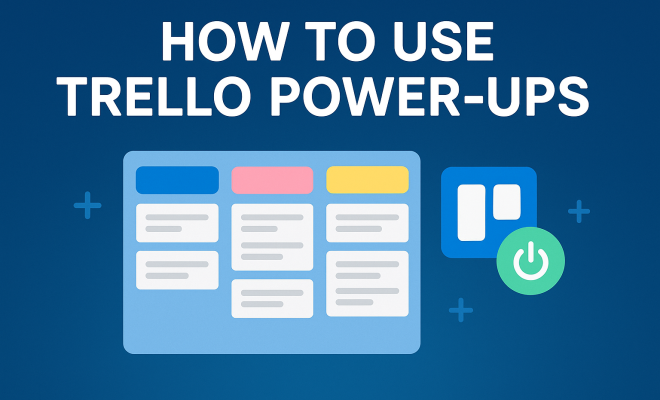
Boost Productivity: Essential Trello Power-Ups Guide
“`html
Trello has become a go-to tool for project management, helping individuals and teams streamline their workflows and organize tasks efficiently. One of its standout features is the array of Trello power-ups. These add-ons are designed to enhance Trello’s functionality, allowing you to tailor the platform to fit your specific needs. In this article, we’ll explore seven essential Trello power-ups that can significantly boost your productivity and provide practical insights on how to use them effectively.
1. Card Aging: Visualize Task Duration
One of the simplest yet most effective Trello power-ups is the Card Aging feature. This power-up visually indicates how long a card has been on your board without activity. Cards that have been stagnant for extended periods begin to fade, allowing you to quickly identify tasks that need attention.
Using Card Aging is straightforward. Once activated, you’ll see cards gradually change in appearance based on their inactivity. This is particularly useful for project managers who need to prioritize tasks or identify bottlenecks. If you notice certain cards fading away, it’s a clear signal to reassess those tasks and take action, ensuring nothing falls through the cracks. Related reading: better project management tips.
2. Calendar: Schedule Your Tasks
The Calendar power-up transforms your Trello board into a visual scheduling tool. By syncing your due dates to a calendar view, you can easily see what tasks are coming up and how they fit into your overall timeline. This is a boon for teams or individuals managing multiple projects, as it offers a holistic view of deadlines.
To set up the Calendar power-up, simply enable it from your board’s settings. Once activated, you’ll notice a new calendar view where cards with due dates appear on the respective days. This feature not only helps with planning but also encourages timely completion of tasks, as the visual representation of deadlines can serve as a motivating factor.
3. Butler: Automate Your Workflow
If you’re looking to streamline repetitive tasks, the Butler power-up is your best friend. This automation tool allows you to set up rules and triggers that perform tasks automatically based on certain conditions. For example, you can automate the movement of cards between lists based on due dates or when members are added.
Getting started with Butler is user-friendly. Users can create commands through a simple interface without any coding knowledge. Consider setting a rule that automatically moves a card to a “Done” list once it’s checked off. With Butler, you can save time and reduce manual errors, allowing your focus to shift towards more critical aspects of your projects.
4. Custom Fields: Personalize Your Cards
The Custom Fields power-up enables you to add additional data fields to your Trello cards, making them more informative and tailored to your project needs. You can add fields for priority levels, estimated time for completion, or any other custom metric that may be relevant to your workflow.
To utilize this feature, activate it from your board settings and start adding fields to your cards. For instance, if your team is working on a software development project, you might create fields for ‘Bug Severity’ or ‘Feature Type.’ This added layer of detail can help prioritize tasks and facilitate better communication amongst team members, ensuring everyone is on the same page.
5. Time Tracking: Monitor Your Efforts
For teams that need to track the time spent on tasks, the Time Tracking power-up is invaluable. This tool allows you to log hours directly on your cards and provides insights into how much time is being spent on various tasks or projects. This is particularly useful for freelancers and agencies that bill clients based on time spent. (See: Project management overview on Wikipedia.)
Once you set up the Time Tracking power-up, simply add time entries to your cards as work is completed. You can analyze time spent on different activities and adjust your workload or project timelines accordingly. This kind of data is crucial for optimizing productivity and understanding where you might need to allocate more resources.
6. Slack Integration: Enhance Team Communication
Effective communication is key to any team’s success, and the Slack integration power-up bridges the gap between Trello and your communication platform. This power-up allows you to receive updates in your Slack channels whenever there are changes to your Trello cards, such as added comments, due date changes, or card movements.
To integrate Slack with Trello, you’ll need to enable the power-up and link your Slack account. After that, you can customize which boards and channels receive notifications. This real-time communication helps team members stay informed and engaged, reducing the chances of miscommunication and ensuring everyone is aligned on project progress.
7. Google Drive: Streamline Document Management
The Google Drive power-up allows you to attach files directly from your Google Drive to Trello cards, making document management seamless. Whether it’s presentations, spreadsheets, or documents, this integration keeps everything organized and easily accessible in one place.
Activating the Google Drive power-up is simple; just enable it from your board settings and link your Google account. You can then add files to any card, ensuring that all relevant information is available when it’s time to take action. This is especially useful for teams that rely on collaborative documents, as it enables real-time updates and changes without having to switch between platforms continually.
8. Voting: Foster Team Collaboration
The Voting power-up allows team members to express their opinions on tasks or ideas directly within Trello. This feature is especially useful during brainstorming sessions or when prioritizing tasks. By enabling voting, you can gauge team preferences on various initiatives or projects, helping you make more informed decisions based on collective input.
Setting up the Voting power-up is straightforward. Activate it from your board settings, and then team members can vote on cards by clicking the vote button. The results are displayed on the card, providing a visual representation of team sentiment. This collaborative feature encourages engagement and ensures everyone’s voice is heard, ultimately leading to better project outcomes. (favorite project management apps)
9. Card Repeater: Automate Recurring Tasks
For teams that have repetitive tasks, the Card Repeater power-up is a game-changer. It allows you to create cards that automatically duplicate at set intervals, saving you time and ensuring that essential tasks are never overlooked. Whether it’s weekly status updates or monthly reports, Card Repeater takes the hassle out of manually creating new cards for recurring activities.
To activate this power-up, enable it from your board settings and then set parameters for how often you’d like the card to repeat. You can specify daily, weekly, or monthly frequencies, along with specific dates. This feature ensures that your workflow remains consistent without the manual effort, thus enhancing overall efficiency.
10. Gantt Chart: Visualize Project Timelines
Understanding project timelines is crucial for any team looking to meet deadlines. The Gantt Chart power-up provides a visual representation of project schedules, allowing teams to see task durations and dependencies at a glance. This insight is particularly helpful for project managers who need to keep track of multiple overlapping tasks. (See: CDC on workplace ergonomics.)
Once activated, you can create a Gantt chart directly from your Trello board, linking tasks by their start and end dates. This visualization can help identify potential bottlenecks in your project timeline, facilitating proactive planning and adjustments to keep everything on track. By utilizing Gantt Charts, project tracking becomes more transparent, helping your team stay focused on deadlines.
11. FAQ: Common Questions About Trello Power-Ups
What are Trello power-ups?
Trello power-ups are integrations and features that expand the functionality of your Trello boards. They can help automate tasks, enhance collaboration, and improve overall project management.
How do I enable a Trello power-up?
To enable a Trello power-up, go to your Trello board, click on the “Show Menu” button on the right side, select “Power-Ups,” and then browse or search for the desired power-up. Click “Add” to enable it for your board. There’s a fuller look at top productivity tools for parents.
Are Trello power-ups free?
Many Trello power-ups offer free versions, but some may require a paid subscription for advanced features or increased usage limits. Always check the power-up details for specific pricing and limitations.
Can I use multiple power-ups on one board?
Yes, you can enable multiple power-ups on a single Trello board. This allows you to customize your project management experience according to your needs.
How do power-ups affect Trello’s performance?
While most power-ups are designed to work seamlessly, enabling too many may slow down your board’s performance. It’s best to choose the most relevant power-ups that fit your workflow.
12. Best Practices for Using Trello Power-Ups
To get the most out of Trello power-ups, consider these best practices:
- Start Small: Begin with a few power-ups that address your immediate needs. Over time, you can explore others that may suit your workflow.
- Regularly Review: Periodically assess which power-ups are providing value and which ones may need to be disabled. This keeps your board clean and focused.
- Encourage Team Engagement: Involve your team in the decision-making process for which power-ups to use. Getting everyone on board can enhance collaboration and productivity.
- Stay Updated: Trello frequently updates its features and power-ups. Stay informed about new additions that could benefit your projects.
13. Comparing Free vs. Premium Trello Power-Ups
Understanding the differences between free and premium Trello power-ups can help you make informed decisions when customizing your board. Many power-ups offer basic features at no cost, while premium versions provide enhanced functionalities that can be crucial for larger teams or complex projects.
For instance, free versions of some power-ups may limit the number of actions or the extent of features. If you find a particular power-up invaluable, consider upgrading to the premium version for more flexibility. Conduct a cost-benefit analysis to determine if the additional features justify the expense. (See: AP News on technology and productivity tools.) We covered ways teachers boost productivity in more detail.
Additionally, many businesses find that investing in premium power-ups can lead to improved efficiency and productivity, ultimately resulting in cost savings in other areas, such as time management and project completion rates.
14. Statistics & Use Cases for Trello Power-Ups
Research shows that teams that utilize project management tools like Trello can increase productivity by as much as 20-25%. Specifically, power-ups like Butler and Calendar can contribute significantly to this increase. Automation allows teams to focus on high-value tasks, while visual scheduling tools enhance the ability to manage multiple deadlines effectively.
Consider a marketing team using the Butler automation to streamline their campaign tasks. By automating repetitive updates, they can redirect their energy towards creative strategy development, which can yield better campaign outcomes. Similarly, teams that utilize the Calendar power-up can better allocate resources to high-priority projects, reducing the chances of missed deadlines.
15. Expert Perspectives on Trello Power-Ups
Industry experts frequently emphasize the importance of customization in project management. Trello power-ups offer a unique advantage by allowing teams to adapt the platform to their specific workflows. As project management consultant Sarah Thompson notes, “The ability to tailor your project management tools to your team’s unique needs can make all the difference in productivity.”
Furthermore, tech analyst John Carter points out that “Automation features like Butler not only save time but also enhance accuracy in task completion, thereby reducing stress and increasing overall team morale.” These insights reinforce the idea that adopting the right power-ups can transform how teams work together and achieve their goals.
16. Conclusion: Maximizing the Potential of Trello Power-Ups
Implementing the right Trello power-ups can significantly enhance your project management experience. Each power-up offers unique functionalities that cater to different needs, allowing you to customize Trello to fit your workflow. Whether you’re looking to automate tasks, improve communication, or monitor time, these power-ups provide the tools necessary for increased productivity.
By experimenting with these suggestions, you’ll find the perfect combination of Trello power-ups that will help you stay organized, focused, and in control of your projects. Remember, the key to effective project management is not just the tools you use, but how you implement them. So dive in, customize your Trello boards, and watch your productivity soar!
“`
Trending Now
Frequently Asked Questions
What are Trello power-ups?
Trello power-ups are add-ons that enhance the functionality of Trello boards, allowing users to customize their project management experience. These features can help streamline workflows, improve organization, and boost productivity by tailoring the platform to meet specific needs.
How do I enable Trello power-ups?
To enable Trello power-ups, navigate to your board's menu, select 'Power-Ups,' and browse the available options. Once you find a power-up you want to use, click 'Add' or 'Enable' to activate it on your board for enhanced functionality.
What is the Card Aging power-up in Trello?
The Card Aging power-up visually indicates how long a card has been inactive on your Trello board. Cards that haven't been updated for a while fade in appearance, helping you quickly identify tasks that need attention and prioritize them effectively.
How does the Calendar power-up work in Trello?
The Calendar power-up transforms your Trello board into a visual scheduling tool by syncing due dates to a calendar view. Once enabled, you can see upcoming tasks and deadlines in a calendar format, helping with planning and timely completion of projects.
Can Trello power-ups help with team collaboration?
Yes, Trello power-ups can significantly enhance team collaboration by providing tools for better communication, scheduling, and task management. Features like Calendar and Card Aging help teams stay organized and focused on priorities, making collaboration more efficient.
What did we miss? Let us know in the comments and join the conversation.