Master Your Home Network: A Guide to Using Your Router
“`html
In a world where connectivity is essential, understanding how to use a router is a must for anyone who relies on the internet for work, education, or leisure. Routers are the unsung heroes of your home network, enabling multiple devices to connect to the internet efficiently and securely. But how does one go about setting up and using a router effectively? Let’s explore the crucial aspects of routers, offering insights that every user should know.
1. What Is a Router?
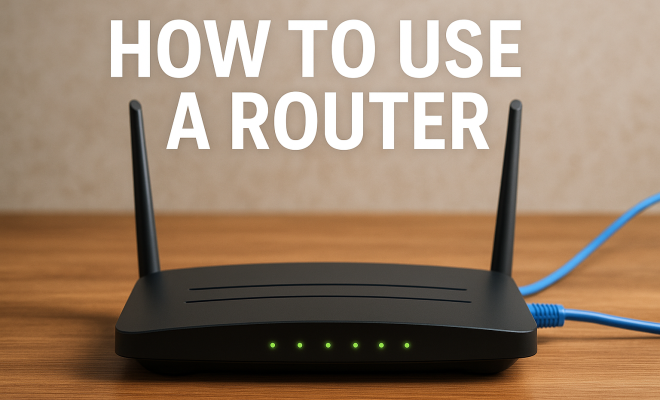
A router is a device that forwards data packets between computer networks and manages traffic within those networks. When you access the internet, your data requests travel through your router, which directs them to their intended destinations while also managing incoming data from those destinations. Routers can be wired or wireless, with Wi-Fi routers being the most common in households.
Beyond acting as a traffic cop for data, routers also provide essential features like Network Address Translation (NAT), which allows multiple devices to share a single IP address. This is crucial for saving on costs and maximizing efficiency. If you’re aiming to learn how to use a router effectively, understanding its basic functions is a solid starting point.
2. Types of Routers
Knowing the different types of routers can greatly enhance your understanding of how to use a router in your specific context. Here are the primary categories:
- Wireless Routers: These allow devices to connect to the internet without physical cables. They are ideal for mobile devices, laptops, and smart home gadgets.
- Wired Routers: These connect to devices using Ethernet cables, offering potentially faster and more stable connections. They are typically used in office settings or for gaming.
- Modem-Router Combos: These devices combine a modem and a router into one, simplifying your setup. They are often provided by internet service providers.
- Mesh Routers: Designed for larger homes, mesh routers consist of multiple nodes that work together to provide seamless coverage throughout a space.
By identifying which type you have, you can better understand its functionality and how to optimize it for your internet needs.
3. Setting Up Your Router
Once you’ve chosen the right router for your needs, the next step is setting it up. This process is typically straightforward but may vary depending on the model. Here’s a step-by-step guide:
- Connect Your Router: Start by connecting the router to a power source. Then, use an Ethernet cable to connect the router to your modem (if applicable).
- Access the Router’s Interface: Using a computer or smartphone, connect to the router’s network (you’ll find the default Wi-Fi name on the router). Open a web browser, and enter the router’s IP address (often something like 192.168.1.1) to access the settings.
- Configure Settings: Here, you can set your Wi-Fi name (SSID) and password, enable security features, and update firmware. For security, it’s advisable to use WPA3 encryption if available.
This initial setup can significantly improve your home network’s performance and security, setting a solid foundation for future use.
4. Optimizing Your Router Settings
After setting up your router, it’s essential to optimize its settings to enhance performance. Here are some key adjustments:
- Change the Default Login Credentials: Most routers come with a default username and password, which are often easy for hackers to guess. Change these to something unique to enhance security.
- Update the Firmware: Router manufacturers frequently release updates to improve functionality and security. Regularly check for updates in the router settings.
- Adjust Transmission Power: Some routers allow you to adjust their transmission power. Increasing this can improve range; however, too much power can lead to interference.
- Use Quality of Service (QoS) Settings: Many routers have QoS features that let you prioritize bandwidth for specific devices. This is particularly useful if you have multiple users streaming or gaming simultaneously.
These optimizations can not only enhance your internet experience but also secure your home network against potential threats. (See: What is a router?.)
5. Common Router Issues and Troubleshooting
Even the best routers can encounter issues. Knowing how to troubleshoot common problems can save you time and frustration. Here are a few frequent issues and their solutions:
- Slow Internet Speeds: If your internet is sluggish, check for interference from other devices, outdated firmware, or excessive bandwidth usage. Resetting your router often helps.
- Disconnections: Frequent drops in connectivity can be caused by poor placement of your router. Ensure it’s centrally located and free from obstructions. Restarting the router can also resolve temporary glitches.
- Security Breaches: If you suspect unauthorized access, change your Wi-Fi password immediately. Check connected devices in the router settings to identify any unknown users.
By familiarizing yourself with these issues and their fixes, you’ll be better prepared to maintain a smooth and secure internet experience.
6. Advanced Router Features
If you’re looking to take your network to the next level, many routers come with advanced features that can enhance performance and security:
- Guest Networks: Set up a separate network for guests to prevent them from accessing your main network. This adds a layer of security for your personal devices.
- Parental Controls: Many routers offer parental controls that let you block inappropriate content or set time limits on internet usage for children.
- VPN Support: Some routers come with built-in VPN capabilities, allowing you to encrypt your internet traffic and enhance privacy.
- Dynamic DNS: This feature lets you access your home network remotely. It’s useful for those who work from home or want to access files on their home computer while away.
Understanding and utilizing these advanced features can greatly enhance your home network’s functionality, security, and usability.
7. Maintaining Your Router
A router is not a set-it-and-forget-it device. Regular maintenance is key to ensuring it operates smoothly. Here’s how to maintain your router:
- Regularly Restart Your Router: A simple reboot can clear out temporary files and refresh the connection. It’s a good idea to restart your router every few weeks.
- Keep Firmware Updated: As previously mentioned, manufacturers release firmware updates to enhance security and performance. Check for updates monthly.
- Monitor Your Network: Regularly check the list of connected devices. If you see unfamiliar devices, it might be worth securing your network further.
- Physical Cleaning: Dust and debris can affect your router’s performance. Clean the exterior with a soft cloth and ensure vents are unobstructed to prevent overheating.
These maintenance tips can prolong the life of your router and ensure it continues to perform at its best, keeping your internet connection stable and secure.
8. Future Trends in Router Technology
As technology evolves, so do routers. Here are some emerging trends that could shape the future of home networking:
- Wi-Fi 6 and Beyond: Wi-Fi 6 technology offers faster speeds, improved efficiency, and better performance in crowded areas. Look for routers supporting Wi-Fi 6 to future-proof your network.
- AI and Machine Learning: Some modern routers are incorporating AI to optimize network performance automatically. These routers can learn your usage patterns and adjust settings dynamically for enhanced efficiency.
- Increased Security Features: As cyber threats become more sophisticated, routers will likely offer advanced security features, including enhanced encryption and threat detection.
Staying informed about these trends can help you choose the best router for your needs and keep your home network secure and efficient.
9. How to Choose the Right Router for Your Needs
Choosing the right router can significantly impact your internet experience. Here are some factors to consider:
- Speed Requirements: Assess your internet plan’s speed and the activities you’ll be using the internet for. If you’re streaming in 4K or gaming, opt for a router with higher speed capabilities.
- Coverage Area: Consider the size of your home. For larger spaces, a mesh network might be more appropriate to ensure consistent coverage throughout your environment.
- Number of Devices: If you have multiple devices connected simultaneously, look for routers that can handle high traffic efficiently. Dual-band or tri-band routers may be beneficial in this case.
- Budget: Routers come in various price ranges. Determine your budget and look for a router that meets your needs without breaking the bank.
By weighing these factors, you can find a router that will serve your home or office well, providing reliable internet access for all your devices. (See: Impact of technology on health.)
10. Router Security Essentials
Router security is crucial to protect your personal information and home network. Here are some essential tips:
- Change Default Settings: As mentioned before, changing default usernames and passwords is vital. Make these hard to guess and not easily associated with you.
- Enable Network Encryption: Always use WPA3 or WPA2 encryption for your Wi-Fi network. This will help protect the data transmitted over your network.
- Disable WPS: Wi-Fi Protected Setup (WPS) is convenient but can be a security risk. Disabling it can help reduce vulnerabilities.
- Regularly Check for Unusual Activity: Keep an eye on connected devices. If you spot unfamiliar devices, it might be time to change your password and secure your network.
Implementing these security measures can greatly reduce the risk of unauthorized access and ensure your internet activities remain private.
11. FAQs about Routers
What is the difference between a router and a modem?
A modem connects to your internet service provider and translates internet signals, while a router distributes that internet connection to multiple devices within your home network. Often, they are combined into a single device called a modem-router combo.
How often should I replace my router?
On average, routers should be replaced every 3 to 5 years due to advancing technology and security vulnerabilities. However, if you’re experiencing persistent connectivity issues or if your router cannot support newer standards like Wi-Fi 6, it might be time for an upgrade.
Can I use my old router as a range extender?
Yes, many older routers can be repurposed as range extenders. You’ll need to configure them to connect to your main router, effectively boosting your Wi-Fi coverage in areas with weak signals. Check the router’s user manual for specific instructions on how to set this up.
What should I do if my router keeps disconnecting?
Frequent disconnections can result from various issues such as interference, outdated firmware, or hardware problems. Try repositioning the router, reducing interference from other devices, and ensuring firmware is up to date. If the problem persists, consider contacting your internet service provider.
Is it safe to keep my router on all the time?
Yes, leaving your router on continuously is generally safe. However, periodically restarting it can help clear temporary files and maintain optimal performance. Some users prefer to turn it off at night to save energy, but this is a personal choice.
12. Router Performance Metrics
Understanding router performance metrics can help you make informed decisions about internet usage and network management. Here are a few key metrics to be aware of: (See: Types of routers in networking.)
- Bandwidth: This refers to the maximum data transfer rate of your internet connection. It determines how much data can be sent and received at any given time, impacting activities like streaming and gaming.
- Latency: This is the time it takes for data to travel from your device to the server and back. Lower latency means a more responsive connection, which is crucial for online gaming or video conferencing.
- Throughput: Often confused with bandwidth, throughput measures the actual data transfer rate you experience, which can be affected by multiple factors including network congestion and interference.
- Signal Strength: Measured in dBm, signal strength indicates how strong the Wi-Fi signal is in a given area. The closer you are to the router, the stronger the signal will be.
Monitoring these metrics can help you troubleshoot issues and understand how to optimize your router settings for better performance.
13. Understanding Router Placement
The placement of your router can significantly affect the performance of your network. Here are some tips for optimal placement:
- Central Location: Place your router in a central location in your home to maximize coverage and minimize dead zones. Avoid corners and areas surrounded by thick walls.
- Elevated Position: Position the router on a shelf or mount it high on a wall. Wi-Fi signals spread outward and downward, so a higher position can improve overall coverage.
- Away from Interference: Keep your router away from electronic devices like microwaves, cordless phones, or Bluetooth devices that can cause interference. Metal objects can also obstruct signals, so avoid placing the router inside a cabinet or behind other electronics.
- Open Space: If possible, ensure that there are no large furniture pieces blocking the router. Open spaces allow for better signal dispersion throughout your home.
Finding the right spot for your router can help improve your Wi-Fi speed and connectivity, making your online experiences more enjoyable.
14. Using Quality of Service (QoS) to Your Advantage
Quality of Service (QoS) settings allow you to prioritize bandwidth for certain applications or devices on your network. This can be especially useful in homes with multiple users engaging in bandwidth-intensive activities. Here’s how to effectively use QoS:
- Identify Critical Devices: Determine which devices or applications require priority, such as gaming consoles, streaming devices, or video conferencing tools. Assign them higher priority in the QoS settings.
- Bandwidth Allocation: Set limits on the amount of bandwidth that can be used by less critical devices, ensuring that priority applications receive the speeds they need without interruption.
- Monitor Performance: After implementing QoS, monitor the performance of your network. You can adjust settings based on usage patterns and feedback from users in your home.
QoS can transform your internet experience, especially when multiple devices are connected simultaneously, ensuring smoother performance for everyone.
15. Conclusion: Mastering Your Router
Understanding how to use a router effectively is crucial in today’s digital age. By setting up your router correctly, optimizing its settings, and staying informed about new technologies, you can ensure that your home network delivers high performance and security. Whether you’re streaming movies, working from home, or gaming online, a well-configured router can make all the difference in your online experience.
“`
Trending Now
Frequently Asked Questions
What is the main purpose of a router?
The main purpose of a router is to forward data packets between computer networks and manage traffic within those networks. It directs data requests from your devices to the internet and incoming data back to your devices, allowing multiple connections efficiently.
What are the different types of routers?
The primary types of routers include wireless routers, which connect devices without cables; wired routers, which use Ethernet for stable connections; modem-router combos that simplify setups; and mesh routers, ideal for larger homes to ensure widespread coverage.
How do I set up a router?
To set up a router, connect it to your modem using an Ethernet cable, power it on, and use a web browser to access the router's configuration page. Follow the setup wizard to configure your network settings, including Wi-Fi name and password.
What does NAT mean in routers?
NAT, or Network Address Translation, is a feature in routers that allows multiple devices on a local network to share a single public IP address. This is essential for efficient internet usage and helps in conserving IP address space.
Why would I need a mesh router?
A mesh router is beneficial for larger homes where a single router may not provide sufficient coverage. It uses multiple nodes to create a seamless Wi-Fi network, ensuring strong signals throughout the entire area, eliminating dead zones.
What did we miss? Let us know in the comments and join the conversation.