Mastering Git Tags: A Comprehensive Tutorial
“`html
In the world of software development, keeping track of changes and versions of code is crucial. One of the most effective tools for this purpose in Git is the use of tags. This git tags tutorial will explore what tags are, how to use them effectively, and why they matter in your workflow.
1. What Are Git Tags?
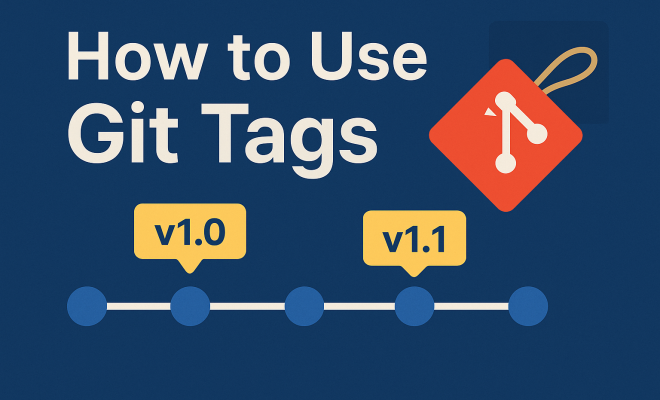
At its core, a tag in Git is a reference to a specific point in Git history. Unlike branches, which are used for development, tags are often used to mark release points or significant changes in a repository. Essentially, tags serve as bookmarks in your project’s timeline, allowing you to quickly return to vital stages of development.
Tags are categorized into two types: lightweight and annotated. Lightweight tags are simply pointers to a commit; they do not contain any extra information like the author’s name, date, or message. Annotated tags, on the other hand, are full objects in the Git database. They include the tagger’s name, email, date, and a message describing the tag, making them more informative and useful for releases and documentation.
2. Creating Git Tags: A Step-by-Step Guide
Creating a tag in Git is straightforward. You can add tags at any point in your project history. Here’s how to do it. For a lightweight tag, you can use the following command:
git tag For instance, if you want to tag your latest commit as version 1.0, simply run:
git tag v1.0For annotated tags, use the -a option to include a message:
git tag -a -m "Tagging version 1.0" This command creates a more informative tag, which can be helpful for others who may be reviewing your code later. Remember to replace
3. Viewing Existing Tags
If you need to check which tags you’ve created in your repository, you can easily view them using the git tag command:
git tagThis command will list all tags in your repository. If you want more details about a specific tag, you can use:
git show This will display the commit that the tag points to, along with any associated information, such as the tag message and any differences in code if applicable.
4. Sharing Tags with Others
In many cases, you’ll want to share your tags, especially if you’re working in a team setting. By default, tags are not pushed to remote repositories when you run git push. To share your tags, you need to explicitly push them. You can do this with:
git push origin To push all your tags at once, you can use the following command: (See: Wikipedia article on Git.)
git push --tagsThis command will ensure all your local tags are synchronized with the remote repository, keeping your team up to date with the latest releases and milestones in your project.
5. Deleting Tags: When and How
Tags are meant to be stable references, but there may come a time when you need to delete one, perhaps due to a mistake or a change in versioning. To delete a local tag, you can use the -d option:
git tag -d If you need to delete a tag from a remote repository, you’ll need to use a slightly different command:
git push --delete origin Be cautious with deleting tags, as it can affect other developers who might rely on them for their branches or workflows.
6. Practical Use Cases for Git Tags
Git tags are not just a nice-to-have; they play a critical role in various workflows. For instance, they’re indispensable in release management. When you release a new version of your software, tagging that version allows both developers and users to easily reference or revert to that state of the code.
Another practical use case is in continuous integration pipelines. Tags can trigger deployment scripts, ensuring that only tagged releases are deployed to production. This provides a safety net and a clear path for versioning, which is especially useful in collaborative environments or for open-source projects.
Moreover, tags can be used in conjunction with documentation processes. When a tag is created for a release, it can trigger a documentation generation script that updates the relevant documentation to correspond with the latest changes. This can enhance the clarity and accessibility of project documentation, ensuring that users always have the most accurate information available.
7. Best Practices for Using Git Tags
There are several best practices to follow when using Git tags to maximize their effectiveness. First, always use annotated tags for releases. They provide valuable context and can help you track changes over time. Include meaningful messages when you create tags to explain the significance of each release.
Additionally, establish a versioning convention within your team. Semantic Versioning (SemVer) is a popular approach that uses a three-part version number (e.g., MAJOR.MINOR.PATCH) to indicate the level of changes in each release. Consistency in your tagging strategy helps maintain clarity in your project.
Another effective best practice is to regularly review and audit your tags. This could involve checking for any outdated or incorrect tags and either deleting them or updating them with new information. Keeping your tags organized ensures they remain useful and relevant.
8. Integrating Git Tags with Other Tools
Git tags can also integrate seamlessly with other tools and platforms. For instance, if you’re using CI/CD tools like Jenkins, CircleCI, or GitHub Actions, you can configure them to react to tags, allowing for automated deployments or testing. This kind of integration streamlines your workflow and reduces the manual overhead of managing releases.
In addition, many project management tools allow you to link tags with issues or features. For instance, tagging a commit that closes an issue can create a clear historical record, making it easier to track the progress of work and the evolution of your project.
Additionally, consider using GitHub releases alongside your tags. GitHub allows you to create releases that are linked to your tags, providing a user-friendly interface for users to download software versions, read release notes, and access binary files directly. This can significantly enhance the user experience and make it easier for your audience to engage with your project. (See: Git topics on ScienceDirect.)
9. Common Mistakes to Avoid When Using Git Tags
While tags can be incredibly useful, several common pitfalls can trip up developers. One of the most significant errors is not using annotated tags for releases. Lightweight tags lack the metadata that can provide critical context, making it harder to understand the history of changes.
Another mistake is neglecting to push tags to remote repositories after creating them locally. This can lead to confusion among team members who may not realize a new version has been created. Always double-check that your tags are shared correctly, especially when working in a team environment.
Lastly, avoid deleting tags recklessly. Ensure that everyone on your team is aware of changes to tags, and maintain a clear communication channel about why a tag is being removed or altered. Proper coordination can prevent misunderstandings and maintain the stability of your workflow.
10. Frequently Asked Questions (FAQ)
What is the difference between branches and tags in Git?
Branches are used for ongoing development, allowing you to work on different features or fixes simultaneously. Tags, however, are static references to specific points in your project history, primarily used for marking releases or important milestones.
Can I rename a tag in Git?
Yes, you can rename a tag in Git, but it requires a few steps. First, delete the old tag using git tag -d , then create a new tag with the desired name. Remember to push the changes to your remote repository after renaming.
How do I find the latest tag in my repository?
You can find the latest tag by using the following command:
git describe --tags --abbrev=0This command retrieves the most recent tag in your current branch.
Is it possible to create a tag for a previous commit?
Absolutely! You can create a tag for any commit in your history. Just specify the commit hash when creating a tag:
git tag This allows you to mark any point in your project’s history as significant.
Why should I use Semantic Versioning for my tags?
Semantic Versioning (SemVer) provides a clear and standardized way to communicate the nature of changes in your software. By using this versioning system, you can signal whether changes are breaking, new features, or patches, thus helping your users and team understand the implications of upgrading.
11. Advanced Tagging Techniques
Once you’re familiar with the basics of Git tags, you might want to explore more advanced techniques to enhance your workflow. One such technique involves using signed tags. By using the -s option when creating a tag, you can create a GPG-signed tag. This adds an extra layer of security and ensures that the tag’s creator can be verified:
git tag -s -m "Signed tag for version 1.0" Using signed tags is particularly useful in open-source projects, where you want to ensure that the source of a release is legitimate.
Another advanced technique is to utilize tags as part of branching strategies. For instance, some teams create a tagging convention where only specific builds are tagged, while others are left untagged. This allows teams to keep a cleaner repository without unnecessary tags cluttering the project. By establishing clear criteria for when to tag a commit, you can streamline your processes further.
12. Real-World Examples of Git Tags
To illustrate the importance of Git tags, let’s take a look at a couple of real-world scenarios where tagging played a pivotal role. In the case of a popular open-source project, the maintainers tagged each release with a version number following the Semantic Versioning convention. This approach allowed users to easily identify which version of the software contained certain features or fixes. When a critical bug was found in version 2.1.0, the maintainers quickly created a tag for version 2.1.1 to address the issue, clearly signaling to users that this was a patch release.
In another example, a software development team working on an internal tool utilized tags to manage their feature releases. Each time a feature was completed and ready for deployment, it was tagged with an ‘RC’ (Release Candidate) tag, such as RC-1, RC-2, etc. This allowed the team to iterate on feedback from testing environments before moving to a final production release. The tags helped keep everyone informed about the current state of different features and the progress towards the next major release.
13. Integrating Git Tags into Your Workflow
To effectively incorporate Git tags into your workflow, consider developing a tagging strategy that aligns with your project goals. Start by defining your versioning scheme—will you follow Semantic Versioning, or will you adopt a different approach? Clearly communicate this strategy to your team and document it for reference.
Next, establish a schedule for creating tags. This could be after every sprint, after a demo, or aligned with certain project milestones. Regularly reviewing and tagging your work ensures that your project history remains accessible and relevant.
Lastly, make use of collaborative tools to keep everyone informed. For instance, integrating your tagging process with project management tools can help link tags to tasks or issues. This connectivity enhances visibility and ensures all team members understand the context behind each tag.
14. Conclusion: The Importance of Git Tags in Your Workflow
In summary, Git tags are an essential part of any developer’s toolkit. They provide a simple yet powerful way to mark and manage important points in your development history. Whether you’re working solo or in a team, understanding how to effectively use tags can enhance your version control practices dramatically. With the insights from this git tags tutorial, you’ll be well-equipped to implement this crucial feature in your workflows.
“`
Trending Now
Frequently Asked Questions
What are Git tags used for?
Git tags are used to mark specific points in a repository's history, often for significant changes or release versions. They act as bookmarks, allowing developers to easily return to important stages in their project's timeline.
How do you create a Git tag?
You can create a Git tag by using the command `git tag` for a lightweight tag or `git tag -a -m 'message'` for an annotated tag. For example, `git tag v1.0` creates a lightweight tag, while `git tag -a v1.0 -m 'Tagging version 1.0'` creates an annotated tag.
What is the difference between lightweight and annotated tags in Git?
Lightweight tags are simple pointers to a commit without additional information, while annotated tags are full objects that include the tagger's name, email, date, and a message. Annotated tags are generally preferred for releases due to their informative nature.
How can I view existing Git tags?
To view existing Git tags in your repository, use the command `git tag`. This will list all the tags. For more details about a specific tag, you can use `git show <tag-name>` to see additional information.
Why are Git tags important in software development?
Git tags are important because they help manage project versions and milestones, making it easier for teams to track changes, revert to previous states, and document significant updates in the codebase, thus enhancing collaboration and workflow.
Have you experienced this yourself? We’d love to hear your story in the comments.