Master the Clone Stamp Tool: A Comprehensive 2024 Guide
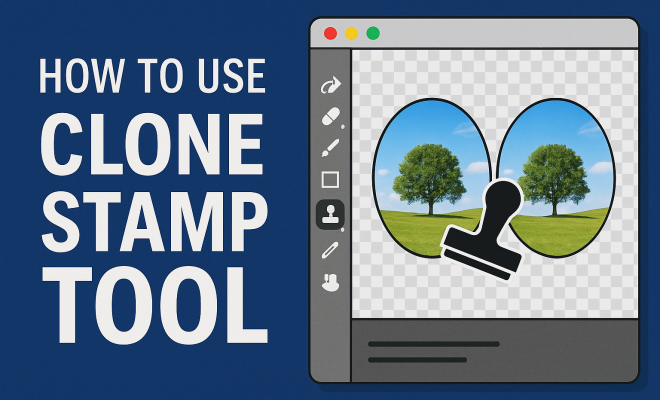
“`html
Photo editing can transform a mundane image into a stunning piece of art, and one of the most powerful tools at your disposal is the clone stamp tool. Often overlooked by beginners, this tool allows users to duplicate or remove elements within an image, paving the way for creative enhancements and corrections. In this comprehensive clone stamp tool tutorial, we will explore its history, functionality, and practical applications while providing step-by-step guidance to help you harness its full potential.
1. Understanding the Clone Stamp Tool
The clone stamp tool serves as a digital brush that clones pixel data from one area of an image to another. This allows for effective retouching, such as removing blemishes, duplicating objects, or even creating complex patterns. In essence, it enables you to “paint” over an image with pixels from a different part of the same image or even from a different image altogether.
Its origins can be traced back to early photo editing software, where the concept of cloning was first introduced to provide users with more control over the editing process. As technology evolved, so did the capabilities of the clone stamp tool, making it a staple in modern software like Adobe Photoshop, GIMP, and Corel Painter.
2. Getting Started with the Clone Stamp Tool
To begin using the clone stamp, you need to access it from your photo editing software’s toolbar. In Adobe Photoshop, for instance, you can find it by selecting the clone stamp icon or pressing the shortcut key ‘S’. Once selected, you’ll notice a circular brush cursor that indicates the area you’ll be working with.
Before you start cloning, you must define the source point. This is done by holding down the ‘Alt’ key (or ‘Option’ on Mac) and clicking on the area you want to clone from. This action captures the pixel data from that point, which you can then apply to the target area by clicking or dragging your mouse. It’s important to zoom in on your image when working with the clone stamp tool to ensure precision and control.
3. Choosing the Right Brush Settings
The effectiveness of the clone stamp tool largely depends on the brush settings you choose. In software like Photoshop, you have the option to adjust the brush size, hardness, and opacity. A softer brush can produce a more blended effect, while a harder brush will create a sharp, defined clone.
For most retouching tasks, starting with a smaller brush size is advisable, as it allows for more detailed editing. You can always increase the size as needed. Additionally, adjusting the opacity allows you to build up the cloned area gradually, which is especially useful for creating seamless blends in skin tones or textures.
4. Practical Applications of the Clone Stamp Tool
The applications of the clone stamp tool are virtually limitless. From professional photographers to amateur enthusiasts, this tool can be used for various tasks, including:
- Removing Blemishes: One of the most common uses is retouching skin by removing acne, scars, or unwanted marks.
- Cloning Objects: You can easily duplicate elements in an image, such as flowers in a bouquet or stars in a night sky.
- Background Creation: By cloning sections of a background, you can create a more uniform backdrop or fill in gaps.
- Repairing Damaged Photos: For old photographs, the clone stamp tool can restore missing or damaged areas.
5. Tips for Effective Cloning
While the clone stamp tool is powerful, its effectiveness can be enhanced by following a few best practices: (See: overview of photo editing techniques.)
- Use Multiple Source Points: Changing the source point frequently helps to avoid repetitive patterns that can make the cloning obvious.
- Work at a High Resolution: Editing at a higher resolution ensures greater detail and precision in your work.
- Zoom In for Detail: As mentioned, working at a closer zoom allows you to focus on small areas without losing accuracy.
- Adjust Brush Settings: Don’t hesitate to change brush settings as you work on different areas of the image.
6. Common Mistakes to Avoid
Even seasoned users can fall into traps while using the clone stamp tool. Here are some common pitfalls to be aware of:
- Overusing the Tool: While it might be tempting to use the clone stamp for everything, sometimes a different tool (like the healing brush) may yield better results.
- Too Obvious Cloning: Always be mindful of creating unnatural patterns. Cloning the same section repeatedly can draw attention to the edited areas.
- Ignoring Lighting and Color: Ensure that the cloned area matches the lighting and color of the surrounding pixels to avoid harsh lines.
7. Combining the Clone Stamp Tool with Other Techniques
For optimal results, consider combining the clone stamp tool with other photo editing techniques. For instance, using it alongside the healing brush can be particularly effective for skin retouching. The healing brush blends colors and textures more seamlessly than cloning alone.
Additionally, utilizing layers can enhance your workflow. By cloning on a new layer, you can always go back and adjust the edits without affecting the original image. This non-destructive editing approach allows you to experiment freely.
8. Current Trends and Relevance in Photo Editing
The clone stamp tool remains relevant in today’s digital editing landscape, especially with the rise of social media and content creation. With platforms like Instagram and TikTok emphasizing high-quality visuals, the demand for effective editing tools like the clone stamp is ever-present.
Moreover, advancements in artificial intelligence and machine learning are starting to influence how we use traditional tools. AI-driven features might automatically suggest cloning points or enhance cloning processes, but the fundamental skills of using the clone stamp tool will always remain valuable.
9. Final Thoughts on Mastering the Clone Stamp Tool
Mastering the clone stamp tool opens up a world of possibilities for your photo editing endeavors. Whether you’re touching up portraits, creating stunning landscapes, or restoring old images, this tool is indispensable. As you practice and familiarize yourself with its features, you’ll find that your editing skills improve significantly.
In conclusion, the clone stamp tool is not just a feature in your editing arsenal; it’s a gateway to creativity. So grab your favorite photo editing software, follow this clone stamp tool tutorial, and start creating mesmerizing visuals that tell your story. Happy editing!
10. The Evolution of the Clone Stamp Tool
Looking back at the evolution of the clone stamp tool, it’s fascinating to note how it has adapted to changing technologies and user needs. Initially, cloning was a very manual and straightforward process, but as software developed, features like ‘aligning source points’ and ‘pattern cloning’ emerged, significantly enhancing user experience.
Today, many editing programs incorporate advanced algorithms that can help the clone stamp tool simulate more natural results. For instance, sophisticated healing algorithms can help fill in areas with more context-aware content, making your edits appear more seamless than ever before.
11. Step-by-Step Example: Removing an Object
Let’s go through a practical example of using the clone stamp tool to remove an unwanted object from a photo. Say you have a beautiful landscape shot, but there’s a trash can in the foreground that you want to eliminate. (See: photography and digital imaging safety.)
- Select the Clone Stamp Tool: Open your image in your editing software and select the clone stamp tool from the toolbar.
- Set Your Source Point: Hold ‘Alt’ (or ‘Option’ on Mac) and click on an area close to the trash can. This area should contain similar textures and colors that can replace the unwanted object.
- Begin Cloning: Carefully click and drag over the trash can. Make sure to frequently change your source point to ensure that the textures remain natural.
- Adjust the Brush Settings: If needed, switch to a different brush size or softness to refine your edges, especially as you get close to the surrounding foliage.
- Inspect and Refine: Zoom out to inspect your work, and make any necessary adjustments to ensure it looks as natural as possible.
This step-by-step approach can make a significant difference in the quality of your final image.
12. Statistics: The Impact of Photo Editing
Photo editing plays an essential role in modern photography. Consider these statistics:
- According to a study by Adobe, 61% of photographers believe that post-production editing is equally important as taking the photograph itself.
- A survey revealed that 70% of social media users are more likely to engage with a post that includes high-quality edited images.
- In commercial photography, expert retouching can increase the perceived value of an image by up to 300%.
These figures illustrate the significance of tools like the clone stamp tool in enhancing the visual storytelling of images.
13. Expert Perspectives on Using the Clone Stamp Tool
Many seasoned photographers and graphic designers have shared their insights on the value of mastering the clone stamp tool. Here are a few expert tips:
- Consistency is Key: Renowned photographer Jane Smith emphasizes that consistency in editing style is crucial for branding. The clone stamp helps maintain this by allowing for uniformity across similar images.
- Practice Makes Perfect: Graphic designer Mike Lee suggests frequent practice with the clone stamp tool. He notes that regular use will make you more familiar with how different textures and colors work together.
- Know Your Limits: Expert retoucher Emma Choi advises being aware of the limits of the clone stamp tool. Sometimes, it’s best to combine it with other tools, like the patch tool or content-aware fill, for optimal results.
14. Frequently Asked Questions (FAQ)
Q1: What software includes the clone stamp tool?
A1: The clone stamp tool is available in many photo editing software programs, including Adobe Photoshop, GIMP, Corel Painter, and Paint.NET.
Q2: Can I use the clone stamp tool on mobile apps?
A2: Yes, many mobile photo editing apps, such as Snapseed and PicsArt, have similar functionality to the clone stamp tool, allowing you to remove unwanted elements from images.
Q3: Is there a shortcut for the clone stamp tool in Photoshop?
A3: Yes, you can quickly activate the clone stamp tool in Adobe Photoshop by pressing the ‘S’ key on your keyboard.
Q4: How do I make my cloning look more natural?
A4: To make your cloning look more natural, frequently change your source point, adjust brush size and hardness, and pay attention to the light and shadows in the area you’re working on. (See: latest trends in photo editing.)
Q5: What if I make a mistake while using the clone stamp tool?
A5: If you make a mistake, you can always use the ‘Undo’ function (Ctrl+Z on Windows or Command+Z on Mac) to revert your most recent action. Working on a duplicate layer can also help avoid permanent mistakes.
Q6: Can I combine the clone stamp tool with other tools?
A6: Absolutely! Many users find that combining the clone stamp tool with the healing brush or patch tool provides even better results. Layering techniques also enhance overall editing quality.
Q7: How can I learn more about using the clone stamp tool?
A7: There are plenty of online tutorials, courses, and videos available that can help you learn more about the clone stamp tool and photo editing in general. Taking time to practice and experiment is also one of the best ways to learn.
15. Advanced Techniques for Using the Clone Stamp Tool
As you become more comfortable with the clone stamp tool, consider experimenting with more advanced techniques. Here are some ideas to expand your skillset:
- Layer Masking: Instead of directly cloning onto your image, use layer masks to isolate the areas you want to edit. This allows for more control and reversibility.
- Clone with Different Opacities: For textures that require subtlety, try adjusting the opacity of your brush as you clone, which can help blend cloned sections seamlessly into the existing image.
- Using Patterns: Create interesting effects by selecting a patterned area to clone. This can be particularly effective in creative projects or artistic endeavors.
- Combining Clone with Filters: After using the clone stamp, applying filters can help unify the cloned area with the rest of the image. Filters like blur or noise can help create a more cohesive look.
16. Real-World Examples of the Clone Stamp Tool in Action
Many professional photographers and graphic designers have successfully utilized the clone stamp tool in various projects. Here are a few real-world applications:
- Fashion Photography: In fashion shoots, editors often remove distracting elements from the background or duplicate items, such as accessories, to enhance the visual impact of the image.
- Landscape Photography Restoration: Photographers restoring old landscape photographs may use the clone stamp tool to repair sections that are faded or damaged, bringing new life to historical images.
- Editorial Work: Magazines and online publications frequently use the clone stamp tool to ensure that images are polished and free of distractions, which helps maintain a professional appearance in their publications.
17. Conclusion: Mastering the Clone Stamp Tool
With the insights and examples shared in this expanded clone stamp tool tutorial, you’re now equipped with a wealth of knowledge to enhance your photo editing skills. Embrace the creative possibilities that this powerful tool offers, and watch your images transform into captivating works of art.
“`
Trending Now
Frequently Asked Questions
What is the clone stamp tool used for?
The clone stamp tool is a photo editing feature that allows users to duplicate or remove elements within an image. It enables effective retouching, such as removing blemishes or duplicating objects, by 'painting' with pixel data from one area to another.
How do you use the clone stamp tool in Photoshop?
To use the clone stamp tool in Photoshop, select it from the toolbar or press 'S'. Define the source point by holding 'Alt' (or 'Option' on Mac) and clicking on the desired area. Then, paint over the target area to apply the cloned pixels.
Can you use the clone stamp tool on different images?
Yes, the clone stamp tool can clone pixels from one image to another. You simply need to select the source point from the desired image and then apply it to the target image, allowing for creative enhancements and corrections.
What are some tips for using the clone stamp tool effectively?
To use the clone stamp tool effectively, zoom in on your image for precision, vary the brush size for different areas, and frequently redefine the source point to avoid repetitive patterns. Practice makes perfect for achieving natural-looking edits.
Is the clone stamp tool available in free photo editing software?
Yes, the clone stamp tool is available in several free photo editing software options, such as GIMP. While the functionality may vary slightly, it generally offers similar capabilities for cloning pixels and retouching images.
Have you experienced this yourself? We’d love to hear your story in the comments.