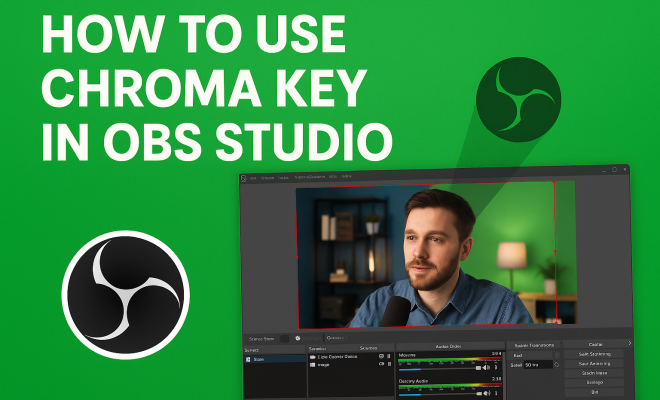
How to use chroma key in OBS Studio
“`html
When it comes to creating stunning video content, the power of chroma key technology can’t be overstated. The ability to replace solid backgrounds with striking visuals or to create that professional look often seen in news broadcasts, gaming streams, or online tutorials is within reach of any content creator using OBS Studio. In this article, we’ll explore the nuances of using chroma key in OBS Studio, offering you a comprehensive guide on everything from basic setup to advanced techniques.
1. Understanding Chroma Key
Chroma keying is a visual effects technique traditionally used in film and TV production, allowing editors to replace a specific color in a video with another image or video. This process is commonly recognized by the iconic green screen setup. The term ‘chroma’ refers to the color information in a video, and ‘keying’ is the technique of extracting that color to create transparency. In the context of OBS Studio, chroma keying allows streamers and content creators to superimpose their live video feeds over various backgrounds seamlessly.
Typically, bright green or blue screens are used because these colors are distinct and less likely to appear in human skin tones or clothing. The chroma key technique relies on the software’s ability to detect and remove a specific color, enabling a clean overlay of the subject onto any desired background.
2. Setting Up OBS Studio
Before diving into the chroma key functionality, you need to have OBS Studio set up. Download the software from the official OBS Project website, and install it on your computer. Once installed, launch OBS Studio and set up your scene by adding a video source, usually your webcam.
Here’s how you can add your webcam: Click on the ‘+’ icon in the ‘Sources’ box, select ‘Video Capture Device’, and choose your webcam from the dropdown list. Make sure your camera is properly positioned with suitable lighting to achieve the best results with chroma keying.
3. Adding a Chroma Key Layer
Once your video source is set up, the next step is to add the chroma key effect. Right-click on your video source in the ‘Sources’ box and select ‘Filters’. In the Filters window, click on the ‘+’ button under the ‘Effect Filters’ section and select ‘Chroma Key’. You’ll see a new filter appear in the list.
Upon selecting the chroma key filter, you can adjust the settings to match the specific shade of green or blue used in your background. OBS allows you to customize the similarity, smoothness, and key color spill reduction, ensuring that the transition between your subject and the new background is both subtle and professional. For more on this, see green screen in education.
4. Choosing Your Background
After setting up the chroma key, it’s time to decide on your background. OBS Studio lets you add static images, videos, or even live web pages as backgrounds. To add a background, go to the ‘Sources’ section, click on the ‘+’, and select ‘Image’ or ‘Media Source’ depending on what you’re using. Browse to the desired background file and add it to your scene.
Consider using backgrounds that complement your content. For instance, a gaming stream may benefit from animated visuals or game-related scenes, while a tutorial might require a more subdued, professional backdrop. The key is to ensure that the background enhances rather than distracts from your main subject. (See: Chroma key technique overview.)
5. Lighting: The Key to Success
Good lighting can make or break your chroma key experience. Shadows on your green screen can create unwanted artifacts that disrupt the visual quality of your stream. For the best results, ensure that your background is evenly lit and free of wrinkles or imperfections.
Using softbox lights or ring lights can help achieve an even distribution of light on the green screen and your subject. Aim for three-point lighting: one light to illuminate the green screen, another for your subject, and a third to fill in shadows and create depth. The more controlled the lighting, the cleaner the key will be.
6. Troubleshooting Common Issues
Despite careful setup, you may encounter some issues with chroma keying in OBS Studio. One common problem is color spill, where the green or blue background reflects onto your subject, causing a greenish hue. To mitigate this, you can adjust the ‘Key Color Spill Reduction’ slider within the chroma key filter settings.
Another frequent issue is poor keying results due to uneven lighting or shadows. If you notice a halo effect around your subject or artifacts, revisit your lighting setup. Also, ensure that the colors in your outfit don’t closely resemble the chroma screen color, as this can lead to parts of your clothing being keyed out.
7. Advanced Techniques for Enhanced Creativity
Now that you’re familiar with the basics, let’s explore some advanced techniques that can take your chroma keying to the next level. One popular method is to use multiple video sources simultaneously, creating an engaging dynamic by layering videos or images on top of each other.
For example, you could have your live feed in the center, with gameplay footage or slideshows appearing beside you. By adjusting the size and position of each source, you can create a visually appealing layout that keeps your audience engaged. Experimenting with transitions and animations can also add an extra layer of professionalism to your streams.
8. Integrating Third-Party Tools
If you’re looking to expand your creative options, consider integrating third-party tools that work well with OBS Studio and enhance the chroma key experience. Software like Streamlabs OBS offers additional overlay options and widgets that can enrich your stream.
Furthermore, tools like Virtual Cam allow you to use OBS as a virtual webcam, enabling the use of your chroma key settings across various platforms such as Zoom or Skype. This opens up new possibilities for video conferencing, online classes, or virtual events, allowing you to maintain a professional appearance regardless of your setting.
9. Keeping Up with Trends and Community Insights
The world of streaming and content creation is constantly evolving. Staying updated with the latest trends and community insights can help you maximize your use of chroma key in OBS Studio. Engaging with communities on platforms like Reddit or Discord can provide valuable tips and tricks tailored to your specific needs and interests. (top green screen apps)
Additionally, following influential content creators on platforms like YouTube and Twitch can inspire your own style and method of using chroma key. With their guidance, you can discover innovative ways to engage your audience and elevate your content quality, ensuring that you remain competitive in the ever-growing field of online streaming. (See: Visual display ergonomics and effects.)
10. Common Mistakes to Avoid
While learning to use chroma key in OBS Studio, it’s easy to make some common mistakes that can hinder your results. Here are a few pitfalls to be aware of:
- Inadequate Lighting: As previously discussed, poor lighting can lead to shadows that ruin the keying process. Always ensure your green screen is well-lit and that there are no dark spots.
- Worn Out Screens: If your green screen is wrinkled or faded, it can affect the chroma key’s performance. Regularly check your screen for wear and treat it with care.
- Improper Color Keying: Selecting the wrong color for keying can result in a poor overlay. Always use the dropper tool to select the exact shade of your background.
- Choosing Distracting Backgrounds: Backgrounds shouldn’t overwhelm your content. Opt for visuals that complement but don’t distract from your presentation.
11. Optimizing Performance in OBS Studio
Performance optimization is essential for a smooth streaming experience, especially when using resource-intensive features like chroma keying. Here are a few tips to enhance performance:
- Lower Resolution: If your computer struggles with high-resolution streams, consider lowering the output resolution. This will require less processing power.
- Adjust Frame Rate: Stream at a lower frame rate if you’re experiencing lag. A frame rate of 30 fps is often sufficient for most content.
- Close Unnecessary Applications: Before streaming, close any applications that you don’t need running. This will free up system resources.
- Use Hardware Encoding: If your hardware supports it, switch to hardware encoding (NVENC or AMD VCE) which can free up CPU usage for other tasks.
12. Chroma Key Applications Beyond Streaming
Chroma key isn’t just limited to live streaming; it can be a valuable tool in various creative fields. Here’s how different professionals utilize this technology:
- Filmmakers: Independent filmmakers often use chroma keying for cost-effective background replacements, allowing them to create scenes that would be too expensive to shoot on location.
- Educators: Online educators use chroma key for engaging video lessons, overlaying their instructional content on relevant backgrounds that enhance learning.
- Presenters: Business presenters can utilize chroma key in corporate videos or webinars, presenting information in a visually appealing format that keeps their audience focused.
13. Statistics and Trends in Video Content Creation
Understanding the landscape of video content creation can help you appreciate the role of chroma key technology. Here are some relevant statistics:
- According to a report by Cisco, video traffic will account for 82% of all consumer internet traffic by 2022.
- Research from Wyzowl shows that 84% of consumers say they’ve been convinced to buy a product or service by watching a brand’s video.
- On platforms like YouTube, users are increasingly attracted to videos that feature engaging visuals, which chroma keying can help facilitate.
14. FAQ about Chroma Key OBS Studio
What is the best color to use for a chroma key background?
Green is the most commonly used color for chroma key backgrounds, but blue is also a popular option. The choice depends on your subject and what colors are present in their clothing.
Can I use any color for chroma keying in OBS Studio?
While you can technically use any color, it’s best to choose colors that are not present in your subject’s clothing to avoid unintentional keying out of parts of your subject.
How do I know if my lighting is adequate for chroma keying?
Your lighting is adequate if there are no noticeable shadows on the green screen and the color is evenly lit without any hot spots. Always aim for an even light distribution.
Can I use chroma key for virtual meetings?
Yes! With OBS Studio, you can use a virtual camera output to apply your chroma key settings during virtual meetings on platforms like Zoom or Skype. Getcosmiq's best picks offers useful background here.
Is chroma keying only for professional video creators?
No, chroma keying can be used by anyone, from hobbyists to professionals, to enhance their video content, whether for streaming, education, or personal projects. (See: Chroma key in modern streaming.)
15. Enhancing Your Chroma Key Setup
To make the most out of your chroma key setup, consider investing in quality equipment. A proper green screen material is essential; while some people use fabric, others opt for collapsible kits for ease of use. Ensure your screen is taut and free of wrinkles to minimize keying issues. Additionally, portable green screens are available if you’re on the go or need to set up quickly in different locations.
16. Exploring Creative Background Ideas
When choosing backgrounds for your streams or videos, creativity can set you apart. Here are some ideas:
- Virtual Environments: Use backgrounds that simulate different environments, such as an office, a coffee shop, or a scenic landscape to match your video content theme.
- Animated Backgrounds: Incorporate subtle animations that can engage your audience without pulling focus from your main subject.
- Branded Graphics: For business streams, consider using backgrounds that feature your logo or branding to maintain a professional appearance.
Such backgrounds not only enhance visual appeal but also create a cohesive theme for your content.
17. Using Chroma Key for Education and Training
In the realm of online learning, chroma key can be a game-changer. Educators can create visually engaging lessons that maintain students’ attention. For instance, a science teacher could use a galaxy background when discussing astronomy, making the lesson more interactive and enjoyable.
Statistics from educational studies show that incorporating visual elements can improve retention rates by up to 60%. With the use of chroma key, educators can bring complex subjects to life with relevant visuals, making it easier for students to grasp difficult concepts.
18. Conclusion on Chroma Key in OBS Studio
Mastering the use of chroma key in OBS Studio can significantly enhance the visual quality of your video content. By understanding the core concepts, setting up your environment correctly, and experimenting with advanced techniques, you can create professional-looking streams that captivate your audience. With the right tools, techniques, and a little creativity, you can elevate your content and stand out in the crowded digital space. Whether you’re a streamer, educator, or business professional, integrating chroma keying into your workflow can open up a world of creative possibilities. Happy streaming!
“`
Trending Now
Frequently Asked Questions
What is chroma key in OBS Studio?
Chroma key in OBS Studio is a visual effects technique that allows content creators to replace a solid color background, typically green or blue, with different images or videos. This enables seamless overlays of live video feeds, enhancing the production quality of streams and recordings.
How do I set up chroma key in OBS Studio?
To set up chroma key in OBS Studio, first add your video source, such as a webcam, by clicking the '+' icon in the 'Sources' box. After that, right-click on the video source, select 'Filters', and then add a 'Chroma Key' filter. Adjust the settings to match your background color for optimal results.
What color works best for chroma keying?
Bright green and blue are the most commonly used colors for chroma keying, as they are distinct from natural skin tones and clothing. These colors make it easier for OBS Studio to detect and remove the background, resulting in a clean overlay of the subject.
Do I need special equipment for chroma keying in OBS?
While you don't need specialized equipment for chroma keying in OBS, having a good quality webcam and proper lighting can significantly enhance the results. A solid green or blue backdrop is essential for effective chroma keying, so investing in a green screen can also be beneficial.
Can I use any background with chroma key in OBS Studio?
Yes, you can use any background with chroma key in OBS Studio once you have successfully removed the solid color background. This allows you to superimpose your video feed over any image or video, creating dynamic and engaging content for your audience.
Agree or disagree? Drop a comment and tell us what you think.