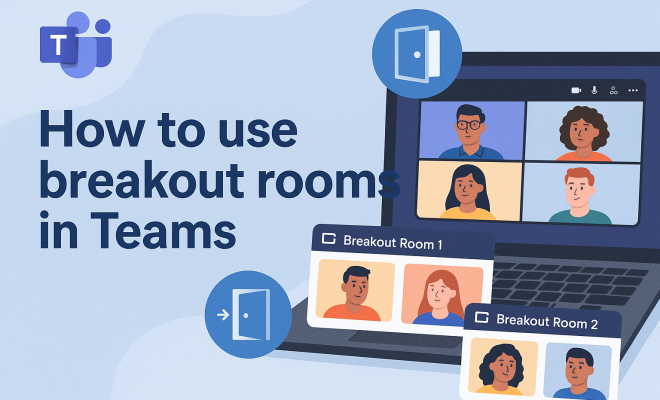
How to use breakout rooms in Teams
“`html
In an era where remote work and online meetings have become the norm, Microsoft Teams has emerged as a crucial platform for collaboration. One of its standout features is breakout rooms in Teams, which allow users to split larger meetings into smaller, focused discussions. This article explores how to effectively use breakout rooms in Teams, offering insights into their setup, benefits, and best practices.
1. Understanding Breakout Rooms in Teams
Breakout rooms in Teams are designed to enhance collaboration during large meetings by dividing participants into smaller groups. This feature is essential for brainstorming sessions, workshops, and any scenario that benefits from focused dialogue. Each breakout room operates as its own separate virtual space, enabling participants to engage without the distractions of the larger group.
Introduced in late 2020, breakout rooms have quickly become a favored tool among educators and business professionals alike. They provide a way for teams to mimic in-person meeting dynamics, fostering a more engaging and interactive environment. With the ability to manage multiple rooms simultaneously, meeting organizers can ensure that discussions stay on track and that everyone has the opportunity to contribute.
2. Setting Up Breakout Rooms
To get started with breakout rooms in Teams, you must first ensure that you have the necessary permissions and that your meeting is scheduled appropriately. Here’s how you can set them up:
- Start a Meeting: Schedule a meeting in Teams and invite your participants. Make sure you’re using the desktop app or the web version, as breakout room features are not available on mobile.
- Access Breakout Rooms: Once the meeting begins, locate the breakout room icon on the meeting toolbar. This will allow you to create and manage your breakout rooms.
- Create Rooms: Choose the number of rooms you need. Teams allows up to 50 breakout rooms per meeting, which can accommodate a significant number of participants divided into focused groups.
- Assign Participants: You can either assign participants manually to each room or let Teams do it automatically. Manual assignment is useful for ensuring specific individuals collaborate on particular topics.
Once your rooms are created and participants assigned, you can open the rooms and let the discussions begin. Organizers can join any breakout room at any time to check on progress or facilitate discussions.
3. Utilizing Breakout Rooms for Different Scenarios
Breakout rooms can be tailored to fit various meeting scenarios, enhancing collaboration in ways that standard meetings cannot. Here are some common use cases:
- Workshops and Training: For training sessions, breakout rooms can be used to facilitate hands-on activities or discussions on specific topics. This allows participants to practice new skills in a safe environment.
- Brainstorming Sessions: When generating ideas, splitting participants into smaller groups can lead to more creative solutions. Each group can focus on a particular aspect of the topic, later reconvening to share findings.
- Feedback and Reviews: Breakout rooms can serve as a space for peer reviews or feedback sessions, where teams can discuss their work in smaller groups before presenting to the larger team.
By strategically using breakout rooms, you can maximize engagement and ensure that each participant has a voice, ultimately improving the quality of outcomes.
4. Best Practices for Managing Breakout Rooms
To ensure that breakout sessions are productive, it’s essential to implement best practices:
- Set Clear Objectives: Before the meeting, communicate the goals for each breakout session. This helps participants understand what they need to achieve.
- Provide Resources: Share any necessary documents or materials before the breakout sessions begin. This ensures participants have everything they need at their fingertips.
- Time Management: Keep track of time during breakout sessions. Set clear time limits and send reminders to ensure discussions remain focused and productive.
- Facilitation: If possible, assign a facilitator to each breakout room to guide discussions, keep participants on task, and summarize key points at the end.
By following these practices, you can help participants make the most of their time in breakout rooms, leading to more fruitful discussions and collaboration.
5. How to Join Breakout Rooms
For participants, joining breakout rooms in Teams is straightforward. Once the meeting organizer opens the rooms, an invitation will pop up on their screen. Here’s the process:
- Notification: When breakout rooms are created and opened by the organizer, participants receive a notification prompting them to join.
- Joining the Room: Clicking on the notification or the breakout room icon in the meeting controls will allow participants to enter their assigned room.
- Returning to the Main Session: Participants can leave their breakout room at any time to return to the main meeting, allowing for flexibility.
This ease of access ensures that participants can seamlessly transition between group discussions and the larger meeting, fostering a collaborative atmosphere.
6. Integrating Breakout Rooms with Other Teams Features
Breakout rooms in Teams work best when combined with other functionalities of the platform. Here are several ways to enhance your meetings:
- Using Whiteboards: Teams’ built-in whiteboard feature allows participants to collaborate visually in their breakout rooms. Participants can brainstorm ideas and document them in real time.
- Chat Functionality: Each breakout room has its own chat, which is incredibly useful for sharing links, documents, and notes without leaving the discussion room.
- Polling and Surveys: Utilize the polling feature before or after breakout sessions to gauge opinions or gather feedback on ideas generated during discussions.
Combining breakout rooms with these features creates a rich collaborative environment that promotes active engagement and innovative thinking.
7. Common Challenges and How to Overcome Them
While breakout rooms can significantly enhance meetings, there can be challenges that arise. Here are a few common issues and tips for overcoming them:
- Technical Difficulties: Ensure that all participants have a stable internet connection and are familiar with Teams. Conduct a test run if possible.
- Engagement Levels: Some participants may feel less inclined to participate in smaller groups. To counteract this, encourage open dialogue and emphasize the importance of everyone’s input.
- Time Management: Keeping track of time can be tricky, especially with multiple rooms. Set a timer or have a designated timekeeper in each room to keep discussions focused.
By anticipating these challenges and preparing in advance, you can create an effective and productive breakout session.
8. Gathering Feedback After Breakout Sessions
Post-session feedback is crucial for understanding the effectiveness of your breakout rooms. Here’s how to gather valuable insights:
- Surveys and Polls: After the meeting, send out surveys to participants to gather their thoughts on the breakout sessions. Tools like Microsoft Forms can be integrated for ease.
- Discussion Recaps: Encourage facilitators to summarize key points and action items from their sessions. Sharing these with all participants helps keep everyone informed and engaged.
- One-on-One Check-Ins: For more detailed feedback, consider having one-on-one conversations with a few participants to discuss their experiences and suggestions.
Feedback not only helps you improve future breakout sessions but also makes participants feel valued, promoting a culture of continuous improvement.
9. Future of Breakout Rooms in Teams
The future of breakout rooms in Teams looks promising. Microsoft continually updates Teams with new features based on user feedback. As remote work evolves, so too will the capabilities of breakout rooms, potentially incorporating advanced technologies like AI to facilitate discussions and enhance user experiences.
Moreover, as businesses adapt to hybrid work models, the effective use of breakout rooms will become even more crucial. They will allow organizations to capitalize on the best of both in-person and virtual meetings, creating a seamless collaborative experience.
10. Final Thoughts on Breakout Rooms in Teams
Utilizing breakout rooms in Teams can transform the way your organization conducts meetings. By fostering smaller, focused discussions, these rooms enable participants to engage more deeply, share ideas freely, and collaborate effectively. As remote work becomes a permanent aspect of many businesses, mastering breakout rooms will be essential for any team looking to enhance productivity and communication.
So, are you ready to take your meetings to the next level? Dive into the world of breakout rooms and experience the difference they can make in your collaborative efforts!
11. Real-World Examples of Effective Breakout Room Use
Understanding how to implement breakout rooms effectively can be enhanced by looking at real-world examples where organizations have successfully utilized this feature. Here are a few scenarios that illustrate their effectiveness:
- University Course Discussions: Professors have effectively used breakout rooms to foster deeper engagement among students. In one case, a marketing professor organized an online class where students were assigned to different breakout rooms to discuss case studies. Each group analyzed a different company and later presented their findings to the entire class, which promoted peer learning and collaboration.
- Corporate Strategy Sessions: A tech startup recently leveraged breakout rooms during their quarterly strategy meeting. By using breakout rooms, different departments could discuss their specific goals and challenges without being overshadowed by other teams. They then reconvened in the main session where each department leader shared their insights, leading to a more cohesive strategy moving forward.
- Nonprofit Community Engagement: A nonprofit organization used breakout rooms during a fundraising event to encourage networking and brainstorming among different stakeholders. Each room focused on a specific fundraising strategy, and by the end of the session, they had gathered innovative ideas that were later implemented, resulting in a successful fundraising campaign.
12. Statistics Behind Breakout Room Effectiveness
While anecdotal evidence can be compelling, statistics can provide a more objective view of the effectiveness of breakout rooms in enhancing meeting productivity. According to a survey conducted by a leading online collaboration research firm:
- Engagement: 78% of participants reported feeling more engaged during meetings when breakout rooms were utilized compared to traditional meetings.
- Productivity: Organizations that implemented breakout rooms noted a 25% increase in actionable outcomes from meetings, as participants felt more comfortable sharing ideas in smaller groups.
- Feedback: 83% of respondents indicated that they preferred breakout sessions for discussions rather than full-group formats, as they felt it allowed for more meaningful exchanges.
These statistics highlight the significant impact breakout rooms have on engagement and productivity, making them not just a novelty, but a valuable tool for enhancing meetings.
13. Frequently Asked Questions (FAQ) about Breakout Rooms in Teams
What are breakout rooms in Teams?
Breakout rooms are virtual spaces within a Teams meeting that allow the host to split participants into smaller groups for focused discussions.
How many breakout rooms can I create in Teams?
You can create up to 50 breakout rooms per meeting in Teams, which is ideal for larger groups.
Can I join multiple breakout rooms at once?
No, as a participant, you can only be in one breakout room at a time. However, organizers can switch between rooms to oversee discussions.
Are breakout rooms available on mobile devices?
Breakout room functionalities are currently not available on Teams mobile apps. It’s best to use the desktop or web version for this feature.
Can I record breakout room sessions?
While you can record the main meeting, breakout rooms cannot be recorded individually. It’s recommended to have facilitators take notes and summarize discussions.
How do I manage participants in breakout rooms?
As a meeting organizer, you can assign participants manually or allow Teams to assign them automatically. You can also move participants between rooms if needed.
What if someone has technical issues during a breakout session?
It’s helpful to have a backup communication method (like a group chat) for participants to report issues. Organizers can also periodically check in on each room.
How can I ensure everyone participates in the breakout room discussions?
Encourage participation by setting expectations before the meeting and assigning roles or topics to discuss. Having a facilitator in each room can also help engage quieter participants.
14. Tips for Tailoring Breakout Rooms to Your Team’s Needs
Each team is unique, so tailoring breakout rooms to fit your specific needs can maximize their effectiveness. Here are a few tips:
- Customize Room Themes: Consider naming breakout rooms based on discussion topics or themes. This creates a clear focus and can make participation more engaging.
- Encourage Diverse Group Composition: Mix participants from different departments or backgrounds to foster diverse perspectives and creativity.
- Use Visual Aids: Encourage teams to utilize visual aids during their discussions, whether on the Teams whiteboard or by sharing screens. This can help clarify ideas and enhance communication.
- Follow Up with Action Items: After the breakout sessions, ensure each group has clear action items and responsibilities. This will help keep the momentum going and ensure tangible outcomes from your discussions.
By applying these strategies, you can create a customized breakout room experience that meets your team’s specific needs and enhances collaboration.
15. Exploring Advanced Features of Breakout Rooms
Microsoft Teams continues to evolve, and new features are regularly added to enhance the functionality of breakout rooms. Some advanced features to explore include:
- Room Reporting: As an organizer, you can access reports post-meeting detailing breakout room activity, participant engagement, and discussion summaries, which can provide insights into the effectiveness of the sessions.
- Room Templates: Consider saving breakout room setups as templates for recurring meetings. This allows for a faster setup process and ensures consistency across sessions.
- Integrated Apps: Teams allows for the integration of various apps within breakout sessions. Use tools like Miro for collaborative whiteboarding or Trello for project management, making discussions more interactive and productive.
These features can elevate the breakout room experience, making meetings more interactive and ensuring that participants remain engaged throughout.
16. Conclusion
Breakout rooms in Teams are more than just a feature; they are a strategic tool that can significantly enhance the collaborative efforts of any organization. By understanding how to maximize their potential, integrating them with existing tools, and continuously seeking feedback for improvement, your teams can engage more deeply and effectively in their discussions. In the age of remote work, embracing technologies like breakout rooms is essential for fostering effective communication and collaboration within teams.
“`
Trending Now
Frequently Asked Questions
How do I create breakout rooms in Teams?
To create breakout rooms in Microsoft Teams, start by scheduling a meeting and inviting participants. Once the meeting begins, click on the breakout room icon in the meeting toolbar. You can then select the number of rooms you need, with a maximum of 50 available, and assign participants to each room.
What are the benefits of using breakout rooms in Teams?
Breakout rooms in Teams enhance collaboration by allowing participants to engage in smaller, focused discussions. They are ideal for brainstorming sessions and workshops, helping to mimic in-person meeting dynamics and fostering a more interactive environment.
Can I manage multiple breakout rooms in Teams?
Yes, Microsoft Teams allows meeting organizers to manage multiple breakout rooms simultaneously. This feature ensures that discussions stay on track and gives everyone an opportunity to contribute effectively during the meeting.
Are breakout rooms available on mobile in Teams?
No, breakout room features in Microsoft Teams are not available on mobile devices. To access and manage breakout rooms, users need to use the desktop app or the web version of Teams.
When were breakout rooms introduced in Teams?
Breakout rooms were introduced in Microsoft Teams in late 2020. Since then, they have become a popular tool for educators and business professionals, facilitating better interaction during large meetings.
Agree or disagree? Drop a comment and tell us what you think.