Master Asana Mobile: Boost Your Productivity On The Go
“`html
In today’s fast-paced work environment, productivity tools have become essential for keeping teams organized and on track. One such tool that has gained significant traction is the Asana mobile app. Whether you’re managing projects with colleagues or planning your tasks solo, Asana offers a user-friendly interface that can help streamline your workflow. In this comprehensive guide, we’ll explore how to use the Asana mobile app effectively, from setup to advanced features, ensuring you get the most out of this powerful application.
1. Getting Started with the Asana Mobile App
Before diving into the features, it’s important to understand how to get the Asana mobile app up and running. The app is available for both iOS and Android devices, making it accessible for a wide range of users. Start by downloading the app from the App Store or Google Play Store.
Once downloaded, you’ll need to log in with your existing Asana account. If you’re new to Asana, you can create an account directly within the app. The setup process is straightforward, often requiring just your email, a password, and a few details about your work preferences. After logging in, you’ll be greeted by a clean, intuitive interface that highlights your tasks and projects.
2. Navigating the Dashboard
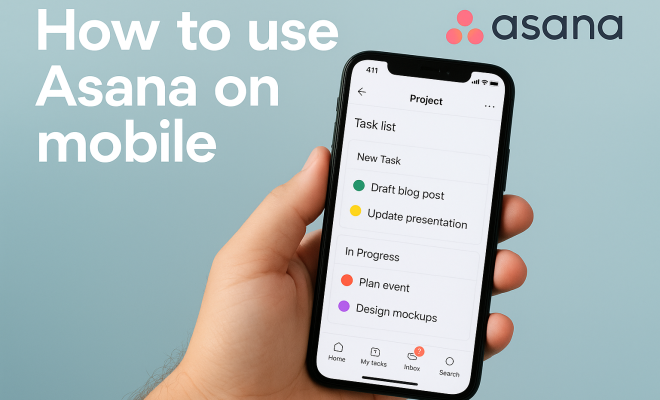
Upon entering the Asana mobile app, you’ll be welcomed by the dashboard, which serves as the command center for your tasks. At the top, you’ll find a navigation bar that includes options for My Tasks, Projects, and Messages. The My Tasks section shows a personalized list of everything you need to accomplish, while the Projects tab gives a quick overview of all active projects.
Utilizing the dashboard effectively means regularly checking and updating your tasks. You can easily drag tasks between different statuses (e.g., to-do, in-progress, completed) with simple swipe gestures. This visual representation helps in prioritizing your work, ensuring you stay focused on what’s crucial.
3. Adding and Managing Tasks
Creating tasks in the Asana mobile app is a breeze. Simply tap the “+” icon, and a new task window will pop up. Here, you can enter the task name, assign it to a team member, set a due date, and even add subtasks. The ability to assign tasks ensures accountability and clear ownership, crucial for team collaboration.
Once tasks are created, you can manage them from your dashboard. You can edit details by selecting the task, adjusting due dates, or adding attachments from your mobile device. One unique feature is the ability to comment directly on tasks, enabling real-time discussions and updates. This feature is especially useful for teams that are remote or on the go.
4. Utilizing Project Views
Asana allows users to view projects in different formats, such as a list, board, or calendar. Each view has its advantages depending on the nature of the project. For instance, the board view is excellent for visualizing workflow, similar to sticky notes on a whiteboard. This can be particularly beneficial in agile project management.
To switch views, simply tap on the project you wish to view and select your preferred layout. The calendar view is particularly handy for visualizing deadlines, while the list view is beneficial for users who prefer a straightforward approach. Ensure to experiment with these views to find which one enhances your productivity the most in the Asana mobile app.
5. Collaboration Made Easy
The Asana mobile app shines in its collaborative capabilities. You can invite team members to projects, allowing them to see ongoing tasks and updates in real-time. To add someone, navigate to the project settings and select ‘Invite.’ This feature fosters transparency and teamwork, as everyone has access to the same information.
Additionally, users can mention team members in comments using the “@” symbol, which sends them a notification. This immediate feedback loop is vital in ensuring that everyone is on the same page, and it simplifies communication, reducing the need for back-and-forth emails. (See: Learn more about Asana software.)
6. Customizing Notifications
Staying updated on project developments is crucial, but constant notifications can be overwhelming. The Asana mobile app allows you to customize your notification settings, ensuring you only get alerts for what matters most. You can adjust notifications for tasks you’re assigned to, as well as for project updates. Related reading: fixing device compatibility issues.
To customize, navigate to your profile settings in the app and select ‘Notifications.’ Here, you can toggle which notifications you want to receive. By balancing notifications, you’re less likely to miss important updates while avoiding distraction from less critical alerts.
7. Integrating with Other Tools
One of Asana’s strengths is its ability to integrate with various other productivity tools, which enhances its functionality. Popular integrations include Google Drive, Dropbox, and Slack. For instance, linking Google Drive allows you to attach files directly from your drive to tasks in the Asana mobile app, streamlining your workflow.
To set up integrations, go to the ‘Apps’ section in your Asana settings. This feature not only saves time but also centralizes information, providing a seamless work experience. Keeping all your tools connected ensures you don’t have to switch between apps, leading to a more efficient process.
8. Offline Capabilities
One of the notable features of the Asana mobile app is its offline capabilities. This is particularly beneficial for users who work in areas with inconsistent internet connectivity. When offline, you can still create tasks, add comments, and make edits. Once you’re back online, all changes sync automatically.
To maximize this feature, consider using Asana in places where Wi-Fi is spotty, such as during commutes or travels. This ensures your productivity doesn’t dip when connectivity issues arise, allowing you to stay on top of your tasks no matter where you are.
9. Best Practices for Using Asana on Mobile
To truly leverage the Asana mobile app, adopting best practices can make a significant difference. Here are some recommendations:
- Regularly Review Tasks: Set aside time each day to review your tasks and updates. This ensures you remain organized and aware of deadlines.
- Use Due Dates Wisely: Make use of deadlines to help prioritize your workload. Setting realistic due dates keeps you accountable.
- Foster Communication: Utilize comments and mentions to keep the project’s communication flowing. This reduces misunderstandings and keeps everyone engaged.
- Explore Integrations: Take time to explore various integrations that can enhance your workflow. The more connected your tools are, the more efficiently you can work.
10. Advanced Features You Might Not Know About
While you might be familiar with the basics of the Asana mobile app, it’s worth exploring some advanced features that can further maximize your productivity:
10.1 Custom Fields
The Asana mobile app allows you to create custom fields for your tasks. This is particularly useful for teams who need to track specific data points that are unique to their workflow. For instance, you could add fields for priority level, project stage, or estimated hours. This added layer of customization helps in tracking progress and ensures that nothing slips through the cracks.
10.2 Goals Feature
Another powerful aspect of Asana is its goals feature. You can set specific, measurable, achievable, relevant, and time-bound (SMART) goals directly within the app. This allows you to align your tasks and projects with broader organizational objectives. You can track your progress towards these goals, which is a great way to maintain motivation and clarity on what really matters.
10.3 Workload Management
The workload management feature helps you visualize how tasks are distributed among your team members. You can see who is overloaded and who has capacity, allowing you to delegate tasks more effectively. This feature is particularly useful for project managers who need to ensure that team workloads are balanced and manageable.
11. Real-World Application of Asana Mobile App
Understanding the utility of the Asana mobile app is one thing, but seeing it in action can be much more impactful. Let’s consider a few scenarios: (See: Ergonomics in the workplace.)
11.1 Marketing Campaigns
Imagine you’re launching a new marketing campaign. You can create a project in Asana to track every step from brainstorming ideas to executing the campaign. Each team member can be assigned tasks based on their expertise, deadlines can be set, and you can attach relevant files for easy access. Throughout the campaign, you can comment on tasks, share feedback, and make adjustments in real-time using the Asana mobile app.
11.2 Event Planning
If you’re organizing a company event, the Asana app can help you manage everything from venue bookings to catering details. You can create subtasks for each major task, assign team members to handle specific aspects, and set due dates leading up to the event. The app’s calendar view can help you visualize the timeline and ensure nothing is overlooked.
11.3 Software Development
For software teams, the Asana mobile app can facilitate agile development processes. You can create sprints as projects and track user stories and bugs as tasks. By using the board view, developers can easily visualize which tasks are in progress, which are completed, and which are pending. This can significantly improve team efficiency and speed up the development cycle.
12. Statistics That Highlight Asana’s Impact
Several studies and surveys provide insight into the effectiveness of using Asana in various settings: (troubleshooting verification code problems)
- A survey conducted by Asana found that teams using the app reported a 45% increase in productivity.
- According to external research, companies that implement Asana see an average of 3.5 hours saved per week per employee due to increased task organization.
- Testimonials from users indicate that 85% feel more connected to their teammates when using Asana for project management.
13. FAQs About the Asana Mobile App
13.1 Is the Asana mobile app free to use?
Yes, the Asana mobile app offers a free version that includes basic project and task management features. There are also premium versions available with additional functionalities tailored for more complex needs.
13.2 Can I use Asana offline?
Absolutely! The Asana mobile app allows you to access and manage your tasks offline. Changes made while offline will sync once you’re back online.
13.3 How secure is my data in the Asana mobile app?
Asana takes data security seriously. They use encryption and other security measures to protect your information. Additionally, you can set user permissions to control who can see and edit specific projects.
13.4 Can I integrate Asana with other apps?
Yes, Asana integrates with numerous apps including Slack, Google Drive, Dropbox, and many more. This allows for a more streamlined workflow and helps in keeping all your tools connected.
13.5 How do I recover a deleted task?
If you’ve accidentally deleted a task, you can recover it from the ‘Deleted Tasks’ section within the project. However, tasks can only be restored if it’s done within a certain timeframe after deletion.
14. Common Challenges with the Asana Mobile App
Even the best tools can present challenges, and Asana is no exception. Here are some common hurdles users might face: (See: Harvard University resources on productivity.)
14.1 Learning Curve
For new users, navigating the features and functionalities of the Asana mobile app can initially feel overwhelming. Many users may not know where to start or how to utilize the advanced features effectively. To overcome this, Asana provides a range of tutorials and resources, including video guides and community forums where users can ask questions and get tips from experienced users.
14.2 Notification Overload
While notifications can be a great way to stay updated, they can also become overwhelming if not managed properly. Users may find themselves inundated with alerts from various projects and tasks, leading to distraction. It’s key to regularly customize notification preferences to ensure that you’re only getting alerts for the tasks that truly matter to you.
14.3 Integration Issues
While integrating with other productivity tools can enhance your workflow, it can also lead to complications. Sometimes integrations do not sync properly, or there may be compatibility issues with certain applications. Keeping your apps updated and regularly checking integration settings can help mitigate these issues.
15. Success Stories: How Teams Use Asana
Real-world success stories of teams using the Asana mobile app can provide inspiration and context for how it can be effectively utilized:
15.1 Design Teams
Design teams often have multiple projects running simultaneously, each with various components like client feedback, revisions, and approvals. By organizing all tasks in Asana, teams can maintain clarity on deadlines and responsibilities. This leads to smoother collaboration and allows designers to focus on creativity rather than on managing logistics.
15.2 Remote Workforces
For companies with remote employees, Asana is a game changer. Teams that once struggled with communication and project tracking have reported higher levels of engagement and output since adopting Asana. The ability to tag team members and provide real-time updates fosters a sense of connection, even when individuals are miles apart.
15.3 Nonprofit Organizations
Nonprofits often work with limited resources and tight deadlines. One nonprofit organization shared that using the Asana mobile app simplified their project management processes dramatically. By tracking tasks and deadlines efficiently, they were able to focus more on their mission rather than getting bogged down by administrative tasks. solutions for Depth Effect problems offers useful background here.
16. Final Thoughts
In a world where efficiency is key, the Asana mobile app offers a robust solution to help individuals and teams stay organized. From its intuitive interface to powerful collaboration tools, Asana is designed to adapt to your unique workflow. By utilizing its features and adhering to best practices, you can maximize your productivity and ensure that your projects are completed on time. As you continue to explore and utilize the app, you’re likely to uncover even more ways to enhance your productivity, making the Asana mobile app an indispensable tool in your work life.
“`
Trending Now
Frequently Asked Questions
How do I set up Asana on my mobile device?
To set up Asana on your mobile device, download the app from the App Store or Google Play Store. After installation, log in with your existing Asana account or create a new one by entering your email and password. The setup process is straightforward and will guide you through your work preferences.
What features does the Asana mobile app offer?
The Asana mobile app offers various features including task management, project tracking, and team messaging. Users can view their personalized task lists, manage projects, and easily update task statuses. The intuitive interface allows for smooth navigation and efficient workflow management.
Can I use Asana offline on my mobile device?
Yes, Asana's mobile app allows for limited offline functionality. You can view your tasks and projects without an internet connection, but certain features like updating tasks or syncing changes require online access. Once you're back online, your changes will sync automatically.
Is Asana free to use on mobile?
Asana offers a free version that can be accessed on mobile devices, which includes basic features for task and project management. However, premium features that enhance collaboration and productivity require a paid subscription. You can start with the free version and upgrade if needed.
How do I navigate the Asana dashboard on mobile?
To navigate the Asana dashboard on mobile, open the app to see the main interface featuring the navigation bar at the top. Use the My Tasks section for a personalized view of your tasks, and the Projects tab for an overview of all active projects. The interface allows for easy task updates and management.
Agree or disagree? Drop a comment and tell us what you think.