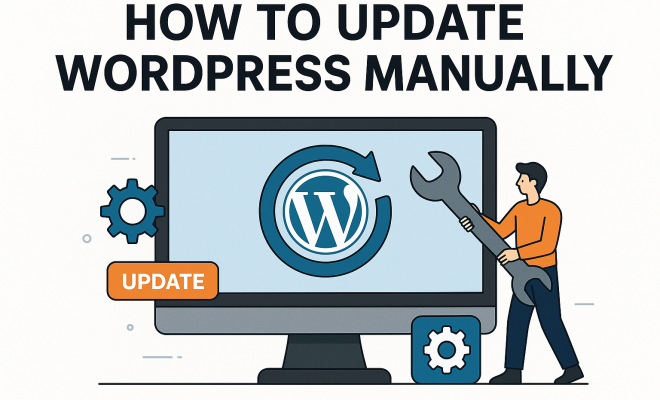
How to update WordPress manually
“`html
Updating your WordPress site is crucial for maintaining security, performance, and functionality. While many users rely on automatic updates, knowing how to perform a manual WordPress update is an essential skill for any website owner. In this guide, we’ll explore the reasons for manual updates, walk through the process step-by-step, and provide tips for troubleshooting common issues.
1. Understanding the Need for Manual Updates
WordPress is an open-source platform that receives regular updates for core software, themes, and plugins. These updates not only introduce new features but also patch security vulnerabilities that could be exploited by hackers. While automatic updates are convenient, they can sometimes lead to compatibility issues or errors that require manual intervention.
A manual WordPress update allows you to take control of this process. By updating manually, you can ensure that your site remains stable and functional after each update. Also, if you encounter any issues, you can troubleshoot them more effectively since you are more involved in the update process.
2. Preparing for a Manual Update
Before you begin the manual update process, it’s vital to take some preparatory steps to safeguard your website. First, back up your entire site, including the database and files. This is crucial; if anything goes wrong during the update, you can restore your site to its previous state.
Next, check your current WordPress version. You can do this by logging into your WordPress admin dashboard and navigating to the ‘Updates’ section. Note down your current version, as this will help you verify the success of the update later. Additionally, disable any caching plugins temporarily to avoid conflicts that may arise during the update process.
3. Downloading the Latest Version of WordPress
To perform a manual WordPress update, you need to download the latest version of WordPress from the official website. Go to WordPress.org and download the zip file of the latest release. After downloading, unzip the file on your local machine. You should see a folder containing WordPress files and directories.
These files will include essential components such as wp-admin, wp-includes, and several PHP files that are crucial for the functioning of your WordPress site. Make sure you do not delete anything in your existing installation that is not part of this update.
4. Uploading the New Files to Your Server
Now that you have the latest WordPress files ready, the next step is to upload them to your server. You can do this using an FTP client like FileZilla or through your web hosting control panel’s file manager. Connect to your server using your FTP credentials.
Upload the new files from the unzipped folder to your existing WordPress installation directory. When prompted, choose to overwrite the existing files. Note that you should exclude the wp-content folder to avoid losing your themes and plugins. This step is crucial to ensure that your site’s design and functionality remain intact.
5. Running the Update Script
Once the new files have been uploaded, it’s time to run the update script. Open your web browser and go to yoursite.com/wp-admin/upgrade.php. This script will check the database and make any necessary upgrades to ensure compatibility with the new WordPress version.
If everything goes smoothly, you should see a confirmation message. If there are issues, such as database errors, WordPress will guide you on how to resolve them. Pay attention to any error messages, as they can provide clues on what might need to be fixed. (See: WordPress overview and updates.)
6. Testing Your Site After the Update
After completing the manual update, it’s essential to test your website thoroughly. Start by checking the front end of your site, ensuring that everything appears as expected. Then, log back into the admin panel to verify that all plugins and themes are functioning correctly.
Pay special attention to any critical features, such as forms, e-commerce functionality, and interactive elements. If you notice any issues, consult the plugin or theme documentation for troubleshooting tips or consider reaching out to their support teams.
7. Troubleshooting Common Issues
Even the most straightforward manual WordPress update can encounter hiccups. Here are some common issues you might face:
- White Screen of Death: If your site shows a blank page, this usually indicates a PHP error. Check your error logs or enable debug mode in wp-config.php to identify the problem.
- Plugin Conflicts: Occasionally, a plugin may not be compatible with the new version. Disable all plugins and reactivate them one by one to find the culprit.
- Database Errors: If you encounter database connection issues, ensure your database credentials in wp-config.php are correct. You may also need to repair your database using phpMyAdmin.
8. Automating Future Updates
While knowing how to perform a manual WordPress update is valuable, automating your updates can save you time and hassle in the long run. You can enable automatic updates for WordPress core, plugins, and themes directly from your admin dashboard.
To do this, navigate to the ‘Updates’ section in your dashboard and toggle the settings for automatic updates. Keep in mind, however, that automatic updates may not always be smooth. Regularly monitoring your site remains important, even with this feature enabled.
9. Final Thoughts on Manual Updates
Understanding how to conduct a manual WordPress update empowers you as a website owner. Whether you choose to update manually or automatically, the important thing is to keep your site current. Regular updates are vital for security and performance, and knowing the manual process provides you with the skills to troubleshoot any issues that may arise.
In a world where cyber threats are prevalent, keeping your WordPress installation updated is not just a best practice; it’s a necessity. Embrace the knowledge of manual updates, and you’ll be well-equipped to maintain a secure and high-performing website.
10. Understanding the WordPress Update Cycle
To grasp the significance of a manual WordPress update, it’s helpful to understand WordPress’s update cycle. WordPress typically releases three types of updates: major, minor, and security updates.
Major updates introduce substantial changes to the software, often including new features and a redesigned interface. These updates usually occur once a year and can dramatically change how your website operates. Minor updates, on the other hand, are more frequent and focus on bug fixes, performance improvements, and small tweaks. Security updates are released as needed to address vulnerabilities that could pose risks to users.
Keeping track of these updates is essential. Websites that fail to update may face increased security risks and performance issues over time. The longer you wait to perform updates, the greater the chance of encountering compatibility issues with plugins and themes, which can lead to a poor user experience.
11. Backup Strategies for WordPress
Backing up your website is a crucial step before performing a manual WordPress update, but what does a well-rounded backup strategy look like? Here are some best practices:
- Regular Backups: Schedule regular backups at intervals that suit your site’s activity level. For busy sites, daily backups may be necessary, while slower sites might get away with weekly backups.
- Use a Reliable Backup Plugin: Plugins like UpdraftPlus and BackupBuddy offer both automatic and manual backup options, making it easier to keep your site secure.
- Store Backups Off-Site: It’s wise to store backups on a separate server or cloud storage service like Google Drive or Dropbox. This way, if your server experiences issues, your backup remains safe.
- Test Your Backups: Regularly test your backups by restoring them to a test environment to ensure they work correctly. This can save you a lot of headaches in case of an actual failure.
12. Expert Perspectives on Manual Updates
To get more insight into the importance of manual updates, we reached out to WordPress experts and developers. Their consensus is clear: manual updates not only enhance control over your site but also educate you about its inner workings. (See: Importance of software updates for security.)
One expert noted, “Understanding the update process helps users recognize potential issues and gives them a sense of ownership over their site. It’s not just about pushing buttons; it’s about understanding what changes are being made.”
Developers also pointed out that manual updates allow for testing within a staging environment before applying changes to the live site. This practice minimizes the risk of downtime and ensures a smoother transition.
13. Frequently Asked Questions (FAQ)
What is a manual WordPress update?
A manual WordPress update is the process of updating the WordPress core, themes, and plugins by downloading the latest version from the official WordPress site and uploading it to your server via FTP, rather than relying on automatic updates.
Why should I perform manual updates instead of relying on automatic updates?
Manual updates give you more control over the update process. You can directly observe how updates affect your site, troubleshoot issues immediately, and ensure compatibility with your themes and plugins.
How often should I perform manual updates?
It’s a good practice to check for updates at least once a week, although you should also keep an eye out for notifications about critical security updates. The frequency may vary based on your site’s activity and the number of plugins you use.
Can I perform a manual update if my website is currently down?
If your website is down, you can still perform a manual update, but the process may be complicated. It’s advisable to troubleshoot the cause of the downtime first, as it may be unrelated to the WordPress version you are using.
What should I do if I encounter issues after a manual update?
If you face issues after an update, disable your plugins and revert to a default theme to identify the conflict. If problems persist, consult the WordPress support forums or seek help from your hosting provider.
Is it safe to update my WordPress site during peak hours?
It’s generally advisable to perform updates during off-peak hours to minimize disruption. While updates typically don’t take long, any potential issues could affect user experience when traffic is high.
What are the risks of not performing manual updates?
Neglecting manual updates can lead to security vulnerabilities, performance issues, and compatibility problems with themes and plugins. This can ultimately compromise the user experience and deter visitors from returning to your site.
14. Advanced Techniques for Managing Updates
While performing manual updates is crucial, adopting advanced techniques can further enhance your update strategy. One such technique is using a staging environment. A staging site is a clone of your live site where you can test updates without affecting the user experience or risking downtime. (See: WordPress security and updates.)
Staging environments allow you to experiment with updates, plugins, and themes safely. After verifying that everything works correctly in the staging environment, you can then deploy the changes to your live site confidently. Many hosting providers offer one-click staging solutions, which simplify this process.
15. Real-Life Examples of Update Failures
Learning from real-life cases can be incredibly beneficial. For instance, a company updated its WordPress site without testing its plugins. The update included a critical security patch, but one outdated plugin caused the entire site to crash. They had to restore from a backup, losing a week’s worth of changes.
This scenario emphasizes the importance of testing updates in a safe environment and ensuring compatibility with all components of the site. It serves as a reminder that while updates are necessary, they must be executed carefully to avoid unnecessary disruptions.
16. Trends in WordPress Updates
As WordPress evolves, so do its update processes. One trend is the increasing emphasis on security updates, especially in light of rising cyber threats. In the last few years, WordPress released multiple updates that focus solely on security enhancements, highlighting the necessity of keeping installations up to date.
Another trend is the development of more user-friendly update interfaces. WordPress continues to refine its dashboard to make it easier for users to see available updates and understand what they entail. This simplification can help users who may not be technically inclined to perform updates more confidently.
17. Conclusion
Understanding how to conduct a manual WordPress update empowers you as a website owner. Whether you choose to update manually or automatically, the important thing is to keep your site current. Regular updates are vital for security and performance, and knowing the manual process provides you with the skills to troubleshoot any issues that may arise.
In a world where cyber threats are prevalent, keeping your WordPress installation updated is not just a best practice; it’s a necessity. Embrace the knowledge of manual updates, and you’ll be well-equipped to maintain a secure and high-performing website.
“`
Trending Now
Frequently Asked Questions
How do I manually update WordPress?
To manually update WordPress, first back up your site, then download the latest version from WordPress.org. Next, extract the files and upload them to your server via FTP, replacing the existing files. Finally, access your admin dashboard to complete the update process.
Why should I update WordPress manually?
Manual updates allow you to maintain control over the update process, ensuring compatibility and stability. They can help you troubleshoot any issues that arise and prevent potential conflicts with themes or plugins that might occur with automatic updates.
What should I do before updating WordPress?
Before updating WordPress, back up your entire site, including the database and files. Check your current WordPress version in the admin dashboard and temporarily disable caching plugins to avoid conflicts during the update process.
What are the risks of not updating WordPress?
Failing to update WordPress can expose your site to security vulnerabilities, leading to potential hacks or data breaches. Additionally, outdated software may result in compatibility issues with themes and plugins, affecting your site's functionality and performance.
How can I troubleshoot issues after a WordPress update?
If you encounter issues after a WordPress update, first clear your browser cache and disable any caching plugins. Check for plugin or theme conflicts by deactivating them one by one. If problems persist, restore your site from the backup you created before the update.
What did we miss? Let us know in the comments and join the conversation.