How to install WordPress plugin
“`html
When it comes to enhancing the functionality of your WordPress site, knowing how to install a WordPress plugin is essential. Plugins are powerful tools that can help you customize your website, improve performance, enhance security, and much more. In this guide, we’ll break down the steps to not only install plugins effectively but also ensure you’re choosing the right ones for your needs. Let’s dive into the key points!
1. Understanding WordPress Plugins
Before you jump into the installation process, it’s crucial to grasp what WordPress plugins are all about. Plugins are pieces of software that add specific features or functionalities to your WordPress site. They can simplify tasks, optimize site speed, enhance security, and even improve search engine performance.
As of now, the WordPress Plugin Directory boasts over 58,000 plugins, ranging from SEO tools like Yoast SEO to e-commerce solutions such as WooCommerce. This vast selection means there’s a plugin for almost any functionality you could dream up. However, with great choice comes the need for careful selection. Not all plugins are created equal; some may conflict with your theme or other plugins, so always do your research before installation.
2. Choosing the Right Plugin
With thousands of plugins available, choosing the right one can be overwhelming. Start by identifying what functionality you need. Do you want to enhance your site’s SEO, improve page loading speed, or add social media sharing buttons? The clearer you are about your needs, the easier it will be to find a suitable plugin.
Once you have a specific functionality in mind, check out user reviews and ratings in the Plugin Directory. Look for plugins that have been regularly updated and have a strong support community. This will often signify a plugin that is reliable and well-maintained, reducing the chances of running into issues down the line.
3. Preparing to Install a Plugin
Now that you’ve chosen a plugin, it’s time to prepare for installation. Before making any changes to your site, it’s highly recommended that you back up your WordPress site. This ensures that should anything go wrong during the installation process, you can easily revert to the original state without losing any data.
Additionally, ensure your WordPress version is up to date. Some plugins may require the latest version to function correctly, and running outdated software can expose your site to security vulnerabilities. Check your WordPress dashboard under Dashboard > Updates to see if any updates are available.
4. Installing a Plugin via the WordPress Dashboard
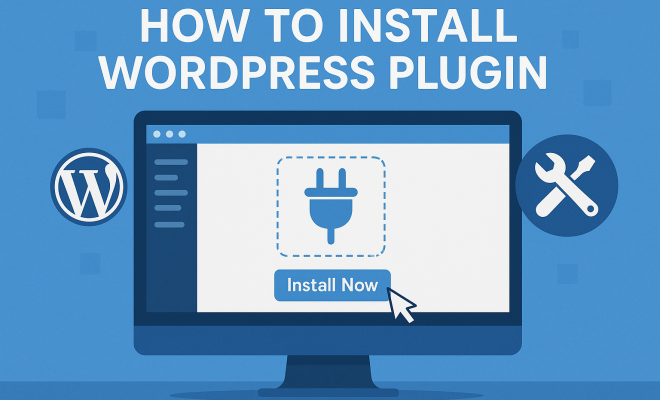
The simplest way to install a WordPress plugin is through the WordPress dashboard. Here’s how to do it:
- Log into your WordPress admin area.
- Navigate to the “Plugins” section in the left sidebar and click on “Add New”.
- Use the search bar to find the plugin you want to install. You can also upload a plugin if you have a ZIP file by clicking on “Upload Plugin”.
- Once you find your desired plugin, click “Install Now”.
- After installation, click the “Activate” button to enable the plugin on your site.
Once activated, you may need to configure the plugin settings according to your preferences. Most plugins will add a new menu item to your dashboard where you can access their settings.
5. Installing a Plugin via FTP
Sometimes, you might encounter situations where you cannot install a plugin directly from the dashboard due to server restrictions. In such cases, using FTP (File Transfer Protocol) can be a reliable alternative. Here’s a step-by-step guide on how to do this:
- Download the plugin ZIP file from the WordPress Plugin Directory.
- Extract the ZIP file on your computer. You should see a new folder containing the plugin files.
- Access your website using an FTP client, like FileZilla.
- Navigate to the /wp-content/plugins/ directory on your server.
- Upload the extracted plugin folder to this directory.
- Once the upload is complete, go back to your WordPress dashboard, navigate to the “Plugins” section, and activate the plugin.
This method may seem more technical, but it’s a straightforward process once you get the hang of using FTP. It’s particularly useful for larger plugins or when your hosting environment has certain restrictions.
6. Managing and Configuring Your Plugins
After successfully installing a plugin, managing it becomes crucial. Regularly check for updates and compatibility issues. Outdated plugins can lead to security vulnerabilities that can compromise your website. You can easily manage your plugins from the “Plugins” section of your dashboard, where you can activate, deactivate, or delete plugins as needed. (See: Overview of WordPress software.)
Configuration varies by plugin, but it often involves setting preferences that align with your needs. For example, security plugins will have different settings compared to SEO plugins. Always refer to the plugin’s documentation for guidance on configuration to get the most out of your installation.
7. Troubleshooting Common Plugin Issues
Even the best plugins can have issues, and knowing how to troubleshoot can save you a lot of headaches. Common problems include plugin conflicts, slow site performance, and error messages. If you encounter a problem, first try deactivating the plugin to see if that resolves the issue. This can pinpoint whether the plugin is the cause.
If the problem persists, check the plugin’s support forum or documentation. Most reputable plugins have a support community ready to help you troubleshoot common issues. If all else fails, you may need to consider alternative plugins that offer similar functionality without the problems you’re encountering.
By understanding how to install a WordPress plugin and manage it effectively, you can significantly enhance your website’s functionality and performance. Plugins are a vital part of the WordPress ecosystem, and leveraging them wisely can lead to better user experiences and improved site management.
8. Popular WordPress Plugins You Should Consider
Now that you know how to install and manage plugins, let’s explore some popular plugins that can elevate the performance of your WordPress site. Here are a few categories and examples of must-have plugins:
SEO Plugins
Search Engine Optimization (SEO) is crucial for increasing your site’s visibility. Plugins like Yoast SEO and All in One SEO Pack help optimize your content, manage meta-tags, and generate XML sitemaps. These plugins are user-friendly and provide helpful tips to improve your on-page SEO.
Security Plugins
Security should be a priority for any website owner. Plugins like Wordfence Security and Sucuri Security offer features such as firewall protection, malware scanning, and login security to safeguard your site against potential threats.
Performance Optimization Plugins
If your website is loading slowly, consider plugins like WP Rocket or W3 Total Cache. These plugins help improve site speed by caching your content and optimizing your database, which is crucial for retaining visitors.
E-Commerce Plugins
For online stores, WooCommerce is the go-to plugin. It transforms your WordPress site into a fully functional e-commerce store with features like payment processing, inventory management, and customizable product pages.
Social Media Plugins
To enhance social sharing, consider plugins like Social Warfare or Monarch. These plugins allow you to add social sharing buttons to your content, making it easy for users to share your posts across various platforms.
9. Advanced Configuration Tips for Plugins
Once you’ve installed your plugins, you may want to go beyond basic configurations. Here are some advanced tips to get the most out of your plugins:
Optimize Plugin Settings
Each plugin will come with its set of options. Spend time exploring these settings to tailor the plugin’s functionality to your needs. For example, when using SEO plugins, take advantage of features like keyword optimization suggestions and readability analysis.
Use Conditional Logic
If a plugin supports it, use conditional logic to control how and when certain functionalities are activated. This means you could show specific features based on user roles or conditions, ensuring a streamlined and efficient user experience. (See: Impact of technology on health.)
Integrate with Other Tools
Many plugins can work together to enhance your site’s performance. Look for integration options with other tools, such as email marketing services or analytics platforms. For instance, integrating your SEO plugin with Google Analytics can provide insights to help refine your strategy.
10. Frequently Asked Questions (FAQ)
Q: Can I install multiple plugins at once?
A: Yes, you can install multiple plugins simultaneously from the WordPress dashboard by searching for and installing them one after another. However, it’s a good practice to activate and configure one at a time to avoid conflicts.
Q: Are all plugins free?
A: Not all plugins are free. While many plugins are available at no cost, some come with premium versions that offer additional features and support. Always check the plugin details before installation.
Q: What should I do if a plugin breaks my site?
A: If a plugin causes issues, you can deactivate it through the WordPress dashboard or via FTP if your dashboard is inaccessible. If you suspect a conflict with another plugin, consider deactivating other plugins to identify the culprit.
Q: How do I know when to update a plugin?
A: WordPress will notify you in your dashboard when updates are available for your installed plugins. It’s essential to keep them updated to ensure compatibility with the latest version of WordPress when it is released.
Q: Can I use plugins on a WordPress.com site?
A: If you are using a free WordPress.com plan, you cannot install plugins. However, upgrading to a Business or eCommerce plan allows you to add plugins to your site.
11. The Future of WordPress Plugins
The landscape of WordPress plugins is constantly evolving. As technology advances, plugins are becoming more sophisticated, offering better functionality and seamless integrations with third-party services. The growing trend of AI is also making its way into the plugin ecosystem, with features that can automate tasks, analyze user behavior, and personalize content delivery.
Furthermore, developers are increasingly focusing on security and performance optimization. As more websites face security threats, the demand for robust security plugins will continue to grow. Expect to see more plugins incorporating machine learning to detect and prevent potential security breaches.
Another trend to watch is the rise of no-code and low-code solutions. These plugins will allow users without technical backgrounds to create complex functionalities through simple drag-and-drop interfaces. This shift will democratize website development, making it accessible to a broader audience.
12. Case Studies: Successful Plugin Implementations
Let’s take a look at a few case studies where successful plugin implementation led to significant improvements in websites.
Case Study 1: E-Commerce Enhancement with WooCommerce
A small business owner started an online store using WordPress and WooCommerce. Initially, they struggled with low traffic and poor sales. By integrating SEO plugins like Yoast SEO and using WooCommerce’s built-in features, they optimized product descriptions and improved site visibility. Within six months, their traffic increased by 150%, leading to a 200% rise in sales. This shows how a well-chosen combination of plugins can significantly impact business growth. (See: Importance of WordPress plugins.)
Case Study 2: Boosting Site Speed with Caching Plugins
A digital agency faced complaints from users about slow loading times for their portfolio site. After analyzing their site, they decided to implement caching plugins like WP Rocket. The agency configured the plugin to optimize images and cache pages. As a result, the site’s loading time improved from 7 seconds to under 2 seconds. This swift change not only enhanced user experience but also improved their search engine rankings, demonstrating the importance of performance optimization plugins.
Case Study 3: Security Improvement with Wordfence
A blog focused on health and wellness experienced several hacking attempts over a few months. The owner chose to install Wordfence Security. The plugin’s real-time monitoring features alerted them to suspicious activity, and the firewall prevented unauthorized access attempts. Over a year, the blog saw a decrease in security incidents, affirming the necessity of robust security plugins.
13. Best Practices for Managing Plugins
To maximize the benefits of using plugins, consider the following best practices:
Regularly Audit Your Plugins
Schedule regular audits to check which plugins you currently have installed. Deactivate and delete any plugins that you no longer use. This not only reduces the chances of conflicts but also improves site speed.
Limit the Number of Active Plugins
While it can be tempting to install many plugins, too many can bloat your site and lead to performance issues or conflicts. Aim to limit the number of active plugins to those that are essential for your site’s functionality. Quality over quantity is key.
Test Updates in a Staging Environment
If possible, use a staging environment to test plugin updates before applying them to your live site. This helps catch issues without affecting your site’s performance or user experience.
Stay Informed on New Plugin Releases
Keep an eye on new plugin releases and updates in your areas of interest. Subscribing to relevant blogs or forums can help you discover innovative plugins that could benefit your site.
14. Conclusion
Mastering the art of installing and managing WordPress plugins can dramatically improve your website’s functionality and user experience. With the right plugins and careful management, you can transform your WordPress site into a powerful, efficient platform that meets your specific needs. Always take the time to choose the right plugins, configure them properly, and keep them updated. Happy blogging!
“`
Trending Now
Frequently Asked Questions
How do I install a WordPress plugin?
To install a WordPress plugin, go to your WordPress dashboard, navigate to 'Plugins', then click 'Add New'. You can search for the plugin you want or upload it directly if you have the file. Once you find it, click 'Install Now' and then 'Activate' to start using the plugin.
What are the best WordPress plugins?
The best WordPress plugins depend on your site’s needs, but popular choices include Yoast SEO for search optimization, WooCommerce for e-commerce, and Wordfence for security. Always consider user reviews and the plugin's update history before deciding.
How do I choose the right WordPress plugin?
To choose the right WordPress plugin, identify the specific functionality you need, such as SEO enhancement or social sharing. Check user reviews, ratings, and ensure the plugin is regularly updated and supported to avoid conflicts with your theme or other plugins.
Are all WordPress plugins safe to use?
Not all WordPress plugins are safe. It's essential to research plugins before installation by checking user reviews, update frequency, and support community. Avoid plugins that haven't been updated in a long time or have poor ratings to minimize security risks.
Can I install multiple plugins on WordPress?
Yes, you can install multiple plugins on WordPress. However, be cautious as too many plugins can slow down your site and cause conflicts. Regularly review and deactivate any plugins that you no longer need to maintain optimal performance.
Have you experienced this yourself? We’d love to hear your story in the comments.