How to sync Lightroom across devices
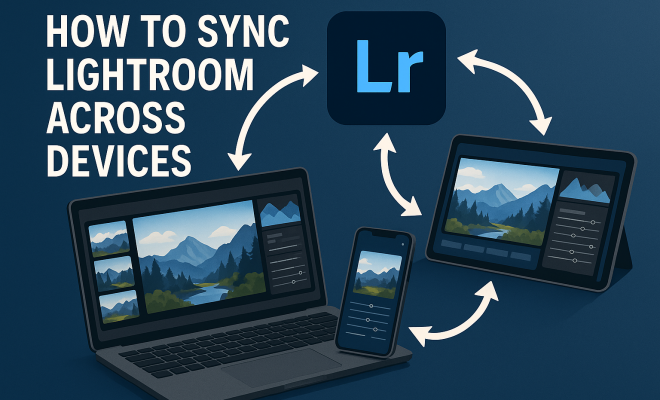
“`html
Lightroom, Adobe’s powerful photo editing software, is widely used by photographers and hobbyists alike for its extensive features and user-friendly interface. One of its most valued capabilities is the ability to sync Lightroom across devices, allowing users to edit and manage their photos seamlessly from anywhere. Whether you’re on your desktop, tablet, or smartphone, syncing your Lightroom catalog can be a game-changer for your workflow. In this article, we’ll explore ten essential steps to help you effectively sync Lightroom across devices while maintaining your organizational structure and editing consistency.
1. Understanding Lightroom’s Ecosystem
Before diving into the syncing process, it’s crucial to understand how Lightroom functions across different platforms. Lightroom is available in various versions, each providing unique features. The primary versions include Lightroom Classic, which is ideal for desktop editing, and Lightroom CC, which is designed for cloud-based work. Recognizing the differences will help you make informed decisions about which version best suits your needs.
Lightroom Classic primarily stores your images locally, while Lightroom CC utilizes Adobe’s cloud. If you want to sync Lightroom across devices, you’re better off using Lightroom CC, as it facilitates automatic syncing of photos, edits, and metadata between your devices. This makes your images accessible even when you’re away from your primary workstation.
2. Setting Up Adobe Creative Cloud
To enable syncing, you’ll need an Adobe Creative Cloud subscription, which provides the necessary storage space for syncing. Start by creating an account or logging into your existing account on Adobe’s website. After setting up your subscription, download and install Lightroom CC on all devices you plan to use.
Once installed, open Lightroom CC and sign in with your Adobe ID. This account is vital as it acts as your digital hub for accessing your synced files. Make sure to check your storage capacity, as Adobe offers various plans with differing storage options. Consider your photo library size to ensure you have adequate space.
3. Importing Photos into Lightroom CC
The next step is to import your photos into Lightroom CC. You can do this by clicking the ‘Import’ button located in the lower-left corner of the Library module. Select the source of your images, whether it’s a folder on your computer, an external hard drive, or another source. Remember that any images you import into Lightroom CC will automatically be uploaded to the cloud, making them available on all your devices.
Be sure to apply any necessary metadata and keywords during the import process. This organization will help you keep track of your images and ensure that they are easily searchable. Additionally, consider using collections to further categorize your photos, which will enhance your workflow when syncing across devices.
4. Syncing Settings and Preferences
After importing your photos, you’ll want to ensure that your settings and preferences are consistent across devices. In Lightroom CC, navigate to the preferences menu and adjust your settings for things like file handling, performance, and interface options. This ensures a uniform experience across devices, so you can edit without missing a beat.
For example, you might prefer to have automatic lens corrections enabled or specific color settings. By syncing these preferences, you create a cohesive editing environment, reducing the learning curve when switching between devices. Remember that any changes you make to preferences will sync automatically, ensuring that your editing environment is consistent.
5. Utilizing Collections for Better Organization
Collections are a powerful way to organize your photos in Lightroom. Creating collections allows you to sort images based on themes, projects, or any criteria you choose. When you sync Lightroom across devices, these collections travel with your images, giving you easy access to your organized library regardless of which device you’re using.
Additionally, consider using Smart Collections, which automatically group photos based on set criteria (like ratings or keywords). This can significantly enhance your workflow, as you won’t have to manually sort your images once the criteria are established. Keeping your collections tidy and well-organized is crucial for a smooth syncing experience.
6. Editing and Syncing Changes
One of the primary benefits of syncing Lightroom is the ability to edit photos across devices and see those changes reflected in real-time. When you make an edit on one device, it syncs to the cloud and updates on all other devices using the same Adobe ID. This feature is particularly beneficial for photographers who may start editing on a laptop during travel and finish on a desktop at home.
The syncing process doesn’t just apply to the photos themselves; any adjustments you make—whether it’s color grading, cropping, or applying presets—will be retained across devices. This means you can confidently switch from your tablet to your desktop without losing any of your progress or edits. (See: Learn about Adobe Lightroom features.)
7. Managing Sync Conflicts
While syncing is generally seamless, conflicts can occasionally arise, especially if you make changes to the same photo on multiple devices simultaneously. In such cases, Lightroom will present you with options to resolve the conflict. You can choose to keep the changes from one device or combine them, ensuring you don’t lose any work.
To minimize potential conflicts, try to establish a routine where you primarily edit on a single device at a time. Additionally, ensure that your devices are connected to the internet when making edits so that changes can sync automatically. Keeping your Lightroom app updated is also essential, as updates often include improvements to syncing functionality.
8. Backup Your Lightroom Catalog
Even with Adobe’s robust cloud infrastructure, it’s crucial to have a backup strategy for your Lightroom catalog. Regularly exporting your catalog ensures that your edits and organizational structure are preserved in case of any syncing issues or data loss. You can do this by selecting ‘File’ then ‘Export as Catalog’ within Lightroom.
Store your backups in a secure location, such as an external hard drive or another cloud storage service. A solid backup routine not only provides peace of mind but also ensures that you can always revert to a previous version should the need arise. This is especially important for professional photographers who rely on Lightroom for their business.
9. Utilizing Mobile Features for Enhanced Flexibility
Lightroom’s mobile app brings incredible flexibility to the table, allowing you to sync Lightroom across devices seamlessly. The mobile version includes many of the same editing tools as the desktop version, so you can carry out high-quality edits on your smartphone or tablet while you’re out and about.
Plus, the mobile app allows you to capture images directly into your Lightroom library, which will then sync with your other devices. This feature is especially useful for photographers who need to work quickly, as it enables you to start your editing process as soon as inspiration strikes. Ensure your mobile app is synced with your Creative Cloud account to take full advantage of this feature.
10. Staying Updated with New Features and Best Practices
Adobe frequently releases updates for Lightroom, introducing new features and enhancing existing functionalities. To get the most out of your Lightroom experience, make a habit of checking for updates and reading through new release notes. Staying informed about changes can help you adapt your workflow to incorporate new tools and optimizations.
Additionally, engaging with the photography community through forums, social media, or Adobe’s own resources can provide invaluable insights and tips for syncing and using Lightroom efficiently. This collective knowledge can offer different perspectives on best practices for organization, editing techniques, and syncing strategies, ultimately enhancing your overall Lightroom experience.
11. Exploring Advanced Sync Features
Beyond the basics of syncing, Lightroom offers advanced features that can greatly enhance your experience. For instance, Lightroom CC has a feature called “auto-sync” which allows you to apply metadata and adjustments to multiple selected photos at once. This is incredibly useful when you have a series of images that need similar edits, saving you time and effort.
Additionally, you can use the “sync settings” feature to ensure that all of your edits and adjustments are consistent across a group of photos. This can be particularly beneficial when working on projects such as wedding photography or events where maintaining a cohesive look is crucial.
Statistics show that using batch editing features can reduce editing time by up to 50%, allowing you to focus more on creativity instead of repetitive tasks. Such features not only streamline your workflow but also help maintain a consistent aesthetic across your work.
12. Tips for Efficient Device Management
Managing multiple devices effectively is key to a seamless Lightroom experience. To keep your workflow efficient, consider creating a specific routine for your editing sessions. For example, designate certain devices for specific tasks; use your desktop for heavy edits and detailed adjustments while utilizing your tablet or smartphone for quick edits and reviews.
Regularly check the synchronization status for each device to ensure they are all aligned. Lightroom provides a sync status indicator that helps you identify whether your devices are fully synced. When you’re on the go, always make sure that your mobile device is connected to Wi-Fi for quicker uploads and downloads of your images.
Another crucial aspect is being mindful of battery life. Editing high-resolution images can drain battery quickly, especially on mobile devices. Keeping a portable charger handy can be a lifesaver during long editing sessions.
13. Integrating Lightroom with Other Adobe Products
If you’re already using Adobe products like Photoshop or Illustrator, integrating them with Lightroom can enhance your creative suite. For example, you can easily send your images from Lightroom to Photoshop for more detailed editing, and once you’re finished, any changes you make can sync back to Lightroom automatically. (See: CDC on digital tools for photographers.)
This cross-application workflow can significantly improve your productivity. It’s estimated that photographers who utilize both Lightroom and Photoshop for their editing tasks can achieve their desired results up to 30% faster than those who use only one application.
Moreover, you can also utilize Adobe Portfolio, which allows you to showcase your work online. Images synced in Lightroom can seamlessly update in your portfolio, making it easy to present your latest projects without additional work.
14. Common Issues and Troubleshooting Tips
While syncing Lightroom across devices is generally reliable, you may encounter a few common issues. One problem users face is slow syncing speeds. This can happen due to a poor internet connection or high upload times for large files. To mitigate this, try to connect your devices to a stronger Wi-Fi network or ensure you’re not running any high-bandwidth applications during uploads.
Another common issue is missing photos. If you notice that some images are not syncing, verify that they are not stored in a folder that isn’t monitored by Lightroom. You can re-import missing images into the catalog if necessary.
If you experience conflicts due to edits made on multiple devices, remember that Lightroom provides a way to resolve these conflicts. You can choose which version of the image to keep, ensuring that your edits are preserved.
15. Frequently Asked Questions
Q: Can I sync Lightroom Classic with Lightroom CC?
A: No, Lightroom Classic and Lightroom CC do not sync with each other. To sync images across devices, you’ll need to use Lightroom CC and ensure all devices are connected to that account.
Q: How much storage do I need for syncing?
A: The storage you need depends on the number of images and their resolution. Adobe offers various tiers of storage with Creative Cloud, so choose one based on your library size. Regularly managing and deleting unneeded images can help free up space.
Q: What happens if I cancel my Creative Cloud subscription?
A: If your subscription is canceled, you’ll lose access to the cloud features, including syncing. However, your locally stored images and edits remain intact. You can still use Lightroom Classic without a subscription.
Q: Are my images safe in the cloud?
A: Adobe uses strong encryption to secure your images in the cloud. However, it’s always a good idea to maintain a separate backup to safeguard your work against any unforeseen issues.
Q: Can I edit images offline?
A: Yes, you can edit images offline in Lightroom CC. Changes made offline will sync to the cloud once you reconnect to the internet.
16. Maximizing Your Workflow with Presets
One of the best ways to streamline your editing process when using Lightroom is by utilizing presets. Presets allow you to apply specific adjustments and styles to your images with a single click, drastically reducing editing time. If you’re working on a series of photos that require a consistent look, creating a preset can be invaluable. This is especially beneficial for photographers who shoot in similar lighting conditions or have a particular aesthetic they want to maintain.
You can create your own presets based on your editing style or download presets created by others from various online platforms. When you sync Lightroom across devices, your custom presets will also be available, allowing you to maintain a consistent style no matter which device you’re editing on.
Statistics show that photographers who use presets can save up to 30 minutes per edit compared to those who manually adjust each image. This can add up significantly, especially if you’re working on large projects or client work. (See: New York Times tips on Lightroom.)
17. Utilizing Lightroom’s Collaboration Features
If you work in a team or collaborate with other photographers, Lightroom offers features that facilitate sharing and collaboration. With Lightroom CC, you can share albums directly with colleagues or clients, allowing them to view and comment on your work. This feature streamlines the feedback process and can help you quickly implement any necessary changes.
To share an album, simply select the images you want to include, create a shared link, and send it to your collaborators. They can then view the images and provide feedback without needing to install Lightroom themselves. This collaboration can save time and enhance the final product, as you can incorporate diverse perspectives into your editing process.
18. Understanding File Formats and Compatibility
When syncing Lightroom across devices, it’s essential to be aware of the different file formats your images may be in. Lightroom supports a wide range of formats, including RAW, JPEG, TIFF, and PSD. However, it’s important to note that some features may not be compatible across all formats. For instance, certain adjustments made to RAW files may not transfer if you attempt to export them as JPEGs later on.
To avoid issues, make it a habit to keep original files in a compatible format, especially if you’re planning to edit them on different devices. Always check the compatibility of your files in Lightroom’s documentation to ensure a smooth workflow.
19. What To Do When Syncing Fails
Occasionally, you might encounter issues where syncing fails completely. This can be frustrating, but there are several steps you can take to troubleshoot the problem. First, check your internet connection; a weak connection can hinder syncing. If your connection is stable, try restarting the Lightroom application or even your device to refresh the sync process.
You can also visit the Adobe status page to check if there are any ongoing issues with their servers that might be affecting syncing. If you’ve ruled out these options and syncing still isn’t working, consider reaching out to Adobe support. They can often provide specific solutions based on your unique situation.
20. Enhancing Your Learning Through Online Resources
To truly master Lightroom and its syncing capabilities, consider investing time in online courses, tutorials, or workshops. Platforms like Adobe’s own Learning Center, YouTube, or photography blogs often cover both basic and advanced techniques. Learning from professionals who share their workflows can provide you with insights that you might otherwise overlook.
Many photographers also share their own experiences and tips on platforms like Instagram or photography forums. Engaging with these communities can not only enhance your skills but also keep you updated on the latest trends and features within Lightroom.
Syncing Lightroom across devices not only enhances your editing workflow but also provides flexibility for managing your photography projects. By following these essential steps, you’ll ensure that your Lightroom experience is smooth, organized, and productive, no matter where you are or which device you’re using. Happy editing!
“`
Trending Now
Frequently Asked Questions
How do I sync Lightroom across devices?
To sync Lightroom across devices, you need to use Lightroom CC, which allows automatic syncing of photos, edits, and metadata. Ensure you have an Adobe Creative Cloud subscription, install Lightroom CC on all devices, and sign in with your Adobe ID to access your synced files.
What is the difference between Lightroom Classic and Lightroom CC?
Lightroom Classic is designed for desktop editing and primarily stores images locally, while Lightroom CC is cloud-based and facilitates syncing across devices. If you want seamless access to your images from multiple devices, Lightroom CC is the better option.
Do I need an Adobe Creative Cloud subscription to sync Lightroom?
Yes, an Adobe Creative Cloud subscription is necessary to enable syncing in Lightroom CC, as it provides the required cloud storage for your photos and edits to be accessible across all your devices.
Can I access my Lightroom photos on my smartphone?
Yes, if you use Lightroom CC and have it installed on your smartphone, you can easily access your synced photos. This allows you to edit and manage your images on the go, ensuring a seamless workflow.
Is it possible to sync edits made in Lightroom?
Absolutely! When using Lightroom CC, all edits made on one device automatically sync to your other devices. This ensures that your editing consistency is maintained no matter where you access your photos.
What did we miss? Let us know in the comments and join the conversation.