Master Mac Split Screen: Boost Productivity & Multitask
“`html
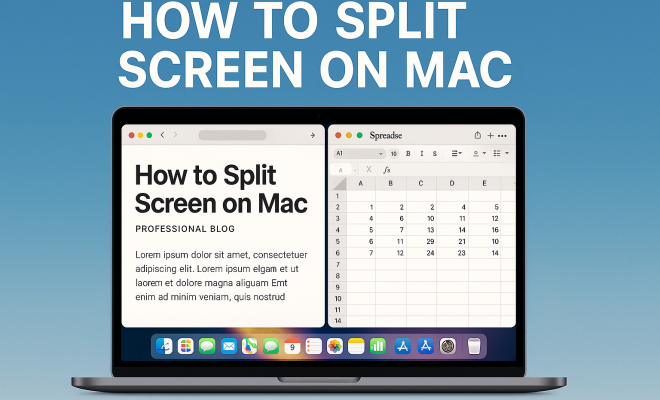
When it comes to productivity, the ability to split screen on Mac can be a game-changer. Imagine being able to view two applications side by side without the hassle of switching back and forth. Whether you’re a student multitasking on research and notes, a professional handling meetings and documents, or someone simply enjoying media while browsing, mastering this feature can transform your workflow. In this guide, we will explore everything you need to know about utilizing split screen on Mac, from the basics to advanced tips and tricks.
1. Understanding Split Screen on Mac
Split screen is a feature that allows users to view two applications simultaneously on a single screen. This functionality is particularly useful on Mac computers, enhancing multitasking capabilities. Apple introduced split screen with the OS X El Capitan in 2015, making it easier for users to arrange their workspace efficiently.
When you activate split screen on a Mac, you can seamlessly drag and drop files between applications, compare documents, or even watch a video while working on a presentation. It’s a simple yet powerful tool that maximizes your screen real estate without needing multiple monitors.
2. How to Activate Split Screen on Mac
Activating split screen on Mac is a breeze, and here’s how to do it:
- Open the two applications you want to use.
- Click and hold the green full-screen button in the top-left corner of the window of one of the apps.
- As you hold the button, the window will shrink, allowing you to drag it to the left or right side of the screen.
- Release the button to fill that half of the screen.
- On the other side, you’ll see thumbnail images of the applications you can use to fill the other half. Click on the one you want to use.
This simple method allows for an efficient way to utilize your Mac’s screen, making it incredibly user-friendly.
3. Tips for Using Split Screen on Mac Effectively
Once you have activated split screen, there are several strategies you can employ to enhance your experience further. First, familiarize yourself with keyboard shortcuts to make your workflow smoother. For instance, pressing the Control + Command + F keys toggles full-screen mode, allowing you to switch easily between full screen and split screen.
Another effective tip is to adjust the window sizes. You can click and drag the vertical black bar that separates the two applications to adjust how much screen space each application occupies. This flexibility ensures that you see everything you need without feeling cramped.
Additionally, consider using the Mission Control feature to quickly see all open windows and spaces. Swiping up with three fingers on your trackpad provides an overview of your apps, making it easier to choose the right one for your split-screen layout.
4. Common Issues and Troubleshooting
As with any feature, users may encounter occasional hiccups while trying to split screen on Mac. One common issue is that not all applications support this feature. If you find that the split screen option is greyed out, the application you are using may not be compatible. Always check that both applications are updated to their latest versions.
If you’re experiencing lag or performance issues while using split screen, it could be due to insufficient system resources. Closing unused applications can help alleviate this problem. Additionally, consider restarting your Mac to clear any temporary glitches.
Another issue users report is the difficulty in managing notifications while in split screen mode. To address this, consider customizing your notification preferences in System Preferences, allowing you to minimize distractions. (See: Learn more about macOS features.)
5. Exiting Split Screen Mode
Exiting split screen mode is just as straightforward as entering it. You have a few options to close the split screen view. You can move your cursor to the top of the screen to reveal the window buttons and click the green full-screen button again. Alternatively, you can press the Escape (Esc) key on your keyboard.
Once you exit split screen, your applications will revert to their normal windowed mode, allowing you to rearrange them as needed. This ease of use makes split screen a highly adaptable feature.
6. Advanced Features of Split Screen on Mac
For advanced users, split screen on Mac offers additional capabilities. One such feature is the ability to use Mission Control to manage your split-screen applications better. By swiping up with three fingers on the trackpad, you can view all your open windows and desktops. This can be incredibly useful for juggling multiple split-screen sessions.
Another advanced tip is utilizing the Picture-in-Picture feature for video apps like Safari or QuickTime. This allows you to keep watching a video while working in another app, as the video will minimize into a small window that you can move around your screen.
Additionally, consider using the “Split View” option for even more flexibility. With Split View, you can adjust the size of the windows beyond just left and right halves, potentially allowing for a more optimal arrangement depending on your task.
One more advanced feature worth mentioning is the ability to have different layouts for various tasks. For instance, you can set up one split-screen view for writing, another for researching, and yet another for graphic design, making it easy to switch between layouts as your needs change.
7. Split Screen Alternatives on Mac
If you find that split screen doesn’t quite fit your needs, there are alternative methods to manage your workspace. One popular solution is using multiple desktops or spaces. You can create a new desktop by swiping up with three fingers on the trackpad and clicking the plus (+) icon in the top-right corner. This can help you manage various tasks without cluttering your main workspace.
Another option is third-party applications designed for window management. Tools like Magnet or Moom provide more customizable options for arranging your windows, including snapping windows to specific areas of your screen, which can enhance your productivity further.
For those who prefer a more visual arrangement of their workspace, consider using tiling window managers that can help automate the arrangement of your applications in a grid-like fashion, which can be especially helpful when working with multiple apps simultaneously.
Additionally, if you work frequently with web applications, consider using browser extensions that offer split-screen functionality. These can allow you to view multiple tabs or pages side by side within your browser, complementing your native split-screen capabilities.
8. Enhancing Productivity with Split Screen on Mac
Using split screen on Mac can significantly boost your productivity by streamlining your workflow. For instance, students can take notes while watching lectures, keeping all relevant materials in view at once. Professionals can have a video call open while simultaneously reviewing documents, which can save time and make meetings more effective.
Moreover, split screen can also be beneficial for creative tasks, such as graphic design. Designers can compare multiple versions of their work, ensuring consistency across projects. By allowing you to concentrate on multiple tasks at once, split screen can truly enhance your efficiency.
Statistics show that multitasking can increase productivity by about 40%. When you use split screen on Mac effectively, you might just find you can accomplish more in less time.
Furthermore, using split screen can reduce eye strain. Instead of switching between tabs or applications, having everything visible can help you maintain focus while also being easier on your eyes, which is crucial for long working hours.
Let’s not overlook the benefits for developers as well. Many programmers use split screen to view their code alongside documentation or testing software, creating a more streamlined coding environment. This can lead to faster development times and fewer errors.
In fact, studies have indicated that using split screens can improve task completion rates. A study by the American Psychological Association found that participants using dual monitors and split-screen setups performed tasks more efficiently compared to those with single displays.
9. Future Developments in Split Screen Technology
As technology continues to evolve, the capabilities of split screen features are likely to expand. Apple is known for its commitment to enhancing user experience, so improvements in window management and multitasking features can be expected in future macOS updates.
Potential advancements could include better integration with touch-screen devices, more customizable workspace layouts, and improved performance for running multiple applications simultaneously. Staying updated with macOS developments ensures you can take advantage of new features as they become available.
Additionally, with the rise of virtual reality and augmented reality technologies, future iterations of MacOS may integrate split screen features into these immersive experiences, providing users with new ways to multitask and interact with their applications.
Another exciting area of development is the potential for AI-assisted window management. Imagine a system that learns your workflow preferences and automatically adjusts your split-screen layout based on the applications you use most frequently. This could lead to an even more optimized working environment.
10. Frequently Asked Questions (FAQ)
1. Can all applications use the split screen feature on Mac?
No, not all applications support split screen. Some older or less commonly used apps may not allow for this feature. Always ensure your apps are updated, and check compatibility if you experience issues.
2. Can I use split screen with three applications at once?
While the native split screen feature on Mac allows for only two applications to be displayed simultaneously, you can use additional workspaces or desktops to manage more apps effectively, switching between them as needed.
3. Is there a shortcut to activate split screen on Mac?
Currently, there isn’t a direct keyboard shortcut to enable split screen mode. However, knowing shortcuts for navigating between applications and using Mission Control can help streamline your workflow.
4. How do I adjust the size of the split-screen applications?
You can adjust the size by dragging the vertical black divider between the two applications. This allows you to allocate more space to the app you need to focus on.
5. What can I do if the split screen feature is not working?
If the split screen feature is not working, check if both applications are compatible and updated. Restarting your Mac can also resolve any temporary glitches. If problems persist, consider seeking assistance from Apple Support.
6. Can I keep using split screen with external monitors?
Yes, you can utilize split screen functionality on an external monitor connected to your Mac. The process is the same as on your primary display. You can even have different split screen setups on multiple monitors.
7. Are there any third-party apps that enhance split screen functionality?
Yes, there are several third-party applications available that can improve window management beyond what is provided natively in macOS. Apps like Magnet, Moom, or Rectangle allow for more robust control over how windows are organized and resized.
8. Can I customize my split-screen setup?
Absolutely! You can customize your split-screen layout by adjusting the size of each window to suit your needs best. You can also use Mission Control to rearrange your applications and even create different desktops for different workflows.
9. How can I optimize my workspace for split screen usage?
To optimize your workspace, ensure your applications are arranged logically based on your tasks. Use full-screen mode for one application while keeping the other in split screen to reduce distractions. Experiment with your layout to find what feels most comfortable and efficient for you.
10. Are there specific applications recommended for split screen use?
Some popular applications that work exceptionally well in split screen mode include web browsers like Safari and Chrome, productivity tools like Microsoft Word and Excel, and communication apps like Zoom and Slack. These applications allow for a seamless workflow when used in conjunction with split screen.
Mastering how to split screen on Mac can transform the way you work, study, and interact with your applications. By understanding the mechanics of this feature and implementing the tips discussed, you can maximize your productivity and make the most out of your Mac experience.
“`
Trending Now
Frequently Asked Questions
How do I enable split screen on my Mac?
To enable split screen on your Mac, open the two applications you want to use, then click and hold the green full-screen button in the top-left corner of one app's window. Drag it to either side of the screen, release the button, and select the second app from the thumbnails to fill the other half.
Can I use split screen with any applications on Mac?
Most applications on Mac support split screen, but some may not. Generally, Apple apps and commonly used software like browsers and document editors work well. If an app doesn’t support this feature, it won’t display in the split screen selection.
What is the benefit of using split screen on Mac?
Using split screen on Mac enhances productivity by allowing you to view and interact with two applications simultaneously. This feature is ideal for multitasking, enabling users to compare documents, drag and drop files, or watch videos while working without constantly switching between windows.
Is there a keyboard shortcut for split screen on Mac?
While there isn’t a specific keyboard shortcut to activate split screen directly, you can use the 'Control + Command + F' shortcut to toggle full-screen mode for apps. However, you still need to manually arrange them for split screen as described in the activation steps.
How do I exit split screen on Mac?
To exit split screen on Mac, move your cursor to the top of the screen to reveal the menu bar, then click the green button in one of the application windows. This will return that app to its regular window size while closing the split screen mode.
Agree or disagree? Drop a comment and tell us what you think.