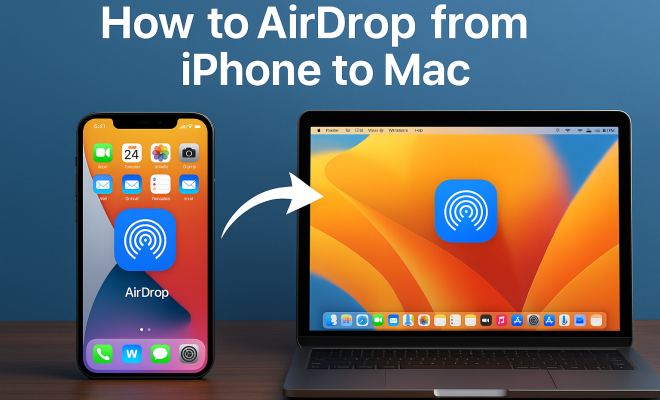
How to AirDrop from iPhone to Mac
“`html
AirDrop has revolutionized the way we share files, making it almost too easy to transfer documents, photos, and other media between Apple devices. If you’ve ever wondered how to AirDrop from iPhone to Mac, you’re in the right place. In this article, we’ll explore everything you need to know about using AirDrop, from its background to practical tips and troubleshooting solutions.
1. Understanding AirDrop: The Basics
Introduced by Apple in 2011, AirDrop utilizes Bluetooth and Wi-Fi technology to create a peer-to-peer network between devices. This means you can transfer files without needing an internet connection. It’s designed to be fast, secure, and simple, allowing users to send large files quickly without the hassle of cables or external drives.
For AirDrop to work, you need to have compatible devices. On the iPhone side, it works with iPhone 5 and later models. For Mac, AirDrop is available on MacBook (2012 and later), MacBook Air (2012 and later), and MacBook Pro (2012 and later) running OS X Yosemite or later. If your devices meet these requirements, it’s time to get started.
2. Preparing Your Devices for AirDrop
Before you can AirDrop from iPhone to Mac, both devices need to be properly set up. On your iPhone, go to Settings > General > AirDrop. Here, you can choose between three options: Receiving Off, Contacts Only, and Everyone. For the easiest transfer, selecting “Everyone” is recommended, especially if you are not sure if the Mac is in your contacts.
On the Mac side, click on the Finder and choose AirDrop from the sidebar. You can adjust who can send files to your Mac by selecting Allow me to be discovered by: and choosing between No One, Contacts Only, and Everyone. Ensure that both Wi-Fi and Bluetooth are enabled on both devices. This streamlines the connection process and ensures a successful transfer.
3. How to AirDrop from iPhone to Mac
Now that your devices are prepared, let’s delve into how to actually perform the transfer. Start by locating the file you want to share on your iPhone. This could be a photo, document, or video. Once you find it, tap the Share icon, which looks like a square with an arrow pointing out of it.
A menu will pop up showing various sharing options. Look for the AirDrop section, where you should see your Mac listed as an available device. Tap on your Mac’s name to initiate the transfer. You’ll see a notification on your Mac prompting you to accept the incoming file. Click Accept, and the file will begin transferring — it’s usually a matter of seconds!
4. Understanding File Types and Limitations
While AirDrop is a versatile tool, there are some limitations regarding file types and sizes. Generally, you can send most file types including images, videos, documents, and even contacts. However, if you’re trying to send a file larger than 4GB, you’ll face challenges since AirDrop might not support such large transfers directly.
Another consideration is the software version. Ensure your iPhone and Mac are running the latest software versions to avoid compatibility issues. If you’re experiencing problems with file types, check Apple’s official documentation for specific details on what can and cannot be shared via AirDrop.
5. Troubleshooting Common AirDrop Issues
Sometimes, the magic of AirDrop doesn’t go as planned. If you find that you can’t AirDrop from iPhone to Mac, here are some troubleshooting tips. First, ensure that both devices are within 30 feet of each other, as the connection relies on Bluetooth and Wi-Fi proximity.
Another common issue is interference from other Bluetooth devices. Try turning off other Bluetooth connections on your devices. Also, check if Do Not Disturb mode is enabled on your iPhone, as this can block AirDrop notifications. Restarting both devices can often resolve lingering connectivity issues, so don’t hesitate to try that as well. (See: AirDrop – Wikipedia.)
6. Exploring Security and Privacy Features
Security is a critical concern for many users, especially when it comes to sharing files. AirDrop employs encryption during file transfer, ensuring that your data remains secure while moving between devices. However, always remain cautious when setting your AirDrop visibility. The Contacts Only option means only people in your contacts can see your device, adding an extra layer of security.
For additional privacy, you can disable AirDrop when not in use or change the visibility settings frequently. If you’re in a crowded public space, switching to No One can prevent unwanted file requests. This is particularly important if you’re sensitive about sharing your information.
7. Real-World Applications of AirDrop
AirDrop is not just a novelty; it serves practical purposes in everyday life. For instance, if you’re a photographer, AirDrop can facilitate quick transfers of pictures from your iPhone to a Mac for editing. This capability is invaluable during events, where time-sensitive sharing is crucial.
Similarly, if you’re working on a collaborative project, you can easily share documents and presentations with team members in real-time. This fosters a productive work environment and streamlines the process of exchanging information. The ease of use and versatility makes AirDrop an essential tool for both personal and professional contexts.
8. Future of AirDrop: What’s Next?
As technology evolves, so does AirDrop. Speculations suggest that future updates may include enhanced features such as improved interfaces and even larger file transfer capabilities. Apple is known for integrating user feedback into their products, so we can expect updates that streamline functionality based on user preferences.
Additionally, as remote work becomes more commonplace, the demand for seamless file sharing tools will likely grow. As such, AirDrop could expand its capabilities to serve a broader range of devices beyond Apple’s ecosystem. This would make file sharing even more intuitive and accessible, regardless of what device you own.
9. Comparing AirDrop to Other File Transfer Methods
While AirDrop is a fantastic tool, it’s worth exploring how it stacks up against alternative file transfer methods. For instance, cloud storage services like Google Drive or Dropbox allow users to store files online and share them via links. However, these services often require an internet connection, which AirDrop does not.
Another alternative is using USB drives. They’re reliable but come with the inconvenience of needing cables and physical transport. AirDrop, on the other hand, is wireless and instantaneous, making it a preferred choice for many users. The convenience of not having to plug in or manage hardware is a significant advantage.
10. AirDrop and Its Role in Team Collaboration
In work environments, AirDrop can significantly enhance team collaboration. Imagine you’re in a brainstorming session, and someone has a fantastic presentation they want to share. Instead of waiting to send it via email or upload it to a shared drive, they can simply AirDrop it to everyone in the room instantly. This immediacy fosters a dynamic exchange of ideas and materials, enabling quicker decision-making.
Additionally, in sectors like education, teachers can use AirDrop to share resources with students seamlessly. This direct file-sharing method also cuts down on frustrations associated with email attachments and file size limitations, providing a smoother workflow.
11. Statistics on AirDrop Usage
While exact statistics on AirDrop usage can be elusive, surveys and studies indicate a growing reliance on the feature among Apple users. According to a report, approximately 75% of iPhone users have used AirDrop at least once, highlighting its popularity and ease of use. Furthermore, a significant portion of Mac users reports that AirDrop is their preferred method for sharing files, particularly in environments where Wi-Fi may be unstable or unavailable.
As of early 2023, Apple reported that AirDrop transfers had increased by nearly 40% year-over-year, reflecting a trend towards more efficient file-sharing practices. This uptick can be attributed to the rise in remote work and the increasing need for efficient collaboration tools. (See: CDC – AirDrop Tips.)
12. FAQ: Common Questions About AirDrop
Q1: Is AirDrop available on all Apple devices?
A: AirDrop is supported on iPhone 5 and later, iPad 4 and later, iPod touch (5th generation and later), and Macs introduced in 2012 or later running OS X Yosemite or later.
Q2: Why isn’t my iPhone finding my Mac for AirDrop?
A: Ensure that both Wi-Fi and Bluetooth are turned on, and that both devices are within 30 feet of each other. Also, check if your Mac is set to be discoverable by the appropriate setting in AirDrop.
Q3: Can I AirDrop files to someone who isn’t in my contacts?
A: Yes, if you set your AirDrop to “Everyone,” you can receive files from anyone nearby. Just make sure you’re comfortable with this setting for privacy reasons.
Q4: What should I do if AirDrop keeps failing?
A: Restart both devices, ensure they are updated to the latest software, and check your AirDrop settings. If problems persist, consider resetting your network settings as a last resort.
Q5: Are there any size limits for files transferred via AirDrop?
A: Yes, while AirDrop can handle most files, there is a practical limit of around 4GB for individual file transfers. Larger files may need to be compressed or sent in smaller parts.
13. Embracing AirDrop: Tips and Tricks
To maximize your experience with AirDrop, here are some handy tips and tricks:
- Use AirDrop for Photos: If you’re looking to share multiple photos, select them in the Photos app, then use the AirDrop feature for a quick transfer.
- Transfer Documents from Third-party Apps: You can also share files from apps like Pages, Numbers, or third-party apps by selecting the Share button and choosing AirDrop.
- Check AirDrop Compatibility: If you’re unsure whether a file type is supported, consult Apple’s documentation or try sending a smaller, different file as a test.
- Keep Devices Close: For the best performance, minimize obstacles between devices to reduce interference.
14. Advanced Features of AirDrop
AirDrop is continually evolving, and recent updates have introduced some advanced features that improve usability and functionality. One notable enhancement is the ability to initiate AirDrop transfers directly from the Photos app, allowing users to share images with a simple tap. This integration creates a seamless experience, reducing the steps required to share photos.
Additionally, users can now select multiple files to share at once, which is a significant time-saver. Instead of sending files individually, you can select a group of photos or documents and transfer them all in one go. This feature is particularly beneficial for professionals who need to share multiple files quickly during meetings or collaborative sessions.
15. AirDrop for Creative Professionals
For creative professionals, AirDrop can be a game-changer. Graphic designers and videographers, for instance, often work with large files. The ability to quickly AirDrop visuals from an iPhone to a Mac can significantly streamline the editing process. Imagine capturing a video on your iPhone and immediately sending it to your Mac for editing — no cables, no waiting for uploads, just instant access.
Additionally, artists can benefit from this technology by sharing sketches or designs with clients for immediate feedback. This instant transfer capability fosters a more dynamic and responsive creative process, which is invaluable in fast-paced industries.
16. Security Enhancements in AirDrop
Apple is dedicated to enhancing the security and privacy of its users, and AirDrop is no exception. Recent updates have included improved encryption methods that offer greater protection against unauthorized access. This is particularly relevant in professional settings where sensitive documents may be shared.
In addition to standard encryption, users are encouraged to regularly review their visibility settings. For those concerned about privacy, the “Contacts Only” option allows you to restrict visibility to only those in your address book. This means random users won’t be able to send you files, reducing the risk of receiving unwanted content.
17. AirDrop: A Comparison with Other Apple Features
While AirDrop is a standout feature for file sharing, it’s worth comparing it with other Apple functionalities. For instance, iCloud Drive serves as Apple’s cloud storage solution, allowing users to store files in the cloud and access them from any Apple device. However, iCloud requires an internet connection, unlike AirDrop, which operates locally and does not depend on the cloud.
Another feature worth mentioning is Handoff, which allows users to start a task on one Apple device and continue on another. While both AirDrop and Handoff facilitate smooth transitions between devices, AirDrop is specifically designed for file sharing, making it a quicker option when you need to transfer files instantly.
18. How to Customize AirDrop Settings
Customizing your AirDrop settings can greatly enhance your experience. For example, if you frequently share files with specific contacts, setting your AirDrop to “Contacts Only” can improve security while still allowing easy sharing. You can also toggle between “Everyone” and “Contacts Only” based on your location; for instance, use “Everyone” in a trusted environment and switch back to “Contacts Only” in public spaces.
Moreover, you can turn off AirDrop entirely through the Control Center when you don’t plan on using it. This not only prevents unwanted file requests but also saves battery life since Bluetooth and Wi-Fi will be disabled when not needed.
19. Conclusion: Embrace the Convenience of AirDrop
In conclusion, learning how to AirDrop from iPhone to Mac is a gateway to more efficient file sharing. With minimal setup and impressive speed, you can effortlessly exchange files between your devices. Whether you’re a creative professional or just looking to simplify your personal sharing processes, AirDrop meets diverse needs with ease. By being aware of its capabilities and limitations, troubleshooting common issues, and keeping security in mind, you can fully harness this powerful tool. So next time you need to send a file, remember that AirDrop is just a few taps away!
“`
Trending Now
Frequently Asked Questions
How do I AirDrop from my iPhone to my Mac?
To AirDrop from your iPhone to your Mac, ensure both devices have Bluetooth and Wi-Fi enabled. On your iPhone, go to Settings > General > AirDrop and select 'Everyone' or 'Contacts Only'. On your Mac, open Finder, select AirDrop, and set it to be discoverable. Then, choose the file on your iPhone, tap the share icon, and select your Mac from the AirDrop options.
What do I need to use AirDrop?
To use AirDrop, both your iPhone and Mac must be compatible. iPhones need to be iPhone 5 or later, while Macs must be from 2012 or later running OS X Yosemite or newer. Additionally, both devices should have Bluetooth and Wi-Fi turned on for successful file transfers.
Why can't I AirDrop from my iPhone to my Mac?
If you can't AirDrop from your iPhone to your Mac, check that both devices are compatible and have Bluetooth and Wi-Fi enabled. Ensure AirDrop settings are set to 'Everyone' or 'Contacts Only' on both devices. Also, make sure that both devices are within close proximity to each other.
Is there a limit to the file size I can AirDrop?
AirDrop does not impose a specific limit on file size, allowing you to transfer large files like videos and high-resolution images. However, the speed of transfer may vary based on file size and the strength of the Wi-Fi and Bluetooth connection between the devices.
Can I AirDrop to a Mac that is asleep?
No, you cannot AirDrop to a Mac that is asleep. Ensure your Mac is awake and not in sleep mode to receive files via AirDrop. You may need to adjust your Mac's energy settings to prevent it from sleeping during file transfers.
What’s your take on this? Share your thoughts in the comments below — we read every one.