Connect Your Mac to TV: The Ultimate 2024 Guide
“`html
With the growing trend of larger screens and smart TVs, many users are looking for ways to connect Mac to TV to enhance their viewing experiences. Whether it’s for streaming movies, sharing a presentation, or gaming, understanding how to connect your Mac to a TV can significantly elevate how you interact with digital content. In this comprehensive guide, we’ll explore various methods to connect your Mac to a TV, including wired and wireless options, and provide practical insights to streamline the process.
1. Using an HDMI Cable
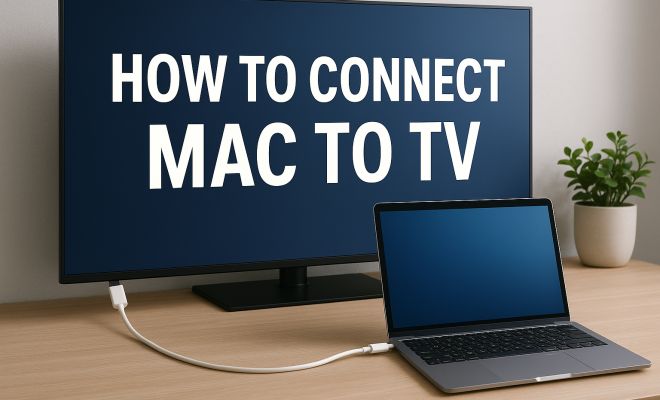
The most straightforward way to connect Mac to TV is through an HDMI cable. This method offers a direct digital connection, delivering both video and audio in high quality. Most modern Macs come equipped with an HDMI port or Mini DisplayPort, which can be adapted to HDMI. To do this:
- Plug one end of the HDMI cable into your Mac and the other end into the HDMI port on your TV.
- Switch your TV’s input to the corresponding HDMI channel.
- Your Mac should automatically detect the TV as a second display.
If you want to extend your display rather than mirror it, go to System Preferences > Displays on your Mac and configure your settings. This setup is ideal for presentations or gaming, where a reliable connection is crucial.
2. Using AirPlay
For those with compatible smart TVs or Apple TV, using AirPlay is a seamless way to connect Mac to TV. This wireless method allows you to stream content from your Mac to your TV without the need for any cables. Here’s how you can set it up:
- Ensure that your Mac and TV are on the same Wi-Fi network.
- Click on the AirPlay icon in your Mac’s menu bar.
- Select your Apple TV or smart TV from the list.
Once connected, you can choose to mirror your Mac screen or use the TV as a separate display. AirPlay is particularly useful for sharing photos, videos, and music, making it a favorite among Apple users.
3. Using Google Chromecast
If you don’t have an Apple TV, Google Chromecast is a fantastic alternative to connect Mac to TV. Chromecast allows you to cast your browser tab or even your entire desktop screen from your Mac to your TV. Here’s a simple breakdown of how it works:
- Plug the Chromecast device into your TV’s HDMI port and set it up on your Wi-Fi network.
- Open Google Chrome on your Mac and click on the three-dot menu.
- Select ‘Cast’ and choose your Chromecast device.
Chromecast is not only versatile but also supports streaming from various platforms like Netflix, YouTube, and Hulu directly from your browser, making it a popular choice for streaming enthusiasts.
4. Using a USB-C to HDMI Adapter
If you own a newer MacBook that primarily features USB-C ports, a USB-C to HDMI adapter is essential for connecting to your TV. This method is similar to using a standard HDMI cable but requires an adapter to bridge the port difference. Here’s how:
- Connect the USB-C end of the adapter to your MacBook.
- Plug an HDMI cable into the adapter and connect it to your TV.
- Select the HDMI input on your TV.
This setup allows you to maintain high-resolution output and is an excellent solution for both work presentations and entertainment.
5. Using a VGA Cable
Although less common today compared to HDMI, many older TVs still feature VGA ports. If you need to connect Mac to TV using a VGA cable, it’s possible, but be aware that you’ll need a separate audio connection since VGA only carries video signals. Here’s how:
- Obtain a Mini DisplayPort to VGA adapter if your Mac doesn’t have a VGA port.
- Connect the VGA cable from the adapter to your TV.
- For audio, connect a 3.5mm audio cable from your Mac’s headphone jack to the TV’s audio input.
This method is ideal for basic presentations, though keep in mind the quality will not match that of HDMI. (See: Understanding HDMI technology.)
6. Using a Smart TV’s Built-in Features
Many smart TVs have built-in features that facilitate the connection with a Mac, bypassing the need for additional devices. Check your TV’s user manual for options like screen sharing or smart cast features. Here’s how to use them:
- Enable the screen mirroring option on your TV.
- Access the AirPlay settings on your Mac and select your TV from the available devices.
This feature often provides a straightforward connection process, making it easy to display content directly from your Mac without the hassle of cables or adapters.
7. Using a Media Center Application
For those who want a more comprehensive solution when trying to connect Mac to TV, media center applications like Plex can be a game-changer. These apps organize and stream your media files easily. Here’s how to set it up:
- Download and install Plex on your Mac.
- Set up your media library within the Plex app.
- Install Plex on your smart TV or use Chromecast/AirPlay to stream to your TV.
Using Plex not only streamlines the process but also enhances your viewing experience with a user-friendly interface and support for various file formats.
8. Troubleshooting Common Issues
Even with all these methods available, users may encounter issues when trying to connect Mac to TV. Here are some common problems and tips for resolving them:
- No Signal: Ensure that the TV is set to the correct input channel and that all cables are securely connected.
- Audio Issues: If sound isn’t transferring, check the audio output settings on your Mac and make sure it’s set to the TV.
- Screen Flickering: This could be due to resolution mismatches. Adjust the resolution settings in System Preferences to match your TV’s supported resolution.
By understanding these potential pitfalls, you can quickly troubleshoot issues and enjoy a seamless connection.
9. Choosing the Best Method for You
Ultimately, the best way to connect Mac to TV depends on your specific needs. For a stable and high-quality connection, using an HDMI cable is often the go-to choice. On the other hand, if you prefer wireless convenience, AirPlay is a modern solution that suits Apple device users best. Chromecast provides versatility for those with a range of devices.
When selecting a method, consider factors such as the type of content you plan to display, the equipment you have available, and your comfort with technology. Each method has its unique strengths, and finding the right fit will enhance your overall experience.
10. Understanding Different Display Options
When you connect your Mac to a TV, you typically have two options: mirroring or extending your display. Understanding the difference can help you choose the right setting for your needs.
Mirroring
Mirroring displays the same content on both your Mac and your TV. This option is great for presentations, as it allows everyone in the room to see the same thing. It’s also useful for watching videos or playing games, ensuring that everyone can enjoy the content simultaneously.
Extending
Extending your display turns the TV into a second monitor. This is particularly beneficial for multitasking, as you can have different applications open on your Mac and your TV. It works well for creative tasks, such as video editing or graphic design, where you might want to reference materials on one screen while working on another.
To switch between these options, navigate to System Preferences > Displays on your Mac. From there, you can choose the arrangement and decide whether to mirror or extend your display. Understanding these options can significantly enhance your workflow and entertainment experience.
11. Optimal Settings for Streaming
When it comes to streaming content from your Mac to your TV, adjusting your settings can make a world of difference in terms of quality and performance. Here are a few tips to ensure the best streaming experience:
Resolution Settings
Make sure your Mac’s resolution is set to match that of your TV for optimal viewing. Most modern TVs support 1080p or even 4K resolutions. You can adjust this in the Display settings on your Mac. Higher resolutions provide clearer images, especially for detailed content like games or high-resolution videos.
Audio Output
When streaming, audio quality is just as important as video. Go to System Preferences > Sound and ensure that your TV is selected as the output device. This will ensure that the audio plays through the TV speakers rather than your Mac’s built-in speakers.
Wi-Fi Connection
A strong Wi-Fi connection is essential for a smooth streaming experience, especially if you’re using AirPlay or Chromecast. If possible, connect your router to your modem with an Ethernet cable to improve stability. If you’re far from the router, consider using a Wi-Fi extender to strengthen the signal.
12. Frequently Asked Questions (FAQs)
Can I connect my Mac to a non-smart TV?
Yes, you can connect your Mac to a non-smart TV using an HDMI cable or a VGA cable, depending on the available ports. You may need an adapter if your Mac doesn’t have the required port.
Will using an HDMI cable provide better quality than AirPlay?
Generally, yes. An HDMI connection typically offers better audio and video quality with less latency compared to AirPlay, which relies on a good Wi-Fi connection.
Can I play games on my TV using my Mac?
Absolutely! Connecting your Mac to a TV can enhance your gaming experience significantly. Just ensure that the display settings are correctly adjusted for optimal performance.
What should I do if I see a black screen when connecting?
If you encounter a black screen, check the following: Make sure the TV is set to the correct input, check all cable connections, and ensure that your Mac is awake and the display settings are correctly configured.
Is there a way to stream content without using any cables?
Yes, using AirPlay with an Apple TV or a compatible smart TV allows you to stream content wirelessly. Chromecast is another option for wireless streaming.
Can I connect multiple TVs to my Mac at once?
Yes, you can connect multiple displays to your Mac, but the setup will depend on the capabilities of your Mac and the types of connections available. You’ll need to ensure each display is configured properly in System Preferences.
13. Future Trends in Connecting Devices
The technology for connecting computers to TVs is continuously evolving. Here are some emerging trends that may shape the future of how we connect our devices:
Wireless HDMI Technology
While HDMI cables are currently the most common method for connecting devices, advancements in wireless HDMI technology are making it possible to transmit high-definition video and audio without cables. This could simplify setup and reduce clutter significantly.
Smart Home Integration
As smart home technology becomes more prevalent, integrating your Mac with other smart devices will likely become easier. Expect seamless connections with voice-activated assistants, allowing you to control playback and settings with simple voice commands.
Enhanced Streaming Capabilities
Future developments may also enhance streaming quality, allowing for higher resolutions and faster speeds. As internet connectivity improves globally, streaming in 8K resolution may soon become a reality for home users.
14. Comparison of Different Connection Methods
When considering how to connect Mac to TV, it’s important to weigh the pros and cons of each method. Here’s a quick comparison to help guide your choice:
| Method | Pros | Cons |
|---|---|---|
| HDMI Cable | High video/audio quality, stable connection, easy setup | Requires physical cable, limited mobility |
| AirPlay | Wireless, easy to use, compatible with Apple devices | Dependent on Wi-Fi quality, potential lag |
| Google Chromecast | Versatile, supports multiple streaming services | Requires setup, relies on Wi-Fi |
| USB-C to HDMI Adapter | High-quality output, compatible with newer MacBooks | Requires adapter, limited to newer devices |
| VGA Cable | Works with older TVs, simple setup | Lower video quality, requires separate audio |
15. Tips for Maintaining Your Connection
Once you’ve successfully connected your Mac to your TV, keeping that connection smooth is key to enjoying your media. Here are some tips to maintain your setup:
- Regular Software Updates: Keeping your Mac and TV’s software up to date can help avoid compatibility issues.
- Check Cables and Connections: Ensure that cables are securely connected and in good condition to prevent disruptions.
- Optimize Wi-Fi Signal: If using a wireless connection, ensure your router is functioning well and positioned optimally for the best signal.
- Restart Equipment Occasionally: Sometimes a simple restart of your devices can resolve lingering connection issues.
16. Enhancing Your Viewing Experience
Once your Mac is connected to your TV, consider these tips to enhance your overall viewing experience:
- Use a Quality HDMI Cable: Invest in a high-quality HDMI cable to ensure optimal signal transfer and video quality.
- Adjust Picture Settings: Explore your TV’s picture settings to find the best color and brightness settings for your content type.
- Utilize External Speakers: For a more cinematic experience, consider connecting external speakers or a soundbar to your TV for enhanced audio.
- Create a Cozy Viewing Area: Arrange comfortable seating and consider lighting control to enjoy your media in a relaxed atmosphere.
17. Conclusion: A Seamless Viewing Experience
Connecting your Mac to a TV can open up a whole new world of entertainment and productivity. Whether you prefer the reliability of a wired connection or the freedom of wireless options, there’s a method that will fit your needs perfectly. By exploring the various connection methods, understanding the settings, and troubleshooting common issues, you’ll be well-equipped to enhance your viewing experiences.
So go ahead and enjoy your favorite movies, presentations, or games on the big screen. With the right tools and knowledge at your disposal, creating a home theater setup or a productive workspace has never been easier!
“`
Trending Now
Frequently Asked Questions
How do I connect my Mac to my TV wirelessly?
You can connect your Mac to your TV wirelessly using AirPlay. Ensure both devices are on the same Wi-Fi network, click the AirPlay icon in your Mac's menu bar, and select your Apple TV or compatible smart TV from the list. This allows you to stream content without the need for any cables.
Can I use an HDMI cable to connect my Mac to my TV?
Yes, using an HDMI cable is one of the simplest ways to connect your Mac to your TV. Plug one end of the HDMI cable into your Mac and the other into the TV's HDMI port. Switch the TV input to the corresponding HDMI channel, and your Mac should automatically detect the TV.
What do I need to connect my Mac to a TV?
To connect your Mac to a TV, you will need either an HDMI cable or a compatible wireless option like AirPlay. Check if your Mac has an HDMI port or Mini DisplayPort, and ensure your TV supports the connection method you choose.
Is it possible to mirror my Mac screen to a TV?
Yes, you can mirror your Mac screen to a TV using either an HDMI cable or AirPlay. If using HDMI, simply connect the cable and select the correct input on your TV. For AirPlay, choose the option to mirror your display after connecting to your smart TV.
What is the best method to connect a Mac to a smart TV?
The best method to connect a Mac to a smart TV depends on your setup. For a stable connection, using an HDMI cable is recommended. If you prefer a wireless option, AirPlay is ideal for those with compatible smart TVs or Apple TV, allowing for easy streaming of content.
What’s your take on this? Share your thoughts in the comments below — we read every one.