How to enable dark mode on Mac
“`html
Are you tired of the glaring white screen on your Mac? Do you want a more comfortable reading experience, especially during those late-night work sessions? You’re not alone! Many users are now opting to enable dark mode on Mac, a feature that not only looks sleek but can also reduce eye strain and save battery life on certain devices. If you’re curious about how to make the switch, you’ve come to the right place. Let’s dive into everything you need to know about enabling dark mode on your Mac.
1. Understanding Dark Mode
Dark mode inverts the traditional light color scheme, replacing it with darker tones. This mode is designed to reduce the amount of blue light emitted by screens, which can contribute to eye fatigue and affect sleep patterns. Apple introduced dark mode in macOS Mojave (10.14) in 2018, allowing users to switch between light and dark themes across their applications and the OS itself.
Beyond aesthetics, dark mode has practical benefits. Studies have shown that using darker colors can improve readability in low-light conditions and it can be less straining on the eyes. Furthermore, for devices with OLED screens, dark mode can save battery life, as black pixels consume less power.
2. Checking Your macOS Version
Before you can enable dark mode on Mac, it’s essential to know which macOS version you’re running. Dark mode is available starting from macOS Mojave (10.14) onward. To check your version, click the Apple logo in the top left corner of your screen and select ‘About This Mac.’ A window will pop up displaying your macOS name and version number.
If you’re running an older version, consider updating your macOS to access dark mode and other exciting features. Updates can improve system performance, security, and compatibility with newer applications, so it’s always a good idea to keep your Mac up-to-date.
3. Enabling Dark Mode from System Preferences
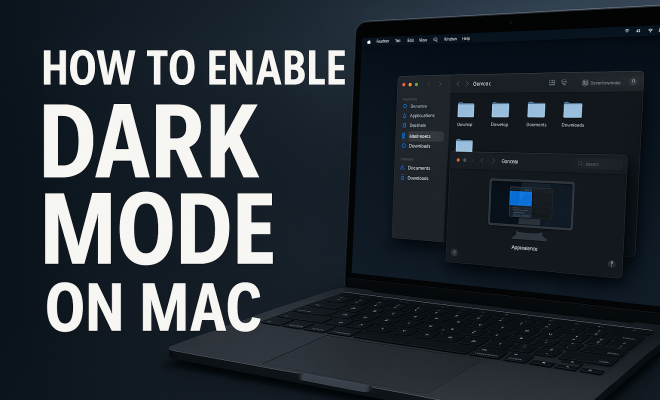
Once you’ve confirmed that your Mac supports dark mode, turning it on is quite straightforward. Here’s how you can enable dark mode through System Preferences:
- Click on the Apple logo at the top left corner.
- Select ‘System Preferences.’
- Click on ‘General.’
- In the Appearance section, choose the ‘Dark’ option.
That’s it! Your entire interface will shift to a dark theme, affecting menus, applications, and even the wallpaper. You can also choose ‘Auto,’ which automatically switches between light and dark mode based on the time of day.
4. Customizing Dark Mode in Applications
While enabling dark mode on your Mac changes the overall appearance, many applications have individual settings that may also need adjustment. For example, popular apps like Safari, Mail, and Microsoft Office have their own dark mode settings. Here’s how to ensure they’re working in harmony with your system settings:
- Open the application you want to customize.
- Navigate to the app’s preferences, usually found under the application name in the menu bar.
- Look for a visual or theme section and select the dark mode option if available.
By customizing each application, you can ensure a cohesive dark mode experience across your workflow.
5. Exploring Third-Party Apps for Enhanced Dark Mode
If you want to take your dark mode experience to the next level, consider using third-party applications designed to enhance or modify dark mode features. Apps like Moom and Magnet help organize your workspace in dark themes, while NightOwl allows for more granular control of dark mode settings based on time or use. Additionally, some design-focused applications might offer unique dark themes that are visually stunning.
Be cautious, however, as not all applications are created equal. Look for well-reviewed software from reputable developers to ensure compatibility and security.
6. Dark Mode Accessibility Features
Apple has also integrated several accessibility features in dark mode to help users who may have difficulty seeing bright screens. You can adjust contrast levels and brightness through System Preferences by selecting ‘Accessibility.’ This is especially useful for individuals with visual impairments or sensitivity to bright lights. (See: study on blue light and sleep.)
Additionally, you can utilize features like ‘Reduce Transparency’ to create a more distinct contrast between elements, making it easier to navigate your Mac while in dark mode. Overall, dark mode can be a part of a broader suite of accessibility options that enhance your computing experience.
7. Switching Back to Light Mode
While dark mode is increasingly popular, there may be times when you want to revert to light mode. Whether due to personal preference, the need for better visibility in bright conditions, or a simple change of pace, switching back is just as easy:
- Open ‘System Preferences.’
- Go to ‘General.’
- Select the ‘Light’ option under Appearance.
Bear in mind that if you selected ‘Auto’ previously, your Mac will automatically switch back to light mode during daylight hours.
8. Dark Mode for iOS Devices
If you’re enjoying dark mode on your Mac, you might want to enable it on your iPhone or iPad as well. Apple has ensured a consistent dark mode experience across all devices. To enable dark mode on iOS:
- Open ‘Settings.’
- Tap on ‘Display & Brightness.’
- Select ‘Dark’ under Appearance.
This synchronization can create a unified look across your devices, making for a more pleasant user experience, especially if you frequently transition from Mac to iOS throughout the day.
9. The Future of Dark Mode
As user preferences evolve, it’s likely that dark mode will continue to expand in popularity and functionality. Many developers are now prioritizing dark mode compatibility in their applications, and further enhancements are expected in future macOS updates. Apple often listens to user feedback, which suggests that the feature will continue to improve and become more integral to the overall user experience.
Additionally, as more research emerges on the effects of blue light and screen time, expect to see a growing emphasis on features that support user comfort and health, which dark mode directly addresses.
10. Conclusion: The Benefits of Embracing Dark Mode
Enabling dark mode on Mac isn’t just about style; it’s a move toward a more comfortable and user-friendly computing experience. With the ease of switching between modes and the variety of applications that support this feature, it’s worth considering if you haven’t already made the leap. So go ahead and give your eyes a break while also giving your Mac a fresh, modern look.
Whether you’re a night owl or just looking for a different aesthetic, dark mode is a feature that more users are adopting. So why not join them? With just a few clicks, you can transform your Mac experience and possibly improve your productivity and comfort at the same time.
11. Comparative Advantages of Dark Mode vs. Light Mode
When considering whether to enable dark mode on Mac, it’s important to weigh the advantages of both dark and light modes. Dark mode is great for low-light environments and can reduce glare, making it easier on the eyes. In contrast, light mode can be beneficial in brightly lit rooms or during the day, as it enhances visibility in well-lit conditions.
Research indicates that users may find text in light mode easier to read in certain contexts, particularly when working with detailed text or intricate designs. For example, graphic designers may prefer light mode when working with color schemes to create more accurate color representations.
The choice between dark and light mode can also be subjective—some users simply prefer one aesthetic over the other. Additionally, many find that alternating between modes based on their environment leads to a more comfortable experience overall.
12. Statistics on Dark Mode Adoption
As dark mode becomes more popular, statistics showcase its rise in adoption rates among users. A recent survey conducted by a tech research firm indicated that over 70% of users reported using dark mode regularly. Among younger demographics, this number climbs to nearly 90%, suggesting a cultural shift towards darker interfaces. (See: research on screen brightness and eye strain.)
This trend isn’t just limited to Mac users; many mobile applications and websites have invested in creating dark mode versions, further indicating a growing demand. In fact, apps with dark mode options have seen increased engagement, with users spending 30% more time interacting with interfaces they prefer.
13. Common Issues When Enabling Dark Mode
While enabling dark mode on Mac is generally a smooth process, some users may encounter issues. Here are a few common ones and solutions:
- Inconsistent Appearance: Some applications may not fully support dark mode or may have elements that display improperly. Updating the application or checking for compatibility can often resolve this.
- Eye Strain: Although dark mode is designed to reduce eye strain, some users may experience discomfort when switching. Adjusting the contrast settings in System Preferences can help find a more comfortable balance.
- Battery Life Issues: While dark mode can save battery life on OLED screens, some users with older devices may not notice a significant difference. Users should consider their device specifications when evaluating battery life improvements.
14. Frequently Asked Questions (FAQ)
How do I enable dark mode on my Mac?
To enable dark mode on your Mac, go to System Preferences, select ‘General,’ and choose the ‘Dark’ option under the Appearance section.
Is dark mode better for eye health?
Dark mode can help reduce eye strain, especially in low-light conditions. However, individual preferences play a significant role, and some may find light mode more comfortable.
Can I schedule dark mode on my Mac?
Yes! By selecting ‘Auto’ in the Appearance section of System Preferences, your Mac will automatically switch between light and dark mode based on the time of day.
Do all applications support dark mode?
No, not all applications support dark mode. While many popular applications have integrated this feature, some older or less frequently updated software may not be compatible.
How does dark mode affect battery life on Mac?
Dark mode can save battery life on Macs with OLED or Retina displays since dark pixels use less power. However, the impact may not be as noticeable on traditional LED screens.
Can I enable dark mode on my Mac and iPhone simultaneously?
Yes! If you enable dark mode on both devices, they can synchronize and provide a consistent interface across your Mac and iOS devices, leading to a more seamless user experience.
What if I don’t like dark mode?
If you don’t find dark mode appealing, switching back to light mode is simple. Just head back to System Preferences and select the ‘Light’ option.
15. The Psychological Effects of Dark Mode
Beyond the aesthetic and functional benefits, dark mode can have psychological implications for users. The switch to a darker interface can create a sense of calm and reduce stress, particularly during nighttime usage. Some studies suggest that darker themes can help users feel more focused and less distracted. This is especially true for those who work in creative fields or engage in activities that require a higher level of concentration.
Moreover, the feeling of a ‘cozy’ environment that dark mode can provide may enhance creativity, making it a preferred choice for writers, designers, and developers working late hours. The muted colors can help to foster an atmosphere that encourages ideation and productivity without the harshness of bright white backgrounds. If you’re often working on projects late into the night, giving dark mode a try might not only help your eyes but could also boost your creative output.
16. Dark Mode and its Impact on Productivity
Many users report increased productivity when using dark mode, particularly in environments where lighting conditions vary. The low-light setting helps to mitigate glare from overhead lights or screens, allowing for a more comfortable working experience. For tasks that require long periods of reading or writing, dark mode can reduce fatigue, enabling users to focus for longer periods without distraction.
Additionally, some applications, particularly code editors and design software, have been designed with dark mode in mind. These tools not only look better in dark mode but are also optimized for performance, offering features that can aid in productivity. Users who switch to dark mode often find that their workflow becomes more efficient as they can work longer without feeling the strain typically associated with bright interfaces.
17. Common Myths About Dark Mode
Despite its popularity, there are several myths surrounding dark mode that deserve clarification. For instance, many believe that dark mode is universally better for eye health. While it does help reduce glare and blue light exposure, it may not be the best choice for everyone. Users with certain vision impairments may find light mode more beneficial.
Another common myth is that dark mode dramatically improves battery life across all devices. While this is true for OLED screens, older models or those with traditional LCD panels may not experience a significant benefit. It’s essential to understand your device’s technology to have realistic expectations about battery performance.
Lastly, there’s the notion that dark mode makes content harder to read. In some contexts, darker backgrounds can create visual noise or hinder differentiation between text and background colors, making content less legible. Each user should assess their own comfort and productivity with both modes to find what works best for them.
18. Alternatives to Dark Mode
If dark mode isn’t quite your style, there are alternative options to enhance your viewing experience. Many users find that adjusting the brightness and contrast of their display can significantly improve their comfort levels. For those who prefer a softer look, enabling ‘Night Shift’ can reduce blue light exposure by shifting the display to warmer colors during the evening. This can be a great intermediate solution for users who aren’t ready to fully commit to dark mode.
Another option is to use custom color profiles available in ‘System Preferences’ under ‘Displays.’ Here, you can experiment with different settings to find one that feels right for your eyes. Some third-party applications also offer customizable themes for those who want more control over their interface without going fully dark. This way, you can create a balance that works specifically for your needs.
19. Final Thoughts on Enabling Dark Mode on Mac
Deciding to enable dark mode on your Mac is ultimately about personal preference and comfort. It’s clear that dark mode offers several advantages, from reduced eye strain to improved aesthetics, but it’s essential to find what suits your individual needs best. With a growing body of evidence supporting the benefits of dark mode, more users are likely to make the switch.
Whether you’re embracing dark mode for aesthetic reasons, eye comfort, or even productivity improvements, the transition is easy and reversible. So, take some time to experiment with both modes and see which one enhances your Mac experience the most. Happy computing!
“`
Trending Now
Frequently Asked Questions
How do I enable dark mode on my Mac?
To enable dark mode on your Mac, go to System Preferences, click on 'General,' and select the 'Dark' option under Appearance. This will switch your interface to dark mode, providing a more comfortable viewing experience.
What versions of macOS support dark mode?
Dark mode is available starting from macOS Mojave (10.14) and later versions. If you're using an older version, consider updating your macOS to access this feature and other improvements.
What are the benefits of using dark mode on Mac?
Using dark mode can reduce eye strain, especially in low-light conditions, and can improve readability. Additionally, on OLED screens, it may also help save battery life by consuming less power.
Can I switch back to light mode after enabling dark mode?
Yes, you can easily switch back to light mode by going to System Preferences, clicking on 'General,' and selecting the 'Light' option under Appearance. This allows you to toggle between modes as needed.
Does dark mode save battery life on Macs?
Yes, on Macs with OLED screens, dark mode can save battery life because black pixels consume less power. This makes it a practical choice for users looking to extend their device's battery performance.
What did we miss? Let us know in the comments and join the conversation.