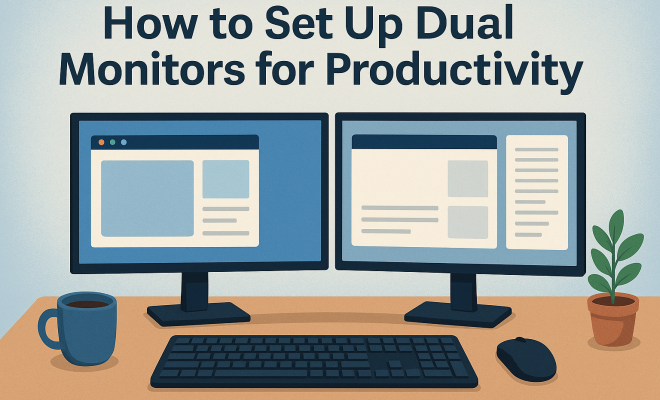
How to set up dual monitors for productivity
“`html
In the fast-paced world of technology and work, efficiency often sets the successful apart from the overwhelmed. One of the most effective ways to boost productivity is by adopting a dual monitors setup. By extending your screen real estate, you can multitask seamlessly, keep your workflow organized, and reduce the time spent switching between applications. In this guide, we’ll explore how to set up dual monitors for maximum productivity, covering everything from the essentials of hardware to advanced tips for optimal usage.
1. Understanding the Benefits of a Dual Monitors Setup
Before diving into the setup process, it’s crucial to understand why a dual monitors setup can be a game changer for your productivity. Studies have shown that using two monitors can increase productivity by up to 30%. This boost comes from the ability to view multiple applications simultaneously, enabling users to streamline their workflows.
For instance, a dual monitor setup allows you to have your email open on one screen while conducting research or writing on another. This arrangement minimizes the time wasted on toggling between windows and enhances your focus. Moreover, having a larger workspace reduces mental clutter, allowing for better organization of tasks and information.
Beyond just surface-level productivity boosts, dual monitors can also enhance collaboration. When working with colleagues or clients, sharing information on one screen while maintaining your notes or data on the other can streamline communication and improve overall project outcomes. This setup is invaluable in environments such as remote work, where clear communication is essential.
2. Choosing the Right Monitors
Selecting monitors that fit your needs is essential for a productive dual monitor experience. Consider factors such as screen size, resolution, and display technology. Ideally, both monitors should offer similar specifications to prevent discrepancies in color and image quality.
When it comes to size, 24 to 27 inches is a popular choice for most users. Higher resolutions like 1080p or 1440p provide clearer images, enhancing your viewing experience. For those involved in graphic design or video editing, investing in monitors with superior color accuracy is crucial.
Another aspect to consider is refresh rate, especially if you plan to use your setup for gaming or video editing. A higher refresh rate (like 144Hz) can create smoother visuals, which is beneficial in fast-paced applications.
Additionally, consider the panel type of your monitors. IPS panels are known for their excellent color reproduction and viewing angles, making them a great choice for creative work. VA panels generally offer better contrast ratios, while TN panels can provide faster response times — a factor to consider for gaming.
3. Hardware Requirements for a Dual Monitors Setup
To set up dual monitors, your computer must have the capability to support multiple displays. Most modern desktops and laptops come equipped with multiple video output ports, but it’s wise to check your hardware specifications first. Common connection types include HDMI, DisplayPort, Mini DisplayPort, and VGA.
If your computer lacks the necessary ports, you may need a docking station or a USB-to-HDMI adapter. Additionally, ensure you have the right cables to connect your monitors. It’s also beneficial to invest in a good quality monitor stand or mount to optimize your desk space and ergonomics.
You can also consider using KVM switches if you’re managing multiple computers. This allows you to control all of them using one keyboard and mouse, making the transition between systems seamless.
It’s essential to ensure that your graphics card can handle the output to both monitors simultaneously. If you’re using older hardware, you might find limitations in how many displays can be connected at once or the maximum resolution supported. Upgrading your graphics card could be a worthwhile investment if you plan to leverage a dual monitor setup fully. (See: study on dual monitors productivity.)
4. Connecting Your Monitors
Once you have the right hardware, it’s time to connect your monitors. Start by plugging each monitor into your computer using the appropriate cables. After connecting the monitors, turn them on and navigate to your computer’s display settings.
For Windows users, right-click on the desktop and select “Display settings.” Here, you can choose to extend or duplicate your displays. The “Extend” option is generally preferred for a dual monitors setup, as it allows you to utilize both screens as one continuous workspace. For Mac users, navigate to “System Preferences” and select “Displays” to configure your setup.
It’s also worth noting the importance of arranging your screens in the display settings according to their physical arrangement on your desk. This helps your mouse move smoothly between screens without disorientation.
For users working on a multi-user setup, connecting monitors can sometimes be complex. Be aware of how different operating systems handle multiple displays. Linux, for example, might require additional software or configuration to optimize the dual monitor experience.
5. Optimizing Display Settings
After connecting your monitors, optimizing the display settings is crucial for comfort and productivity. Adjust the resolution of both screens to the recommended levels to ensure clarity. Next, consider the orientation of your monitors; they can be positioned side by side or one above the other, depending on your workspace.
Another important adjustment is scaling. Depending on the size and resolution of your monitors, you may find that text and icons appear too small or too large. Adjusting the scaling settings can create a more harmonious viewing experience. Additionally, calibrating your monitors for color accuracy can greatly enhance visual tasks, such as photo editing or design work.
Don’t forget to adjust brightness and contrast settings based on your ambient lighting. This is key to reducing eye strain, especially during long working hours.
Consider employing blue light filters or applications that reduce eye strain during evening hours. Prolonged exposure to blue light can affect your sleep patterns and cause discomfort. Many operating systems now include these settings for your convenience.
6. Productivity Tools for Dual Monitors
With a dual monitors setup, it’s beneficial to leverage productivity tools to maximize efficiency. For instance, consider using window management applications that allow you to snap windows to specific areas on your screens quickly. Tools like Microsoft PowerToys, AquaSnap, and DisplayFusion can enhance your multitasking capabilities.
Moreover, productivity software such as Trello, Notion, or Asana can be opened on one screen while your primary work is done on the other. This dual approach keeps you organized and focused. If you often work with spreadsheets or coding, using split-screen features can be particularly advantageous.
Some users find it helpful to customize their taskbar to show only the applications they use most frequently on one monitor. This can significantly decrease the time spent searching for programs and increase your overall workflow efficiency.
Using virtual desktops in conjunction with dual monitors can further enhance your workflow. You can dedicate one screen to specific projects or tasks while keeping a secondary screen for reference material, communication, or even entertainment during breaks.
7. Ergonomics and Desk Setup
A dual monitors setup can also pose ergonomic challenges if not arranged properly. To maintain good posture and reduce eye strain, ensure that your monitors are at eye level. Consider using a monitor stand or adjustable arm to achieve the right height. Your eyes should be level with the top of the screen, which helps keep your neck and back aligned.
Additionally, arrange your monitors so that they are close enough to minimize neck strain. The distance between the screens should be roughly an arm’s length away. Investing in a comfortable chair and maintaining proper desk height will further enhance your working environment. (See: New York Times article on productivity.)
Think about incorporating a sit-stand desk into your setup. This allows you to alternate between sitting and standing throughout the day, reducing the potential for back pain and fatigue.
Finalizing your setup with proper cable management is another critical ergonomic consideration. Messy cables can create distractions and increase the likelihood of accidents. Organizing your cables not only makes your workspace neater but can help prevent damage to your equipment.
8. Common Issues and Troubleshooting
Even with the best setup, you may encounter some common issues when using dual monitors. One frequent problem is the monitors not syncing correctly. If this happens, check your display settings to ensure both monitors are recognized and configured correctly.
Another common concern is lag or performance issues. Ensure your graphics drivers are updated and consider adjusting the display settings to optimize performance. Sometimes, rebooting your computer can resolve minor glitches. If you experience persistent issues, checking the monitor connections and cables can also be helpful.
Other issues may include color mismatches between screens or one monitor displaying a lower resolution than expected. Regular calibration can help mitigate these problems and ensure consistency across your displays.
If you encounter issues with application windows not moving between monitors smoothly, this could stem from different display resolutions or scaling settings. Adjusting these settings can often resolve compatibility problems.
9. Future Trends in Dual Monitors Setup
The dual monitors setup is not just a trend; it’s evolving with technology. Many professionals are now considering ultrawide monitors as an alternative, providing a panoramic view without the bezels of multiple screens. These monitors can offer a similar productivity boost while taking up less desk space.
Additionally, advancements in virtual and augmented reality may soon change how we think about monitor setups. The integration of VR workspaces could provide immersive environments that enhance collaboration and productivity beyond traditional screens. As technology progresses, staying informed about these trends will help you maintain a competitive edge.
Another emerging trend is the use of software that allows you to create virtual desktops, where you can manage different tasks or projects on separate desktops while still utilizing your dual monitor setup. This could further enhance organization and focus.
As remote work continues to rise, specialized monitors designed for particular tasks are becoming more common. For example, monitors with built-in webcams, microphones, and speakers streamline video conferencing experiences, making them perfect for remote teams. Keeping an eye on innovations in this space can help you choose the best tools for your dual monitor setup.
10. Frequently Asked Questions (FAQ)
1. What is a dual monitors setup?
A dual monitors setup involves connecting two separate monitors to a single computer, allowing users to extend their screen space and multitask more efficiently.
2. Do I need a powerful computer for a dual monitors setup?
Generally, most modern computers can support dual monitors, but if you’re working with high-resolution displays or running graphic-intensive applications, a more powerful GPU might be necessary. (See: Harvard University research on workspace efficiency.)
3. Can I use different types of monitors in a dual setup?
Yes, you can mix different monitor types as long as they have compatible connections and similar resolutions. However, using identical monitors often provides a better experience in terms of color and size consistency.
4. How do I set up dual monitors on a laptop?
Most laptops have an HDMI or DisplayPort output to connect to an external monitor. You can connect the monitor, then adjust your display settings in the operating system to set it up as an extended display.
5. Is a dual monitors setup good for gamers?
A dual monitors setup can enhance gaming experiences by allowing players to display the game on one screen while using the other for chat, guides, or streaming software. However, gamers typically prioritize refresh rates and response times, which can affect their choice of monitors.
6. How can I improve my productivity with dual monitors?
To improve productivity, organize your workflow by placing specific applications on designated screens. Use productivity tools that facilitate better window management and consider customizing your workspace layout for your personal preferences.
7. What are the common ergonomic mistakes to avoid with a dual monitors setup?
Common ergonomic mistakes include having monitors at the wrong height, which can lead to neck strain, or sitting too far or too close to the screens. Ensure monitors are at eye level and positioned about an arm’s length away to promote good posture.
8. Can a dual monitors setup help with focus and concentration?
Absolutely! By dedicating one screen to specific tasks and another for reference or communication, you can reduce distractions. This clear separation helps you maintain focus and manage your time effectively.
9. How often should I calibrate my monitors?
It’s recommended to calibrate your monitors every few months, especially if you’re doing color-critical work. Regular calibration ensures that your displays maintain accurate colors, which is essential for tasks like graphic design and video editing.
10. Are there specific applications that work better with a dual monitors setup?
Applications that benefit from a dual monitors setup include those that handle large amounts of data, like spreadsheets (Excel), design software (Photoshop, Illustrator), and communication platforms (Slack, Teams). These applications benefit from the extra screen real estate, allowing for better multitasking.
Establishing an effective dual monitors setup can significantly enhance your productivity, whether you’re working from home or in an office environment. By understanding the benefits, optimizing your hardware and software, and prioritizing ergonomic considerations, you’ll set yourself up for success in any task you tackle.
“`
Trending Now
Frequently Asked Questions
What are the benefits of using dual monitors?
Using dual monitors can increase productivity by up to 30%. They allow you to view multiple applications simultaneously, reducing the time spent switching between windows. This setup enhances focus, minimizes mental clutter, and improves organization, making it easier to manage tasks and collaborate effectively.
How do I set up dual monitors?
To set up dual monitors, first connect both monitors to your computer using the appropriate cables. Then, adjust the display settings in your operating system to extend the desktop across both screens. Customize the arrangement to your preference for optimal workflow and productivity.
What should I consider when choosing monitors for a dual setup?
When choosing monitors, consider screen size, resolution, and display technology. It's best to select monitors with similar specifications to ensure color and image consistency. Additionally, think about your workspace and how the monitors will fit into your setup.
Can dual monitors improve collaboration?
Yes, dual monitors can significantly enhance collaboration. They allow you to share information on one screen while keeping your notes or data open on the other. This setup streamlines communication, making it especially valuable in remote work environments where clear and efficient interaction is crucial.
What are advanced tips for using dual monitors effectively?
For optimal usage of dual monitors, consider organizing your applications strategically, using keyboard shortcuts for navigation, and adjusting display settings for comfort. Additionally, maintaining a clean desktop and utilizing productivity software can further enhance your efficiency and workflow.
What did we miss? Let us know in the comments and join the conversation.