How to scan documents with iPhone
“`html
In a world that’s increasingly going digital, the ability to scan documents with iPhone has become an essential skill for many. Whether you’re a student needing to digitize notes, a professional wanting to archive important reports, or simply someone who wants to keep their paperwork organized, your iPhone can be a powerful tool. Here, we’ll explore ten key insights to help you effectively scan documents, enhance your productivity, and manage your digital files like a pro.
1. Understanding the Basics of Document Scanning
Before diving into the specifics of how to scan documents with an iPhone, it’s important to understand what document scanning entails. Document scanning is the process of converting physical documents into digital formats. This is usually done using optical scanners, but with the advancements in smartphone technology, your iPhone can fulfill this role quite well.
The iPhone features a built-in Camera app that allows you to capture high-quality images of your documents. Additionally, there are various apps available that enhance your scanning capabilities, offering features like automatic cropping, image enhancement, and file organization. With just a few taps, you can create a digital archive of important papers that’s easy to access and share.
2. The Built-In Notes App: Your Go-To Tool
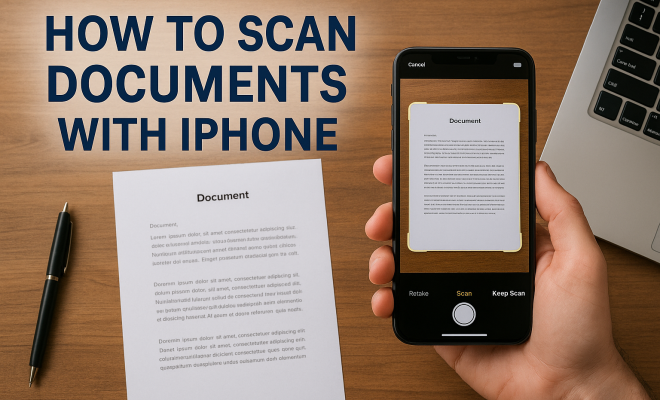
One of the easiest ways to scan documents with iPhone is by using the built-in Notes app. This feature has been around for a while but is often overlooked. To get started, open the Notes app and create a new note. Then, tap the camera icon and select “Scan Documents.” Position your document in view of the camera, and the app will automatically detect the edges.
Once scanned, the app allows you to adjust the corners if needed and save the scanned document as a PDF. This is particularly useful for straightforward tasks such as signing contracts or submitting forms, as you can quickly share the scanned documents via email or messaging apps directly from Notes.
3. Using Third-Party Apps for Advanced Features
While the Notes app is convenient, several third-party applications offer advanced features that can take your scanning to the next level. Apps like Adobe Scan, Scanbot, and CamScanner provide enhanced functionalities such as OCR (Optical Character Recognition) to convert scanned images into editable text, cloud storage integration, and batch scanning capabilities.
These apps often include more sophisticated editing tools that allow you to adjust brightness, contrast, and color balance, ensuring your scanned documents look professional. If you need to scan documents with iPhone regularly, investing in one of these apps might be worthwhile.
4. Scanning Tips for Quality Results
To maximize the quality of your scanned documents, consider these tips: First, ensure your document is flat and well-lit. Avoid shadows by positioning your document away from direct light sources. If available, use a clean, contrasting background to make the document stand out. Hold your iPhone steady or use a stand to prevent blur.
Additionally, both Notes and third-party scanning apps often provide options to enhance the scanned image. For example, you can switch to black-and-white mode for text documents to improve readability, or adjust the filter settings for color documents.
5. Organizing Your Scanned Files
After you’ve scanned documents, organizing them is crucial. Both the Notes app and third-party applications allow you to group documents into folders or categories. For instance, if you’re scanning invoices, receipts, and contracts, create specific folders for each type.
Using cloud services like iCloud, Google Drive, or Dropbox can also help keep your files synchronized across devices. This way, you can access your documents from your iPhone, iPad, or even a computer, ensuring you have everything you need at your fingertips. (See: Understanding document scanning technology.)
6. Protecting Your Scanned Documents
With convenience comes the need for security. Many documents contain sensitive information that should be protected. If you frequently scan documents with iPhone, consider using apps that offer password protection or encryption features. This adds an extra layer of security to your files.
iOS features such as Face ID or Touch ID can also be utilized for securing your Notes app or third-party apps, ensuring that only you can access your scanned documents. Regularly back up your files to prevent loss, whether that’s through cloud storage or an external hard drive.
7. Sharing Scanned Documents Easily
Once you’ve scanned and organized your documents, sharing them with others should be effortless. Both the Notes app and most third-party scanning applications allow you to share documents via email, messaging apps, or even directly to cloud storage services. When sharing, always ensure your documents are in a format that recipients can easily access, such as PDF.
For collaborative work, consider using services that allow others to comment on or edit the documents. This is particularly useful for teams working on projects that require input from multiple people.
8. Integrating Scanned Documents into Your Workflow
Finding ways to integrate scanned documents into your daily workflow can significantly improve your productivity. For instance, if you regularly need to reference scanned documents, consider creating a routine for organizing and filing these documents at the end of each day or week.
Utilizing task management apps that integrate with your scanned documents can streamline your processes. For example, linking scanned invoices into financial tracking software can simplify expense management. This integration will save you time and reduce the hassle associated with manual data entry.
9. Common Issues and Troubleshooting
While scanning documents with an iPhone is generally straightforward, you may encounter some common issues. For example, if the app fails to detect the edges of a document, ensure there’s enough contrast between the document and its background. If scanning is slow, try closing unnecessary applications to free up processing power.
Additionally, if you experience issues with blurry scans, double-check that you’re holding your device still and at the right distance. Using features like the grid view can help improve alignment. Regular app updates from the App Store can also help improve functionality and fix bugs, so keep your apps updated.
10. Exploring Future Innovations in Document Scanning
As technology continues to evolve, the way we scan documents with iPhone will likely transform as well. Features like AI-driven scanning, enhanced OCR capabilities, and improved image enhancements are already in development. Innovations such as cloud-connected scanners, which can automatically categorize and file documents, may become more accessible to consumers.
Staying aware of these advancements will ensure you’re equipped with the best tools for your document management needs. As the digital landscape changes, adapting to new technologies will not only help streamline your workflow but can also offer better security and accessibility.
11. Why Scanning Documents is Essential
In today’s fast-paced digital age, the ability to scan documents with iPhone isn’t just a convenient skill; it’s essential for efficiency. Consider this: According to a study by the International Data Corporation (IDC), employees spend about 30% of their time searching for documents. By digitizing paperwork, you can significantly reduce this time and increase productivity. Furthermore, having access to your documents in a digital format allows for easier collaboration, as files can be shared and edited in real time.
12. Tips for Scanning Multiple Pages
If you need to scan multiple pages, many apps now support batch scanning. For instance, when using the Notes app, after scanning the first page, you can choose to add another scan within the same document. This feature allows you to compile all related documents into a single PDF file, making it easier to share and store. When scanning multiple pages, it’s crucial to maintain the same lighting and angle for each page to ensure consistency in the final document. (See: Importance of digital documentation in health.)
13. Understanding Different File Formats
When you scan documents with iPhone, you may have options for different file formats, such as PDF, JPEG, or TIFF. PDFs are ideal for documents that require sharing as they preserve formatting and layout. JPEGs are useful for images and less formal documents. TIFF files, while larger in size, offer high-quality images and are often used in professional settings. Knowing when to use each format can help you achieve the best results for your documents.
14. Integrating Scanning with Other Apps
To further streamline your workflow, consider integrating your scanning process with other apps. For example, tools like Evernote or Notion can be used in conjunction with your scanning apps to allow for better organization and note-taking options. You can scan documents and immediately send them to Evernote, where they can be tagged and categorized for easy retrieval later. This integration not only keeps your files organized but also enhances your ability to access them quickly.
15. Real-World Use Cases for Scanning
The applications of scanning documents with your iPhone are virtually limitless. For students, being able to quickly scan lecture notes or textbooks can improve study efficiency. Professionals can benefit from scanning business cards, thereby keeping contact information readily available without the clutter of physical cards. Small business owners may find it useful to scan receipts and invoices for expense tracking and bookkeeping purposes. These use cases highlight the versatility of document scanning and its relevance across various contexts.
16. Frequently Asked Questions
Can I scan documents in color with my iPhone?
Yes, you can scan documents in color using both the Notes app and many third-party scanning apps. The Notes app allows you to toggle between color and black-and-white scanning, so you can choose the mode that best fits your needs.
Is it possible to edit scanned documents?
Editing scanned documents directly depends on the app you are using. Many apps with OCR capabilities, like Adobe Scan, allow you to convert scanned images into editable text. Once converted, you can easily make changes to the document.
How can I ensure the best quality when scanning?
To achieve the best quality scans, ensure your document is flat, well-lit, and free from shadows. Holding your iPhone steady while scanning is crucial, and using a flat surface or stand can help minimize blurriness. Finally, consider using the enhancement features available in your scanning app.
What if I lose my scanned documents?
To avoid losing scanned documents, it’s essential to back them up regularly. Use cloud storage services like iCloud, Google Drive, or Dropbox to keep your files safe and accessible from multiple devices. Regularly check that your backups are successful to mitigate the risk of data loss.
Are there any limitations to scanning with an iPhone?
While scanning with an iPhone is highly effective, there are some limitations. For example, complex documents with multiple colors or intricate designs may not scan as well as simpler text documents. Additionally, large volumes of documents might be cumbersome to scan using a phone compared to a dedicated scanner.
Can I scan handwritten notes?
Yes, you can scan handwritten notes using your iPhone. However, the quality and legibility of the scan may vary depending on the clarity of the handwriting. Some OCR apps may struggle with recognizing handwritten text, but many can still capture it as an image, allowing you to keep a digital copy.
17. Advanced Features in Scanning Apps
Many scanning apps come equipped with advanced features that can significantly enhance your scanning experience. For example, Adobe Scan includes capabilities that automatically recognize text, allowing for easier editing and exporting. Its smart cropping feature intelligently detects the edges of documents, ensuring that you get the cleanest scan possible without unnecessary borders. (See: How to scan documents with iPhone.)
Some apps like Scanbot also offer cloud integration with popular services such as Box and OneDrive, enabling seamless document management. This means that you can scan directly to your preferred cloud storage without the need for additional steps, saving you time and effort. Advanced features like annotation tools can also be beneficial for users who need to add notes or comments directly onto their scanned documents.
18. Environmental Impact of Scanning
Adopting digital scanning methods can also have a positive impact on the environment. The act of scanning documents reduces the need for physical paper, which in turn lowers paper consumption and waste. According to the Environmental Protection Agency (EPA), paper waste contributes significantly to landfill issues. By digitizing documents, you’re not only improving your own organization but also helping reduce your carbon footprint.
Furthermore, businesses that transition to digital document management can lessen their reliance on physical storage solutions, which often require energy for lighting and climate control. Adopting scanning technology reflects a sustainable approach to managing information in a world where environmental responsibility is increasingly vital.
19. How to Choose the Right Scanning App
With so many scanning apps available, deciding which one to use can be daunting. Start by identifying your needs: Are you scanning primarily for personal use, or do you require advanced features for professional purposes? Consider factors such as ease of use, compatibility with other software you utilize, and any specific features that may be important to you, such as OCR capabilities or cloud integration.
Read user reviews and check the app’s ratings on the App Store to gauge its reliability and performance. Many apps offer free trials or basic versions, allowing you to test them before making a purchase. This is a great way to find an app that meets your needs without committing to a subscription or one-time fee initially.
20. Future Trends in Document Scanning Technology
As the world becomes more digitized, we can expect to see exciting trends in document scanning technology. One developing trend is the use of machine learning to improve OCR accuracy. Enhanced algorithms will likely be able to recognize handwritten text with greater precision, making it easier to digitize notes and other handwritten materials.
Additionally, there’s an increasing focus on integrating scanning technology with automation tools. This means your scanned documents could automatically be sorted and filed based on keywords or even content, further streamlining your workflow. As virtual and augmented reality technology matures, we might even see new ways to interact with scanned documents, turning traditional workflows on their head.
In summary, mastering the art of scanning documents with your iPhone can significantly enhance your productivity and organization. By leveraging the built-in tools, exploring third-party apps, and following best practices, you can efficiently digitize your paperwork and make managing your documents easier than ever. Additionally, understanding the various aspects of scanning not only improves your skills but also opens up new opportunities for streamlining your daily tasks.
“`
Trending Now
Frequently Asked Questions
How do I scan documents with my iPhone?
To scan documents with your iPhone, open the Notes app and create a new note. Tap the camera icon and select 'Scan Documents.' Position your document in view, and the app will automatically detect the edges. You can adjust the corners if necessary and save the scanned document as a PDF.
Can I scan documents using the iPhone camera?
Yes, you can use the iPhone's built-in Camera app to capture images of documents. However, for better scanning features like automatic cropping and image enhancement, using the Notes app or dedicated scanning apps is recommended.
What app should I use to scan documents on my iPhone?
The built-in Notes app is a great option for scanning documents on your iPhone. It allows you to scan, adjust, and save documents as PDFs easily. Additionally, there are various third-party apps available that offer enhanced scanning features.
Is it possible to share scanned documents from my iPhone?
Absolutely! After scanning a document using the Notes app or any scanning app, you can quickly share it via email or messaging apps directly from your iPhone. This makes it easy to send important documents on the go.
What are the benefits of scanning documents with an iPhone?
Scanning documents with an iPhone allows you to digitize and organize your paperwork efficiently. It provides easy access, sharing capabilities, and helps reduce clutter. Plus, you can enhance and archive important documents for future reference.
Agree or disagree? Drop a comment and tell us what you think.