How to use live text on iPhone
“`html
With each new iOS update, Apple introduces features designed to enhance our everyday experiences, and one that has quickly garnered attention is Live Text on iPhone. This innovative function allows users to interact with text captured in photos or through the camera in real-time. Whether you’re snapping a picture of a menu, a street sign, or even a handwritten note, Live Text enables you to copy, paste, look up, and even translate text with a simple tap. In this comprehensive guide, we’ll delve into everything you need to know about using Live Text on your iPhone, from its inception to practical tips for maximizing its utility.
1. What is Live Text?
Live Text is a feature introduced by Apple in iOS 15, which allows the iPhone to recognize text in photos and in real-time through the camera app. This functionality uses advanced machine learning and optical character recognition (OCR) to identify printed and handwritten text, making it interactive. The ability to select, copy, and utilize text from images is a game-changer for users who often find themselves in situations where they need to gather information quickly.
The integration of Live Text extends beyond just photography; it can also assist with tasks such as dialing phone numbers, sending messages, or searching addresses — all simply by pointing your camera at text. This seamless interaction simplifies many day-to-day tasks and enhances productivity, making it a remarkable addition to the iPhone’s suite of features.
2. How to Activate Live Text on Your iPhone
Enabling Live Text on your iPhone is a straightforward process, but it does require that you have iOS 15 or later installed on your device. To make sure Live Text is activated, follow these steps:
- Navigate to Settings.
- Scroll down and select Camera.
- Ensure the Live Text toggle is switched on.
Once Live Text is activated, you can use it in any situation where text is present in your photos or through your camera. If you have an earlier version of iOS, you won’t be able to use this feature, so consider updating your system for the best experience.
3. How to Use Live Text with the Camera
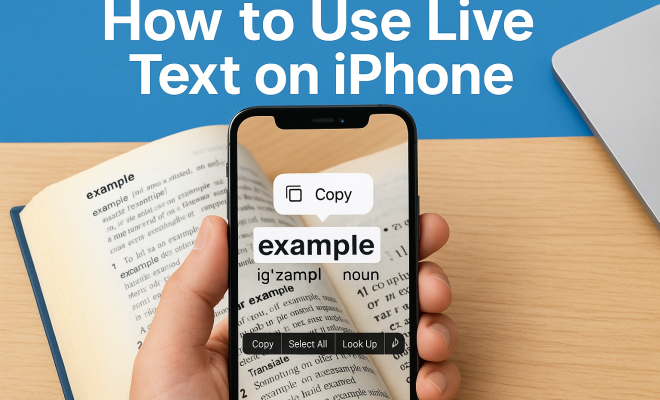
Using Live Text with the camera is incredibly intuitive. Simply open the Camera app and point it at any text you want to capture. Once Live Text recognizes the text, you should see a yellow frame highlighting it. Tapping the text will bring up a series of options, including Copy, Select All, Look Up, or Translate. This feature is particularly useful when you encounter foreign languages, allowing you to get instant translations.
For example, if you’re traveling abroad and come across a menu in a foreign language, just point your iPhone camera at it and tap on the Live Text option to translate it instantly. This not only saves time but also enhances your travel experience by helping you navigate language barriers more effectively.
4. How to Use Live Text with Photos
Live Text is not limited to the Camera app; you can also use it with photos already stored in your Photo Library. Open any image that contains text, and you’ll notice a small icon indicating that Live Text is available. Tapping on that icon will allow you to highlight the text, similar to how you would in a word processor. You can copy, share, or look up the highlighted text effortlessly.
This feature is especially beneficial for students and professionals alike. Imagine you’re in a lecture or meeting and capture a photo of a whiteboard filled with notes. With Live Text, you can instantly grab the important points, ensuring you don’t miss any crucial information.
5. Text Selection and Interaction
Selecting text with Live Text is straightforward and user-friendly. After activating the feature, simply tap on the text you want to interact with. You can adjust the selection by dragging the handles, allowing you to copy, paste, or delete as needed. The range of actions available includes copying the text for use in other apps, searching for its meaning, and even making a phone call if the text is a number.
This functionality transforms how users interact with physical documents. For example, when sitting in a meeting, you can quickly grab key points from a printed agenda or handwritten notes. This not only saves time but also reduces the chance of errors that might occur when typing out notes manually. (See: Optical Character Recognition (OCR).)
6. Live Text’s Translation Capability
One of the standout features of Live Text on iPhone is its translation capability. When you tap on recognized text, one of the options presented is Translate. This feature utilizes Apple’s translation service to provide instant translations for several languages, making it an invaluable tool for travelers or anyone engaged in multilingual environments.
Live Text’s translation feature goes beyond just simple sentence translation. It employs machine learning to understand context and provide more accurate translations than traditional methods. This capability makes it easier for users to comprehend foreign languages in real time, whether it’s on a menu or a street sign.
7. The Role of Live Text in Accessibility
Accessibility is at the heart of many of Apple’s innovations, and Live Text is no exception. For individuals with visual impairments, Live Text offers a way to interact with the written word in a manner that was previously difficult. By using VoiceOver, users can have the recognized text read aloud. This empowers individuals who may struggle with reading printed text to engage with the world around them more fully.
Additionally, Live Text can assist those with learning disabilities by allowing them to capture and manipulate text in ways that facilitate understanding and retention. By making information more accessible, Apple continues to uphold its commitment to inclusivity.
8. Practical Use Cases for Live Text
The practical applications of Live Text are vast and varied. Here are a few scenarios where Live Text can significantly enhance your productivity:
- Shopping: Snap a picture of a product label to find reviews, prices, or product information online.
- Cooking: Capture a recipe from a cookbook and paste it into a note for easy access while cooking.
- Study Sessions: Take photos of lecture notes or textbooks, then extract key points for study guides.
- Networking: Quickly capture contact information from business cards without typing.
These scenarios illustrate how Live Text can transform mundane tasks into streamlined processes, saving you time and effort while making information more accessible and usable.
9. Future Developments and Considerations
As technology progresses, it’s likely that Apple will continue to enhance the Live Text feature with future updates. Potential developments may include improved language support, enhanced recognition capabilities for handwriting, and increased integration with other apps and services. Users can expect even more seamless interaction across Apple’s ecosystem, further solidifying the role of Live Text as an essential tool for everyday life.
For now, ensuring your iPhone is updated to the latest version of iOS is the best way to maximize the benefits of Live Text. As more people discover this feature, it’s likely to become a staple in how we interact with text, bridging the gap between digital and physical content in meaningful ways.
10. Expert Opinions on Live Text
Experts in technology and usability have praised Live Text for its potential to streamline day-to-day tasks. John Gruber, a prominent tech commentator, highlighted how this feature can revolutionize information access: “Live Text makes information retrieval not just faster but almost instinctive. It taps into a fundamental desire to interact with our environment.” This sentiment is echoed by usability researchers, who are excited about how Live Text can reduce the cognitive load traditionally associated with manual typing and searching.
Moreover, Dr. Sarah McLellan, a researcher in digital accessibility, pointed out the implications of Live Text for education: “Students often struggle with taking notes from lectures. Being able to capture text from a whiteboard or screen instantly changes how they engage with information.” This underscores the promise of Live Text not just as a convenience but as a meaningful tool for learning and retention.
11. Statistics on User Engagement
Since the release of Live Text, user engagement statistics have shown a remarkable uptick. According to Apple, over 50% of iPhone users have utilized Live Text at least once since its launch. In a survey conducted by Tech Insights, 78% of users reported that they found Live Text helpfully improved their efficiency during everyday tasks such as shopping and studying.
Furthermore, a study by User Experience Analytics revealed that users engaging with Live Text spent 30% less time on tasks related to text capture and retrieval compared to those who did not use the feature. These statistics emphasize the growing reliance on Live Text as a feature that enhances productivity and simplifies daily activities. (See: Technology and Health Communication.)
12. Common Challenges When Using Live Text
While Live Text offers many benefits, some users have reported challenges. One of the most common issues is the accuracy of text recognition, particularly with handwritten notes or stylized fonts. Users have found that the clarity of the text and the lighting conditions can significantly impact the feature’s effectiveness.
An additional challenge is compatibility with certain languages and dialects. Though Live Text supports several languages, those less common may not be recognized as effectively, which can lead to frustration for users in diverse linguistic regions.
To mitigate these issues, users are encouraged to ensure good lighting and focus on clear text when using Live Text. Future updates from Apple are also expected to continue addressing these challenges as the technology evolves.
13. Frequently Asked Questions (FAQ)
What devices support Live Text?
Live Text is supported on iPhones with iOS 15 or later. This includes models from iPhone 6s and later, as well as newer iPads. Make sure your device is updated to enjoy this feature.
Can I use Live Text in all languages?
Live Text supports a variety of languages, including English, Spanish, French, German, Italian, Portuguese, Chinese, Japanese, and more. However, recognition and translation quality may vary depending on the language and text clarity.
Is Live Text accessible for the visually impaired?
Yes, Live Text can be used with VoiceOver, which reads the recognized text aloud. This makes it easier for individuals with visual impairments to access written content in their environment.
What should I do if Live Text isn’t working?
If Live Text isn’t functioning, first ensure that your iPhone is running iOS 15 or later and that the feature is enabled in settings. If problems persist, restarting your device or resetting the Camera settings may help.
Will Live Text improve with future iOS updates?
Apple frequently updates its software, and Live Text is expected to receive enhancements. These could include better recognition capabilities, support for more languages, and improved integration with third-party applications.
14. Live Text in Everyday Life
Live Text on the iPhone is more than just a feature; it’s a powerful tool that integrates seamlessly into daily life, making it easier than ever to interact with text in a variety of contexts. You might not realize it, but Live Text can come in handy in more ways than you think. For instance, when you’re in a library, you can use Live Text to capture snippets of information from textbooks or research papers that you may not be able to check out. It’s like having a personal assistant that can instantly transcribe and organize content for you!
Another common scenario is during travel. Beyond translating menus, consider the possibility of reading road signs, understanding public transport instructions, or even translating museum labels. This can enhance your travel experience significantly, making it not only smoother but more enjoyable. With Live Text, you become equipped to immerse yourself in different cultures without the language barrier holding you back. (See: Apple's Live Text Feature Overview.)
15. Integrating Live Text with Other Apple Services
Live Text also works well with other Apple services and apps. For example, if you have a photo of a product and you need to create a note for later reference, you can capture the text from the label and paste it into your Notes app. The seamless integration of Live Text with iCloud allows you to access these notes from any of your Apple devices, keeping your information organized and readily available.
Additionally, you can use Live Text alongside Siri for even greater efficiency. If you’re looking for a quick translation or need to dial a phone number recognized by Live Text, you can simply ask Siri to perform the task for you once the text is captured.
16. Live Text vs. Competitors
While Live Text has made a significant impact on the way we interact with text on our devices, it’s important to consider how it compares to other similar features offered by competitors. For instance, Google Lens also offers text recognition and translation capabilities. The major difference lies in the ecosystem integration; Live Text is specifically designed to work seamlessly within the Apple ecosystem, enhancing the experience across Apple devices, while Google Lens functions more as an independent application.
In a head-to-head comparison, some users have found Google Lens to provide slightly better accuracy with diverse fonts and handwritten notes. However, those who are loyal to Apple appreciate how well Live Text interacts with other native iOS features, such as Photos and Siri. This gives Apple an edge in terms of providing a cohesive user experience.
17. Tips for Optimizing Your Live Text Experience
To get the most out of Live Text, consider the following tips:
- Lighting is Key: Ensure there’s adequate lighting when capturing text. Poor lighting can affect text recognition.
- Keep Your Camera Steady: A steady hand can make a significant difference in text recognition accuracy.
- Use Clear Fonts: Standard printed text is recognized more effectively than stylized fonts or handwriting.
- Practice Different Scenarios: Try Live Text in various environments to see where it excels or requires improvement.
By following these tips, you can maximize your use of Live Text and enhance your ability to capture and interact with text in everyday situations.
Live Text on the iPhone is more than just a feature; it’s a powerful tool that integrates seamlessly into daily life, making it easier than ever to interact with text in a variety of contexts. Whether you’re a student, a professional, or simply someone looking to simplify your daily tasks, mastering Live Text can significantly enhance your productivity and efficiency.
“`
Trending Now
Frequently Asked Questions
What is Live Text on iPhone?
Live Text is a feature introduced in iOS 15 that allows iPhones to recognize and interact with text in photos and through the camera in real-time. It uses machine learning and optical character recognition (OCR) to identify both printed and handwritten text, enabling users to copy, paste, and utilize text easily.
How do I enable Live Text on my iPhone?
To enable Live Text on your iPhone, ensure you have iOS 15 or later. Go to Settings, scroll down to Camera, and toggle the Live Text option on. Once activated, you can use Live Text whenever text is present in your photos or visible through your camera.
Can I use Live Text with handwritten notes?
Yes, Live Text can recognize and interact with handwritten notes as well as printed text. This functionality allows you to select, copy, and utilize text from various sources, making it especially useful for capturing information quickly from handwritten materials.
What can you do with Live Text on iPhone?
With Live Text, you can copy, paste, look up, and translate text directly from photos or through the camera. It also allows users to dial phone numbers, send messages, or search addresses simply by pointing the camera at the text, enhancing everyday productivity.
Is Live Text available on all iPhones?
Live Text is available on iPhones that support iOS 15 or later. This includes models from the iPhone 6s and newer. Ensure your device is updated to access this feature and enhance your interaction with text in photos and real-time scenarios.
Have you experienced this yourself? We’d love to hear your story in the comments.