Scan Documents to PDF: A Complete Guide
“`html
In an increasingly digital world, the ability to scan documents to PDF has become essential for both individuals and businesses. Whether you’re archiving important papers, sharing documents with colleagues, or maintaining a paperless office, knowing how to scan documents effectively can save you time and effort. This article will explore the various methods to scan documents to PDF, the tools and technologies available, and tips for optimizing your documents for better quality and organization.
1. Understanding PDF Format: Why It’s the Go-To for Scanned Documents
The Portable Document Format (PDF) was developed by Adobe in the early 1990s and has since become the standard for sharing documents. PDFs retain their formatting across different devices, making them ideal for scanned documents. Unlike Word files or image formats, PDFs preserve the layout, fonts, and graphics of the original document, ensuring that the viewer sees exactly what the creator intended.
PDFs also offer security features, such as password protection and encryption, which are particularly useful for sensitive documents. Moreover, the format is widely compatible with various devices and applications, including smartphones, tablets, and computers, allowing users to access documents anywhere and anytime.
2. Basic Equipment for Scanning Documents
To scan documents to PDF, you’ll need a few essential tools. The primary piece of equipment is a scanner. There are various types of scanners available:
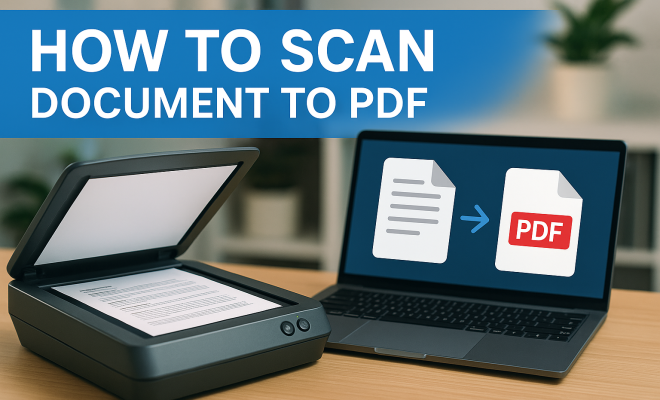
- Flatbed Scanners: These are versatile and can scan books, magazines, and bulky documents. They provide high-quality scans but can be slower than other types.
- Sheetfed Scanners: Ideal for scanning multiple pages quickly, these are often used in offices for bulk scanning. They can automatically feed documents, saving time.
- All-in-One Printers: Many modern printers come with scanning capabilities. While they may not offer the same quality as dedicated scanners, they are convenient for home use.
Additionally, you can use your smartphone camera in a pinch. Many apps are designed specifically for document scanning, allowing you to convert images to PDFs seamlessly.
3. Choosing the Right Software for Scanning
Once you have your scanner set up, the next step is selecting the software you’ll use. Most scanners come with their own software, but there are also numerous third-party applications available. Here are a few popular options:
- Adobe Acrobat: A comprehensive solution that allows users to edit, annotate, and convert scanned documents into PDFs. It’s a great choice for those who need advanced features.
- Microsoft Office Lens: A free app that allows you to scan documents with your smartphone, and it automatically converts them to PDF. It’s user-friendly and integrates well with other Microsoft applications.
- CamScanner: Another mobile app that’s popular for its simplicity and effectiveness. It offers OCR (optical character recognition) capabilities, allowing you to edit scanned text.
Choosing the right software can depend on your needs—whether you require basic scanning capabilities or more advanced features like cloud storage integration and document editing.
4. Step-by-Step Guide: Scanning a Document to PDF
Now that you’ve got the equipment and software ready, let’s walk through the steps to scan documents to PDF:
- Prepare Your Document: Ensure that the paper is clean and free from tears or creases. For multi-page documents, organize them in the order you want them to appear in the PDF.
- Connect Your Scanner: If you’re using a USB scanner, connect it to your computer. For wireless scanners, ensure they are connected to the same Wi-Fi network as your device.
- Open the Scanning Software: Launch the scanner software on your computer or smartphone app.
- Select PDF as Output Format: Make sure to choose PDF as the file format for your scanned document.
- Adjust Settings: Configure settings such as resolution (300 DPI is standard for documents), color mode, and file name.
- Scan: Place the document in the scanner and hit the ‘Scan’ button. For sheetfed scanners, make sure the pages are fed properly.
- Review and Save: Once the scan is complete, review the document for clarity. Make any necessary adjustments, then save the file to your desired location.
Following these steps will yield a clear and organized PDF document ready for sharing or archiving. (See: Understanding PDF Format.)
5. Enhancing Your Scanned PDFs: Quality and Clarity
The quality of your scanned PDF can significantly impact its usability. Here are some tips to enhance the clarity and overall quality:
- Resolution Settings: For standard documents, scanning at 300 DPI (dots per inch) usually suffices. For detailed graphics or fine print, consider increasing the resolution to 600 DPI.
- Use OCR: If the software supports OCR, enable it. This feature converts scanned images of text into editable and searchable data.
- Crop and Adjust: Many scanning applications allow you to crop images and adjust brightness and contrast, which can improve readability.
By enhancing your scanned PDFs, you ensure that the documents are clear and professional, making them easier to read and use.
6. Organizing Your Scanned Documents: Best Practices
Once you’ve scanned your documents to PDF, it’s important to organize them effectively. Here’s how to do that:
- File Naming Convention: Use a consistent naming system that includes relevant details like the date, type of document, and version. For example, “2023-09-25_Invoice_1234.pdf” is clear and informative.
- Folder Structure: Create a logical folder hierarchy on your computer or cloud storage. Group documents by category (e.g., invoices, contracts, personal) to make them easier to locate.
- Backup Regularly: To protect against data loss, implement a backup routine. Use external hard drives or cloud storage solutions for redundancy.
Keeping your scanned documents well-organized will not only save time but also reduce stress when you need to find specific files.
7. Common Issues and Troubleshooting
Despite the ease of scanning documents to PDF, you may encounter some challenges. Here are common issues and their solutions:
- Scanner Not Recognized: Ensure that the scanner is properly connected and powered on. Check the USB cables or restart your computer if necessary.
- Low-Quality Scans: If your scans are blurry or pixelated, adjust the resolution settings and ensure that the document is placed correctly on the scanner.
- File Too Large: If the PDF file is too large, consider reducing the resolution or using PDF compression tools to shrink the file size without losing quality.
Addressing these common issues can help streamline the scanning process, making it more efficient and less frustrating.
8. Current Trends in Document Scanning Technology
The technology behind scanning documents has evolved rapidly. Here are some current trends shaping the landscape:
- Mobile Scanning: With the advent of powerful smartphone cameras, mobile scanning applications have gained popularity. Users can easily scan documents on-the-go and convert them to PDFs in an instant.
- Cloud Integration: Many scanning applications now offer seamless integration with cloud storage solutions like Google Drive or Dropbox. This allows for easy sharing and access to documents from multiple devices.
- AI and Automation: Artificial intelligence is being integrated into scanning software to improve features like OCR and image enhancement. These advancements make it easier to digitize and organize documents.
Staying informed about these trends can help you choose the best tools and practices for your document scanning needs, ensuring that you remain efficient and up-to-date.
9. Real-World Applications of Scanning Documents to PDF
The ability to scan documents to PDF has vast real-world applications across various sectors:
- Business: Companies often need to digitize contracts, invoices, and reports for record-keeping and sharing purposes. Scanned PDFs allow for easy storage and retrieval.
- Education: Students and educators can scan lecture notes, handouts, or research papers, creating a digital library accessible from any device.
- Healthcare: Medical facilities frequently digitize patient records and prescriptions to enhance data management and compliance with regulations.
- Legal: Law firms often scan legal documents to create a digital repository. This ensures secure access and sharing among teams without compromising confidentiality.
- Personal Use: Individuals can scan important personal documents like identification, marriage certificates, and wills for safekeeping and ease of access.
Understanding these applications highlights the importance of mastering document scanning techniques, whether for personal, academic, or professional use. (See: PDFs and document security features.)
10. Comparative Analysis: Scanning Methods
When it comes to scanning documents to PDF, several methods stand out due to their unique advantages. This section compares the most common scanning methods:
Flatbed Scanners vs. Sheetfed Scanners
Flatbed scanners are ideal for high-quality scans of books and fragile documents. They allow for careful handling, ensuring that the material is not damaged during the scanning process. However, they can be slower, as each document must be placed individually.
On the other hand, sheetfed scanners are designed for speed and efficiency. They can quickly scan multiple pages and are perfect for busy office environments. However, they may not handle delicate documents as well as flatbed scanners.
Using a Smartphone Camera
Smartphone cameras have improved dramatically in quality and can serve as a convenient tool for scanning documents. Many apps allow users to capture images and convert them into PDFs with just a few taps. While this method is excellent for quick scans, it may not match the quality of dedicated scanners, especially for detailed images or text.
Choosing the Right Option for Your Needs
Ultimately, the choice between these methods will depend on your specific needs. If you require high-quality scans, especially of multi-page or delicate documents, a flatbed scanner may be your best bet. For quick, high-volume scanning, a sheetfed scanner would be preferable. If you’re on the go or need a quick solution, smartphone scanning apps are incredibly convenient.
11. FAQ: Frequently Asked Questions About Scanning Documents to PDF
Q1: What is the best file format for scanned documents?
A1: PDF is generally considered the best file format for scanned documents due to its compatibility and ability to preserve formatting. Other formats like JPEG and PNG are suitable for images but don’t retain layout information as effectively as PDFs.
Q2: Can I scan double-sided documents?
A2: Yes, many modern scanners come with duplex scanning capabilities, allowing you to scan both sides of a document simultaneously. If your scanner does not support this feature, you can manually scan each side and combine them into a single PDF later.
Q3: How do I reduce the size of a scanned PDF?
A3: You can reduce the size of a scanned PDF by lowering the resolution, using PDF compression tools available online, or through software like Adobe Acrobat, which offers compression features to minimize file size without significantly affecting quality.
Q4: Is it possible to edit a scanned PDF?
A4: Yes, if you use OCR software, it can convert scanned text into editable text within the PDF. Additionally, programs like Adobe Acrobat allow for direct editing of PDF documents, including adding annotations or modifying text. (See: Maintaining a paperless office.)
Q5: How can I ensure the security of my scanned PDFs?
A5: To enhance the security of your scanned PDFs, you can apply password protection, use encryption features available in many PDF software programs, and limit access to sensitive documents through secure storage solutions.
12. Best Practices for Scanning to PDF
To make the most of your document scanning experience, consider these best practices:
- Regular Maintenance: Ensure that your scanner is regularly cleaned and maintained. Dust and debris can affect scan quality. Periodically check for software updates that can enhance performance and features.
- Test Scans: Before starting a large scanning project, perform test scans to fine-tune your settings. This helps identify optimal resolutions, color profiles, and any adjustments needed for different document types.
- Use High-Quality Paper: If you’re scanning documents that are printed on low-quality paper, consider reprinting them on higher-quality paper. Poor-quality paper can lead to scans that are faded or difficult to read.
13. Environmental Impact of Scanning
In a world that increasingly emphasizes sustainability, it’s worth considering the environmental impact of scanning and digitizing documents. Transitioning to a paperless office can significantly reduce paper waste, which contributes to deforestation and pollution. Studies show that digital document management can cut down paper usage by as much as 90% in some businesses, leading to lower carbon footprints.
Moreover, the energy consumption of maintaining digital documents is generally less than that of producing, storing, and eventually disposing of physical documents. Encouragingly, many organizations are now adopting eco-friendly practices in their scanning processes, such as using recycled paper for documents that require printing and utilizing energy-efficient scanning devices.
14. Exploring Advanced Features in Scanning Software
Modern scanning software often comes equipped with advanced features designed to enhance your scanning experience. Here are some notable capabilities you might find:
- Batch Scanning: This feature allows users to scan multiple documents in one go, saving time, especially in office environments where bulk scanning is necessary.
- Automated Indexing: Some software can automatically index scanned documents based on keywords or metadata, making retrieval much more efficient.
- Integration with Workflows: Advanced tools often integrate smoothly with existing business workflows, allowing scanned documents to flow seamlessly into your document management systems or other applications.
The ability to effectively scan documents to PDF is a valuable skill in today’s digital age. By following the tips and techniques outlined in this guide, you can streamline your document management process, improve accessibility, and maintain an organized digital library. So, gather your tools, choose your methods, and start transforming your paper documents into easily shareable PDFs!
“`
Trending Now
Frequently Asked Questions
What is the best way to scan documents to PDF?
The best way to scan documents to PDF involves using a reliable scanner, such as a flatbed or sheetfed scanner, which can produce high-quality scans. You can also use all-in-one printers with scanning capabilities, or mobile scanning apps that convert images to PDF. Ensure you adjust the settings for optimal resolution and clarity.
Can I scan documents directly to PDF on my phone?
Yes, you can scan documents directly to PDF on your phone using various mobile scanning apps available for both iOS and Android. These apps allow you to take pictures of documents and convert them into PDF format, often with options for enhancing image quality and adding multiple pages.
What equipment do I need to scan documents to PDF?
To scan documents to PDF, you typically need a scanner, which can be a flatbed, sheetfed, or an all-in-one printer. Additionally, having scanning software or mobile apps can help facilitate the scanning process and convert documents into the PDF format.
Why should I use PDF for scanned documents?
Using PDF for scanned documents is beneficial because it preserves the original layout, fonts, and graphics, ensuring that the document appears the same on any device. PDFs also offer security features, such as password protection, making them ideal for sharing sensitive information.
How can I improve the quality of scanned PDF documents?
To improve the quality of scanned PDF documents, ensure you use a high-resolution setting on your scanner. Clean the scanner glass, adjust the brightness and contrast settings, and use document enhancement features if available. Additionally, consider using dedicated scanning software that offers optimization tools.
Agree or disagree? Drop a comment and tell us what you think.