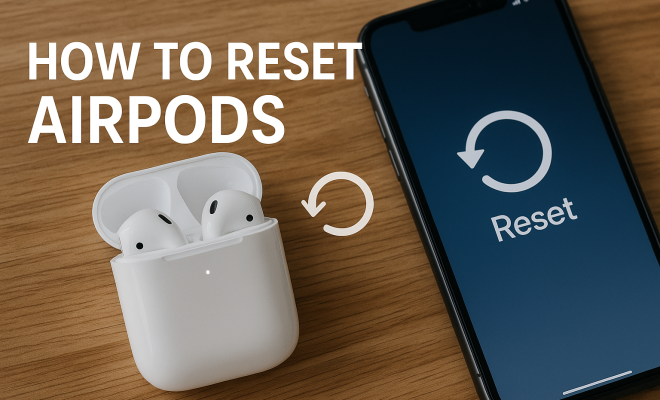
How to reset AirPods
“`html
AirPods have revolutionized the way we listen to music and take calls, but like any technology, they can sometimes run into issues. Whether you’re experiencing connectivity problems, audio glitches, or simply want to sell or give away your AirPods, knowing how to reset AirPods can be a game changer. In this comprehensive guide, we’ll walk through everything you need to know about resetting your AirPods, from the steps involved to troubleshooting tips and tricks.
1. Understanding Your AirPods
Before diving into the reset process, it’s important to understand what makes AirPods tick. Initially released in December 2016, AirPods quickly became a favorite among Apple users due to their seamless integration with Apple devices. They are equipped with a variety of features, including automatic ear detection, touch controls, and access to Siri. However, these features rely on a stable connection and proper software functionality, which can sometimes falter.
The essential components of AirPods include the battery, sensors, and microphones. Over time, as you use your AirPods, you may encounter issues such as audio lag, distortion, or inability to connect. These problems often stem from outdated firmware, Bluetooth interference, or a need for a simple reset. Learning how to reset AirPods allows you to restore them to their factory settings, providing a fresh start.
2. Why You Might Need to Reset Your AirPods
There are several scenarios where resetting your AirPods might be necessary. For starters, if you’re experiencing persistent connectivity issues, such as dropped connections or failure to pair, a reset can often resolve these problems. Additionally, if your AirPods are connected to an old device, and you want to switch to a new one, resetting them will clear the previous pairing data.
Moreover, users might want to reset their AirPods before selling or giving them away. Resetting ensures that all personal settings, playlists, and device pairings are wiped clean, allowing the new owner to start fresh. If you find that your AirPods are not updating or functioning as they should, a reset can also remedy minor software glitches, ensuring that your earbuds perform at their best.
3. How to Reset AirPods: Step-by-Step Guide
Resetting your AirPods is a relatively easy process. Here’s how to do it step-by-step:
- Place your AirPods in their charging case: Make sure the lid is closed.
- Wait for 30 seconds: This allows the AirPods to enter a standby mode.
- Open the lid: When you’re ready to proceed, open the lid of the charging case.
- Press and hold the setup button: This button is located on the back of the charging case. Hold it for about 15 seconds until the status light on the front of the case flashes amber and then white.
- Reconnect your AirPods: After the reset, your AirPods will appear as an available device on your iPhone or other Bluetooth devices. Simply select them to connect.
That’s it! Your AirPods are now reset and ready for action.
4. Resetting AirPods Pro: A Slightly Different Approach
The AirPods Pro, with their added features like Active Noise Cancellation and Transparency mode, follow a similar reset procedure but with a couple of nuances. If you’re using AirPods Pro, the steps are largely the same, but ensure that your firmware is up to date to enjoy the best performance.
To reset your AirPods Pro, follow the same steps outlined above. After the status light flashes amber and then white, your AirPods Pro will be ready to reconnect. If you’re using AirPods Max, the steps are slightly different, involving the noise control button and the Digital Crown, so be mindful of your specific model when resetting. (See: Wikipedia article on AirPods.)
5. Troubleshooting Common AirPods Issues
Even after a reset, you might encounter some issues that could need further troubleshooting. Here are common problems and solutions:
- Audio Delay: If you experience audio lag, ensure your AirPods are fully charged and that you’re using them within a reasonable range of your device.
- Connectivity Problems: If your AirPods still won’t connect after a reset, try toggling Bluetooth off and on again on your device or restarting the device itself.
- Battery Drain: If you find that your AirPods are draining quickly, it might be worth checking if any background apps are using audio features or ensuring that your AirPods are updated to the latest firmware version.
By following these tips, you can maintain optimal performance from your AirPods.
6. Updating Your AirPods Firmware
Updating your AirPods firmware can often prevent issues and enhance functionality. Apple regularly releases updates that improve battery life, audio quality, and connectivity. To check if your AirPods are up-to-date, connect them to your iPhone or iPad, then go to Settings > Bluetooth. Find your AirPods in the list, and if there’s a firmware update available, it will automatically install when your AirPods are charging and in range of your device.
It’s worth mentioning that AirPods do not have a manual update option. If you’ve reset your AirPods and they’re not functioning properly, ensure that you’re using them with an updated device. Sometimes, the device itself may need an OS update for proper compatibility with your AirPods.
7. Pairing AirPods with Non-Apple Devices
While AirPods are designed to work seamlessly with Apple products, they can also connect to non-Apple devices. The process is similar to connecting Bluetooth headphones: ensure your AirPods are in pairing mode, typically achieved by resetting them, and go into the Bluetooth settings on your other device. Once you find your AirPods, select them to connect.
However, keep in mind that certain features, like Siri access or automatic ear detection, may not be available when using AirPods with non-Apple devices. A reset might still be necessary if you’ve previously paired with an Apple device and want to connect to a new Bluetooth device.
8. Maintaining Your AirPods for Longevity
To get the most out of your AirPods, maintaining them is critical. Here are some practical tips to ensure their longevity:
- Keep them clean: Regularly clean your AirPods and case with a soft, dry cloth to remove dust and earwax.
- Store them properly: Always place your AirPods back in the charging case when not in use to protect them and maintain battery life.
- Monitor battery health: Watch for signs of battery degradation, such as significantly reduced playback time, and consider seeking replacement options from Apple if necessary.
By taking good care of your AirPods, you can keep them running smoothly for years to come.
9. When to Contact Apple Support
If you’ve tried all the tips and tricks to reset your AirPods and solve any issues, but they still aren’t functioning as expected, it may be time to reach out to Apple Support. There could be underlying hardware issues that a reset won’t fix, especially if your AirPods have been exposed to moisture or physical damage.
Apple Support can provide diagnostics and recommend the best course of action, whether it’s repair or replacement options, based on your warranty status. It’s helpful to gather any relevant information, such as your purchase date and the specific issues you’ve been experiencing, to expedite the process.
10. Conclusion: The Importance of Knowing How to Reset AirPods
Understanding how to reset AirPods is crucial for every user. Whether you’re dealing with connectivity issues, preparing to sell or give them away, or just want a fresh start, knowing the reset process empowers you to take control of your audio experience. With a few simple steps, you can troubleshoot common problems, ensure optimal performance, and extend the lifespan of your beloved AirPods. So the next time you run into issues, remember—just reset! (See: CDC on ergonomics and audio devices.)
11. Advanced Troubleshooting: Additional Issues and Solutions
Sometimes, issues with AirPods can go beyond simple connectivity problems. Here are some advanced troubleshooting steps you can take if you’re still having trouble:
- Audio Quality Issues: If you notice a decline in audio quality, ensure that the audio source is of high quality. Streaming from low-bit-rate services can sometimes lead to poor sound. If you’re using Apple Music or other high-fidelity services, make sure your subscription supports lossless audio.
- Microphone Issues: If calls are breaking up or people can’t hear you well, check if there’s any debris blocking the microphone mesh. Cleaning gently with a soft brush can help. If problems persist, try resetting your network settings on your device as well.
- Interference from Other Devices: Bluetooth interference is a common issue. If you’re in an area with many Bluetooth devices, try to move to a less crowded space or temporarily turn off other Bluetooth devices to see if performance improves.
12. AirPods vs. Other Wireless Earbuds: A Comparison
If you’re considering alternatives, it’s beneficial to compare AirPods with other popular wireless earbuds on the market. Here’s a quick look:
- Samsung Galaxy Buds: Known for their excellent sound quality and long battery life, Galaxy Buds offer a customizable equalizer that AirPods do not. However, they may not integrate as seamlessly with Apple devices.
- Bose QuietComfort Earbuds: These offer superior noise cancellation compared to AirPods Pro. If you prioritize silence and sound quality over other features, Bose could be your go-to.
- Jabra Elite 75t: Jabra’s earbuds excel in battery life and offer customizable controls through their app. They also have a more secure fit, making them ideal for active users.
When choosing between AirPods and other options, consider which features are most important for your needs, whether it’s sound quality, battery life, or integration with your devices.
13. Frequently Asked Questions about Resetting AirPods
What happens when I reset my AirPods?
Resetting your AirPods returns them to factory settings. This means they will forget all paired devices, and you’ll have to set them up again as if they are new.
Can I reset my AirPods without the charging case?
No, the charging case is essential for the reset process. The setup button is located on the case, which facilitates the resetting of the AirPods.
How often should I reset my AirPods?
There’s no set frequency for resetting your AirPods. You should only reset them when you experience connectivity issues or are preparing to pair them with a new device.
Will resetting my AirPods delete my saved settings?
Yes, resetting will erase all saved settings, including EQ settings or any custom configurations you’ve made through your devices.
Is it possible to reset AirPods Max?
Yes, you can reset AirPods Max. To do this, hold the Noise Control button and the Digital Crown until the LED flashes amber, then white. Follow the reconnection steps afterward.
What if my AirPods won’t reset?
If your AirPods won’t reset, ensure they have adequate charge. If they still don’t respond, it could indicate a hardware issue, and you should contact Apple Support for further assistance.
14. Future of AirPods: What’s Next?
Apple continues to innovate in the audio space, and the next generation of AirPods promises to enhance the user experience further. Rumors suggest potential advancements such as improved health monitoring features, enhanced spatial audio capabilities, and possibly even longer battery life. As technology evolves, so does the experience of using wireless audio devices.
Keep an eye out for announcements from Apple regarding their next product launches. Whether you’re a long-time user or considering your first pair, understanding how to reset and maintain your AirPods will ensure you enjoy the best possible experience, no matter the updates that come your way.
15. Understanding Battery Health and Performance
As with all rechargeable devices, the health of your AirPods’ battery can significantly affect performance. Over time, batteries degrade, leading to shorter usage times and longer charging cycles. Apple’s AirPods typically last around 2-3 years before the battery begins to show signs of deterioration. Here’s how to monitor and possibly extend your AirPods’ battery life:
- Check Battery Health: You can check the battery health of your AirPods using your iPhone. Just connect your AirPods and check the battery widget on your device. If you notice a significant drop in battery life, it might be time for a replacement.
- Optimize Charging: To extend battery life, avoid letting your AirPods drain completely before recharging. Keeping them charged between 20% and 80% is considered optimal for lithium-ion batteries, which are used in AirPods.
- Use One at a Time: For prolonged usage, consider using one AirPod at a time while the other charges in the case. This can significantly extend the time you can listen without needing to recharge.
16. Exploring AirPods Features You Might Not Know About
AirPods come packed with features that enhance the listening experience beyond just music. Here are some lesser-known functionalities you might find useful:
- Automatic Ear Detection: This feature allows your AirPods to automatically pause playback when you take them out of your ears. It uses sensors to detect when they’re in your ears, creating a seamless listening experience.
- Siri Integration: You can activate Siri hands-free by simply saying “Hey Siri” when your AirPods are connected. This allows you to control your music, check the weather, and more, all without touching your device.
- Spatial Audio: If you’re using AirPods Pro or AirPods Max, take advantage of Spatial Audio, which provides an immersive audio experience by making sounds appear to come from all around you, enhancing movie watching and gaming.
17. Common Misconceptions About AirPods
There are several myths surrounding AirPods that can lead to misunderstandings about their functionality. Here are some common misconceptions:
- AirPods Only Work with Apple Devices: While AirPods are designed for seamless integration with Apple products, they can also connect to Android and other Bluetooth-enabled devices.
- Resetting AirPods Will Permanently Damage Them: This is not true. Resetting your AirPods is a normal troubleshooting step that can help fix connectivity and audio issues without causing any permanent damage.
- AirPods Are Waterproof: While the AirPods Pro offers some water and sweat resistance, they are not fully waterproof. It’s best to avoid exposing your AirPods to any liquids.
18. Tips for Buying Used AirPods
If you’re considering purchasing used or refurbished AirPods, there are some tips to ensure you make a wise choice:
- Check Battery Life: Ask the seller about the battery health of the AirPods. If possible, ask to see them in action to determine how long they last before needing a charge.
- Verify Original Accessories: Ensure that the charging case and any additional accessories (like ear tips for AirPods Pro) are included in the sale, preferably in good condition.
- Reset Before Purchase: Request that the seller performs a reset on the AirPods before completing the transaction to ensure they’re not tied to another Apple ID.
“`
Trending Now
Frequently Asked Questions
How do I reset my AirPods?
To reset your AirPods, place them in their charging case and close the lid for 30 seconds. Then, open the lid, press and hold the setup button on the back of the case until the LED light flashes amber, and then white. This will restore your AirPods to factory settings.
Why would I need to reset my AirPods?
You might need to reset your AirPods if you're experiencing connectivity issues, such as dropped connections or failure to pair. Additionally, resetting is useful when switching to a new device or before selling or giving them away to ensure all personal data is cleared.
What happens when I reset my AirPods?
Resetting your AirPods restores them to factory settings, clearing all previous pairings and personal settings. This can help resolve issues like audio glitches, connection problems, and allows you to connect them to a new device.
Can resetting AirPods fix audio problems?
Yes, resetting your AirPods can often resolve audio problems such as lag or distortion. This process helps restore functionality by clearing any software glitches that may be affecting performance.
How can I troubleshoot my AirPods before resetting?
Before resetting, try basic troubleshooting steps like ensuring your AirPods are charged, checking Bluetooth settings on your device, and toggling Bluetooth off and on. Additionally, try reconnecting your AirPods to see if the issue persists.
What’s your take on this? Share your thoughts in the comments below — we read every one.