How to organize OneNote notebooks
“`html
Microsoft OneNote is a powerful tool for note-taking, organization, and collaboration, making it a staple for students, professionals, and anyone looking to manage their thoughts efficiently. However, as you accumulate more notes, sections, and pages, it can become overwhelming if you don’t have a solid strategy in place. If you’re wondering how to organize OneNote notebooks effectively, you’re in the right place. Here are seven essential tips that will help you streamline your notebooks and enhance your productivity.
1. Create a Notebook Structure
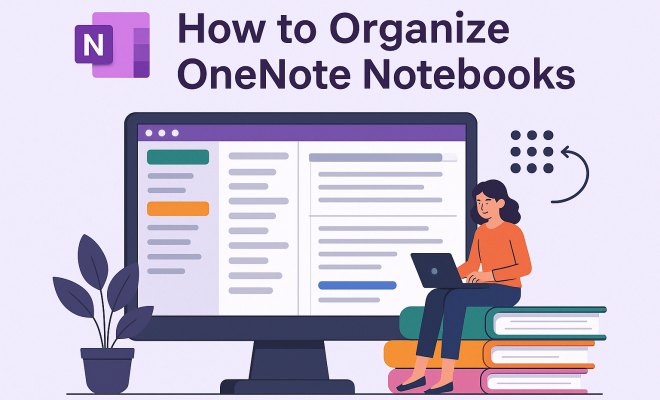
The first step in organizing your OneNote notebooks is to establish a clear structure. Think of your OneNote as a filing cabinet where each notebook corresponds to a drawer, each section to a folder, and each page to a document. Consider categorizing your notebooks based on core areas of your life or work—like personal, work, school, or specific projects.
For instance, if you’re a student, you could have separate notebooks for each subject. In a professional setting, you may want to create notebooks for different clients or projects. This structural clarity not only makes it easier to find specific notes but also minimizes the risk of clutter, making your workflow smoother.
2. Utilize Sections and Pages Wisely
Inside each notebook, use sections to break down your notes further. Sections can be thought of as thematic categories within your notebooks. For example, if you have a notebook for a specific project, you might create sections for planning, research, and progress tracking. This allows you to compartmentalize information effectively.
Pages within these sections should be used to document specific ideas or detailed notes. Instead of cramming too much information into one page, create separate pages for different aspects or components of your topic. This approach not only enhances readability but also makes it easier to locate individual pieces of information later.
3. Implement a Consistent Naming Convention
Establishing a consistent naming convention for your notebooks, sections, and pages is crucial. A well-thought-out naming system can be a lifesaver. For instance, you might name your pages by date and topic (e.g., “2023-10-01 Team Meeting Notes”) or use keywords that make it easy to identify the content at a glance. We covered study skills insights in more detail.
This practice not only aids in finding notes through search functionality but also keeps everything organized. Consistency is key—ensure that you apply the same naming format across all your notebooks, sections, and pages, so you can quickly understand their contents just by looking at the titles.
4. Incorporate Tags for Quick Reference
One of the standout features of OneNote is its tagging functionality. Tags allow you to highlight important notes, tasks, or follow-ups. By incorporating tags, you can create a system that enables quick access to information based on priority or need. For instance, use tags like “Important,” “To-Do,” or “Follow-Up” to easily sort through your notes.
Moreover, OneNote allows for custom tags, which means you can tailor your tagging system to fit your specific needs. When you’re in a rush and need to find actionable items or important concepts quickly, tags can save you a considerable amount of time.
5. Use Templates for Consistency
OneNote offers a variety of templates that can help you maintain consistency across your notes. Whether you’re taking meeting notes, preparing for a project, or managing your daily tasks, using templates can simplify the process. You can create your own templates or use built-in ones, ensuring that every note follows a standardized format.
Templates not only improve organization but also enhance productivity. By having a ready-made structure in place, you can focus on content rather than formatting, allowing you to capture ideas quickly and efficiently.
6. Sync and Back Up Regularly
One of the advantages of using OneNote is its seamless integration with Microsoft 365, allowing your notes to sync across devices. However, it’s essential to ensure that your notes are regularly backed up to prevent any potential data loss. Take advantage of OneNote’s automatic syncing feature, but also consider exporting your notebooks periodically. (See: overview of note-taking techniques.)
For additional security, you might want to back up your notes to a cloud service or an external drive. Regular backups prevent the stress of losing your valuable information, making your organizational efforts worthwhile.
7. Review and Purge Regularly
It’s easy for digital notes to pile up over time, which may lead to clutter. To maintain an organized system, schedule regular reviews of your notebooks. Decide on a frequency that works for you—be it weekly, monthly, or quarterly—to go through your notes and identify what’s still relevant and what can be deleted. classroom design guide offers useful background here.
This process of purging unnecessary information helps keep your notebooks streamlined and focused. It also reduces the time spent searching for important notes, allowing you to maintain a clear and organized workspace.
8. Use Color Coding for Visual Organization
Color coding is an effective way to visually differentiate between various topics, projects, or importance levels within your OneNote notebooks. By assigning specific colors to different notebooks or sections, you create a visual hierarchy that can help in quickly identifying where specific information lies. For instance, you might use blue for work-related notes, green for personal projects, and red for urgent tasks.
This technique can significantly reduce the time spent searching for notes, as your brain quickly associates colors with topics. Plus, it’s a fun and creative way to personalize your organization system, making it more engaging to use.
9. Integrate with Other Tools
OneNote’s compatibility with other Microsoft products and third-party applications can enhance your organizational capabilities. For instance, you can link your OneNote pages to Microsoft To-Do for task management or Outlook for calendar events. This integration allows you to convert notes into tasks or set reminders directly from your notes, creating a more cohesive workflow.
Additionally, consider using tools like Zapier or IFTTT to automate processes between OneNote and other applications. For example, you can create workflows that automatically save email content to OneNote or sync data from other note-taking apps. This not only saves time but also ensures that all your important information is centralized in OneNote.
10. Utilize Search Features Effectively
OneNote includes a powerful search feature that makes it easy to find specific notes, even within extensive notebooks. Take advantage of this feature by familiarizing yourself with its capabilities. You can search for keywords, tags, or even handwritten notes. Learning how to use search filters can also expedite the process, allowing you to narrow down results based on date ranges or specific notebooks.
Consider creating an index page where you list key topics along with their respective sections or pages. This can serve as a quick reference point and further aid in navigation, especially in broad notebooks where many subjects are covered.
11. Organizing Tips from Experts
To gain more insights into how to effectively organize your OneNote notebooks, consider the perspectives of productivity experts.
According to productivity coach Julie Morgenstern, a well-structured system is key. She emphasizes that “the organization is not just about storage; it’s about making information accessible.” This highlights the importance of creating an intuitive structure in OneNote that caters to your workflow.
Another expert, David Allen, author of “Getting Things Done,” suggests that clarity in organization leads to increased focus. He states, “When your mind is clear, you can concentrate on what truly matters.” Implementing clear organizational strategies in OneNote can help you maintain that clarity, especially when juggling multiple projects or commitments.
12. Frequently Asked Questions (FAQs)
Q1: How can I recover deleted notes in OneNote?
A1: If you accidentally delete a note in OneNote, you can recover it from the “Deleted Notes” section. This section holds your deleted pages and notes for a limited time, allowing you to restore them easily. (See: importance of mental organization.)
Q2: Can I share my OneNote notebooks with others?
A2: Yes, you can share your OneNote notebooks with others. Click on the “Share” button in your notebook, and you can invite others to view or edit your notes. This feature is great for collaboration on projects or shared study materials.
Q3: Is it possible to access OneNote offline?
A3: OneNote allows offline access to your notebooks. Changes made while offline will sync automatically once you reconnect to the internet. This is particularly useful for students or professionals who may need to access their notes without an internet connection. This builds on effective learning centers.
Q4: What should I do if OneNote is running slowly?
A4: If OneNote is running slowly, try optimizing your notebooks by reducing the number of large files and images. Closing unused notebooks and sections can also improve performance. Additionally, ensure that your software is up-to-date to benefit from the latest performance enhancements.
Q5: Can I use OneNote on mobile devices?
A5: Absolutely! OneNote is available on various mobile platforms, including iOS and Android. This allows you to access, edit, and sync your notes on the go, ensuring you have your important information at your fingertips wherever you are.
13. Exploring Advanced Features in OneNote
To truly maximize your organization in OneNote, it’s worth exploring some of its advanced features. These can transform the way you manage your notes and enhance efficiency even further.
Tags and Search
While we’ve touched on using tags, consider utilizing the advanced search options available. OneNote can search through handwritten notes, images, and even audio recordings. If you’re in a meeting and take handwritten notes, searching for a keyword later will yield results even in your handwritten scrawl. This capability adds another layer of convenience, ensuring no valuable information slips through the cracks.
Audio and Video Notes
Another useful feature is the ability to include audio and video notes directly in your OneNote pages. This is particularly helpful during lectures or meetings where capturing spoken information can be more valuable than written notes. Later, you can even sync your audio recordings with your typed notes, allowing you to find the exact moment in the recording that corresponds to your notes.
Drawing and Sketching
For those who are more visually inclined, OneNote allows you to draw and sketch within your notes. You can annotate images, create diagrams, or simply doodle to illustrate your thoughts. Using a tablet or touchscreen device can make this even more effective, as it allows for a more natural writing experience when jotting down ideas or brainstorming.
14. Common Pitfalls to Avoid
As you set out to organize your OneNote notebooks, it’s essential to be aware of some common pitfalls that can undermine your efforts.
Over-Complicating the Structure
While a clear structure is essential, it’s easy to fall into the trap of over-complicating it. If your organization system requires too much effort to navigate, you’ll be less likely to use it effectively. Aim for simplicity; the best systems are usually straightforward and intuitive.
Neglecting Regular Maintenance
Another pitfall is neglecting your organization system. Just like a physical filing cabinet requires regular cleaning and purging, so does your digital notebook. Schedule regular check-ins to keep your notebooks tidy and relevant. If too much time passes, you may find yourself overwhelmed again. (note taking strategies)
Ignoring Feedback from Usage
As you use OneNote, pay attention to what works and what doesn’t. Are certain sections consistently neglected? Are there tags you never use? Adjust your system as needed. Flexibility can be a key factor in maintaining an effective organization system. (See: latest technology trends.)
15. Practical Examples of Organized OneNote Notebooks
Understanding organization strategies can be challenging without examples. Let’s consider a few practical scenarios that illustrate effective OneNote organization.
Example 1: Student Notebook
A student may create a main notebook titled “2023 Classes,” with sections for each subject: Math, Science, History, and English. Within each section, they could have pages for Lecture Notes, Assignments, and Reading Materials. This categorization ensures that all relevant notes and resources are easy to locate and manage, minimizing study time before exams.
Example 2: Project Management
A project manager might set up a notebook titled “Project Phoenix.” Sections could include “Planning,” “Budget,” “Team Assignments,” and “Meeting Notes.” Each page could represent different meetings or brainstorming sessions, complete with tags for action items. This structure allows for quick access to essential information and ensures all project-related notes are in one central place.
Example 3: Personal Journal
For personal reflection, an individual might create a notebook titled “My Journey.” Sections could include “Daily Reflections,” “Gratitude Lists,” and “Goals.” Pages within “Daily Reflections” would capture thoughts, feelings, and experiences on specific days. This provides a comprehensive view of personal growth and experiences over time.
16. Making the Most of OneNote’s Collaboration Features
OneNote is not just a personal organization tool; it also excels in collaboration. If you’re working with teams or sharing information with family, leveraging collaboration features can enhance your effectiveness.
Sharing Notebooks
When sharing notebooks, utilize the permissions settings to control who can view or edit the content. This ensures sensitive information remains secure while allowing designated collaborators to contribute. You can also add comments or notes tagged for review, making it easy for others to provide feedback.
Real-time Collaboration
OneNote’s real-time collaboration feature allows multiple users to work on a notebook simultaneously. This is particularly useful for brainstorming sessions, team meetings, or study groups, enabling everyone to contribute ideas and notes in real-time, enhancing engagement and productivity.
17. Conclusion: Make OneNote Work for You
Organizing your OneNote notebooks doesn’t have to be a daunting task. With a clear structure, consistent naming conventions, effective use of tags, and regular reviews, you can create a system that serves your needs. Remember, the goal is to enhance your productivity and make your information easily accessible. By following these eleven tips, you’ll not only organize OneNote notebooks effectively but also maximize their potential as a powerful tool for managing your notes and ideas.
“`
Trending Now
Frequently Asked Questions
How do I organize my OneNote notebooks?
To organize your OneNote notebooks effectively, create a clear structure by categorizing notebooks based on areas of your life or work. Use sections to break down notes further and create separate pages for specific ideas. This method enhances readability and makes it easier to locate information later.
What is the best way to use sections in OneNote?
Sections in OneNote should be used to categorize your notes thematically within a notebook. For example, if you have a project notebook, create sections for planning, research, and tracking. This helps compartmentalize information, making it easier to find and manage.
Can I have multiple notebooks in OneNote?
Yes, you can create multiple notebooks in OneNote. It's recommended to have separate notebooks for different areas such as personal, work, or school subjects. This organizational strategy helps keep your notes structured and manageable.
How can I improve productivity with OneNote?
Improving productivity in OneNote involves establishing a clear notebook structure, utilizing sections to categorize notes, and creating dedicated pages for specific topics. This organized approach reduces clutter and enhances your ability to find information quickly.
Is OneNote good for project management?
Yes, OneNote is an excellent tool for project management. You can create notebooks for each project, use sections for different aspects like planning and tracking, and maintain pages for specific tasks or notes, allowing for effective organization and collaboration.
Have you experienced this yourself? We'd love to hear your story in the comments.