Master Video Looping in VLC: Your Complete Guide
“`html
VLC Media Player is widely recognized as one of the most versatile and robust media players available. With its support for virtually every video and audio format, and its customizable features, VLC has become the go-to choice for millions. One of the most sought-after functionalities is the ability to loop video in VLC. Whether you’re a student needing to review a lecture, a musician practicing your performance, or simply enjoying your favorite clips, looping can enhance your experience. In this comprehensive guide, we’ll explore how to effectively loop videos in VLC, along with some additional tips and tricks to optimize your media playback.
1. Understanding Video Looping
Looping a video means that the player will automatically replay the video from the beginning once it finishes. This feature is incredibly useful for various purposes. For example, educators might loop instructional videos to ensure students grasp the material, while video editors may need to review footage repeatedly for quality control. Knowing how to loop video in VLC can save time and effort, allowing users to focus on what matters most: the content.
VLC offers two primary methods for looping: looping a single video and looping a playlist. This flexibility caters to different user needs, whether you’re focusing on a specific clip or a series of videos.
2. Getting Started: Downloading VLC
If you haven’t already installed VLC Media Player, you’re in for a treat. The first step is to download the software. The good news is that VLC is completely free and available on various platforms, including Windows, macOS, Linux, iOS, and Android. Visit the official VLC website (videolan.org) to get the latest version. Installation is straightforward; simply follow the prompts based on your operating system. Once installed, you’re set to explore the myriad of features it offers, including the essential ability to loop video in VLC.
After installation, launching VLC will present you with a user-friendly interface. Familiarizing yourself with the layout can enhance your overall experience and make it easier to access looping functions when needed.
3. How to Loop a Single Video
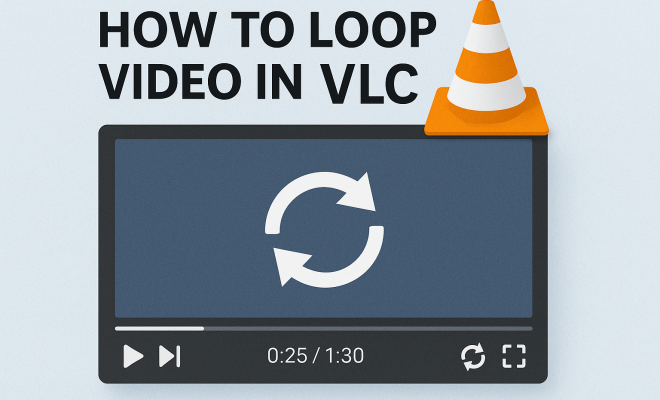
Looping a single video in VLC is a simple process. First, open the video you wish to loop by clicking on Media and then Open File to select your video. Once your video is playing, look for the loop button in the control panel at the bottom of the VLC window. This button, shaped like two arrows forming a circle, can be clicked to activate looping. Once enabled, the video will automatically restart from the beginning once it reaches the end.
If you want to verify that looping is active, you can see a small icon next to the loop button change, indicating that the feature is turned on. This visual cue will help you ensure that your video will keep playing without interruption.
4. Looping a Playlist in VLC
If you have multiple videos that you want to loop, VLC allows you to create a playlist and loop that entire list. To do this, start by opening the first video, and then click on View in the menu bar and select Playlist. You can add more videos to your playlist by dragging them into the playlist window or using Media > Add to Playlist.
After you’ve compiled your playlist, activate looping by clicking on the loop button twice. The button will change appearance, indicating that you’re now looping the entire playlist. This is particularly beneficial for music videos, training sessions, or any series of clips that you want to review multiple times.
5. Advanced Looping Techniques
For power users who want more control over looping, VLC offers advanced options. You can set specific loop points, meaning you can choose a segment of a video to repeat. To do this, pause the video at your desired start point, then go to View > Advanced Controls to enable additional buttons, including the Record and Loop buttons. Set your starting point, then jump to where you want the loop to end. Click the loop button to activate this feature. It’s a fantastic way to focus on specific scenes or sections in a video.
Additionally, if you’re looking to experiment, VLC’s looping capabilities can be modified in the preferences. Head to Tools > Preferences, and under the Input/Codecs tab, you can adjust the loop settings to suit your needs.
6. Using VLC on Different Devices
VLC’s functionality doesn’t stop at desktops; its mobile versions are equally robust. On mobile devices, the process of looping videos is similar. Install VLC from the app store, open the video, and locate the loop option within the playback controls. The interface may differ slightly, but the essential features remain the same, allowing for seamless looping whether you’re on your PC or smartphone. (See: VLC Media Player overview.)
For tablet users, the larger screens provide an enhanced viewing experience, making it even easier to loop videos during presentations or while sharing media with a group. Understanding how to loop video in VLC on all your devices ensures you can enjoy your content wherever you are.
7. Common Issues When Looping Videos
While VLC is generally reliable, you may encounter issues when trying to loop videos. One common problem is that the looping function may not activate if the video file is corrupted or incompatible. If your video fails to loop, try playing another video to see if the issue persists. If it does, reinstalling VLC or checking for updates may resolve the problem. Remember, updating VLC ensures you have the latest features and bug fixes.
Another potential issue is with video codecs. VLC supports a wide range of codecs, but if you’re trying to loop a video in a rare format, you may run into problems. Converting the video to a more commonly supported format like MP4 or AVI often resolves playback issues. There are plenty of free online converters available that can assist with this.
8. Enhancing Your VLC Experience
VLC isn’t just about looping; it’s packed with features that can enhance your viewing experience. For instance, you can customize the interface through skins, adjust audio settings for surround sound, and even add subtitles. Exploring these features allows you to tailor VLC to your specific requirements. By taking advantage of these, you can create a personalized media hub that suits all your playback needs, including looping.
Additionally, consider using VLC’s streaming capabilities. If you have videos stored on a network drive or cloud service, you can stream and loop those files without downloading them. This is particularly useful for managing large files or sharing content with others in real-time.
9. Why Looping is Beneficial
Understanding the benefits of looping can help you appreciate why this feature is so widely utilized. For educators, looping instructional videos helps reinforce learning by allowing students to engage with the material multiple times. For musicians, looping practice videos can accelerate learning and mastery of songs. Even for general entertainment, looping beloved films or scenes can enhance enjoyment, making it easier to savor the content you love.
Furthermore, looping can improve retention of information. Studies have shown that repeated exposure to material can lead to better memory retention, making it a powerful tool in both educational and personal settings.
10. Final Thoughts
Now that you know how to loop video in VLC and the various ways to enhance your media experience, you’re equipped to make the most of this powerful player. Whether you want to loop a single clip or an entire playlist, VLC provides intuitive and flexible options to meet your needs. Remember to explore the other features VLC offers, as they can elevate your media consumption beyond simple playback.
With VLC Media Player by your side, the possibilities are endless. So go ahead, loop your videos, enjoy your content like never before, and make the most of your time spent watching!
11. How Video Looping Works Behind the Scenes
Looping videos is not just a simple toggle switch; it involves a bit of technical magic. When you click the loop button in VLC, the player creates a circular buffer. This means it stores the current video’s playback state at the end of the video, allowing it to jump back to the start without any delay. This is achieved using the media playback framework built into VLC, enabling seamless transitions between video segments.
The buffering process is efficient, ensuring that there are no interruptions in playback. This is particularly important for long videos, where any delay could be noticeable. VLC’s architecture is designed for high performance, so even with extensive looping, it maintains smooth playback.
12. Comparative Analysis: VLC vs. Other Media Players
While VLC is a popular choice for looping videos, it’s helpful to compare it with other media players to understand its unique advantages. Players like Windows Media Player, QuickTime, and PotPlayer also offer looping functionalities, but they vary in ease of use and features.
For instance, Windows Media Player has a more straightforward interface, but its looping functionality isn’t as intuitive as VLC’s. Users may find it challenging to loop a specific segment without additional steps. QuickTime, on the other hand, offers seamless looping for movies but lacks the extensive format support found in VLC. (See: Media player technologies.)
PotPlayer is another contender, providing advanced customizations and a similar looping feature. However, it can be overwhelming for new users due to its dense interface. Overall, VLC stands out for its balance of user-friendliness and powerful features, making it a top choice for video playback and looping.
13. Expert Perspectives on Video Looping
To gather insights on the importance of video looping, we spoke with several professionals across different fields. Educational technology expert Dr. Emily Carter noted that “looping videos can significantly enhance the learning process. It allows students to review complex material in a manageable format.” This perspective aligns with findings in educational psychology regarding the benefits of repeated exposure to information.
In the creative industry, sound engineer Mike Thompson emphasized that looping is essential during the editing phase. “Being able to loop specific sections allows for more precise video editing and sound matching,” he explained. This illustrates the practical applications of looping beyond simple viewing, showcasing its importance in various professional settings.
14. FAQ: Common Questions About Looping Videos in VLC
Q1: Can I loop a video in VLC without the loop button?
A1: Yes, you can set specific loop points in VLC using the advanced controls feature. This allows you to define a start and end point for the loop without relying solely on the loop button.
Q2: Does looping a video affect the quality of playback?
A2: No, looping a video does not affect the quality of playback. VLC is designed to handle video playback efficiently, ensuring that quality remains consistent regardless of looping.
Q3: Can I loop videos in VLC on a smart TV?
A3: Yes, if your smart TV supports VLC, you can loop videos just like you would on a computer or mobile device. The interface may vary slightly, but the looping functionality remains available.
Q4: Is there a limit to how many times I can loop a video?
A4: There isn’t a set limit on how many times you can loop a video in VLC. You can keep looping it as long as you want, making it an excellent tool for continuous playback.
Q5: What should I do if looping stops working?
A5: If looping stops working, try restarting VLC, checking for updates, or reinstalling the application. Also, verify that the video format is supported by VLC, as unsupported formats may cause issues.
Q6: Can I loop just a portion of a video?
A6: Yes, by using the advanced controls in VLC, you can set specific start and end points to loop a portion of a video, allowing for focused review or analysis of certain segments.
Q7: Will looping a video consume more battery on mobile devices?
A7: Looping videos may consume slightly more battery on mobile devices compared to normal playback due to the continuous operation of the player. However, the difference is typically minimal.
15. Looping in Different Contexts
Looping videos isn’t just a feature confined to personal use; it has various practical applications in different contexts. For instance, in retail environments, businesses often loop promotional videos to engage customers. This creates a compelling atmosphere that highlights products without needing constant supervision. (See: VLC's popularity in media playback.)
In the fitness industry, instructors frequently use looping videos to lead classes. This allows participants to repeat specific exercises or routines seamlessly, enhancing the workout experience. Similarly, artists and performers might loop their practice sessions to perfect their craft. By isolating challenging segments, they can dedicate time to improving specific skills.
16. The Future of Video Looping Technology
As technology advances, the future of video looping looks promising. With the rise of AI and machine learning, we might see intelligent looping features that can predict user preferences and automatically adjust playback settings accordingly. Imagine a scenario where the player recognizes which segments you replay most often and offers to loop them automatically, saving time and enhancing the user experience.
Moreover, the integration of virtual reality (VR) could redefine how we interact with looping videos. In a VR setting, looping could allow for immersive experiences where users can explore scenes repeatedly from different angles, providing a unique way to engage with content.
17. Practical Tips for Looping Videos Effectively
To get the most out of VLC’s looping features, consider these practical tips. First, ensure your video files are in optimal condition. High-resolution files provide better playback quality, especially when looping. Keeping your media files organized can also streamline the process; develop a system for categorizing videos based on usage or content type.
Additionally, if you’re using VLC for educational purposes, create a structured playlist. This can help maintain focus during study sessions or presentations. You might want to label each video in your playlist with timestamps for specific sections you plan to loop. This way, you can quickly navigate to the parts that require more attention.
18. Exploring VLC Add-Ons for Enhanced Functionality
VLC’s capabilities can be expanded even further with the use of add-ons. There are various plugins available that can enhance your looping experience or add new features altogether. For example, some add-ons allow you to customize subtitles to sync with specific loops, making it easier to follow along with the content. Others might enhance audio playback, making it easier to practice music by looping difficult sections while adjusting the sound levels.
To explore these add-ons, visit VLC’s official website or community forums where users share their favorite plugins. Experimenting with these tools can help you tailor VLC to your specific needs and enhance your overall media experience.
With VLC Media Player and its looping capabilities, you’re truly equipped to enhance your viewing experience. Whether it’s for education, entertainment, or professional use, understanding and leveraging the looping feature can significantly enrich your interaction with video content.
“`
Trending Now
Frequently Asked Questions
How do I loop a video in VLC?
To loop a video in VLC, open your video file, then click on the 'Loop' button in the playback controls. You can also find this option in the 'Playback' menu by selecting 'Loop' or using the shortcut 'Ctrl + L' for looping the current video.
Can I loop a playlist in VLC?
Yes, VLC allows you to loop a playlist. Simply load your playlist, then click on the 'Loop' button in the controls. This will repeat the entire playlist continuously until you stop it.
Is VLC Media Player free to use?
Yes, VLC Media Player is completely free to use. It is open-source software available for multiple platforms, including Windows, macOS, Linux, iOS, and Android, allowing users to enjoy all its features without any cost.
What formats does VLC support for video playback?
VLC Media Player supports virtually every video and audio format, including MP4, AVI, MKV, FLV, and more. This versatility makes it a popular choice for users needing reliable media playback without compatibility issues.
How do I download VLC Media Player?
To download VLC Media Player, visit the official VLC website at videolan.org. Choose the version compatible with your operating system, and follow the installation instructions provided on the site for a smooth setup.
Agree or disagree? Drop a comment and tell us what you think.