How to integrate ClickUp with other apps
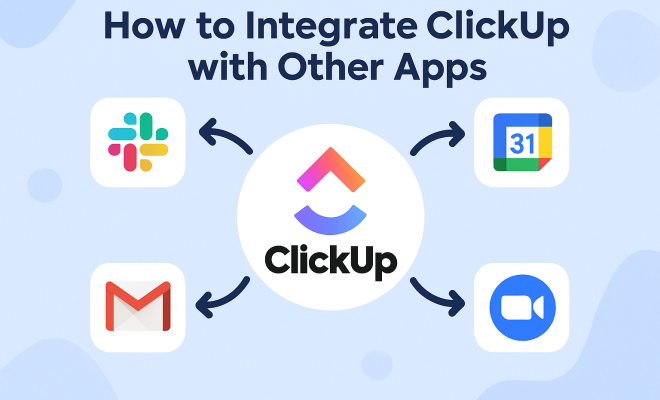
“`html
Are you looking for ways to streamline your productivity and project management? If so, mastering ClickUp integration with other applications could be your ticket to a more organized and efficient workflow. ClickUp is a versatile project management tool that not only helps you track tasks but also allows for seamless integration with various apps to enhance your productivity. In this comprehensive guide, we’ll explore how you can effectively integrate ClickUp with other applications, improve your workflow, and leverage its powerful features to achieve your goals.
1. Understanding ClickUp and Its Capabilities
Before diving into ClickUp integration, it’s essential to understand what ClickUp is and what it offers. Founded in 2017, ClickUp has quickly risen to prominence as a leading productivity platform. It combines project management, task tracking, time management, and goal setting into one software solution. With a user-friendly interface, ClickUp allows teams to collaborate efficiently, whether in-house or remote.
Some of the standout features of ClickUp include customizable workflows, task statuses, real-time collaboration tools, and comprehensive reporting. The platform also supports various project views, such as lists, boards, Gantt charts, and calendars, enabling users to visualize their work in a way that suits their style. Understanding these features is crucial as we explore how integrating other applications can enhance these capabilities further.
2. The Importance of Integration
Why should you consider integrating ClickUp with other applications? The answer is simple: integration can significantly enhance productivity by automating workflows and reducing manual data entry. When multiple systems work together, you eliminate the chance for errors and streamline processes. There’s a fuller look at keys to effective project management.
For instance, if your team uses a separate communication tool like Slack, integrating it with ClickUp means that you can receive task updates directly in your chat, keeping everyone informed without switching applications. This not only saves time but also improves collaboration. In an age where efficiency is paramount, integrating tools to create a cohesive workflow is crucial for teams of all sizes.
3. Popular Applications for ClickUp Integration
There are countless applications you can integrate with ClickUp, but some are particularly popular and useful. Here are a few noteworthy options:
- Google Drive: Store all your documents and files in one place. Linking ClickUp with Google Drive allows you to attach files directly to tasks without leaving the ClickUp interface.
- Slack: As previously mentioned, integrating Slack enables real-time notifications about project updates, helping teams stay aligned and informed.
- Zapier: This powerful automation tool allows you to connect ClickUp with thousands of other applications. Create automated workflows to save time and reduce repetitive tasks.
- GitHub: For software development teams, integrating GitHub with ClickUp helps in linking code repositories to tasks, ensuring better project tracking.
- Microsoft Teams: This integration facilitates communication and collaboration while keeping task management centralized within ClickUp.
- Time Tracking Tools: Applications like Harvest or Toggl can be integrated to manage time spent on tasks directly within ClickUp, providing insights for better planning.
4. Step-by-Step Guide to Integrate ClickUp with Other Apps
Integrating ClickUp with other applications can seem daunting, but it’s relatively straightforward. Follow these steps to get started:
- Identify Your Needs: Determine which applications you want to integrate based on your workflow. Assess which integrations will have the highest impact on your productivity.
- Access the Integrations Page: Log into your ClickUp account, go to your profile icon in the bottom left corner, and click on ‘Integrations’ to view available options.
- Select the Application: From the integrations list, choose the application you wish to connect. You’ll find detailed options and guides on how to integrate each application.
- Follow the Prompts: Each application will have specific instructions. Follow them to grant the necessary permissions and complete the integration.
- Test the Integration: After setting up, ensure that the integration works as intended. Create a test task or send a test message to confirm functionality.
By following these steps, you can easily set up integrations that enhance your ClickUp experience.
5. Using Zapier for Advanced Integrations
Zapier is a game-changer when it comes to integrations. It allows you to create “Zaps” that automate tasks between ClickUp and other applications without the need for coding. For example, you can create a Zap that automatically creates a new ClickUp task every time you receive an email in Gmail with a specific label. (See: Understanding project management principles.)
To get started with Zapier for ClickUp integration, create a Zapier account and link it to your ClickUp account. Then, choose the trigger app (like Gmail) and the action app (ClickUp) to create an automated workflow. This opens up a world of possibilities and can save you countless hours over time.
6. Common Challenges and Troubleshooting Tips
While integrating ClickUp with other applications can enhance productivity, challenges may arise. Here are some common issues and tips for troubleshooting:
- Authentication Issues: If you encounter issues connecting an application, ensure you have the right permissions. Sometimes, re-authenticating the account can resolve the issue.
- Data Sync Problems: If data isn’t syncing correctly between apps, check your integration settings. Often, reconfiguring the integration can solve the problem.
- Performance Lag: Some integrations might slow down your ClickUp experience. If you notice a lag, try disabling unnecessary integrations and see if performance improves.
Recognizing these challenges can help you quickly address them and maintain a smooth workflow. Related reading: top global project management schools.
7. Maximizing Productivity with ClickUp Integrations
The key to maximizing the benefits of ClickUp integration lies in leveraging the available features and tools effectively. Here are some strategies to consider:
- Customize Notifications: Configure integration notifications to ensure you receive updates that matter most to your workflow, minimizing distractions.
- Utilize Reporting Tools: With integrations, many applications can provide insights into your productivity. Use these reports to adjust your workflow for better outcomes.
- Train Your Team: Ensure that all team members understand how to utilize integrations effectively. Offer training sessions or create guides to help them adapt.
Implementing these strategies can help your team use ClickUp integrations to their full potential.
8. Future of ClickUp Integrations
The landscape of project management tools and integrations is constantly evolving. As remote work becomes more prevalent, the demand for robust integrations will only grow. ClickUp continues to enhance its integration capabilities, with plans for expanded features and partnerships in the future.
Staying updated on new integrations and features can help you maintain a competitive edge. Following ClickUp’s blog or joining their community forums can provide insights on upcoming functionalities and best practices.
9. Frequently Asked Questions About ClickUp Integration
What types of applications can be integrated with ClickUp?
You can integrate a wide variety of applications with ClickUp, including communication tools (like Slack and Microsoft Teams), file storage services (like Google Drive and Dropbox), time tracking apps (like Harvest and Toggl), and automation tools (like Zapier). This variety allows teams to customize their workflow according to their specific needs.
Is ClickUp integration easy to set up?
Setting up ClickUp integration is designed to be user-friendly. The process typically involves logging into your ClickUp account, accessing the integrations page, and following the prompts to connect your desired application. Most integrations provide detailed instructions to guide you through the process.
Can I integrate multiple applications with ClickUp?
Absolutely! You can integrate multiple applications with ClickUp simultaneously. This capability allows you to create a comprehensive and connected workflow tailored to your team’s needs. The more applications you integrate, the more efficient your processes can become.
What should I do if an integration isn’t working?
If an integration isn’t functioning correctly, start by checking your connection settings and permissions. Re-authenticating your accounts or reviewing the integration configurations can often resolve common issues. If problems persist, consider consulting the support documentation or reaching out to ClickUp’s customer support for assistance. (See: Impact of technology on productivity.)
Are there any costs associated with ClickUp integrations?
ClickUp itself does not charge for integrations. However, some third-party applications you choose to integrate may have their own pricing structures. It’s a good idea to review the terms and costs associated with the applications you plan to connect with ClickUp.
How can I track the success of my integrations?
To track the success of your ClickUp integrations, utilize the reporting and analytics features within ClickUp. By monitoring metrics such as task completion rates, team productivity, and feedback on integrated workflows, you can assess the effectiveness of your integrations and make necessary adjustments.
10. Case Studies: Successful ClickUp Integrations
Real-world examples of teams successfully utilizing ClickUp integration can provide valuable insights. Here are a couple of brief case studies:
Case Study 1: Marketing Agency
A marketing agency struggling with communication between its design and project management teams decided to integrate Slack with ClickUp. By doing this, they set up automatic notifications for task updates and deadlines, allowing team members to stay informed without constantly checking ClickUp. The result? A 30% reduction in missed deadlines and improved team morale.
Case Study 2: Software Development Team
A software development team used ClickUp’s integration with GitHub to manage project tasks alongside their code repositories. They created a workflow where a new ClickUp task would automatically populate whenever a new issue was raised in GitHub. This integration reduced the time spent on task assignment by 40% and improved project tracking significantly.
11. Tips for Choosing the Right Integrations
With so many integration options available, selecting the right ones for your team can feel overwhelming. Here are some tips to help you make the right choices: apps for student collaboration offers useful background here.
- Assess Your Team’s Needs: Identify the tools your team uses most frequently and see if they offer ClickUp integrations. Choose those that will significantly streamline your processes.
- Prioritize User Experience: Opt for integrations that enhance the user experience rather than complicate it. The goal is to simplify workflows, not add more steps.
- Check Reviews and Ratings: Look for feedback on the integrations you are considering. User experiences can provide insights into potential issues or benefits.
- Consider Compatibility: Ensure that the integrations you select work well together and with your existing systems. Compatibility can affect the effectiveness of your workflow.
12. The Role of ClickUp in Remote Work
As remote work continues to be a norm for many businesses, ClickUp’s integrations play a crucial role in maintaining productivity and collaboration. Tools like Zoom and Microsoft Teams can easily be integrated to facilitate communication, while time tracking apps help ensure that team members stay accountable and productive. The flexibility of ClickUp integrations allows remote teams to replicate an office environment, maintaining connection and efficiency regardless of location.
13. Final Thoughts on ClickUp Integration
In a time where efficiency and productivity can make or break a project, mastering ClickUp integration with other applications can be a game-changer for teams. By understanding how to leverage integrations effectively, you can automate repetitive tasks, improve communication, and ultimately achieve better project outcomes. As you explore the various options, remember that the best integrations are those that adapt to your unique workflow needs. So, take the time to assess, implement, and refine your integrations to unlock ClickUp’s full potential.
14. Examples of ClickUp Integration Scenarios
To help you envision the possibilities of ClickUp integration, here are a few practical scenarios: (See: Remote work and productivity tools.)
Scenario 1: E-commerce Management
An e-commerce company can integrate ClickUp with its inventory management system. This integration can automatically update task statuses when stock levels change, ensuring that the team is always aware of product availability. With automated notifications for reordering supplies, the team can prevent stockouts and keep operations running smoothly.
Scenario 2: Customer Support Optimization
For a customer support team, integrating ClickUp with a CRM tool can streamline the handling of customer inquiries. When a support ticket is created in the CRM, a corresponding task is automatically generated in ClickUp, allowing the support team to track and manage their responses efficiently. This reduces the risk of missed requests and enhances customer satisfaction.
Scenario 3: Event Planning
Event planners can benefit from integrating ClickUp with calendar applications like Google Calendar. By syncing these tools, important dates such as deadlines for vendor payments, venue reservations, and guest RSVPs automatically populate in ClickUp. This ensures that all tasks are aligned with the event timeline, keeping the planning process organized and on track.
15. The Impact of Automation through ClickUp Integration
Automation is one of the most notable benefits of integrating ClickUp with other applications. Let’s take a closer look at how automation can enhance your workflow: See also leading universities in IT project management.
- Time Savings: Automating repetitive tasks, like updating due dates or moving tasks between lists based on status changes, can save hours each week. With ClickUp’s automation features, you can set triggers that perform actions automatically, giving your team more time to focus on what truly matters.
- Consistency: With automated processes, you can ensure consistency in how tasks are handled. This reduces the likelihood of human error, ensuring that every task goes through the same workflow or approval process.
- Scalability: As your team grows, manual processes become more challenging to manage. Automation through integrations allows you to scale operations without the need for additional resources, making it easier to manage larger projects or teams.
16. Future-Ready Integrations: Trends to Watch
The future of ClickUp integration will likely see advancements in several key areas:
- Artificial Intelligence: Expect to see more AI-powered integrations that can analyze project data and suggest optimizations for workflows. AI could assist in predicting potential project delays or providing insights into resource allocation.
- Enhanced Collaboration Features: As remote work evolves, integrations that enhance virtual collaboration will be critical. Features that allow for real-time feedback and brainstorming sessions directly within ClickUp will likely become more prevalent.
- Improved Data Security: As data privacy becomes paramount, integrations will need to maintain high-security standards. Future integrations may offer enhanced security features to protect sensitive information shared across applications.
17. Conclusion and Next Steps
Integrating ClickUp with the right tools can lead to significant improvements in your team’s productivity and project management efficiency. By exploring various applications and understanding how they can fit into your workflow, you can create a tailored system that not only meets but exceeds your operational needs. Start small by integrating one or two applications, and gradually expand as you identify new opportunities for improvement. Embrace the power of ClickUp integration to transform how your team works and collaborates.
“`
Trending Now
Frequently Asked Questions
What apps can I integrate with ClickUp?
ClickUp supports integration with a variety of applications, including Slack, Google Drive, Zoom, and many more. These integrations allow you to streamline your workflow and improve collaboration by connecting your project management tasks with the tools you already use.
How do I set up ClickUp integrations?
To set up integrations in ClickUp, navigate to the 'Integrations' section in your workspace settings. From there, you can choose the desired app, follow the prompts to authorize access, and configure the integration settings to suit your workflow needs.
Why is integrating ClickUp with other apps important?
Integrating ClickUp with other apps is important because it automates workflows, reduces manual data entry, and minimizes errors. This leads to a more efficient project management process, enabling teams to focus on their tasks rather than managing multiple systems.
Can ClickUp integrate with communication tools?
Yes, ClickUp can integrate with various communication tools such as Slack and Microsoft Teams. This allows for real-time updates and notifications, helping teams stay connected and informed about project developments directly within their preferred communication platform.
What are the benefits of using ClickUp with other applications?
Using ClickUp with other applications enhances productivity by allowing seamless data sharing and task management across platforms. This integration helps teams collaborate effectively, automate repetitive tasks, and ensure that all project information is centralized and easily accessible.
What did we miss? Let us know in the comments and join the conversation.