Install Node.js: A Comprehensive Guide for Developers
“`html
Node.js has become a critical part of many developers’ toolkits, enabling them to run JavaScript on the server side and create scalable web applications. If you’re looking to install Node.js, you’ve come to the right place. This guide will walk you through the process step-by-step, as well as provide background on Node.js, its significance, and practical insights that can enhance your development experience.
1. What is Node.js?
Before jumping into the installation process, it’s essential to understand what Node.js actually is. Node.js is an open-source, cross-platform JavaScript runtime environment that executes JavaScript code outside of a web browser. Built on Chrome’s V8 JavaScript engine, it allows developers to use JavaScript for server-side scripting, enabling the development of a variety of applications ranging from web servers to command-line tools.
One of the standout features of Node.js is its non-blocking, event-driven architecture, which makes it ideal for handling multiple connections concurrently. This means that Node.js applications can handle thousands of simultaneous requests without significant performance degradation, making it a preferred choice for high-traffic applications.
2. Why You Should Install Node.js
So, why should you install Node.js? With its growing popularity, Node.js comes with a multitude of advantages. First, it allows developers to use a single programming language (JavaScript) for both client-side and server-side code, simplifying the development process. This means that developers can build full-stack applications more efficiently.
Additionally, Node.js is equipped with a rich ecosystem of libraries and frameworks, thanks to its package manager, npm (Node Package Manager). With over a million packages available, developers can easily extend their applications with pre-built functionalities. If you’re aiming to create RESTful APIs, real-time applications, or even microservices, Node.js is a powerful tool in your arsenal.
Furthermore, the performance of Node.js applications is noteworthy. The underlying V8 engine compiles JavaScript directly to native machine code, resulting in faster execution times compared to many traditional languages used on the server side. This performance boost is bolstered by the use of asynchronous programming, allowing tasks to run in parallel rather than sequentially, which can greatly improve the responsiveness of applications.
3. System Requirements for Node.js
Before you install Node.js, it’s crucial to check your system’s compatibility. Node.js is available for various operating systems, including Windows, macOS, and Linux. Here are the general requirements for each:
- Windows: Windows 7 or later is recommended, along with administrative privileges to install and run the software.
- macOS: macOS 10.12 or later is required.
- Linux: Node.js can be installed on most distributions, but you’ll need to ensure that your package manager supports Node.js installation.
In addition to the OS requirements, ensure that your system has sufficient RAM and disk space for development purposes. While Node.js itself doesn’t consume much space, the projects and libraries you will work with might require more resources.
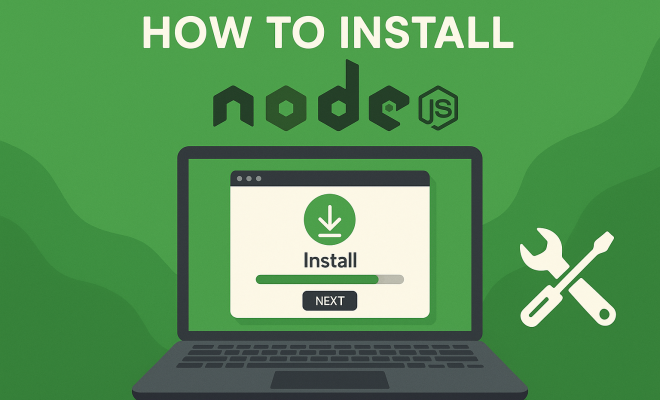
4. How to Install Node.js on Windows
If you’re using Windows, installing Node.js is quite straightforward. Follow these steps:
- Download the Installer: Visit the official Node.js website (https://nodejs.org) and download the Windows installer. You’ll typically find two versions: LTS (Long Term Support) and Current. For most users, the LTS version is recommended.
- Run the Installer: Double-click the downloaded .msi file and follow the prompts in the installation wizard. Ensure you check the box that adds Node.js to your PATH variable, allowing you to run it from the command line.
- Verify Installation: Once the installation is complete, open Command Prompt and type
node -vto check the installed version. You can also check npm by typingnpm -v.
That’s it! You’ve successfully installed Node.js on your Windows machine. (See: Wikipedia page on Node.js.)
5. Installing Node.js on macOS
For macOS users, the installation process can be accomplished easily using a package manager called Homebrew. Here’s how:
- Install Homebrew: Open Terminal and paste the following command to install Homebrew (if you don’t have it installed already):
/bin/bash -c "$(curl -fsSL https://raw.githubusercontent.com/Homebrew/install/HEAD/install.sh)" - Install Node.js: Once Homebrew is installed, you can install Node.js by running
brew install nodein the Terminal. - Verify Installation: Similar to Windows, verify your installation by running
node -vandnpm -vin the Terminal.
Using Homebrew not only simplifies the installation but also makes it easy to keep Node.js up to date.
6. Installing Node.js on Linux
Linux users have several options for installing Node.js, depending on the distribution they are using. Here’s a general guideline for Ubuntu and Debian-based systems:
- Add NodeSource Repository: Open Terminal and run the following command to add the NodeSource repository:
curl -sL https://deb.nodesource.com/setup_16.x | sudo -E bash -(Replace “16.x” with the desired version). - Install Node.js: Execute
sudo apt-get install -y nodejsto install Node.js from the repository. - Verify Installation: Again, run
node -vandnpm -vto ensure everything is installed correctly.
For other Linux distributions, like Fedora or CentOS, you can find specific installation instructions on the Node.js official website.
7. Common Issues During Installation
Even with straightforward installation procedures, you might run into some common issues. Here are a few and how to troubleshoot them:
- Permission Errors: If you encounter permission issues, especially on macOS and Linux, try running the installation command with
sudoor consider changing your npm directory permissions. - Missing Dependencies: Sometimes, Node.js might require additional libraries. Ensure your system is up to date and that you’ve followed all the pre-installation requirements provided in the documentation.
- Path Issues: If you can’t run Node.js commands from the terminal, you may need to add Node.js to your system’s PATH variable. Check your installation settings and adjust accordingly.
Most issues can be resolved by consulting the Node.js documentation or visiting community forums for insights and help.
8. Post-Installation: Getting Started With Node.js
Now that you’ve successfully installed Node.js, it’s time to get started with your first application. Node.js comes with a built-in module called HTTP, which you can use to create a simple web server. Here’s a quick example:
const http = require('http');

const server = http.createServer((req, res) => {
  res.statusCode = 200;
  res.setHeader('Content-Type', 'text/plain');
  res.end('Hello World!\n');
});

server.listen(3000, '127.0.0.1', () => {
  console.log('Server running at http://127.0.0.1:3000/');
});
Save this code in a file called server.js and run it using node server.js. Open your browser and navigate to http://127.0.0.1:3000/ to see your server in action!
9. Learning Resources for Node.js
With Node.js installed, you might wonder where to go next for learning. There are numerous resources available online:
- Official Documentation: The Node.js official documentation is an excellent starting point for understanding core modules and APIs.
- Online Courses: Platforms like Udemy and Coursera offer comprehensive courses on Node.js that range from beginner to advanced levels.
- Books: Books like “Node.js Design Patterns” and “You Don’t Know JS” series provide deeper insights into JavaScript and its runtime environment.
- Community Forums: Engaging with the community on platforms like Stack Overflow or Node.js Slack channels can provide real-time help and networking opportunities.
As you dive deeper into Node.js, continuous learning will help you leverage its full potential and keep up with the evolving ecosystem. (See: Scientific articles on Node.js.)
10. Advanced Node.js Features
Once you’re comfortable with the basics, exploring advanced features of Node.js will significantly enhance your development capabilities. Here are some aspects to consider:
10.1 Asynchronous Programming
Node.js is built around an asynchronous programming model. This means that it can handle multiple operations at once without waiting for one to finish before starting another. Using callbacks, promises, or async/await syntax lets you write non-blocking code, which is essential for performance in web applications. The async/await syntax, in particular, can make your code cleaner and easier to understand.
10.2 Event Loop
Understanding the event loop is crucial for mastering Node.js. The event loop allows Node.js to perform non-blocking I/O operations by offloading operations to the system kernel whenever possible. This design enables Node.js to handle numerous requests efficiently without the need for multi-threading or additional processes, which can lead to increased resource consumption.
10.3 Middleware with Express.js
One of the most popular frameworks for Node.js is Express.js, which simplifies the server creation process. Express allows you to set up middleware to respond to HTTP requests, creating a powerful and flexible application structure. Middleware functions can perform a wide range of tasks, such as logging requests, handling authentication, or serving static files.
For example, you can add a simple logging middleware like this:
const express = require('express');
const app = express();

app.use((req, res, next) => {
  console.log(`${req.method} ${req.url}`);
  next();
});

app.get('/', (req, res) => {
  res.send('Hello World!');
});

app.listen(3000, () => {
  console.log('Server is running on port 3000');
});
11. Best Practices for Node.js Development
As you begin developing applications with Node.js, keeping best practices in mind will save you time and improve code maintainability:
- Error Handling: Always implement error handling in your applications. Use try/catch blocks, proper logging, and error middleware to manage unexpected issues gracefully.
- Security Measures: Protect your application by validating user input, using HTTPS, and implementing rate limiting to prevent abuse.
- Keep Dependencies Updated: Regularly check and update your package dependencies to ensure you’re using the latest and most secure versions.
- Code Quality: Use tools like ESLint or Prettier to maintain code quality and consistency across your project.
12. Common Use Cases for Node.js
Node.js is versatile and can be employed in various applications, including:
- Real-Time Applications: Thanks to its event-driven architecture, Node.js is well-suited for real-time applications like chat applications or collaboration tools where instant data exchange is crucial.
- RESTful APIs: Building RESTful APIs for serving data to web and mobile applications is a common use case for Node.js, especially with frameworks like Express.
- Microservices: Node.js is also used in microservices architecture, allowing you to build smaller, focused services that can be developed and deployed independently.
- Streaming Applications: Node.js excels at handling streaming data, making it great for applications that process video or audio streams.
13. FAQs about Installing Node.js
13.1 Can I install multiple versions of Node.js on the same machine?
Yes, you can use a version manager like nvm (Node Version Manager) to install and switch between multiple versions of Node.js easily. This is especially useful if you are working on projects that require different Node.js versions.
13.2 Do I need to have npm installed separately?
No, npm is bundled with Node.js installations. When you install Node.js, npm is automatically included and ready for use. You can check its version using npm -v.
13.3 What should I do if I run into an installation error?
If you encounter an error during installation, check the error message for clues. Common issues include permission errors, missing dependencies, or path problems. You can consult the Node.js documentation or search forums for similar issues and solutions.
13.4 How often should I update Node.js?
It’s recommended to update Node.js regularly to benefit from the latest features, performance improvements, and security patches. Following the LTS (Long Term Support) version is a good practice for most production applications.
13.5 Is Node.js suitable for large applications?
Yes, Node.js can handle large applications effectively, especially when designed with scalability in mind. Its event-driven architecture and ability to handle many concurrent connections make it a strong candidate for high-performance applications.
14. Node.js Community and Ecosystem
The Node.js community is one of its greatest assets. With a vast number of contributors and users worldwide, resources, libraries, and frameworks are continually being developed. Participating in the community can provide you with support, networking opportunities, and valuable insights. Here are some ways to get involved:
- Contributions: Contributing to open-source projects or the Node.js core can help improve your skills and knowledge while giving back to the community.
- Meetups and Conferences: Attending local meetups or global conferences such as NodeConf can connect you with other developers and industry leaders, allowing you to share ideas and learn about the latest trends.
- Online Platforms: Engage with communities on platforms like GitHub, Reddit, or specialized forums to ask questions, share projects, and collaborate with others.
15. Performance Monitoring and Optimization
As your Node.js applications grow, performance monitoring becomes critical to ensure smooth operation. Consider the following tools and techniques:
- Profiling Tools: Utilize tools like Node.js built-in profiler or third-party services (e.g., New Relic, Dynatrace) to monitor application performance and identify bottlenecks.
- Load Testing: Use tools like Apache JMeter or Artillery to simulate multiple users and test how your application performs under heavy load.
- Code Optimization: Regularly review your code for performance improvements. Avoid synchronous code, optimize database queries, and use caching where appropriate to minimize response times.
16. Security Considerations for Node.js Applications
Security is a paramount concern in any application, and Node.js is no exception. Here are key security considerations:
- Input Validation: Always validate and sanitize user inputs to prevent injection attacks (e.g., SQL injection or cross-site scripting).
- Use Environment Variables: Store sensitive information like API keys and database credentials in environment variables rather than hardcoding them in your codebase.
- Regular Security Audits: Use tools like npm audit to check for vulnerabilities in your project dependencies and take action to rectify them.
- Rate Limiting: Implement rate limiting to protect your APIs from abuse and denial-of-service attacks.
17. Conclusion
Installing Node.js opens up a world of possibilities for web development. With its powerful features, extensive ecosystem, and supportive community, Node.js has established itself as a leading choice for developers worldwide. Whether you’re building a simple web server or a complex microservices architecture, understanding how to effectively use Node.js will enhance your skill set and empower you to create high-performing applications. Now that you’re equipped with the knowledge to install Node.js, get started, explore the resources available to you, and enjoy coding!
“`
Trending Now
Frequently Asked Questions
What is Node.js used for?
Node.js is primarily used for building scalable web applications and server-side scripting. It allows developers to run JavaScript on the server, making it suitable for a variety of applications, including web servers, RESTful APIs, and real-time applications.
How do I install Node.js?
To install Node.js, visit the official Node.js website, download the installer for your operating system, and follow the on-screen instructions. Alternatively, you can use package managers like npm or Homebrew for installation on different platforms.
What are the benefits of using Node.js?
Node.js offers numerous benefits, including the ability to use JavaScript for both client-side and server-side development, a rich ecosystem of libraries via npm, and efficient handling of multiple connections due to its non-blocking, event-driven architecture.
Is Node.js good for beginners?
Yes, Node.js is considered beginner-friendly, especially for those familiar with JavaScript. Its single-language approach for both front-end and back-end development simplifies learning and allows new developers to build full-stack applications more easily.
What is npm in Node.js?
npm, or Node Package Manager, is the default package manager for Node.js. It provides access to a vast repository of libraries and frameworks, allowing developers to easily install, manage, and share packages to enhance their applications.
Have you experienced this yourself? We’d love to hear your story in the comments.