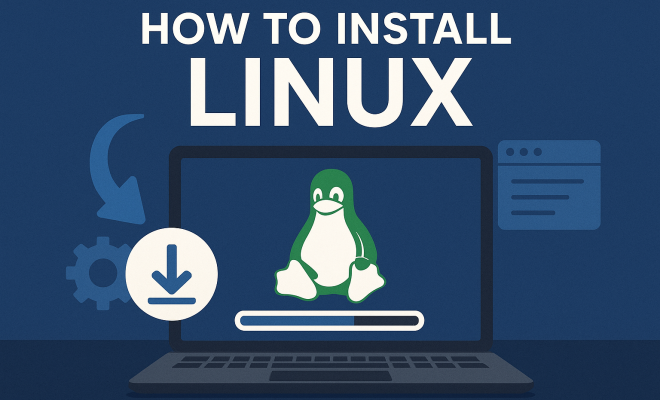
Install Linux: A Comprehensive Guide for 2024
“`html
If you’re thinking about switching up your operating system, installing Linux could be one of the best decisions you make. With a plethora of distributions to choose from and a vibrant community backing it, Linux offers flexibility, security, and performance that’s hard to beat. Whether you’re a seasoned techie or a curious novice, this guide will walk you through everything you need to know about installing Linux, from understanding its significance to detailed installation steps.
1. What is Linux?
Linux is an open-source operating system based on the Unix architecture. Unlike proprietary systems such as Windows or macOS, Linux is freely available to anyone who wants to use, modify, or distribute it. This openness has fostered a community of developers and users who contribute to a vast array of distributions (distros), each tailored to specific needs and preferences.
At its core, Linux is known for its stability and security. It’s the backbone of many of the world’s servers, supercomputers, and embedded systems. Whether you’re looking for a lightweight desktop experience or a robust server environment, there’s likely a Linux distribution that fits your needs.
2. Why Install Linux?
Choosing to install Linux comes with numerous advantages. For starters, it is highly customizable. You can modify nearly every aspect of the operating system to suit your preferences. Additionally, Linux distributions are often more resource-efficient than their counterparts, which means they can breathe new life into older hardware.
Moreover, Linux is renowned for its security. With a built-in permission system and a strong community that actively monitors for vulnerabilities, it’s less prone to malware and viruses. This makes it an attractive option for developers, businesses, and everyday users looking to enhance their digital security.
Another significant benefit of installing Linux is its cost. Most Linux distributions are available for free, which can be a crucial factor for individuals and organizations looking to save money on software licensing fees. This low-cost accessibility allows users to leverage high-quality software without the financial burden that often comes with proprietary operating systems.
3. Choosing the Right Distribution
Before you can install Linux, you need to pick the right distribution. Some of the most popular choices include Ubuntu, Fedora, Debian, and Arch Linux. Each of these comes with its unique advantages:
- Ubuntu: Known for its user-friendliness, it’s an excellent choice for beginners.
- Fedora: Offers cutting-edge features and is favored by developers.
- Debian: Renowned for its stability, making it a popular choice for servers.
- Arch Linux: Provides a minimalistic approach, allowing advanced users full control over their system.
Consider what you want from your operating system. Are you looking for a straightforward installation? Go with Ubuntu. Want to experiment with the latest tech? Fedora might be your best bet. Assess your needs and choose accordingly. (See: What is Linux?.)
In addition to these popular distributions, there are specialized distros for specific use cases. For example, Kali Linux is tailored for security professionals and ethical hackers, while Raspberry Pi OS is designed to run on Raspberry Pi hardware. If you have specific tasks in mind, exploring these specialized options can be beneficial.
4. Preparing for Installation
Once you’ve chosen a distribution, it’s time to get ready for installation. Here’s a checklist to ensure your process goes smoothly:
- Backup Your Data: Safeguard all essential files on your current operating system.
- Check System Requirements: Ensure your hardware meets the requirements for the chosen distribution.
- Download the ISO File: Visit the official website of your chosen distribution and download the ISO file.
- Create a Bootable USB Drive: Use tools like Rufus or Etcher to create a bootable USB drive from the ISO.
- Prepare a Recovery Plan: In case something goes wrong during the installation, having a recovery plan can save you headaches. Make sure you can restore your original OS if needed.
Having everything in order will significantly reduce the chances of errors during installation.
5. Installation Steps
Now that you’re prepared, let’s go through the installation process step by step:
- Boot from USB: Insert the bootable USB into your computer and restart it. You may need to change the boot order in your BIOS settings to prioritize USB devices.
- Select Installation Type: Most distributions will offer different installation options, including “Install alongside” your current OS, a fresh installation, or advanced options for partitioning.
- Follow the Prompts: Provide necessary information such as language, time zone, keyboard layout, and user account details.
- Partitioning: If you’re opting for a custom partition layout, allocate disk space for the root, swap, and home partitions as per your requirements. This step is crucial, especially if you want to ensure efficient use of space and performance.
- Finalize: Review your settings and start the installation. This process can take anywhere from a few minutes to over an hour, depending on the distribution and your hardware.
Once installation is complete, the system will prompt you to restart. Remove the USB drive, and you should be greeted with your fresh Linux desktop!
6. Post-Installation Setup
Congratulations on successfully installing Linux! But the task doesn’t end here. There are a few essential steps to ensure your system runs smoothly:
- Update Your System: Run the system update command (usually
sudo apt update && sudo apt upgradefor Debian-based systems) to ensure you have the latest features and security patches. - Install Additional Software: Depending on your needs, you might want to install software like browsers, media players, and productivity suites. Most distributions have a software center to make this process easy.
- Configure Settings: Explore system settings to customize your desktop environment, display preferences, and privacy settings.
- Set Up a Firewall: Linux provides powerful firewall tools, such as UFW (Uncomplicated Firewall), which can help you manage network traffic and enhance security.
Taking these steps will not only enhance your experience but also help you get familiar with your new operating system.
7. Common Issues and Troubleshooting
Even with a well-planned installation process, issues can arise. Here are some common problems and how to troubleshoot them:
- Boot Issues: If your system doesn’t boot, check the BIOS settings to ensure the correct boot device is set. You might also need to repair the boot loader.
- Wi-Fi Connectivity: Sometimes, drivers for Wi-Fi adapters might not automatically install. You can often find these drivers in the software center or by searching forums specific to your distribution.
- Software Compatibility: Certain applications may not be available on Linux. In such cases, check for alternatives, or consider using compatibility layers like Wine.
- Graphics Issues: If you face problems with graphics drivers, accessing the official repositories for your distribution can often resolve compatibility issues. For example, proprietary drivers from Nvidia can vastly improve performance for gaming and video editing.
Most Linux distributions have extensive documentation and community forums where you can seek help if you’re stuck.
8. Exploring the Linux Community
One of the greatest strengths of Linux is its community. Whether you’re a newbie or a long-time user, engaging with the community can enhance your experience: (See: Linux in embedded systems.)
- Forums and Mailing Lists: Websites like Stack Overflow, LinuxQuestions.org, and the official forums of your distribution are great places to ask questions and share knowledge.
- Documentation: Most distributions maintain comprehensive documentation. Familiarize yourself with it as it can help you troubleshoot and learn more about your system.
- Meetups and Conferences: Look for local or virtual meetups and conferences. These are excellent opportunities to connect with other users, share experiences, and learn new tips.
- Social Media Groups: Join Linux groups on platforms like Reddit, Facebook, and Discord. These spaces often have active discussions and can provide quick help and insights from fellow users.
Being part of the community not only enriches your Linux experience but can also help you stay updated on the latest developments and trends.
9. Advanced Linux Usage
Once you’ve settled into using Linux, you might want to explore some advanced topics. These can greatly enhance your proficiency and allow you to take full advantage of your system:
- Command Line Mastery: Familiarize yourself with the terminal. Learning commands will allow you to perform tasks more quickly and efficiently than using graphical user interfaces.
- Scripting: Bash scripting can automate repetitive tasks, making your workflow more efficient. You can create scripts for backups, system updates, or even personal projects.
- Server Management: If you’re interested in managing servers, consider learning about software like Apache, Nginx, or Docker for container management. These tools are powerful and widely used in the industry.
- Custom Kernel Builds: Advanced users can compile their own Linux kernel to optimize performance and remove unnecessary modules. This is a complex process but can yield a highly tailored system.
10. Linux in the Workplace
Linux isn’t just for personal use; it’s gaining traction in the professional realm as well. Many companies are adopting Linux for various reasons:
- Cost Efficiency: Many businesses have switched to Linux to reduce software licensing costs while maintaining high performance and security.
- Server Stability: Linux is the operating system of choice for web servers and data centers due to its stability and reliability.
- Customization for Enterprise Needs: Organizations can tailor Linux to suit specific operational requirements, creating an environment that best supports their tasks.
- Open Source Collaboration: Companies can benefit from the collaborative innovation that open-source software offers, including community support and constant updates.
11. Future Trends in Linux
As technology evolves, so does Linux. Here are some trends to keep an eye on:
- Increased Adoption in Cloud Computing: With the rise of cloud services, Linux is becoming the backbone of many cloud infrastructures.
- Integration with AI and Machine Learning: Linux is favored in AI development environments due to its powerful libraries and tools.
- Enhancements in Desktop Environments: User interfaces like GNOME and KDE are evolving, offering more intuitive and visually appealing experiences.
- Growing IoT Applications: Linux is being utilized in Internet of Things (IoT) devices, showcasing its flexibility and lightweight nature.
12. Frequently Asked Questions
What are the system requirements for installing Linux?
System requirements vary between distributions, but generally, a minimum of 2 GB RAM and 20 GB of disk space is recommended for most desktop distributions.
Can I install Linux alongside Windows?
Yes! Most Linux distributions offer dual-boot options that allow you to install Linux alongside Windows without disrupting your existing Windows setup.
How can I uninstall Linux if I no longer need it?
Uninstalling Linux requires access to the boot manager. You may need to use a Windows recovery disk to restore the bootloader, or you can use partition management tools to remove Linux partitions. (See: Harvard University on open-source software.)
Is Linux suitable for gaming?
Yes, Linux has made significant strides in gaming. Many games are now available natively on Linux, and tools like Proton and Wine allow you to run Windows games on Linux.
How often should I update my Linux system?
Regular updates are essential for security and performance. It’s good practice to check for updates weekly or biweekly, depending on your usage and the distribution’s release cycle.
13. Advanced Troubleshooting Techniques
As you become more familiar with Linux, you may encounter complex issues that require advanced troubleshooting. Here are some techniques to help you tackle these problems:
- Log File Analysis: Linux maintains log files that can provide insights into system issues. Common log files include
/var/log/syslogand/var/log/dmesg. Reviewing these logs can help identify the root cause of problems. - Using Recovery Mode: If your system fails to boot properly, you can access recovery mode from the GRUB menu. This mode provides options for repairing the system or reverting changes.
- Kernel Boot Parameters: If you suspect hardware or driver issues, you can modify kernel parameters at boot time to troubleshoot. This can be useful for disabling problematic drivers or adjusting settings.
- Live CD/USB: Booting from a live CD or USB can help you access files or repair your installed system without modifying it. This is particularly useful for backing up data before performing drastic repairs.
14. Linux for Developers
Linux is a favorite among developers for several reasons:
- Package Management: Distributions like Ubuntu and Fedora have robust package managers (APT, YUM, DNF) that simplify the installation and management of software.
- Development Tools: Most distributions come pre-installed with powerful development tools, including compilers, debuggers, and text editors tailored for coding.
- Open Source Libraries: The availability of numerous open-source libraries and frameworks makes it easy to set up development environments for languages like Python, Ruby, and Java.
- Environment Customization: Developers can customize their environments to optimize their workflow, from terminal emulators to IDEs (Integrated Development Environments).
15. Best Practices for Using Linux
To ensure a smooth experience while using Linux, consider these best practices:
- Regular Backups: Use tools like
rsyncor backup applications like Timeshift to regularly back up your data in case of system failures. - Stay Informed: Follow blogs and forums focused on Linux to stay updated on the latest news, updates, and security vulnerabilities.
- Secure Your System: Regularly update your system and install security patches. Use tools like Fail2Ban to protect against unauthorized access.
- Experiment and Learn: Don’t hesitate to try new distributions or desktop environments in virtual machines. This will enhance your understanding and expose you to different Linux philosophies.
16. Final Thoughts
Installing Linux opens up a world of possibilities. From enhanced security to unparalleled customization, it’s no wonder that millions are making the switch. As you embark on your Linux journey, remember that every challenge is a chance to learn. The community is here to support you, and with a little patience, you’ll find that installing Linux is just the beginning of a rewarding experience. Embrace the adventure, and enjoy your newfound freedom!
“`
Trending Now
Frequently Asked Questions
What are the benefits of installing Linux?
Installing Linux offers numerous benefits, including high customizability, resource efficiency, enhanced security, and cost-effectiveness. It's less prone to malware, making it ideal for users seeking better digital security. Additionally, many distributions are free, allowing users to utilize powerful software without financial investment.
How do I choose a Linux distribution?
Choosing a Linux distribution depends on your needs and preferences. Consider factors such as user-friendliness, hardware compatibility, and specific use cases like gaming or server management. Popular beginner-friendly distributions include Ubuntu and Linux Mint, while advanced users might prefer Arch or Debian.
Is Linux better than Windows?
Whether Linux is better than Windows depends on your specific needs. Linux offers greater customization, security, and performance on older hardware, while Windows provides extensive software compatibility and support. For users focused on security and open-source solutions, Linux is often the preferred choice.
Can I install Linux alongside Windows?
Yes, you can install Linux alongside Windows in a dual-boot setup. This allows you to choose which operating system to use at startup. It’s important to back up your data and follow installation guides carefully to avoid potential issues with partitions.
What is the significance of open-source in Linux?
The significance of open-source in Linux lies in its accessibility and community-driven development. Users can modify, share, and improve the software, leading to rapid innovation and a diverse range of distributions tailored to different needs. This openness fosters a collaborative environment that enhances security and performance.
What did we miss? Let us know in the comments and join the conversation.