The Tech Edvocate

Top Menu

  • Advertisement
  • Apps
  • Home Page
  • Home Page Five (No Sidebar)
  • Home Page Four
  • Home Page Three
  • Home Page Two
  • Home Tech2
  • Icons [No Sidebar]
  • Left Sidbear Page
  • Lynch Educational Consulting
  • My Account
  • My Speaking Page
  • Newsletter Sign Up Confirmation
  • Newsletter Unsubscription
  • Our Brands
  • Page Example
  • Privacy Policy
  • Protected Content
  • Register
  • Request a Product Review
  • Shop
  • Shortcodes Examples
  • Signup
  • Start Here
    • Governance
    • Careers
    • Contact Us
  • Terms and Conditions
  • The Edvocate
  • The Tech Edvocate Product Guide
  • Topics
  • Write For Us
  • Advertise

Main Menu

  • Start Here
    • Our Brands
    • Governance
      • Lynch Educational Consulting, LLC.
      • Dr. Lynch’s Personal Website
      • Careers
    • Write For Us
    • The Tech Edvocate Product Guide
    • Contact Us
    • Books
    • Edupedia
    • Post a Job
    • The Edvocate Podcast
    • Terms and Conditions
    • Privacy Policy
  • Topics
    • Assistive Technology
    • Child Development Tech
    • Early Childhood & K-12 EdTech
    • EdTech Futures
    • EdTech News
    • EdTech Policy & Reform
    • EdTech Startups & Businesses
    • Higher Education EdTech
    • Online Learning & eLearning
    • Parent & Family Tech
    • Personalized Learning
    • Product Reviews
  • Advertise
  • Tech Edvocate Awards
  • The Edvocate
  • Pedagogue
  • School Ratings

logo

The Tech Edvocate

  • Start Here
    • Our Brands
    • Governance
      • Lynch Educational Consulting, LLC.
      • Dr. Lynch’s Personal Website
        • My Speaking Page
      • Careers
    • Write For Us
    • The Tech Edvocate Product Guide
    • Contact Us
    • Books
    • Edupedia
    • Post a Job
    • The Edvocate Podcast
    • Terms and Conditions
    • Privacy Policy
  • Topics
    • Assistive Technology
    • Child Development Tech
    • Early Childhood & K-12 EdTech
    • EdTech Futures
    • EdTech News
    • EdTech Policy & Reform
    • EdTech Startups & Businesses
    • Higher Education EdTech
    • Online Learning & eLearning
    • Parent & Family Tech
    • Personalized Learning
    • Product Reviews
  • Advertise
  • Tech Edvocate Awards
  • The Edvocate
  • Pedagogue
  • School Ratings
  • Nočno sijajanje zaslonov: estetski pregled spletne igralniške izkušnje

  • This Nordstrom Fall Beauty Product Delivers a ‘Filter Effect’ — Without the Filter

  • Your Smart Devices ARE Listening: The Multi-Million Dollar Deception Revealed

  • The Shocking Truth About AquaHarvest’s Water Footprint in Our Deserts

  • MindLink’s BCI Scandal: 10 Urgent Questions About Your Brain Data

  • Level-5’s AI Apology: Why Fans Are Furious Over One Small Detail

  • This Crucial New Law Just Changed Everything for Kids Online

  • Humanity’s Reckoning? This Viral AI Extinction Warning Ignited a Firestorm

  • Unveiling the Battle: Why Teachers Unions in New York Are Fighting This Federal Program

  • Unbelievable: This Private School Twitter Challenge Is Sparking Outrage

Digital & Mobile Technology
Home›Digital & Mobile Technology›How to Install Custom Themes and Visual Styles in Windows

How to Install Custom Themes and Visual Styles in Windows
By Matthew Lynch
April 27, 2023
0
Spread the love

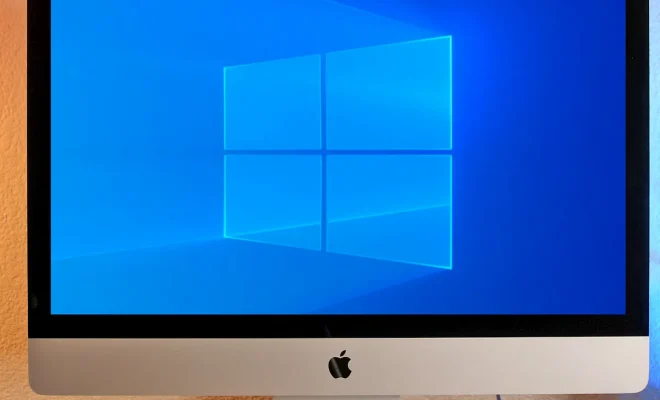
As a Windows user, you are probably familiar with the default theme and visual style that comes with your operating system. However, did you know that there are a ton of custom themes and visual styles that you can install to give your system a personalized look? Installing these custom themes and visual styles in Windows is not only easy, but it can also be a fun way to customize your PC to fit your unique style.

In this article, we will guide you through the process of how to install custom themes and visual styles in Windows. But before we get started, it’s important to note that some third-party theme and visual style files may contain malware or adware. Therefore, it’s essential to download these files from trusted sources only.

Step 1: Unlocking the Custom Themes Feature in Windows

By default, Windows only allows you to install themes that are digitally signed by Microsoft. However, to install custom themes and visual styles, you need to unlock this feature. To do so, you will need to download a small program called Universal Theme Patcher.

Once you have downloaded the program, open it, and select the “Patch” option. The program will patch three DLL files within Windows to enable the installation of third-party themes.

Step 2: Finding and Downloading Custom Themes and Visual Styles

After unlocking the custom theme feature in Windows, the next step is to download the custom themes and visual styles you want to install. There are many websites out there that provide free custom themes and visual styles. However, as mentioned earlier, it is important to download from a trusted source to avoid malware or adware.

Once you have found the custom themes and visual styles that you want to use, download them to a folder on your computer.

Step 3: Installing Custom Themes and Visual Styles

Now that you have downloaded the custom themes and visual styles, it’s time to install them. To do this, you will need to navigate to the downloaded file and extract it to a folder on your computer.

Next, open the extracted folder and navigate to the “Theme” folder. Here, you will find a file with the extension “.theme.” Double-click on this file to apply the custom theme to your Windows system.

If the theme you downloaded doesn’t have a “.theme” file, it may have a different installation process. Some custom themes may come with an installer file, which you can run to install the theme. Others may require you to copy the theme files to specific Windows directories manually.

Step 4: Applying Visual Styles

Visual styles change the appearance of Windows, including its taskbar, windows, buttons, and icons. To apply visual styles, you will need to download and install a third-party program called UXThemePatcher.

Once you have installed the program, you can download and install visual styles the same way you would custom themes. Download and extract the visual style files to a folder on your PC, and then move them to the “Visual Styles” folder in the Windows directory.

Next, go to the “Personalization” settings on your PC and select “Themes.” From here, select the custom theme you installed earlier and click on “Windows Color” to apply the visual style you just installed.

Conclusion

Installing custom themes and visual styles in Windows is an easy way to personalize your PC and give it a unique look. By following the steps outlined above, you can install custom themes and visual styles in no time. However, it’s essential to download these files from trusted sources to avoid exposing your computer to malware or adware. With these precautions in mind, you’re now ready to start customizing your Windows system to fit your unique style!


Previous Article

How to install Chromium in Windows 11

Next Article

How to Install Debian via the Internet

Matthew Lynch

Related articles More from author

  • Digital & Mobile Technology

    The 5 Best Desktop PCs of 2023

    June 10, 2023
    By Matthew Lynch
  • Digital & Mobile Technology

    Simple Reasons Why Your MacBook Might Say Not Charging

    June 15, 2023
    By Matthew Lynch
  • Digital & Mobile Technology

    Does Apple Music Have Podcasts?

    June 15, 2023
    By Matthew Lynch
  • Digital & Mobile Technology

    How to Download and Play Fortnite on Nintendo Switch

    June 2, 2023
    By Matthew Lynch
  • Digital & Mobile Technology

    Best Android Widgets for Your Home Screen

    June 22, 2023
    By Matthew Lynch
  • Digital & Mobile Technology

    How to See Your Stats and Top Artists on Apple Music (2023)

    June 2, 2023
    By Matthew Lynch

Search

Login & Registration

  • Log in
  • Entries feed
  • Comments feed
  • WordPress.org

Newsletter

Signup for The Tech Edvocate Newsletter and have the latest in EdTech news and opinion delivered to your email address!

About Us

Since technology is not going anywhere and does more good than harm, adapting is the best course of action. That is where The Tech Edvocate comes in. We plan to cover the PreK-12 and Higher Education EdTech sectors and provide our readers with the latest news and opinion on the subject. From time to time, I will invite other voices to weigh in on important issues in EdTech. We hope to provide a well-rounded, multi-faceted look at the past, present, the future of EdTech in the US and internationally.

We started this journey back in June 2016, and we plan to continue it for many more years to come. I hope that you will join us in this discussion of the past, present and future of EdTech and lend your own insight to the issues that are discussed.

Newsletter

Signup for The Tech Edvocate Newsletter and have the latest in EdTech news and opinion delivered to your email address!

Contact Us

The Tech Edvocate
910 Goddin Street
Richmond, VA 23231
(601) 630-5238
[email protected]

Copyright © 2026 Matthew Lynch. All rights reserved.