The Tech Edvocate

Top Menu

  • Advertisement
  • Apps
  • Home Page
  • Home Page Five (No Sidebar)
  • Home Page Four
  • Home Page Three
  • Home Page Two
  • Home Tech2
  • Icons [No Sidebar]
  • Left Sidbear Page
  • Lynch Educational Consulting
  • My Account
  • My Speaking Page
  • Newsletter Sign Up Confirmation
  • Newsletter Unsubscription
  • Our Brands
  • Page Example
  • Privacy Policy
  • Protected Content
  • Register
  • Request a Product Review
  • Shop
  • Shortcodes Examples
  • Signup
  • Start Here
    • Governance
    • Careers
    • Contact Us
  • Terms and Conditions
  • The Edvocate
  • The Tech Edvocate Product Guide
  • Topics
  • Write For Us
  • Advertise

Main Menu

  • Start Here
    • Our Brands
    • Governance
      • Lynch Educational Consulting, LLC.
      • Dr. Lynch’s Personal Website
      • Careers
    • Write For Us
    • The Tech Edvocate Product Guide
    • Contact Us
    • Books
    • Edupedia
    • Post a Job
    • The Edvocate Podcast
    • Terms and Conditions
    • Privacy Policy
  • Topics
    • Assistive Technology
    • Child Development Tech
    • Early Childhood & K-12 EdTech
    • EdTech Futures
    • EdTech News
    • EdTech Policy & Reform
    • EdTech Startups & Businesses
    • Higher Education EdTech
    • Online Learning & eLearning
    • Parent & Family Tech
    • Personalized Learning
    • Product Reviews
  • Advertise
  • Tech Edvocate Awards
  • The Edvocate
  • Pedagogue
  • School Ratings

logo

The Tech Edvocate

  • Start Here
    • Our Brands
    • Governance
      • Lynch Educational Consulting, LLC.
      • Dr. Lynch’s Personal Website
        • My Speaking Page
      • Careers
    • Write For Us
    • The Tech Edvocate Product Guide
    • Contact Us
    • Books
    • Edupedia
    • Post a Job
    • The Edvocate Podcast
    • Terms and Conditions
    • Privacy Policy
  • Topics
    • Assistive Technology
    • Child Development Tech
    • Early Childhood & K-12 EdTech
    • EdTech Futures
    • EdTech News
    • EdTech Policy & Reform
    • EdTech Startups & Businesses
    • Higher Education EdTech
    • Online Learning & eLearning
    • Parent & Family Tech
    • Personalized Learning
    • Product Reviews
  • Advertise
  • Tech Edvocate Awards
  • The Edvocate
  • Pedagogue
  • School Ratings
  • Zola Suite pricing 2026

  • How to become Airbnb Superhost

  • Yelp Elite status how to get

  • Rocket Matter vs CosmoLex comparison

  • Lawyaw vs Documate which is better

  • How to use Yelp for marketing

  • How many templates in Lawyaw

  • Can TripAdvisor reviews be edited

  • How to manage documents in Zola Suite

  • Filevine vs Litify features

Digital & Mobile Technology
Home›Digital & Mobile Technology›9 Ways to Fix Microsoft Word Documents Not Printing Correctly

9 Ways to Fix Microsoft Word Documents Not Printing Correctly
By Matthew Lynch
July 31, 2023
0
Spread the love

Microsoft Word is the go-to word processing software for many people around the world. It is easy to use and offers a wide range of formatting options that make your documents look amazing. However, there are times when you may encounter issues with printing in Word. The last thing you want is for your document to come out looking different from what you see on your screen. If you are having trouble printing your Word documents correctly, below are nine ways to fix it.

1. Check Your Printer Settings

If your Microsoft Word documents are not printing correctly, it’s essential to check your printer settings. Make sure that your printer is set up correctly and that it is set as the default printer. You can check this by going to your computer’s Settings and then selecting Devices. From there, select Printers & Scanners and then select your printer to check the settings.

2. Disable Background Printing

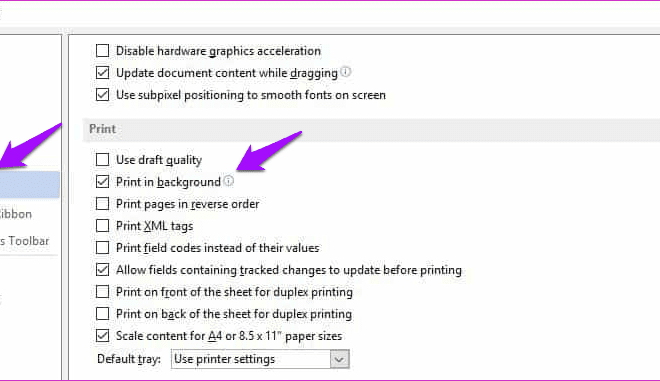
Microsoft Word has a feature called Background Printing that allows users to continue working on their document while it is being printed. However, this feature can sometimes cause problems when printing. To disable Background Printing, go to the File menu, select Options, and then click on Advanced. Under Printing, uncheck the box that says “Print in background.”

3. Install the Latest Printer Drivers

If you are using an outdated printer driver, you may experience issues when printing from Microsoft Word. Check with your printer’s manufacturer to see if there are any updates to the driver. You can also try removing the printer and then reinstalling it to see if this resolves the issue.

4. Clear Print Spooler

The print spooler is a tool used by your computer to manage print jobs. Sometimes, the print spooler may be stuck, causing issues when printing from Microsoft Word. To clear the print spooler, go to the Services app by pressing the Windows key + R and then typing “services.msc.” Locate the Print Spooler service and then right-click and select Stop. Wait a few seconds and then right-click again and select Start.

5. Convert the Document to PDF

If you are still experiencing issues with printing from Microsoft Word, you can try converting the document to PDF and then printing it. To do this, select File and then Save As. In the Save As dialog box, select PDF as the file type and then save the document. Open the PDF file and then print it.

6. Use Compatibility Mode

If you are using an older version of Microsoft Word, you can try using Compatibility Mode to print your document. To do this, go to the File menu and select Options. Click on the General tab and then scroll down to Compatibility Options. Check the box next to “Use Word 97-2003 Document” and then save the document. Try printing it again.

7. Change the Margins

If your document is not printing correctly, it could be because your margins are set too close to the edge of the page. To change the margins, go to the Page Layout tab and click on Margins. Select a different margin setting and then try printing the document again.

8. Check the Page Orientation

Make sure that the page orientation of your document matches the orientation of your printer. If you are printing a document in landscape mode, but your printer is set up for portrait, your document will not print correctly. You can check the orientation by going to the Page Layout tab and then clicking on Orientation.

9. Try a Different Printer

If all else fails, try printing your document on a different printer. Sometimes, the issue is not with Microsoft Word, but with your printer. If you don’t have access to another printer, you can try printing to a virtual printer, such as Microsoft Print to PDF. This will convert your document to a PDF file that you can then print.

In conclusion, Microsoft Word is a powerful tool that can sometimes experience printing issues. If your Word documents are not printing correctly, try these nine solutions. With a little bit of troubleshooting, you should be able to get your documents printing just the way you want them.


Previous Article

What Is De-Anonymization and How Can You ...

Next Article

The Best Keyboard Keycaps

Matthew Lynch

Related articles More from author

  • Digital & Mobile Technology

    Eight Reasons Your Car Stinks, and How to Fix Bad Car Smells

    July 24, 2023
    By Matthew Lynch
  • Digital & Mobile Technology

    How to Sync iPhone to a Computer

    June 26, 2023
    By Matthew Lynch
  • Digital & Mobile Technology

    How to Schedule the Blue Light Filter on an Android Device

    May 7, 2023
    By Matthew Lynch
  • Digital & Mobile Technology

    How to See Your Apple Music Replay 2023

    July 6, 2023
    By Matthew Lynch
  • Digital & Mobile Technology

    PS6 (PlayStation 6): News and Expected Price, Release Date, Specs; and More Rumors

    May 30, 2023
    By Matthew Lynch
  • Digital & Mobile Technology

    Google Chrome vs. Samsung Internet: Which Android Browser Is Better?

    June 14, 2023
    By Matthew Lynch

Search

Login & Registration

  • Log in
  • Entries feed
  • Comments feed
  • WordPress.org

Newsletter

Signup for The Tech Edvocate Newsletter and have the latest in EdTech news and opinion delivered to your email address!

About Us

Since technology is not going anywhere and does more good than harm, adapting is the best course of action. That is where The Tech Edvocate comes in. We plan to cover the PreK-12 and Higher Education EdTech sectors and provide our readers with the latest news and opinion on the subject. From time to time, I will invite other voices to weigh in on important issues in EdTech. We hope to provide a well-rounded, multi-faceted look at the past, present, the future of EdTech in the US and internationally.

We started this journey back in June 2016, and we plan to continue it for many more years to come. I hope that you will join us in this discussion of the past, present and future of EdTech and lend your own insight to the issues that are discussed.

Newsletter

Signup for The Tech Edvocate Newsletter and have the latest in EdTech news and opinion delivered to your email address!

Contact Us

The Tech Edvocate
910 Goddin Street
Richmond, VA 23231
(601) 630-5238
[email protected]

Copyright © 2026 Matthew Lynch. All rights reserved.