The Tech Edvocate

Top Menu

  • Advertisement
  • Apps
  • Home Page
  • Home Page Five (No Sidebar)
  • Home Page Four
  • Home Page Three
  • Home Page Two
  • Home Tech2
  • Icons [No Sidebar]
  • Left Sidbear Page
  • Lynch Educational Consulting
  • My Account
  • My Speaking Page
  • Newsletter Sign Up Confirmation
  • Newsletter Unsubscription
  • Our Brands
  • Page Example
  • Privacy Policy
  • Protected Content
  • Register
  • Request a Product Review
  • Shop
  • Shortcodes Examples
  • Signup
  • Start Here
    • Governance
    • Careers
    • Contact Us
  • Terms and Conditions
  • The Edvocate
  • The Tech Edvocate Product Guide
  • Topics
  • Write For Us
  • Advertise

Main Menu

  • Start Here
    • Our Brands
    • Governance
      • Lynch Educational Consulting, LLC.
      • Dr. Lynch’s Personal Website
      • Careers
    • Write For Us
    • The Tech Edvocate Product Guide
    • Contact Us
    • Books
    • Edupedia
    • Post a Job
    • The Edvocate Podcast
    • Terms and Conditions
    • Privacy Policy
  • Topics
    • Assistive Technology
    • Child Development Tech
    • Early Childhood & K-12 EdTech
    • EdTech Futures
    • EdTech News
    • EdTech Policy & Reform
    • EdTech Startups & Businesses
    • Higher Education EdTech
    • Online Learning & eLearning
    • Parent & Family Tech
    • Personalized Learning
    • Product Reviews
  • Advertise
  • Tech Edvocate Awards
  • The Edvocate
  • Pedagogue
  • School Ratings

logo

The Tech Edvocate

  • Start Here
    • Our Brands
    • Governance
      • Lynch Educational Consulting, LLC.
      • Dr. Lynch’s Personal Website
        • My Speaking Page
      • Careers
    • Write For Us
    • The Tech Edvocate Product Guide
    • Contact Us
    • Books
    • Edupedia
    • Post a Job
    • The Edvocate Podcast
    • Terms and Conditions
    • Privacy Policy
  • Topics
    • Assistive Technology
    • Child Development Tech
    • Early Childhood & K-12 EdTech
    • EdTech Futures
    • EdTech News
    • EdTech Policy & Reform
    • EdTech Startups & Businesses
    • Higher Education EdTech
    • Online Learning & eLearning
    • Parent & Family Tech
    • Personalized Learning
    • Product Reviews
  • Advertise
  • Tech Edvocate Awards
  • The Edvocate
  • Pedagogue
  • School Ratings
  • A Visitors Guide to Colorado Springs (CO), United States

  • 5 Pairs of Shoes That Will Instantly Step Your Shoe Game Up

  • Radiant Youthful Skin is the Perfect Christmas Gift

  • Give Your Loved One the Gift of Youthful, Radiant Skin this Christmas

  • Give Your Loved One the Gift of a Restful Night Sleep this Christmas

  • Nex Playground’s Holiday Sales Bring Active Play Indoors This Seaso

  • A Visitors Guide to Louisville (KY), United States

  • A Visitor’s Guide to Nashville-Davidson (TN), United States

  • A Visitors Guide to Portland (OR), United States

  • 7 Men’s Bruno Marc Shoes That Are the Perfect Christmas Gift

Digital & Mobile Technology
Home›Digital & Mobile Technology›How to Install an SSD in Your Laptop

How to Install an SSD in Your Laptop
By Matthew Lynch
June 4, 2023
0
Spread the love

Solid-state drives (SSDs) are becoming increasingly popular when it comes to improving the performance of a laptop. Compared to traditional hard drives, SSDs are faster, more durable, and consume less power. If you want to upgrade your laptop by installing an SSD but do not know where to start, do not worry. This guide will walk you through the installation process in easy-to-follow steps.

Step 1: Choose the Right SSD

Before purchasing an SSD, you need to ensure that it is compatible with your laptop. Check the type of drive connector your laptop supports. Two of the most common types are Serial ATA (SATA) and mSATA. Once you know what type of SSD your laptop needs, you can then determine the storage capacity you need. If you only want to speed up boot and program load times, a smaller drive (256GB or lower) will suffice. However, if you need to store large files like videos and photos, a larger drive is recommended (512GB or above).

Step 2: Gather Tools

You will need a few tools to open the laptop and install the SSD. They include a screwdriver and an antistatic wristband or mat. The antistatic device prevents any static electricity from harming your laptop while you work on it.

Step 3: Backup Your Data

It is always a good idea to backup your data before opening up your laptop. This ensures that if something goes wrong during the installation, you can still access and restore your data. You can use external hard drives or cloud storage for this process.

Step 4: Open the Laptop

Turn off the laptop and disconnect it from the power source. Remove the battery and any peripherals like USB drives, external hard drives, and power cables. Then, use the screwdriver to remove the screws that hold the cover or panel that houses the hard drive. Depending on the make and model of your laptop, these screws may be located at the bottom, back or side of the laptop.

Step 5: Remove the Hard Drive

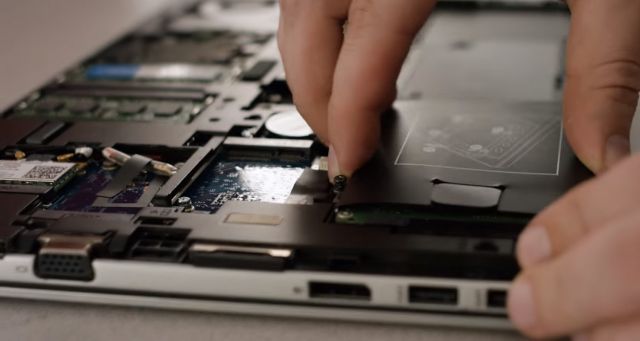
Once you have access to the hard drive, you can remove it by unscrewing the screws or gently pulling it out of its socket. If the hard drive is hard-wired, be careful not to damage any other components while you remove it.

Step 6: Install the SSD

Carefully insert the new SSD by sliding it into its socket and screwing it in place using the screws provided. Take note of the orientation of the drive as it should fit in a specific way. After installing the SSD, you can now reinstall the cover or panel that holds the hard drive.

Step 7: Reinstall the Operating System

Once the SSD is installed, you need to install the operating system (OS). This can be done by using a recovery disk, a system image, or by downloading the OS from the manufacturer’s website. If you do not have any OS installation disks or images, you can opt to install a free operating system like Linux.

Step 8: Restore Your Data

After installing the operating system, restore your files and folders from the backup you made earlier. Make sure to check that everything is working correctly.

In conclusion, installing an SSD in your laptop is a simple process that can significantly improve its performance. If you follow the above steps, you should have no problem upgrading your laptop. Remember to take your time, be careful, and backup your data before you start the installation process.


Previous Article

How to Use Instagram on the Web

Next Article

How to Save a PDF to Your ...

Matthew Lynch

Related articles More from author

  • Digital & Mobile Technology

    How to Search Amazon by Price

    May 7, 2023
    By Matthew Lynch
  • Digital & Mobile Technology

    Your Android Phone or Tablet Won’t Turn On? Ways to Fix

    July 4, 2023
    By Matthew Lynch
  • Digital & Mobile Technology

    Should You Upgrade or Replace Your Laptop?

    June 4, 2023
    By Matthew Lynch
  • Digital & Mobile Technology

    What Does Do Not Disturb Do?

    May 31, 2023
    By Matthew Lynch
  • Digital & Mobile Technology

    How to Create Custom Apple Watch Face

    May 27, 2023
    By Matthew Lynch
  • Digital & Mobile Technology

    How to Run Android Apps and Games on Linux

    September 8, 2023
    By Matthew Lynch

Search

Login & Registration

  • Register
  • Log in
  • Entries feed
  • Comments feed
  • WordPress.org

Newsletter

Signup for The Tech Edvocate Newsletter and have the latest in EdTech news and opinion delivered to your email address!

About Us

Since technology is not going anywhere and does more good than harm, adapting is the best course of action. That is where The Tech Edvocate comes in. We plan to cover the PreK-12 and Higher Education EdTech sectors and provide our readers with the latest news and opinion on the subject. From time to time, I will invite other voices to weigh in on important issues in EdTech. We hope to provide a well-rounded, multi-faceted look at the past, present, the future of EdTech in the US and internationally.

We started this journey back in June 2016, and we plan to continue it for many more years to come. I hope that you will join us in this discussion of the past, present and future of EdTech and lend your own insight to the issues that are discussed.

Newsletter

Signup for The Tech Edvocate Newsletter and have the latest in EdTech news and opinion delivered to your email address!

Contact Us

The Tech Edvocate
910 Goddin Street
Richmond, VA 23231
(601) 630-5238
[email protected]

Copyright © 2025 Matthew Lynch. All rights reserved.