How to fix YouTube not working
“`html
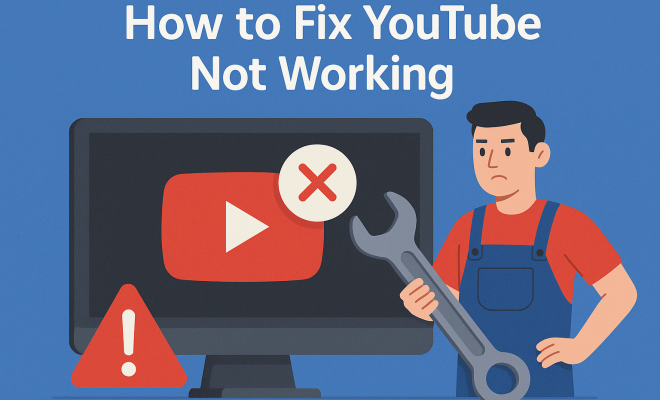
You’ve just settled in to catch up on your favorite YouTube channel, and suddenly you’re faced with a blank screen or an error message. You’re not alone; many users encounter issues that make YouTube not working a frustrating experience. Whether it’s a temporary glitch or a more significant problem, knowing how to tackle these issues is crucial for a seamless viewing experience. Here’s a comprehensive guide to troubleshoot the most common reasons behind a malfunctioning YouTube and how to resolve them.
1. Check Your Internet Connection
Before diving into complex fixes, the first step is to ensure your internet connection is stable. A weak or unreliable connection is often the culprit behind YouTube not working. Test your internet speed using various online speed tests; a speed of at least 3 Mbps is recommended for standard definition videos, while 25 Mbps or higher is ideal for HD streaming.
If you find that your internet connection is lacking, try resetting your router. Simply unplug it, wait for about 30 seconds, and plug it back in. Additionally, consider connecting your device directly to the router using an Ethernet cable to eliminate any potential Wi-Fi interference. If the problem persists, reaching out to your internet service provider may be necessary to check for outages or issues in your area.
2. Clear Browser Cache and Cookies
If you’re accessing YouTube through a web browser, accumulated cache and cookies can cause performance issues. These stored files help websites load faster but can also lead to glitches when they become outdated or corrupted. Clearing your browser cache and cookies can often resolve issues related to YouTube not working.
To clear your cache, go to your browser settings, find the privacy or history section, and select the option to clear browsing data. Be sure to choose both cookies and cached files. After you’ve cleared these, restart your browser and revisit YouTube to see if the problem is resolved. If you’re using mobile, similar steps apply on mobile browsers and apps.
3. Update Your App or Browser
Using an outdated version of the YouTube app or your web browser can lead to various compatibility issues. YouTube frequently updates its platform to improve user experience and fix bugs, so running an outdated version can result in the app not working properly.
If you’re using the mobile app, check for updates in the Google Play Store or Apple App Store. For desktop users, ensure that your browser is also up to date. Most browsers allow you to check for updates in the settings menu. After updating, restart your device and relaunch YouTube to check if the problem persists.
4. Disable Browser Extensions
Browser extensions can enhance your browsing experience, but sometimes they can interfere with how web pages load. If you’ve recently installed a new extension or have multiple active ones, they might be behind your YouTube issues. Disabling these extensions can help identify if one of them is causing the YouTube not working error.
To disable extensions, access your browser’s extension settings—usually found in the menu or settings tab. Turn off all extensions and try loading YouTube again. If it works, enable each extension one at a time to identify the culprit. If you find an extension that’s causing issues, consider removing it or searching for alternatives that don’t conflict with your web activities.
5. Check YouTube’s Server Status
Sometimes, the issue is not on your end at all. YouTube may be experiencing server issues or undergoing maintenance, leading to widespread access problems. To check if YouTube is down, you can use websites like DownDetector, which provide real-time information about service disruptions.
If YouTube is indeed experiencing outages, there’s little you can do except wait. These outages are usually resolved relatively quickly, so keep checking back. Also, following YouTube’s official social media accounts can provide updates on any known issues.
6. Adjust Video Quality Settings
If YouTube loads but videos won’t play, it could be a problem with the video quality settings. Sometimes, auto-settings may select a quality too high for your current internet speed, causing playback issues. Manually adjusting the video quality may help. (See: cleaning your home guidelines.)
To do this, click on the settings gear icon in the video player, navigate to the quality section, and select a lower quality setting. If this resolves the playback issue, your internet may not be fast enough to handle higher-quality video streaming consistently. In this case, consider upgrading your internet plan if you frequently watch videos in HD or 4K.
7. Reinstall the YouTube App
If you’ve tried all of the above steps and YouTube is still not working, it may be time to consider reinstalling the app. This can be particularly helpful if the app has become corrupted in some way. Uninstalling and then reinstalling the YouTube app can clear out any persistent issues.
To reinstall the app, simply hold down the YouTube icon on your device and select the uninstall option. Afterward, head to the app store, search for YouTube, and install it again. This fresh start can often resolve lingering issues that other troubleshooting methods didn’t fix.
8. Check for Device-Specific Issues
While many of the previous tips apply universally, sometimes device-specific issues can cause YouTube not to work. If you’re experiencing problems on a smartphone, tablet, or smart TV, check to ensure that your device meets the minimum system requirements for the YouTube app. For instance, older devices may not support the latest versions of the app, causing performance issues.
Additionally, ensure your operating system is up to date. Go into your device settings and check for any available updates. Keeping your device’s software current can help prevent compatibility issues with apps. Also, trying the app on another device can help determine if the issue is isolated to one specific device.
9. Consider Firewall or Antivirus Settings
Your firewall or antivirus software may inadvertently block YouTube, especially if settings have changed or if the software has recently been updated. Check the settings to ensure that YouTube is not being restricted or blocked.
To do this, you’ll need to access your firewall settings. Depending on your operating system, navigate to the control panel or settings where you can manage your firewall options. Make sure that YouTube is listed as an allowed site or application. Similarly, check your antivirus program’s settings to ensure it isn’t blocking YouTube access.
10. Check Background Applications
Sometimes other applications running in the background may use a significant amount of bandwidth, affecting YouTube’s performance. This is especially true for devices connected to the same network. If you’re experiencing buffering or slow load times, check to see if other devices or applications are using your internet heavily.
For instance, if someone else is gaming, streaming, or downloading files, this can slow down your connection. Close any unnecessary tabs or applications on your device. If possible, ask others on your network to pause their activities temporarily and see if that resolves the issue.
11. Explore YouTube’s Help and Community Forums
YouTube has a detailed help section and community forums where users discuss issues and solutions. If you’ve tried the troubleshooting methods listed and still face issues, consider searching these resources for more specific help. Many users share their experiences and solutions, which might provide insights that aren’t covered in general guides.
To access this, head to the YouTube Help Center and navigate to the community or forums section. You can search for your specific problem or post a question to see if others have experienced similar issues and found resolutions.
12. FAQs About YouTube Not Working
Why is YouTube not loading properly on my device?
There could be various reasons, including poor internet connection, outdated apps or browsers, or server-side issues. Follow the troubleshooting steps mentioned above to investigate further.
Can I fix YouTube issues myself?
Yes, many YouTube issues can be resolved through simple troubleshooting methods like clearing cache, checking internet speed, or reinstalling the app. Start with these steps before seeking professional help. (See: YouTube issues and solutions.)
What should I do if my entire internet is slow, not just YouTube?
If other websites and services are also slow, it’s likely an internet connection issue. Check your router, consider resetting it, and perform a speed test. If the problem persists, contact your internet service provider.
How can I know if YouTube is down for everyone?
You can use websites like DownDetector or IsItDownRightNow to check for global outages. These platforms provide real-time data on service status and user reports.
Is there a way to contact YouTube support directly?
YouTube support can be reached through their Help Center, where you can find articles, guides, and the option to contact them via chat or email for more complex issues.
What if I still can’t solve the problem?
If none of the above solutions work, it might be time to consider more drastic measures like a factory reset on your device or seeking professional help. In some cases, there could be hardware issues at play that are affecting your device’s performance.
13. Advanced Troubleshooting Techniques
If the common fixes haven’t resolved the YouTube not working issue, you may want to explore some advanced troubleshooting techniques. These can be particularly helpful if you’ve identified that the problem might be more complex or device-specific.
Using a VPN
Sometimes, regional restrictions can block access to YouTube or specific videos. If you’re encountering issues due to geographical limitations, consider using a Virtual Private Network (VPN). A VPN allows you to change your apparent location, potentially helping you bypass these restrictions. Just make sure to choose a reputable VPN service that doesn’t compromise your online security.
Resetting Network Settings
Another advanced option is to reset your device’s network settings. This action restores default settings for Wi-Fi, mobile data, and Bluetooth, which can sometimes resolve connectivity issues that affect apps like YouTube. Be aware that this will remove all saved Wi-Fi passwords and Bluetooth connections, so you’ll have to reconnect to your networks afterward.
14. YouTube App Settings
Did you know that certain settings within the YouTube app itself can affect its performance? If your app is still malfunctioning, check the app settings for any features that might be affecting playback or connectivity.
Check Restricted Mode
Restricted Mode is a setting that can limit the content you see based on various factors, including age restrictions. If you’re having trouble finding or watching specific videos, check if this mode is enabled. You can find this option in the app’s settings under “General.” Disabling it might give you access to content that was previously blocked.
Notifications and Account Issues
Sometimes, account-related issues can affect app performance. For instance, if you’ve recently changed your password, try logging out and back into the YouTube app. Additionally, enable notifications from the app to receive updates about any issues or maintenance that might affect your viewing experience.
15. Understanding YouTube’s Algorithm and Recommendations
While this section might not seem directly related to technical issues, understanding how YouTube’s algorithm works can enhance your overall experience on the platform. If you find that videos aren’t loading as expected, it could be due to YouTube trying to recommend content based on your viewing habits. (See: internet safety and performance.)
To improve video suggestions and possibly resolve loading issues, try clearing your watch history. This will reset your recommendations and allow the algorithm to start fresh. You can clear your watch history in the settings under “History & privacy.” After doing this, you might find that videos load more reliably as YouTube re-evaluates your content preferences.
16. Statistics on YouTube Usage
YouTube has become a fundamental part of the internet experience for millions around the globe. According to recent statistics, over 2 billion logged-in users visit YouTube each month, watching more than 1 billion hours of video each day. This immense traffic can lead to occasional server issues, especially during peak times or major events.
Understanding the scale at which YouTube operates can provide some context for the issues you might face. During significant events like live sports or concerts, the platform often experiences a surge in traffic, which can temporarily affect performance. Keeping an eye on the platform’s traffic during these times may help you anticipate issues, rather than simply reacting to them.
17. Community Insights and Expert Perspectives
Users often turn to forums and community discussions to share experiences and solutions. Platforms like Reddit and YouTube’s own community forums are treasure troves of information where people share how they overcame specific issues with the app.
Expert opinions can also be valuable. Tech reviewers and YouTube experts often produce videos or articles addressing common troubleshooting steps. Watching these can provide new insights or alternative methods you might not have considered. Engaging with these communities not only helps you resolve issues but also keeps you updated on potential changes or updates from YouTube.
18. Future of YouTube and Potential Improvements
As technology evolves, so does YouTube. The platform continually updates its features and interface to enhance user experience. Future updates may include improved algorithms for buffering and loading times, making the platform even more user-friendly.
Staying informed about these changes can help you adapt to new features and might provide solutions to future issues. Keep an eye on technology news sites and YouTube’s own announcements for any upcoming changes that could affect your viewing experience.
Conclusion
Experiencing YouTube not working can be infuriating, especially when you’re eager to watch your favorite content. By systematically troubleshooting your internet connection, browser settings, and app status, you can often resolve these issues quickly. Remember to keep your software updated and stay informed about YouTube’s server status. With these tips in hand, you’ll be well-equipped to handle any interruptions in your viewing experience.
“`
Trending Now
Frequently Asked Questions
Why is YouTube not working on my device?
YouTube may not work due to various reasons, including a poor internet connection, browser cache issues, or app glitches. Start by checking your internet speed and stability. If the connection is fine, try clearing your browser cache and cookies or updating the YouTube app if you're using a mobile device.
How do I fix YouTube if it won't load?
To fix YouTube not loading, first ensure your internet connection is stable. If the connection is good, try clearing your browser's cache and cookies, or updating your app. Restart your device and check for any outages with your internet service provider as well.
What should I do if YouTube shows a blank screen?
If YouTube shows a blank screen, start by refreshing the page or restarting your browser. Check your internet connection, and if it’s stable, clear your browser’s cache and cookies. Additionally, updating your browser or app can also help resolve this issue.
How can I improve YouTube video playback issues?
To improve YouTube video playback issues, ensure your internet speed meets the recommended requirements. Clear your browser cache and cookies, close any unnecessary tabs, and consider connecting your device directly to the router with an Ethernet cable to reduce interference.
Why does YouTube keep crashing?
YouTube may keep crashing due to outdated browser versions, corrupted cache, or insufficient internet speed. Clearing your cache and cookies, updating your browser or app, and checking your internet connection can help resolve these crashes.
What did we miss? Let us know in the comments and join the conversation.