How to fix blue screen of death
“`html
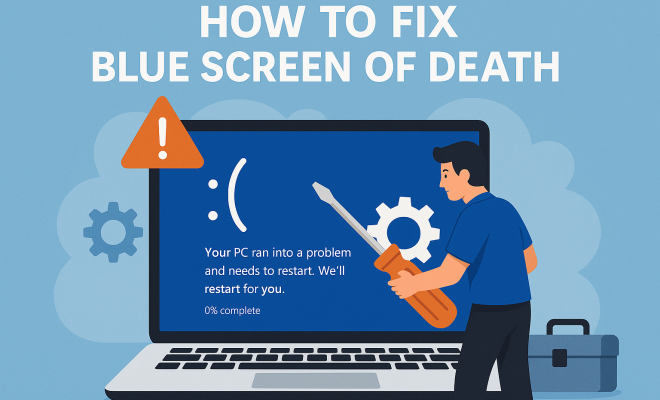
The dreaded blue screen of death (BSOD) is something every Windows user has likely encountered at some point. It’s that ominous screen that signals a critical error has occurred, usually resulting in a system crash. While it might seem like a nightmare scenario, understanding the blue screen of death fix can help you troubleshoot and potentially prevent future occurrences. This guide will dive into the most effective strategies, tools, and knowledge you need to tackle this common issue.
1. Understanding the Blue Screen of Death
Before you can fix the blue screen of death, it’s essential to understand what it is and what causes it. The BSOD occurs when Windows encounters a critical error from which it can’t recover, forcing the operating system to shut down to prevent damage. This could be due to hardware failures, driver conflicts, or system file corruption, among other issues. Often, the specific error code displayed on the BSOD can give clues about the underlying problem.
For example, error codes like ‘IRQL_NOT_LESS_OR_EQUAL’ or ‘PAGE_FAULT_IN_NONPAGED_AREA’ indicate specific issues that can help guide your troubleshooting process. These codes can be intimidating, but they are your first tool in resolving the problem. Keeping a record of these codes can be an invaluable asset when searching for solutions online or consulting with tech support.
2. Restart Your Computer
It might sound simple, but sometimes, a fresh restart is all your computer needs. If you encounter the blue screen of death, your first step should be to reboot your system. This can help clear temporary issues and glitches that may have caused the crash. Make sure to pay attention to any messages that appear during the boot process, as they can offer insights into what went wrong.
However, if the blue screen keeps reappearing even after a restart, it’s likely a sign of a more serious issue. In this case, you should consider implementing more involved troubleshooting steps. Just remember that frequent occurrences of the BSOD indicate an underlying issue that needs to be addressed.
3. Check for Hardware Issues
Hardware failures are one of the primary culprits behind the blue screen of death. Components like RAM, hard drives, or graphics cards can malfunction, leading to serious system instability. The first step in diagnosing potential hardware problems is to check connections. Loose cables or improperly seated components can often lead to issues.
Additionally, running hardware diagnostics can provide deeper insights. Tools like Windows Memory Diagnostic or third-party programs like MemTest86 can identify faulty RAM. Similarly, using CHKDSK can help uncover hard drive issues. If any hardware components are found to be faulty, they should be replaced to help ensure system stability.
4. Update Your Drivers
Outdated or incompatible drivers are another common reason for the blue screen of death. Drivers serve as the communication bridge between your operating system and hardware. If they are outdated, missing, or corrupted, they can lead to system crashes. To address this issue, regularly check for driver updates through the Device Manager.
In Windows 10, you can do this by right-clicking on the Start button, selecting Device Manager, and looking for devices with a yellow triangle. Updating drivers can often resolve conflicts that lead to BSODs. Additionally, consider using manufacturer websites to download the most current drivers, as they often have the latest versions available.
5. Run System File Checker
When system files become corrupted, the consequences can be dire. To tackle this, Windows includes a built-in tool called the System File Checker (SFC). This utility scans for corrupted system files and attempts to repair them automatically. Running the SFC is straightforward—just open Command Prompt as an administrator and type the command sfc /scannow.
After the scan completes, it will notify you of any issues found and whether they could be repaired. If corruption is persistent, you might need to use the Deployment Imaging Service and Management Tool (DISM) to repair the Windows image before re-running the SFC. This multi-step approach can often fix underlying issues leading to the BSOD. (See: Wikipedia article on Blue Screen of Death.)
6. Perform a System Restore
If you’ve made recent changes to your system, such as installing new software or updates, these changes might be the root cause of the blue screen of death. In such cases, performing a system restore to revert your system back to an earlier point can be an effective blue screen of death fix. Windows creates restore points automatically, but you can also create them manually.
To initiate a system restore, type ‘System Restore’ in the Windows search bar, select the option, and follow the prompts to choose a restore point. Doing so can often resolve issues caused by recent installations or updates, effectively rolling back changes that may have destabilized your system.
7. Consider Hardware Upgrades
Sometimes, the blue screen of death serves as a warning that your hardware may not be keeping up with your needs. If you consistently experience crashes and have ruled out other potential causes, it may be time to consider upgrading components like RAM, SSDs, or even the motherboard. This is particularly relevant if you’re running resource-intensive applications or games.
Upgrading your RAM can provide immediate performance improvements if you find your system frequently running short on memory. Similarly, switching to a solid-state drive (SSD) from a traditional hard drive can vastly improve speed and reliability. Ensuring that your hardware meets the requirements for the tasks you’re performing will not only reduce BSOD occurrences but enhance overall system performance.
8. Regular Maintenance and Prevention
Preventing the blue screen of death is often about fostering good maintenance habits. Regularly updating your operating system, performing scheduled scans for malware, and ensuring that your disk space is not over 90% full can all contribute to a more stable system. Additionally, consider setting up regular backups to minimize data loss in case of a crash.
Staying proactive about system maintenance not only helps avoid BSODs but can also extend the life of your hardware. Make it a routine to check your computer’s health every few weeks, ensuring that everything is running smoothly and efficiently.
9. Reach Out for Professional Help
If all else fails and the blue screen of death continues to plague your computer, it might be time to consult with a professional. Tech support can provide insights and solutions that go beyond basic troubleshooting and help identify complex issues that may not be immediately visible. Whether it’s a local repair shop or the tech support hotline for your device’s manufacturer, don’t hesitate to seek assistance.
In some cases, the resolution might require replacing hardware components or performing advanced repairs that are best handled by qualified technicians. Remember, addressing the BSOD promptly can save you from more significant headaches down the line.
10. Diagnosing the Error Code
Understanding the specific error code displayed on the blue screen can significantly streamline the troubleshooting process. Each code provides insight into what might be causing the failure. For instance, codes like ‘0x0000001E’ (KMODE_EXCEPTION_NOT_HANDLED) can indicate driver issues, while ‘0x00000050’ (PAGE_FAULT_IN_NONPAGED_AREA) often points to memory problems.
By researching these codes online, you can find tailored solutions that have worked for others facing similar issues. Websites like Microsoft’s support page and user forums can be excellent resources for identifying and fixing the problems associated with specific error codes.
11. Security Software and Malware Scans
Malware infections can also lead to system instability and the infamous BSOD. Running a comprehensive malware scan can help identify any malicious software that might be causing issues. Ensure that your antivirus software is updated and perform regular scans.
If you suspect that your system may be infected, consider using specialized tools such as Malwarebytes or Windows Defender Offline to conduct a deeper clean. Following a successful malware removal, it’s a good idea to monitor your system closely for any reoccurrences of the blue screen of death.
12. Windows Update Issues
Sometimes, new Windows updates can inadvertently cause system conflicts leading to the blue screen of death. If BSODs began appearing after a recent update, you may want to consider uninstalling that update or rolling back to a previous version of Windows. To do this, go to Settings, then Update & Security, and select Windows Update. From there, you can view your update history and uninstall recent updates. (See: CDC on computer safety and BSOD.)
On the flip side, ensure that your system is always up-to-date, as Microsoft frequently releases patches that fix bugs and improve system stability. Striking the right balance between updates and system stability will help you maintain a smoother computing experience.
13. Using Safe Mode
If you find your system repeatedly crashing, booting into Safe Mode can help. Safe Mode starts Windows with a minimal set of drivers and services. This allows you to troubleshoot issues without the interference of third-party software or drivers that might be causing the BSOD.
To enter Safe Mode, you can restart your computer and hold down the F8 key before Windows begins to load, or navigate to the recovery options in Windows Settings. Once in Safe Mode, you can uninstall problematic applications, roll back driver updates, or run diagnostic tools without the system crashing.
14. Advanced Troubleshooting Techniques
If you’re still struggling to resolve the blue screen of death, consider delving into more advanced troubleshooting techniques. Using the Windows Event Viewer can help you pinpoint what happened just before the crash occurred. By examining system logs, you might discover patterns that lead to recurring crashes.
Another advanced option is using the Windows Debugging Tools. This complex tool requires some technical knowledge, but it can give you a detailed analysis of the crash dumps generated during a BSOD. With the right expertise, you can diagnose the cause of the blue screens more accurately.
15. Frequently Asked Questions (FAQ)
What is the blue screen of death?
The blue screen of death (BSOD) is an error screen displayed by Windows operating systems upon encountering a fatal system error, which indicates that the operating system has crashed.
What causes the blue screen of death?
Causes can include hardware failure, driver conflicts, corrupted system files, or issues related to software installations and updates.
How can I prevent the blue screen of death?
Regular system maintenance, updating drivers and Windows, running antivirus scans, and ensuring that your hardware is functional can help prevent BSOD occurrences.
Can a blue screen of death fix itself?
In some cases, a BSOD can be a one-time error caused by a temporary glitch, and a restart may resolve it. However, frequent occurrences indicate a persistent issue that requires troubleshooting.
Should I ignore the blue screen of death?
Ignoring repeated BSODs is not advisable, as they can indicate serious underlying issues that may lead to data loss or more significant hardware damage over time. (See: ScienceDirect on BSOD topics.)
When should I seek professional help for BSOD?
If you’ve exhausted common troubleshooting steps and the BSOD persists, it’s time to consult a professional. They can provide advanced diagnostics and solutions that go beyond basic fixes.
16. Preventive Measures Against BSOD
Taking proactive steps can significantly reduce your chances of encountering the blue screen of death. Consider implementing the following preventive measures:
- Regular Backups: Create regular backups of important files and system images. This way, if a BSOD occurs, you can restore your system to a functional state without significant data loss.
- Temperature Monitoring: Overheating can cause hardware failures. Use software like HWMonitor or Core Temp to keep an eye on your system’s temperature. Ensure fans are working and that dust buildup is cleaned out periodically.
- Power Supply Checks: A faulty or insufficient power supply can lead to system crashes. Ensure your power supply unit (PSU) meets the requirements of your hardware.
- Regularly Update Applications: Sometimes, third-party applications can also cause conflicts. Keeping applications updated minimizes the risk of BSODs.
17. Understanding Different Types of BSODs
Not all blue screens of death are the same. Each type can indicate different underlying problems:
- Driver IRQL Not Less or Equal: This often indicates a problematic driver that is trying to access a memory location that it shouldn’t.
- Memory Management: This error is usually related to RAM issues. It’s essential to test your memory using diagnostic tools.
- Kernel Security Check Failure: This BSOD indicates a corruption problem related to the Windows kernel. Running a system file check and updating drivers may fix this.
Understanding these types can help you diagnose the specific problems with your system more effectively.
18. Common Myths About BSOD
There are several myths surrounding the blue screen of death that can lead to unnecessary panic or misunderstanding:
- Myth 1 – BSOD Means You Need a New PC: While frequent BSODs can be alarming, they do not automatically mean your hardware is failing. Often, they can be resolved with proper troubleshooting.
- Myth 2 – BSOD Only Happens with Windows: While Windows is notorious for this error message, other operating systems can also encounter similar critical failures, just presented differently.
- Myth 3 – You Can’t Recover from BSOD: Many users successfully recover their systems and data after encountering a BSOD by following the right troubleshooting steps.
19. Case Study: A Real-World BSOD Fix
Consider a scenario where a user regularly faced a BSOD with the error “0x0000007B.” This error indicated an inaccessible boot device, often related to hard drive issues. By following a systematic approach, the user took the following steps:
- Checked Hardware Connections: They opened the case to ensure all cables were securely connected.
- Ran CHKDSK: They executed the CHKDSK utility to scan for errors on the hard drive.
- Updated Storage Drivers: They accessed the manufacturer’s website and updated the storage controller drivers.
- Checked BIOS Settings: They verified that the SATA configuration in BIOS was set correctly (e.g., AHCI mode).
After completing these steps, the user successfully resolved the issue and significantly reduced BSOD occurrences, demonstrating the effectiveness of thorough troubleshooting.
20. Conclusion: Staying Prepared for the BSOD
Understanding and resolving the blue screen of death doesn’t have to be an insurmountable task. By familiarizing yourself with these strategies, you’ll be better equipped to handle this common issue and keep your computer running smoothly. The key is to stay calm, gather information, and tackle the problem one step at a time.
“`
Trending Now
Frequently Asked Questions
What causes the blue screen of death?
The blue screen of death (BSOD) is caused by critical errors in Windows that it cannot recover from, often due to hardware failures, driver conflicts, or system file corruption. Error codes displayed on the BSOD can provide clues about the specific issues, helping to guide troubleshooting efforts.
How can I fix a blue screen error?
To fix a blue screen error, start by restarting your computer, as this can resolve temporary issues. If the BSOD persists, investigate the error code displayed for specific troubleshooting steps, which may include updating drivers, checking hardware, or repairing system files.
Is the blue screen of death dangerous?
While the blue screen of death (BSOD) signals a critical error, it is not inherently dangerous. However, it indicates underlying issues that could lead to data loss or hardware damage if not addressed. Regular troubleshooting and maintenance can help prevent future occurrences.
What should I do if the blue screen keeps appearing?
If the blue screen keeps appearing after a restart, it indicates a more serious issue. You should investigate the specific error code for guidance on troubleshooting steps, such as updating drivers, checking for hardware malfunctions, or performing system repairs.
Can I prevent the blue screen of death?
Yes, you can prevent the blue screen of death by maintaining your system health. Regularly update drivers, perform system scans for malware, keep your operating system updated, and monitor hardware for issues. Additionally, maintaining backups can help protect your data.
What did we miss? Let us know in the comments and join the conversation.