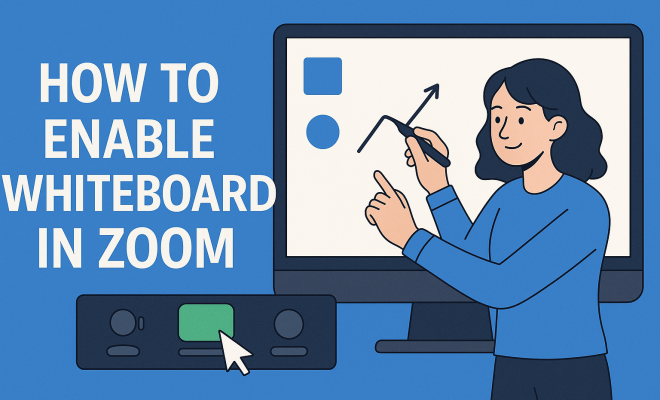
How to enable whiteboard in Zoom
“`html
In the world of remote collaboration, Zoom has become a go-to platform for virtual meetings, webinars, and conferences. A standout feature that enhances this experience is the whiteboard. Whether you’re brainstorming ideas, sketching diagrams, or teaching a lesson, the whiteboard in Zoom can transform a standard video call into a dynamic collaborative session. In this article, we’ll explore how to enable whiteboard in Zoom, the benefits it offers, and tips for maximizing its potential.
1. Understanding the Whiteboard Feature
The whiteboard feature in Zoom is an interactive tool that allows participants to draw, write, and annotate in real time. It acts like a blank canvas where ideas can come to life through visuals. This feature is not just for educators; it’s also valuable for businesses, consultants, and teams looking to innovate and share ideas. With the increase in remote work, leveraging tools like the Zoom whiteboard can be crucial for effective collaboration.
Whiteboards are particularly useful during brainstorming sessions, project planning, or tactical meetings. They allow for visual representation of thoughts, which can help in retaining information better compared to verbal communication alone. This aspect is backed by research, indicating that visual learning can enhance understanding by up to 400%.
2. Pre-Requisites for Using Zoom Whiteboard
Before you dive into how to enable whiteboard in Zoom, there are a few prerequisites to consider. First, ensure that you have the latest version of the Zoom client installed on your device. Regular updates often include new features and security enhancements. While the whiteboard feature is available on various devices, including desktops and mobile devices, functionality may vary slightly depending on the platform.
It’s also important to check your Zoom account type. The whiteboard feature is accessible for free and paid users alike. However, if you’re part of a larger organization, your admin might need to enable this feature for your account. So, if you don’t see it, don’t hesitate to reach out to your system administrator.
3. How to Enable Whiteboard in Zoom
Enabling the whiteboard in Zoom is a straightforward process. Here’s a step-by-step guide to get you started:
- Step 1: Open the Zoom application or log in via the web portal.
- Step 2: Start a new meeting or join an existing one.
- Step 3: Once you’re in the meeting, look for the toolbar located at the bottom of the window.
- Step 4: Click on the “Share Screen” option. A new window will pop up showing different available screens and applications.
- Step 5: Select “Whiteboard” from the options presented.
- Step 6: Click “Share” to display the whiteboard to all participants.
Once enabled, you can start using the whiteboard right away! Participants will see the whiteboard and can interact with it as per the permissions given by the host.
4. Exploring the Whiteboard Tools
After enabling the whiteboard, you’ll discover a variety of tools at your disposal. These tools can enhance your collaboration efforts significantly:
- Drawing Tools: You have access to pens, highlighters, and shapes to illustrate your ideas. Using different colors can help differentiate between concepts.
- Text Tool: This allows you to add text directly onto the whiteboard. It’s perfect for labeling diagrams or jotting down quick notes.
- Erase Tool: Mistakes happen! The eraser tool allows you to remove any unwanted marks easily.
- Save Option: Once your session concludes, you can save the whiteboard as an image file for future reference.
These tools facilitate a rich interactive experience, making it easier for participants to contribute and share their ideas visually.
5. Collaborative Features of the Whiteboard
One of the strongest advantages of the Zoom whiteboard is its collaborative nature. Participants can share the same whiteboard space and contribute simultaneously, making it a powerful tool for teamwork. This real-time interaction fosters engagement, as everyone can see changes as they happen. It’s a feature that transcends geographical barriers, enabling global teams to work together effectively.
Additionally, Zoom allows for permissions to be set where the host can control who can edit the whiteboard. This feature ensures that the whiteboard remains organized and focused, avoiding chaotic contributions that can sometimes happen during collaborative sessions. (See: visual learning benefits.)
6. Best Practices for Using Whiteboard in Zoom
To make the most out of the whiteboard feature, consider the following best practices:
- Set Clear Objectives: Before starting a session, outline what you aim to achieve using the whiteboard. This provides direction and keeps participants focused.
- Encourage Participation: Invite everyone to contribute by asking questions or prompting them for ideas. This helps in building a collaborative environment.
- Utilize Visuals: Leverage the drawing and text tools to create diagrams and flowcharts. Visuals can help in better conveying your message.
- Save and Share: After your session, save the whiteboard and share it with participants. This serves as a reference for future discussions.
Implementing these practices can help enhance the effectiveness of your meetings, making them more productive and engaging.
7. Common Challenges and Troubleshooting Tips
While the whiteboard feature is user-friendly, you may encounter some challenges along the way. Here are a few common issues and how to troubleshoot them:
- Not Seeing the Whiteboard Option: If you don’t see the whiteboard option, check if you have the latest version of Zoom. If the problem persists, it might be necessary to contact your account administrator.
- Lagging Performance: If the whiteboard is lagging during a session, it may be due to poor internet connectivity. Encourage participants to check their connections, or consider reducing the number of active participants on the whiteboard.
- Participants Can’t Edit: If some participants are unable to edit the whiteboard, ensure that the sharing permissions are set correctly. The host can change settings during the meeting to allow more participants to contribute.
Addressing these challenges promptly can ensure that your session remains productive and engaging.
8. Real-World Applications of Zoom Whiteboard
The Zoom whiteboard feature is versatile and adapts to various professional and educational contexts. Educators frequently use it for lessons, enabling them to illustrate concepts and engage students interactively. For example, a teacher might use the whiteboard to explain a math problem, allowing students to participate in solving it live.
In the corporate sector, teams utilize the whiteboard for project planning and brainstorming sessions. Companies like IBM and Google have adopted similar collaborative tools for innovation labs, emphasizing the importance of visual collaboration in generating new ideas. Whiteboards facilitate this by making it easier to visualize project timelines, responsibilities, and workflows, ultimately leading to better outcomes.
9. Future of Whiteboarding in Zoom and Beyond
As remote work continues to evolve, tools like the Zoom whiteboard are likely to see further enhancements. Integration with other applications and AI-driven features could revolutionize how we collaborate online. Imagine a scenario where your whiteboard could intelligently suggest layouts or automatically organize your notes based on themes or priorities.
Moreover, the growing trend of hybrid workforces—where employees split time between home and office—will necessitate even more robust collaboration tools. Companies will invest in technology that bridges the gap between in-person and remote teams, ensuring that everyone can participate equally. The whiteboard is just the beginning of what could be a new wave of collaborative innovations in the digital workspace.
By embracing these tools now, you’re better positioned for the future of work, where collaboration knows no bounds.
10. Enhanced Features to Look Forward To
With the increasing demand for virtual collaboration tools, Zoom is likely to roll out enhanced features for its whiteboard functionality. Some of these may include:
- Template Libraries: Imagine having access to pre-designed templates for brainstorming, project planning, and mind mapping, allowing users to hit the ground running.
- Integration with other platforms: Integration with platforms like Google Drive or Microsoft OneNote could allow for seamless information sharing and organization.
- Advanced Analytics: Gathering data on how participants interact with the whiteboard could provide useful insights for improving future sessions.
- Multimedia Support: The ability to incorporate images, videos, or even audio notes could enrich the whiteboarding experience and cater to diverse learning styles.
11. Statistics on Remote Collaboration Tools
To give you a clearer picture of the growing importance of tools like Zoom’s whiteboard, consider the following statistics:
- According to a 2023 report by Gartner, 74% of organizations plan to adopt a hybrid working model, making effective collaboration tools essential.
- A survey from McKinsey indicated that teams using collaborative tools like virtual whiteboards reported a 25% increase in productivity.
- Research from Microsoft shows that 70% of remote workers feel they need better tools to collaborate effectively.
These figures highlight the critical role of collaborative tools in today’s work environment, reinforcing the need for solutions that facilitate effective communication and idea sharing.
12. Expert Perspectives on Using Whiteboards Effectively
Experts suggest several key strategies for making the most of whiteboards in virtual meetings: (See: Zoom's role in remote work.)
Dr. Sarah Johnson, an Educational Technology Expert: “Incorporating visual elements not only helps with understanding but also makes sessions more engaging. Use the whiteboard to visualize concepts rather than just explaining them verbally.”
Mark Thompson, Business Consultant: “Setting ground rules before diving into a brainstorming session can prevent confusion. Clarifying how the whiteboard will be used helps everyone stay aligned.”
13. Frequently Asked Questions (FAQ)
Q1: Can I enable the whiteboard feature if I’m using a mobile device?
A1: Yes, the whiteboard feature is available on both desktop and mobile versions of Zoom. The steps to access it may vary slightly based on the device.
Q2: Is there a limit to how many people can use the whiteboard at once?
A2: Technically, there is no hard limit imposed by Zoom on the number of participants who can interact with the whiteboard simultaneously. However, performance may vary based on individual internet connections and device capabilities.
Q3: Can I save my whiteboard session for later use?
A3: Absolutely! You can save the whiteboard as an image file during or after the meeting. This feature is particularly useful for reference in follow-up discussions.
Q4: Are there any privacy concerns with using the whiteboard feature?
A4: As with any collaborative tool, ensuring that sensitive information isn’t shared publicly during a session is important. Always remind participants to keep proprietary information secure.
Q5: What if I can’t find the whiteboard feature? (See: research on collaborative learning.)
A5: If the whiteboard option doesn’t appear, ensure that you’re using the latest version of Zoom and that your account has the feature enabled. If issues persist, reach out to your system administrator.
14. Tips for Effective Virtual Brainstorming Sessions
Brainstorming on a virtual whiteboard can sometimes feel daunting, especially if participants are used to in-person meetings. Here are some tips to enhance your virtual brainstorming sessions:
- Start with an Icebreaker: Creating a relaxed atmosphere can help participants feel more comfortable sharing ideas. A simple icebreaker can set the tone for open communication.
- Use Timers: Consider using a timer for each brainstorming round. This not only keeps the session dynamic but can also stimulate quick thinking and creativity.
- Limit the Number of Ideas: During each round, limit the number of ideas each participant can share. This can help prevent overwhelming the board with too many suggestions at once.
- Follow Up: After the session, send out a summary of the ideas discussed along with next steps. This ensures that participants feel heard and know how their contributions will be used.
15. Case Studies: Successful Use of Zoom Whiteboard
Understanding how others have effectively employed the Zoom whiteboard can provide insights into best practices. Here are a couple of case studies:
Case Study 1: A Marketing Agency – A small marketing agency used the whiteboard feature during a campaign brainstorming session. By allowing team members to visually map out their ideas, they were able to identify synergies between different campaign elements quickly. This led to a more cohesive strategy and a campaign that exceeded client expectations by 30%.
Case Study 2: Remote Learning in Universities – A university professor integrated whiteboard sessions into their remote learning curriculum. Students were encouraged to collaborate on problem-solving during mathematics classes, which significantly increased engagement and understanding, as reflected in student feedback and performance metrics.
16. Comparative Analysis: Zoom Whiteboard vs. Other Virtual Whiteboard Tools
While Zoom’s whiteboard feature is robust, there are other virtual whiteboard tools available. Here’s how Zoom compares:
- Miro: Miro provides a more extensive library of templates and integrations with other applications, making it ideal for complex projects. However, it may require a steeper learning curve for new users.
- Microsoft Whiteboard: This tool integrates seamlessly with other Microsoft Office applications. If your organization primarily uses Microsoft tools, this might be a more suitable choice, although it lacks some of Zoom’s real-time collaborative features.
- Jamboard: Google’s Jamboard is another popular option, especially for educational purposes. While it offers a user-friendly interface, it may not have the same depth of features that Zoom provides.
Deciding which tool to use often comes down to the specific needs of your team and the software ecosystem already in place.
17. Conclusion: Empowering Collaboration Through Whiteboarding
The Zoom whiteboard is more than just a tool; it’s a catalyst for interaction and innovation in both educational and corporate settings. Understanding how to enable whiteboard in Zoom and leveraging its features can significantly enhance your collaborative efforts. With a focus on best practices and keeping up with future developments, you’ll be well-equipped to make every virtual meeting more productive and engaging. Embrace this technology now, and position yourself at the forefront of the evolving landscape of remote collaboration.
“`
Trending Now
Frequently Asked Questions
How do I enable the whiteboard feature in Zoom?
To enable the whiteboard feature in Zoom, start a meeting and click on 'Share Screen' at the bottom. Then select 'Whiteboard' from the options. Ensure you have the latest Zoom client version for the best experience.
What are the benefits of using a whiteboard in Zoom?
Using a whiteboard in Zoom enhances collaboration by allowing participants to draw, write, and annotate in real time. It helps in visualizing ideas, which can improve understanding and retention during meetings.
Do I need a paid Zoom account to use the whiteboard?
No, the whiteboard feature is available to both free and paid Zoom users. You can access it as long as you have the latest version of the Zoom client installed on your device.
Can I use Zoom whiteboard on mobile devices?
Yes, you can use the Zoom whiteboard feature on mobile devices. However, the functionality may vary slightly compared to desktop versions, so ensure your app is updated for the best performance.
What tools are available on the Zoom whiteboard?
The Zoom whiteboard offers various tools such as pens, shapes, text boxes, and erasers. These tools enable users to draw, write, and annotate effectively, making it a versatile tool for collaboration.
Have you experienced this yourself? We’d love to hear your story in the comments.