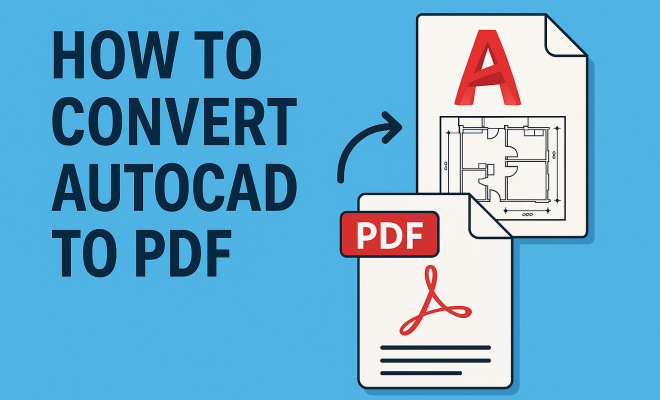
Convert AutoCAD to PDF: Your Essential Guide
“`html
Converting files from one format to another can often be a hassle, especially for professionals who rely on specific software to create and share blueprints, designs, or models. If you’re working with AutoCAD, one essential skill is knowing how to convert AutoCAD to PDF. This guide will walk you through the various methods, tools, and best practices to make this process as seamless as possible.
1. Understanding the Importance of PDF Files in Design
PDF (Portable Document Format) is a widely accepted file format used to present documents consistently across multiple platforms. For architects, engineers, and designers, converting AutoCAD files to PDF is crucial for a number of reasons:
- Compatibility: PDFs can be opened on virtually any device or operating system without needing to install specialized software.
- Security: PDFs provide options for password protection and restricting editing permissions, which can safeguard your original designs.
- Preservation of Quality: Converting to PDF maintains the quality of your drawings, ensuring that all details, colors, and dimensions remain intact.
In a collaborative environment, sharing PDFs allows stakeholders to view designs without needing access to AutoCAD, making it a versatile choice for communication.
2. Exploring AutoCAD and Its File Formats
AutoCAD is one of the leading software programs used for computer-aided design, known for its precision and versatility. The software primarily saves files in the DWG format, which contains all the data related to 2D and 3D designs, metadata, and layouts.
However, DWG files can be cumbersome for sharing, since not everyone has access to AutoCAD. This is where converting AutoCAD to PDF becomes advantageous. The PDF format simplifies the viewing process and eliminates the risk of file corruption that can occur with proprietary formats.
3. Methods to Convert AutoCAD to PDF
There are several methods available for converting AutoCAD files to PDF, each suitable for different user needs:
3.1. Using AutoCAD’s Built-In PDF Export Feature
AutoCAD has a built-in PDF export option, which is often the simplest method:
- Open your DWG file in AutoCAD.
- Click on the Output tab.
- Select Plot and choose DWG to PDF as the printer.
- Set your plotting options, such as paper size and scale.
- Click OK and choose the location to save your PDF.
This method allows for precise control over the output settings, enabling you to customize page sizes and other parameters.
3.2. Using Third-Party Conversion Tools
If you prefer additional functionalities, numerous third-party applications can convert AutoCAD files to PDF. Notable tools include:
- Adobe Acrobat: A powerful tool that allows users to convert a variety of formats to PDF, including AutoCAD files. You can open the DWG file in Adobe Acrobat and save it as a PDF.
- Bluebeam Revu: A professional PDF creation and editing software specifically designed for construction and architecture, which provides advanced features for PDF handling.
- AutoCAD PDF Converter: Dedicated software that specializes in converting DWG files to PDF quickly and efficiently.
These tools can offer batch processing, advanced editing options, and enhanced security features.
4. Best Practices for Converting AutoCAD to PDF
While converting AutoCAD files to PDF is relatively straightforward, following best practices can ensure that your final documents are professional and usable:
- Check Layer Visibility: Before conversion, ensure that only the necessary layers are visible. This will help prevent clutter in your PDF.
- Select Appropriate Scale: Adjust your plot scale to ensure that your drawings are accurately represented in the PDF, maintaining all crucial dimensions.
- Use High-Quality Settings: Opt for high-quality PDF settings to preserve the integrity of your designs. This is especially important for detailed drawings.
- Review Before Saving: Always preview your PDF before finalizing to ensure everything appears as intended, including text, dimensions, and graphics.
Implementing these practices will drastically improve the quality and usability of your PDF documents.
5. Common Issues and Troubleshooting
During the conversion process, you might encounter issues. Here are some common problems and how to resolve them: (See: Understanding PDF file format.)
5.1. Missing or Incomplete Elements
If certain elements are missing in your PDF, it may be due to layer settings or visibility issues. Ensure that all layers you want to include are turned on before you begin the conversion.
5.2. Incorrect Scale or Dimensions
Sometimes, the scale or dimensions may get altered in the PDF. Double-check your plot configuration settings to ensure that the scale is correct, and consider using the ‘fit to page’ option with caution.
5.3. PDF Quality Issues
If your PDF appears pixelated or of low quality, revisit your PDF settings in AutoCAD. Opt for a higher resolution to preserve details, especially for complex drawings.
6. Integrating AutoCAD with Other Software
Many industries utilize AutoCAD alongside other software solutions. Whether it’s project management tools or architectural visualization software, integrating AutoCAD with these applications can streamline workflows. When you convert AutoCAD to PDF, consider the following integrations:
- Project Management Tools: Exporting PDF versions of your designs to project management platforms can enhance team collaboration, making it easier for stakeholders to access and review documents.
- Cloud Storage Solutions: Uploading your PDFs to cloud services enables remote access and sharing among team members, regardless of location.
- Visualization Software: Integrate with rendering tools to create stunning presentations of your designs, and share these as PDFs for clients and stakeholders.
This integration can help maintain accuracy and clarity throughout the design and review process.
7. Future Trends in File Conversion
As technology continues to evolve, so do the methods for file conversion. Future trends may include:
- Increased Automation: Automation tools are expected to make the conversion process even simpler, requiring less manual effort from users.
- AI-Driven Solutions: Artificial intelligence could enhance features by predicting user needs and optimizing conversion settings based on previous usage.
- Enhanced Collaboration Features: More tools will likely offer integrated collaboration options, allowing multiple users to work on and comment on designs directly within the PDF format.
As these advancements unfold, staying updated on the latest tools and practices will ensure you can efficiently convert AutoCAD to PDF without losing quality.
8. Conclusion: Mastering AutoCAD to PDF Conversion
Being able to convert AutoCAD to PDF isn’t just a technical skill; it’s a necessary part of modern design workflows. Knowing how to effectively navigate this process makes it easier to share your work, collaborate with team members, and ensure that your designs are viewed as you intend. Whether you rely on built-in features or third-party software, understanding the nuances of conversion will empower you in your professional endeavors.
In a world where digital documentation is paramount, mastering PDF conversions can differentiate you as a professional, ensuring that your designs are communicated clearly and effectively.
9. Advanced Features to Consider When Converting AutoCAD to PDF
When you convert AutoCAD files to PDF, it’s essential to explore advanced features that can enhance the output quality and usability of your documents. Here are some noteworthy considerations:
9.1. Customizing PDF Properties
Many PDF converters allow customization of the properties of the PDF itself. You can set the title, author, subject, and keywords, which can help in searching and organizing files later. This feature is particularly useful in larger projects where multiple documents are involved, enabling easier tracking and retrieval.
9.2. Adding Watermarks and Annotations
For documents that require branding or copyright protection, adding a watermark can be an effective strategy. Furthermore, annotations such as comments, notes, or highlights can provide additional context to the viewer, enhancing communication about the design features without altering the original drawings.
9.3. Optimizing File Size
PDFs can become large, especially when they contain high-resolution images or complex designs. Some conversion tools offer options to compress the file size without significantly affecting quality. This can be beneficial for email attachments or online sharing, where file size limits may apply.
9.4. Accessibility Features
Ensuring that your PDF is accessible to all users is crucial. Some advanced PDF converters provide options to include tags and descriptions, making it easier for screen readers to interpret the document. If your designs are intended for a broader audience, incorporating accessibility features can be a key consideration. (See: Guide to PDF document creation.)
10. Comparing Different Methods of Conversion
When it comes to converting AutoCAD files to PDF, you might find various methods that suit different needs. Here’s a comparative analysis of different methods — including built-in features and third-party tools — to help you choose the best option.
10.1. Built-In PDF Export vs. Third-Party Tools
The built-in PDF export feature of AutoCAD is straightforward and quick for basic needs. However, many third-party tools such as Bluebeam Revu or Adobe Acrobat offer enhanced functionalities. They may provide better control over the output, batch processing capabilities, and advanced editing options.
If you frequently convert files, investing in a third-party tool can save time and provide a more robust feature set, but for occasional use, the built-in feature may suffice.
10.2. Cost Considerations
Evaluate the cost of third-party tools versus the built-in option. While the built-in PDF converter is free with AutoCAD, third-party tools often come with licensing fees. It makes sense to weigh your frequency of use against the costs involved. If you regularly need advanced features, a subscription might be worth the investment.
10.3. User Experience and Learning Curve
Some users may find third-party applications more complex than AutoCAD’s built-in exporter. If you prefer a straightforward experience and minimal learning time, sticking with the built-in feature might be more appropriate. However, if you’re willing to invest time in learning a tool that offers more capabilities, exploring third-party options could be beneficial.
11. Real-World Examples: Successful PDF Conversions
To highlight the importance and advantages of converting AutoCAD files to PDF, let’s explore a few real-world scenarios where professionals successfully utilized PDF conversions:
11.1. Architectural Firms Sharing Designs
In an architectural firm, architects frequently convert their DWG files to PDF for client presentations. By using high-quality settings, they ensure the detail and color accuracy of their designs are preserved, allowing clients to visualize the outcomes effectively. The added benefit of including watermarks protects intellectual property while sharing drafts.
11.2. Engineering Projects Requiring Collaboration
For engineering projects involving multiple stakeholders, incorporating PDFs in project management tools helps streamline communication and feedback. Engineers can annotate PDFs to highlight changes or issues directly on the drawings, simplifying discussions in meetings or email threads.
11.3. Construction Industry Compliance Documentation
In the construction sector, companies often need to submit compliance documentation in PDF format to regulatory bodies. Using AutoCAD’s built-in conversion feature, they can quickly generate PDFs, ensuring that all designs meet specified requirements. The ability to optimize file size ensures that submissions meet the file size limits set by regulations.
12. Frequently Asked Questions (FAQ)
Converting AutoCAD to PDF can raise several questions. Here are some frequently asked queries along with their answers:
12.1. Can I convert AutoCAD to PDF without AutoCAD installed?
Yes, you can use third-party conversion tools or online services that allow you to upload DWG files and convert them to PDF without needing AutoCAD installed. However, ensure you trust the service to maintain confidentiality and security for your designs.
12.2. Are there any limitations to PDF conversion from AutoCAD?
Some limitations may include loss of interactivity, such as dynamic blocks or hyperlinks when converting to PDF. Also, complex 3D models may not be fully represented in a 2D PDF format, so it’s important to consider what information needs to be conveyed in the PDF.
12.3. How do I ensure the best quality in my PDF?
For optimal quality, select high-resolution settings during the PDF conversion process, check layer visibility, and ensure that all necessary elements are included in your DWG file prior to conversion. Reviewing the PDF before finalization can also help catch any issues.
12.4. Can I batch convert multiple AutoCAD files to PDF?
Yes, many third-party tools provide batch conversion options, enabling you to convert multiple DWG files to PDF simultaneously. This feature saves time and is particularly useful for large projects with numerous documents.
12.5. What should I do if my PDF doesn’t open correctly?
If your PDF doesn’t open or appears corrupted, try regenerating the PDF from AutoCAD. Make sure your AutoCAD software is up to date, and consider saving the DWG file in a different version if compatibility issues persist.
13. Advanced Tips for Professionals
For those looking to elevate their conversion skills, consider these advanced tips tailored for professionals:
13.1. Use Custom Page Sizes
While most users stick to standard paper sizes, creating custom page sizes can help tailor your PDF output for specific projects. This is particularly useful in architectural and engineering fields, where designs may not fit standard dimensions. You can adjust the settings in the print dialogue when selecting PDF options, allowing you to create specialized formats that suit client needs or project specifications.
13.2. Explore Layers in PDF
Some PDF converters allow you to maintain layers within your PDF document. This feature can be beneficial when collaborating with other professionals who may need to view or hide specific design elements without altering the original drawing. When exporting, check if your chosen tool supports this layer functionality, as it can significantly enhance the usability of your PDFs.
13.3. Incorporate Hyperlinks in PDFs
If your AutoCAD drawings contain hyperlinks (for example, linking to related documents or websites), some converters can preserve these links in the PDF. This is great for interactive documents where clients or collaborators can click through for additional information without needing to sift through multiple files.
13.4. Regularly Update Software
Keep your AutoCAD software and any third-party conversion tools up to date. Software updates often include new features, bug fixes, and improvements that can enhance the PDF conversion process. Staying on top of updates will help you take advantage of the latest capabilities, ensuring you stay efficient and effective in your work.
14. Conclusion and Next Steps
Understanding how to convert AutoCAD to PDF is an essential skill for professionals in the design field. It not only enhances communication and collaboration but also helps protect your intellectual property. By mastering this process, integrating advanced features, and utilizing the right tools, you can significantly improve the quality and efficiency of your document sharing.
As you continue your journey in design, keep exploring new methods and tools for conversion, ensuring that your skills remain sharp and relevant in a rapidly evolving technological landscape. Happy converting!
“`
Trending Now
Frequently Asked Questions
How do I convert AutoCAD to PDF?
To convert AutoCAD to PDF, you can use the built-in 'Plot' feature in AutoCAD. Select 'PDF' as the printer, choose your settings, and save the file. Alternatively, you can use third-party software or online converters for this process.
What are the benefits of converting AutoCAD files to PDF?
Converting AutoCAD files to PDF offers several benefits, including improved compatibility across devices, enhanced security features like password protection, and preservation of the quality of your designs, ensuring all details remain intact.
Can I convert DWG files to PDF without AutoCAD?
Yes, you can convert DWG files to PDF without AutoCAD by using various online converters or dedicated software that supports DWG files. These tools allow you to upload your DWG file and download it as a PDF.
Why is PDF a preferred format for sharing AutoCAD designs?
PDF is preferred for sharing AutoCAD designs because it ensures consistent presentation across different platforms, allows easy viewing without specialized software, and protects the integrity of the original design with security features.
What tools can I use to convert AutoCAD to PDF?
You can use AutoCAD's built-in plot feature, third-party software like Adobe Acrobat, or online conversion tools to convert AutoCAD files to PDF. Each method has its advantages depending on your needs and resources.
Have you experienced this yourself? We’d love to hear your story in the comments.