How to delete duplicate songs in iTunes
“`html
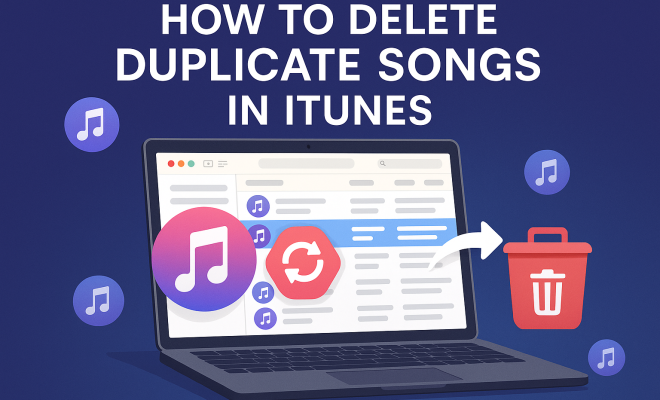
If you’re an avid music lover, your iTunes library is likely filled with thousands of songs. Over time, it’s not unusual for duplicates to sneak in, cluttering your playlists and making it harder to find the music you love. If you’re struggling with this issue, you’re not alone. Many users have wondered how to delete duplicate songs in iTunes efficiently. In this guide, we will dive deep into effective strategies for cleaning up your library, ensuring you have a streamlined listening experience.
1. Understanding Duplicate Songs in iTunes
Before we get into the nitty-gritty of how to delete duplicate songs in iTunes, let’s first understand what constitutes a duplicate. In the context of iTunes, duplicates are tracks that have the same title and artist or the same audio file, meaning they sound identical. These duplicates can arise from various sources, including importing music from different CDs, digital downloads, or syncing with multiple devices.
The presence of duplicate songs doesn’t just clutter your library; it can also consume unnecessary storage space and make for a confusing user experience. That’s why it’s crucial to periodically check for and remove these duplicates to maintain a clean and organized music library.
2. How to Identify Duplicate Songs in iTunes
The first step in addressing duplicate songs in iTunes is identification. Fortunately, iTunes has built-in features that simplify this process. You can use the “Show Duplicate Items” function, making it easy to locate duplicates that share the same title and artist.
To use this feature, follow these steps:
- Open iTunes and select your library or the playlist you want to check.
- Go to the menu bar and click on “File.”
- Select “Library” and then click on “Show Duplicate Items.”
This option will display all tracks that have duplicates in your library, allowing you to review them at a glance. You can also hold down the “Option” key (on Mac) or the “Shift” key (on Windows) while selecting “Show Duplicate Items” to see all tracks with the same title, regardless of the artist.
3. Manually Deleting Duplicate Songs
Once you’ve identified duplicate songs, you can take manual action to delete them. This method is best for those who prefer a hands-on approach and want to ensure they keep their favorite versions of tracks.
Here’s how to manually delete duplicates:
- Select a duplicate song from the list of identified duplicates.
- Right-click (or Control-click on Mac) and choose “Delete from Library.” Alternatively, you can select the song and press the Delete key.
- Confirm the deletion when prompted.
Repeat this process for each duplicate. Be cautious: if you have different versions of the same song (like live performances or remixes), ensure you’re only deleting exact duplicates.
4. Using iTunes Advanced Features
If you want to streamline your experience even further, consider using advanced iTunes features. For instance, the “File” menu has options that allow for deeper organization. You can sort your library by different fields such as artist, album, or year to spot duplicates more easily. (See: Learn more about iTunes.)
Another useful option is the “Get Info” feature. Right-click on a track and select “Get Info” to examine its details, including file locations. If a duplicate is found in different locations, you can decide which one to keep based on quality or format.
5. Third-Party Applications for Automation
For those who have extensive libraries and want a more automated solution, there are several third-party applications designed specifically to help delete duplicate songs in iTunes. Software like Tune Sweeper, Duplicate Cleaner, and MusicBrainz Picard offer efficient ways to detect and remove duplicates.
These applications often provide more robust options than iTunes alone, such as:
- Scanning for duplicates based on audio fingerprinting, ensuring even variations in titles or metadata are caught.
- Allowing for bulk deletion to save you time.
- Offering additional organizational features to clean up your library.
While these tools may require an initial investment, they can save significant time and effort, especially for users with large music collections.
6. Preventing Duplicate Songs from Entering Your Library
Once you’ve cleaned up your iTunes library, it’s essential to prevent duplicates from creeping back in. Here are some tips to keep your music collection organized:
- Be mindful of imports: Before importing new music, make sure to check your library for existing files. This can be done using the same “Show Duplicate Items” feature.
- Sync with care: If you sync your music across multiple devices, ensure that you’re not inadvertently duplicating tracks during the syncing process.
- Use consistent metadata: If you’re downloading music from various sources, ensure that the metadata (artist name, album title) is consistent to help iTunes identify duplicates better.
Taking these precautions will help maintain a cleaner library and reduce the need for future cleanup.
7. The Benefits of a Clean Music Library
Cleaning up your iTunes library by deleting duplicate songs has many benefits beyond mere aesthetic pleasure. A well-organized library enhances your listening experience, making it easier to access your favorite tracks quickly. Here are some key advantages:
- Improved Performance: A clutter-free library can lead to improved performance of the iTunes application itself, reducing lag and potential crashes.
- Enhanced Discovery: With fewer duplicates, you can discover new music or re-discover older tracks without wading through multiple versions of the same song.
- Space Savings: Removing duplicates can free up valuable storage space on your device, especially if you have a large music collection.
Overall, a clean library not only enhances your music-listening experience but also optimizes your device’s functionality.
8. When You Might Need Professional Help
While most users can tackle duplicate songs in iTunes on their own, there are times when you might need to seek professional help. If your iTunes library is corrupt or you’re experiencing issues beyond duplicates, consulting with a professional service can be beneficial.
Professional services can help with:
- Recovering lost music files that may have been deleted during the cleanup process.
- Guiding you through complex issues related to iTunes libraries, such as syncing problems or playback errors.
- Providing custom solutions for large-scale music libraries, especially for DJs or those in the music industry.
Engaging with a professional can save time and ensure that your music library is in top shape.
9. Advanced Techniques for Duplicate Management
For tech-savvy users or those willing to invest a bit of time, there are advanced techniques to manage duplicates effectively. One such method involves using scripting tools like AppleScript on Mac to automate the deletion process. If you’re comfortable with programming, you can write scripts that scan your library for duplicates based on more complex criteria than iTunes alone can handle. (See: Understanding digital clutter management.)
Alternatively, using a database management approach, you can export your iTunes library XML file, manipulate it using spreadsheet software, and then re-import the cleaned list back into iTunes. This method is more advanced and requires some familiarity with data manipulation but can be highly effective for large libraries.
10. Understanding Music Metadata and Its Importance
Understanding music metadata is crucial when it comes to managing duplicate songs in iTunes. Metadata is the information embedded in music files that describes the content, such as the title, artist, album, genre, and more. Accurate metadata helps iTunes effectively identify and manage duplicates.
For example, if two songs have slight variations in their titles (like “Song Title (Remix)” versus “Song Title”), iTunes may not recognize them as duplicates unless you have consistent metadata. This is where manually editing metadata becomes important. You can right-click on a song, select “Get Info,” and check each field for consistency across similar tracks. By ensuring that your metadata is accurate and uniform, you can significantly reduce the chances of duplicates infiltrating your library.
11. Statistics on Music Library Management
Wondering just how common duplicate songs are? Studies show that around 20% of users with digital music libraries have duplicate songs. In a library with 10,000 songs, that could mean 2,000 duplicates! This not only complicates playlists but can also lead to wasted storage space. By tackling duplicate songs, users can reclaim an average of 40% of their storage, depending on how many duplicates they have.
Additionally, surveys suggest that users who actively manage their music libraries report a 50% increase in satisfaction when it comes to discovering new tracks or rediscovering old favorites. Keeping your library organized isn’t just a chore; it’s a way to enhance your overall music experience.
12. Creating Backup Copies of Your Library
Before embarking on any cleanup journey, creating a backup of your music library is a smart move. This process ensures that if you accidentally delete something you want to keep, you can recover it easily. You can back up your library in several ways:
- External Hard Drive: Physically transfer your iTunes library to an external hard drive. This method is reliable and offers a physical backup.
- Cloud Storage: Services like Google Drive, Dropbox, or iCloud allow you to back up your library online. Just make sure that your internet connection is stable and the files are transferred completely.
- iTunes Library Backup: In iTunes, you can utilize the “Export Library” function to create an XML backup. This file contains the structure of your library, which can be useful for recovery.
By keeping a backup, you can proceed with confidence when deleting duplicates, knowing you have a safety net if needed.
13. FAQs about Deleting Duplicate Songs in iTunes
How can I tell if I have duplicates in my iTunes library?
Using the “Show Duplicate Items” feature in iTunes is the quickest way to identify duplicates based on the same title and artist. You can also utilize third-party applications that may offer more comprehensive scanning options.
Can I recover deleted songs in iTunes?
If you’ve accidentally deleted a song, you may be able to recover it from your iTunes backup, if you have one. If not, check the Trash or Recycle Bin on your computer to see if the deleted files are still there.
Is it safe to use third-party applications for duplicate detection?
Yes, many third-party applications are designed specifically for managing music libraries and are generally safe to use. However, always read reviews and ensure you’re downloading from reliable sources to avoid malware. (See: New York Times on managing music libraries.)
What should I do if I find duplicates but don’t want to delete them yet?
If you’re hesitant to delete duplicates immediately, consider creating a playlist of duplicates instead. This way, you can review them later before deciding which ones to remove.
How often should I clean my iTunes library?
It’s a good idea to check for duplicates and organize your library at least once every few months. Regular maintenance helps keep your music collection enjoyable and efficient.
14. Additional Tips for Managing Your Music Library
Beyond the methods mentioned, here are some practical tips that can help you keep your iTunes library organized and prevent duplicates:
- Regular Updates: Make it a habit to update your library after each new addition. This includes checking for duplicates whenever you download or import new tracks.
- Organize by Genre: Sorting your music by genre not only enhances your listening experience but can also help you spot duplicates more easily. For instance, if you have multiple versions of a popular song, it might be easier to identify them when organized categorically.
- Use Playlists Wisely: Creating playlists can help you manage your music and keep track of your favorites without having to sift through your entire library. Be mindful to include only the versions you enjoy.
- Engage with Community Resources: Online forums and communities can be great resources for tips on iTunes library management. Users often share their personal strategies for keeping their collections clean and efficient.
15. Exploring Built-in iTunes Tools for Better Management
iTunes offers several built-in tools that can help enhance your music management experience. Apart from the duplicate detection feature, consider these options:
- Smart Playlists: This feature allows you to create dynamic playlists based on specific criteria. You can set rules to exclude duplicates, ensuring that your playlists remain fresh and diverse.
- Album Artwork Management: Having the correct album artwork can make your library visually appealing and easier to navigate. You can right-click on songs or albums and select “Get Album Artwork” to automatically fetch missing covers.
- iCloud Music Library: If you’re subscribed to Apple Music or have iTunes Match, using iCloud can help keep your library synchronized across multiple devices and may assist in avoiding duplicates during syncing.
16. Community Insights and User Experiences
Engaging with other iTunes users can provide valuable insights and tips for managing duplicate songs. Sharing experiences can lead to discovering new methods or tools that you may not have considered. Here are a few common community insights:
- User-Curated Lists: Many users create curated playlists or collections that can inspire you to organize your library in new ways, helping to reduce duplicates.
- Shared Solutions: Online forums often contain threads where users discuss their successful methods for managing duplicates, including recommended software and strategies.
- Peer Support: Sometimes, just having a conversation about your library cleanup can motivate you to take action. Many users find community support to be a useful boost in tackling their music organization challenges.
17. Final Thoughts on a Streamlined Music Experience
Deleting duplicate songs in iTunes doesn’t have to be a daunting task. With the right tools and methods, you can maintain an organized and efficient music library. Whether you choose to manually delete duplicates, use iTunes’ built-in features, or employ third-party applications, the goal is to create a listening experience that brings joy rather than frustration.
By incorporating preventive measures and regularly checking for duplicates, you’ll keep your music collection clean and enjoyable for years to come. So why not take a moment today to start decluttering your iTunes library? You’ll appreciate the results as you rediscover your favorite tracks without the hassle of duplicates.
“`
Trending Now
Frequently Asked Questions
How can I find duplicate songs in my iTunes library?
To find duplicate songs in your iTunes library, open iTunes and select your library or desired playlist. Then, go to the menu bar, click on 'File', select 'Library', and choose 'Show Duplicate Items'. This will display all tracks that have duplicates, making it easier for you to review and manage them.
What causes duplicate songs in iTunes?
Duplicate songs in iTunes can occur due to various reasons, such as importing music from different CDs, downloading music multiple times, or syncing your library across multiple devices. These duplicates can clutter your library and take up unnecessary storage space.
Can iTunes automatically delete duplicate songs?
iTunes does not have a built-in feature to automatically delete duplicate songs. However, you can manually identify duplicates using the 'Show Duplicate Items' function and then choose to delete them as needed, ensuring a cleaner and more organized music library.
Is there a way to prevent duplicate songs in iTunes?
To prevent duplicate songs in iTunes, ensure you import music from a single source, avoid downloading the same tracks multiple times, and regularly check your library for duplicates using the 'Show Duplicate Items' feature. This proactive approach helps maintain a tidy library.
What should I do after finding duplicate songs in iTunes?
After identifying duplicate songs in iTunes, review the duplicates carefully. Decide which versions to keep based on quality or metadata, then select the duplicates you want to remove and delete them. This will help streamline your library and enhance your listening experience.
What did we miss? Let us know in the comments and join the conversation.