How to sync music to iPhone without iTunes
“`html
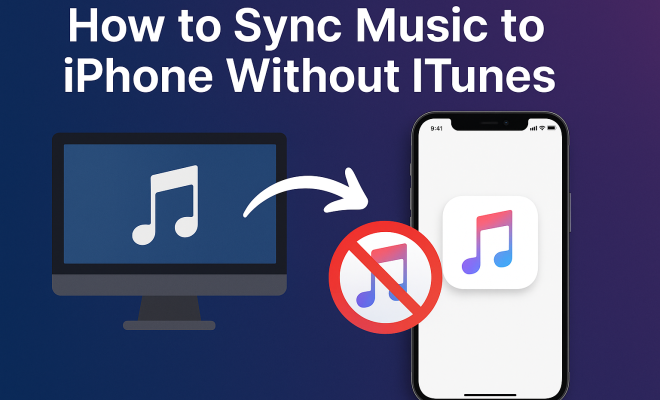
Syncing music to your iPhone without iTunes can feel like a daunting challenge, especially if you’re accustomed to using Apple’s traditional approach to music management. Luckily, whether you’re looking to avoid iTunes’ clunky interface or just want to explore more modern, user-friendly options, there are several effective alternatives available. This guide will walk you through eight of the best methods to easily sync music to your iPhone without the need for iTunes.
1. Using Cloud Storage Services
One of the simplest methods to sync music to your iPhone without iTunes is by using cloud storage services like Google Drive, Dropbox, or OneDrive. These platforms allow you to store your music files in the cloud, making them accessible from your iPhone at any time.
To get started, upload your music files to your chosen cloud service on your computer. Once uploaded, download the corresponding app on your iPhone. Open the app, sign in to your account, and you’ll find your music files ready for playback. This method allows you to enjoy your tunes without consuming your phone’s internal storage.
Additionally, many cloud storage services offer free plans with a limited amount of storage, which is often enough for casual listeners. For those with extensive libraries, paid options provide ample space and features such as offline access, which is perfect for when you’re traveling or in areas with poor internet connectivity.
2. Apple Music Subscription
If you’re an Apple user, opting for an Apple Music subscription can be a game changer. With this service, you can access over 75 million songs without needing to manually transfer files. Plus, it allows you to add your own music to your library seamlessly.
To sync music to your iPhone using Apple Music, simply sign up for the service and enable the ‘Sync Library’ option on your device. This will automatically merge your local music collection with Apple Music, letting you stream your songs directly from your iPhone without any additional sync process.
One of the standout features of Apple Music is its curated playlists, which are updated regularly based on your listening habits. Many users appreciate the personalized recommendations that help them discover new artists and genres. Plus, with the Family Sharing option, you can share your subscription with up to six people, making it a cost-effective solution for households.
3. Third-party Music Apps
There are numerous third-party music apps available that can help you sync music to your iPhone without involving iTunes. Apps like VLC, Foobar2000, and Musixmatch let you manage and play your music files efficiently.
To use one of these apps, download it from the App Store, then connect your iPhone to your computer. Use the app’s file sharing feature to transfer your music files directly. Each app has its unique features, so explore a few to find the one that best fits your listening habits.
For instance, VLC is particularly favored for its ability to play almost any file format without needing conversion. Musixmatch, on the other hand, stands out for its lyrics feature, which syncs lyrics to your music, offering a sing-along experience that many users find enjoyable. These various functionalities can greatly enhance your overall music experience.
4. Using File Transfer Programs
For those who prefer a more traditional approach without iTunes, file transfer programs like Syncios or AnyTrans can be a solid choice. These tools allow you to transfer music files directly from your computer to your iPhone with ease.
After downloading the software, connect your iPhone to your computer. The program will recognize your device, allowing you to drag and drop music files into your iPhone’s music library. This option is particularly beneficial for users who have large music collections. (See: Cloud storage services explained.)
These programs often come with additional features, such as the ability to manage other types of files (like videos and photos), backup your device, or even restore data from previous backups. For those who are tech-savvy, these tools can provide a good level of control over your music library and device management, which can be particularly useful if you frequently update your music collection.
5. Syncing via Email
Although it might seem unconventional, you can also sync music to your iPhone using email. By emailing yourself music files, you can access them directly from the Mail app on your iPhone.
To do this, attach the music files to an email and send it to yourself. Open the email on your iPhone, tap on the attachment, and choose to open it in a music app. While this method is better for smaller files due to email size limits, it’s a quick solution when you need a specific song on the go.
It’s worth noting that various email providers have different attachment size limits, usually ranging from 25MB to 50MB. For instance, Gmail has a 25MB limit, while Outlook offers up to 34MB. This makes emailing suitable for individual tracks or smaller albums, but you may need to consider other options for larger collections.
6. Syncing with VLC for Mobile
If you’re looking for a robust media player that also allows file transfers, VLC for Mobile is a fantastic option. This app supports a wide range of audio formats and offers a straightforward file transfer method.
To use VLC, first, download the app from the App Store. Connect your iPhone to your computer, and use the file sharing feature to add your music. VLC creates a separate music library, so you can organize and play your files without any hassle.
VLC’s flexibility in file handling means you can also stream from local network shares, adding another layer of convenience if you have a home media server. The app is free and open-source, so you can enjoy a great music experience without any costs. Regular updates ensure that the app stays compatible with new file formats and technologies as they emerge.
7. Using AirDrop
If you’re already within the Apple ecosystem, AirDrop is another efficient way to sync music to your iPhone without the need for iTunes. This feature allows you to wirelessly transfer files between Apple devices.
To use AirDrop, ensure that both your iPhone and the sending device have Wi-Fi and Bluetooth enabled. Select the music file on your computer, right-click it, and choose the AirDrop option to send it to your iPhone. Once accepted, the file will appear in your music library or the app of your choice.
AirDrop is particularly useful for quick transfers, as it bypasses cables and doesn’t require a third-party app. Plus, it’s secure, as it only works with devices that are in close proximity, reducing the risk of unwanted access. Many users find this method to be one of the fastest ways to share music, especially when collaborating with friends or family.
8. Using an External Music Player App
Finally, consider using an external music player app like Poweramp or JetAudio. These apps often come equipped with advanced features that enhance your music-listening experience.
To use an external music player, simply install it from the App Store and follow similar steps as with other apps to transfer files. Many of these players also offer streaming capabilities for even more flexibility. They can be a great alternative if you want more than just the basic functionality.
For example, Poweramp is known for its powerful equalizer and sound enhancement features, allowing users to customize their listening experience. JetAudio offers a similar range of features, including various sound effects and playback options. These apps cater to audiophiles or those who simply enjoy a premium listening experience. (See: CDC guidelines on digital media use.)
Exploring Additional Alternatives
Besides the methods mentioned, there are other less conventional ways to sync music to your iPhone without iTunes. Here are a few ideas that might work for you:
9. Using Spotify’s Local Files Feature
If you’re a Spotify user, you can sync local files from your computer to your Spotify app on your iPhone. First, ensure you have Spotify Premium, then follow these steps:
- Open Spotify on your desktop and go to Settings.
- Turn on the “Show Local Files” option and add the folders containing your music.
- Make sure your iPhone is connected to the same Wi-Fi network as your computer.
- On your iPhone, open the Spotify app, navigate to Your Library, and find the local files to play them.
This method is particularly handy for fans of certain songs not available on Spotify, allowing you to mix your personal collection seamlessly with streaming options.
10. Using iCloud Drive
An alternative to traditional cloud services is iCloud Drive, which integrates seamlessly with Apple devices. By storing your music files in iCloud Drive, you can access them directly from the Files app on your iPhone.
To set up iCloud Drive, ensure that it’s enabled in the iCloud settings on your iPhone. After uploading your music files via Finder or iCloud on your computer, you can open the Files app on your iPhone, navigate to iCloud Drive, and play your music. This method also provides the convenience of Apple’s ecosystem, ensuring your files are always accessible.
11. Using an Online Music Converter
Sometimes, the music files you want to sync to your iPhone might be in a format that isn’t supported by your chosen music app. This is where online music converters come in handy. Websites like Online Audio Converter allow you to convert your files into a more compatible format, such as MP3 or AAC, before transferring them to your iPhone.
Simply upload your music file, choose the desired format, and download the converted file. Once you have the music in a compatible format, use any of the methods discussed earlier to transfer it to your iPhone. This approach ensures you can listen to all your favorite tracks without worrying about file compatibility.
12. Using Podcasts or Audiobook Apps
If you’ve got music that falls under the category of podcasts or audiobooks, you can utilize dedicated apps for these formats. Apps like Apple Podcasts or Audible allow you to sync audio files that are podcast or audiobook-style content. While it may not be a typical way to store music, it can be a creative solution for spoken word or narrative music.
To use podcasts, you often only need to upload your audio files in the correct format to a service that offers podcast hosting, then access them through your iPhone’s podcast app. This way, your music is categorized, and you can enjoy it alongside your favorite podcasts.
FAQ: Common Questions about Syncing Music to iPhone without iTunes
1. Can I sync music to my iPhone without iTunes at all?
Yes, there are several methods to sync music to your iPhone without using iTunes. Options include cloud storage services, Apple Music, third-party apps, email, and more.
2. What’s the best method for syncing a large music library?
For larger libraries, using file transfer programs like Syncios or AnyTrans is highly recommended. They can handle bulk transfers efficiently and allow for easy management of your music files.
3. Can I use free apps to sync music?
Absolutely! Many apps like VLC and cloud services offer free versions with ample functionalities for syncing and playing music without needing to spend money.
4. How can I sync music from my computer to my iPhone without losing existing songs?
Using third-party transfer tools like AnyTrans allows you to sync music without erasing your existing library. Just be sure to select the appropriate options within the app to avoid overwriting any files.
5. Is it safe to use third-party apps for music transfer?
Generally, reputable third-party apps are safe to use. Look for apps with good reviews and a history of regular updates. Still, it’s wise to back up your data before using new software.
6. What file formats can I sync to my iPhone?
Most music apps support common formats such as MP3, AAC, WAV, and FLAC. However, always check the app specifications to ensure compatibility.
7. Can I sync music from streaming services like Spotify?
Yes, Spotify allows you to sync local files from your computer to the app on your iPhone, provided you’re a Premium subscriber.
8. Do I need to keep my iPhone connected to my computer for music playback?
No, once the music files are synced to your iPhone, you can access and play them without needing to stay connected to your computer.
9. Are there any restrictions on music I can sync using cloud services?
Cloud services typically do not impose restrictions on the types of music files you can upload. However, they may have storage limits based on the plan you choose, so make sure to monitor your usage if you have a large music library.
10. Can I sync music from my iPhone back to my computer?
Yes, using file transfer software like Syncios or AnyTrans allows you to back up your music and other media from your iPhone back to your computer, ensuring that you have copies of your favorite tracks and playlists.
With these methods, syncing music to your iPhone without iTunes is not only possible but can be straightforward and enjoyable. Each option has its advantages, so you can choose the one that best fits your lifestyle and preferences. By exploring these alternatives, you’ll find a way to manage your music that feels right for you, leaving you free to enjoy your favorite tunes wherever you go.
“`
Trending Now
Frequently Asked Questions
How can I transfer music to my iPhone without iTunes?
You can transfer music to your iPhone without iTunes by using cloud storage services like Google Drive or Dropbox. Simply upload your music files to the cloud, download the app on your iPhone, and access your music directly from there.
Can I use Apple Music to sync music to my iPhone?
Yes, subscribing to Apple Music allows you to sync music to your iPhone easily. Once you sign up and enable the 'Sync Library' option, your local music collection merges with Apple Music, giving you access to millions of songs.
What are the best alternatives to iTunes for syncing music?
Some of the best alternatives to iTunes for syncing music include cloud storage services, Apple Music, and third-party applications like VLC and AnyTrans, which offer user-friendly interfaces and various features for music management.
Is it possible to sync music without using any software?
Yes, you can sync music to your iPhone without using any software by utilizing cloud storage services. Upload your music to the cloud and then access it through the corresponding app on your iPhone for playback.
What is the easiest way to manage music on my iPhone?
The easiest way to manage music on your iPhone is by using cloud storage or a streaming service like Apple Music. These methods eliminate the need for manual transfers and allow you to access your music library seamlessly.
What’s your take on this? Share your thoughts in the comments below — we read every one.