How to connect two monitors to laptop
“`html
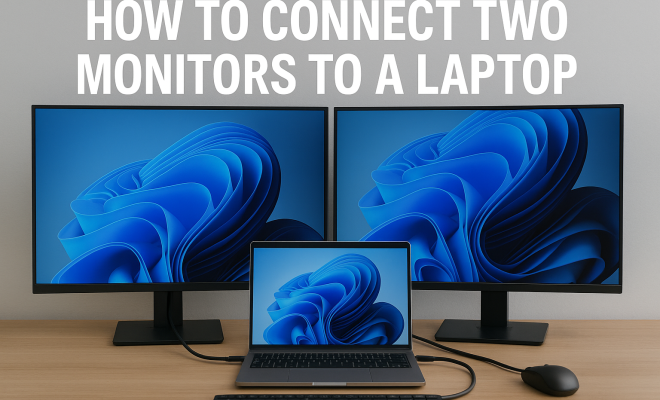
Have you ever felt that your productivity could skyrocket if only you had more screen real estate? Connecting two monitors to your laptop can transform your workspace, making multitasking smoother and enhancing your overall efficiency. In this article, we’ll explore how to connect two monitors to your laptop, discuss the necessary equipment, and provide tips for maximizing your dual-monitor setup.
1. The Benefits of Using Dual Monitors
Before diving into the technical details of how to connect two monitors to your laptop, it’s essential to understand why you might want to do so. Dual monitor setups can significantly enhance your productivity by allowing you to view multiple applications simultaneously. For example, you can have a document open on one screen while researching on the other, eliminating the need for constant window switching.
Additionally, dual monitors are not just for office environments. Gamers can improve their gameplay experience by utilizing one screen for the game itself and the other for chat applications or guides. Creatives, such as graphic designers and video editors, also benefit from the wider workspace, allowing for more extensive canvases and timelines.
In fact, studies have shown that using dual monitors can increase productivity by up to 20-30%. This is because being able to have multiple applications visible at once reduces the time spent switching between them. The visual aid of two screens can help you maintain focus and organize your tasks more effectively.
2. Assessing Your Laptop’s Compatibility
Before attempting to connect two monitors to your laptop, you need to assess your laptop’s compatibility. Most modern laptops come equipped with at least one video output port, but the type and number can vary widely. Common ports include HDMI, DisplayPort, USB-C, and Thunderbolt. Some laptops may even have a VGA or Mini DisplayPort.
To check your laptop’s specifications, you can refer to the manufacturer’s website or user manual. Once you have identified the video output options, you’ll also need to determine whether your laptop supports multiple displays. Many laptops can handle two monitors, but some older or budget models might be limited to mirroring the display instead of extending it.
Additionally, understanding your graphics card can be crucial. Some integrated graphics may limit the maximum resolution or refresh rate of your external monitors. If you’re using a laptop with a dedicated GPU, you’re likely to enjoy better support for multiple high-resolution monitors.
3. Choosing the Right Cables and Adapters
Once you’ve confirmed that your laptop can handle dual monitors, the next step is selecting the appropriate cables and adapters. If your monitors and laptop share the same port type, connecting them is straightforward. However, if they differ, you may need an adapter. For instance, if your laptop has an HDMI port but your monitors use DisplayPort, you will need an HDMI to DisplayPort adapter.
Here are some common cable types:
- HDMI: Widely used for both video and audio.
- DisplayPort: Supports higher resolutions and refresh rates; great for gaming.
- USB-C: Increasingly popular for newer laptops; supports video and power.
- VGA: Older technology, primarily found on legacy systems.
When choosing cables, consider their length as well. Longer cables can create signal degradation, so if your monitors are far from your laptop, look for high-quality, active cables designed for long distances. Some models also offer features like braided cables for durability.
4. Connecting Your Monitors
Now that you have the necessary hardware, it’s time to connect your monitors. Start by plugging the first monitor into your laptop using the appropriate cable. Once connected, power on the monitor and ensure it is set to the correct input source. Most modern monitors automatically detect the signal, but you might need to use the monitor’s menu to select the right input.
Next, connect the second monitor in a similar fashion. Depending on your laptop, this may involve using a different port or an adapter as discussed earlier. Once both monitors are connected, you can move on to configuring your display settings. (See: study on dual monitor productivity.)
For those using docking stations, they can often simplify the process of connecting multiple monitors. A docking station can provide various ports and connections, allowing you to connect multiple external devices with just one cable plugged into your laptop.
5. Configuring Display Settings on Your Laptop
After physically connecting the monitors, you must configure the display settings on your laptop to extend your desktop across both screens. On Windows, right-click on the desktop and select ‘Display settings.’ You should see both monitors represented as rectangles. If not, click ‘Detect’ to find them.
In the display settings, you can choose to extend the display, duplicate it, or use only one of the monitors. Select ‘Extend these displays’ to make the most of your dual-monitor setup. You can also rearrange the displays to match their physical layout on your desk, ensuring a seamless transition when moving your mouse between screens.
For Mac users, you’ll navigate to System Preferences > Displays to arrange your monitors and configure the resolution. It’s also beneficial to designate one of the monitors as the primary display, ensuring that your main applications and dock appear there.
6. Adjusting Display Resolution and Orientation
Once you’ve set up the displays, the next step is to adjust their resolution and orientation to ensure optimal viewing. Each monitor may have different native resolutions, so it’s advisable to set them to their highest supported resolution for the best visual experience.
You can also adjust the orientation if you prefer using one monitor in portrait mode. This is particularly useful for reading long documents or coding. In the display settings, you can choose your desired orientation — landscape or portrait — for each monitor individually.
If you are engaging in graphic design or video editing, it might help to use the monitor with better color accuracy as your primary display. This can ensure that the colors you see are true to life and that your work translates well across different devices.
7. Managing Applications Across Dual Monitors
With your monitors successfully connected and configured, the real work begins. Managing applications across two monitors can greatly enhance your productivity. You can drag applications from one screen to another effortlessly, customizing your workspace based on your workflow.
For instance, you might want to keep your email client open on one screen while using the second for research or document editing. This setup minimizes distractions and allows you to focus on the task at hand without flipping between windows. It’s worth taking the time to organize your apps according to your preferences, as this can significantly improve efficiency.
Another tip is to use keyboard shortcuts to quickly move applications between displays. For example, in Windows, you can use Windows Key + Shift + Left/Right Arrow to quickly shift a window from one monitor to another. Mastering these shortcuts can save you a lot of time during your workday.
8. Troubleshooting Common Issues
Even with the right equipment and setup, issues can arise when trying to connect two monitors to your laptop. One common problem is the monitors not being detected. If this happens, double-check your connections and ensure that the monitors are powered on. Restarting the laptop can also help resolve detection issues.
Another issue could be mismatched resolutions or refresh rates that cause display problems. Make sure both monitors are set to their recommended resolutions in the display settings. If one monitor supports a higher refresh rate, ensure the settings reflect that to avoid lag or flickering.
Additionally, make sure your graphics drivers are up to date. Outdated drivers can cause compatibility issues and prevent the monitors from functioning correctly. Check the manufacturer’s website for the latest versions and install them as necessary.
9. Exploring Advanced Settings
Once you’re comfortable with your dual-monitor setup, consider exploring some advanced settings that can further enhance your experience. For example, Windows offers features like Snap Layouts and virtual desktops that allow for even greater organization and efficiency. (See: psychology of multitasking.)
On macOS, you can use Mission Control to manage multiple workspaces more effectively. These tools let you group applications, manage windows, and switch between tasks seamlessly, making your dual-monitor setup not just functional but also a truly optimized workspace.
Consider configuring hotkeys for easy switching between applications across your displays. These shortcuts can drastically reduce the time spent navigating through menus and enhance your workflow.
10. Final Thoughts: Is a Dual Monitor Setup Right for You?
In today’s digital age, many professionals and enthusiasts alike realize the advantages of connecting two monitors to their laptops. Whether you’re a remote worker, a student, or a gamer, a dual monitor setup can add immense value to your daily tasks. The trick is to assess your needs, understand your laptop’s capabilities, and invest in the right equipment.
Ultimately, the decision to implement a dual-monitor setup should be based on your workflow and personal preferences. If you think you’ll benefit from the added space and flexibility, it’s certainly worth the effort to connect two monitors to your laptop!
11. Advanced Use Cases for Dual Monitors
While the basic benefits of connecting two monitors to a laptop are clear, there are several advanced use cases that can showcase just how powerful a dual-monitor setup can be. For instance, software developers often use one screen for coding while running a live preview or debugging tools on the other. This allows for real-time testing and adjustments without the need to flip back and forth between windows.
Financial analysts can also leverage dual monitors effectively. One screen could display live data feeds or stock tickers while the other is used for analytical tools and reports. This immediate access to data can enable quicker decision-making and analysis.
In the field of education, teachers and students can benefit greatly as well. A teacher can display a lesson on one screen while keeping an eye on students via video on the second screen, ensuring that engagement is maintained.
12. Statistics on Dual Monitor Usage
According to a 2020 study by the University of Utah, dual monitors can increase productivity by up to 50%. Participants reported being able to complete tasks faster and with fewer errors. This statistic highlights the significant impact that an extended workspace can have on performance.
Additionally, a survey conducted by the technology company Dell found that 86% of users believe that dual monitors boost productivity, while 77% reported feeling less stressed when using multiple screens. This indicates that not only does a dual-monitor setup enhance productivity, but it can also contribute to a more enjoyable work experience.
These findings provide compelling evidence for those on the fence about upgrading their workstation—especially in a world where maximizing productivity is a constant goal.
13. Frequently Asked Questions (FAQ)
Can I connect two monitors to my laptop with different ports?
Yes, you can connect two monitors with different ports as long as your laptop supports them. You may need adapters if the ports don’t match (e.g., HDMI to DisplayPort). Ensure that both monitors are compatible with your laptop’s output options.
What if my laptop only has one video output?
If your laptop has only one video output, you can still connect two monitors by using a USB to HDMI adapter or a docking station that allows multiple displays. These devices can help you extend your display without needing additional ports on your laptop.
Can dual monitors work with laptops running on Linux?
Yes, dual monitors can work with laptops running on Linux, but setup may vary depending on the distribution and desktop environment you are using. You can typically configure the displays via the display settings in your system settings.
How do I manage screen resolution issues on dual monitors?
If you encounter resolution issues, go to your display settings and ensure that each monitor is set to its recommended resolution. If one monitor appears blurry or stretched, adjusting its resolution should resolve the issue.
Is there a specific distance I should keep between monitors?
While there isn’t a strict rule, keeping your monitors at eye level and about an arm’s length away is generally a good idea. This helps reduce eye strain and allows for easier viewing across both screens.
Can I use a TV as a second monitor?
Yes, you can use a TV as a second monitor if it has an HDMI or compatible input. Just ensure that the TV’s resolution matches what your laptop can output for the best experience. This setup can be particularly useful for presentations or media consumption.
Will using dual monitors consume more battery on my laptop?
Yes, using dual monitors can consume more battery as they require additional processing power and energy for the display. If you’re using a laptop on battery power, consider connecting one monitor instead or using energy-saving settings.
Is it possible to connect more than two monitors to a laptop?
Yes, it is possible to connect more than two monitors to a laptop, but it largely depends on the specifications of your laptop and the graphics card capabilities. You may need additional adapters or a docking station designed for multiple displays to achieve this.
14. Tips for Optimizing Your Dual-Monitor Setup
Getting the most out of your dual-monitor setup involves more than just connecting the monitors. Here are some tips to optimize your experience:
- Arrange Your Monitors Strategically: Whether you prefer one monitor above the other or side by side, the arrangement should suit your workflow. Experiment with different positions to find what feels most comfortable.
- Use Monitor Calibration Tools: For tasks requiring precise color, use calibration software or tools to ensure that the colors displayed on both monitors match closely. This is especially important for photographers and graphic designers.
- Implement a Color-Coded System: Use different colors for application windows on each monitor to create a visual distinction. For example, you could use one color for work-related applications and another for personal tasks. This can help in keeping your focus sharp and tasks organized.
- Limit Distractions: While dual monitors can improve productivity, they can also lead to distractions. Make a habit of keeping only relevant applications open on your screens to minimize visual clutter.
- Take Breaks: To prevent eye strain and fatigue, remember to follow the 20-20-20 rule: every 20 minutes, take a 20-second break to look at something 20 feet away. This can help reduce the strain of extended screen time.
15. Future Trends in Dual-Monitor Technology
As technology evolves, so do the possibilities for dual-monitor setups. Here are a few trends to watch for in the coming years:
- Wider Aspect Ratios: Monitors with wider aspect ratios are becoming more common, allowing users to replace dual-monitor setups with a single ultra-wide monitor. This can reduce the bezels between screens and provide a seamless viewing experience.
- Advanced Display Technologies: New technologies, like OLED and Mini LED, are being integrated into more monitors, offering vibrant colors and deep contrasts. These displays can elevate the visual experience for professionals who require high-quality graphics.
- Improved Connectivity: As USB-C and Thunderbolt technology becomes more popular, expect to see simpler setups with fewer cables and better performance. This will make it easier than ever to connect multiple monitors without a tangle of wires.
- Smart Monitor Features: Future monitors may come equipped with smart features like integrated apps and voice control, allowing for an even more streamlined work experience.
16. The Bottom Line
Connecting two monitors to your laptop can significantly enhance your productivity and enjoyment, whether you’re working, gaming, or creating. With the right equipment and setup, you can make the most out of your dual-monitor configuration. As you explore the various features and settings, you’ll discover a workspace that’s not only efficient but tailored to your specific needs. Whether you’re looking to boost your productivity, make multitasking easier, or simply enjoy the larger view, a dual-monitor setup is a worthwhile investment.
“`
Trending Now
Frequently Asked Questions
How do I connect two monitors to my laptop?
To connect two monitors to your laptop, identify the available video output ports (HDMI, DisplayPort, USB-C, etc.) on your laptop. Then, connect each monitor using the appropriate cables. Once connected, adjust your display settings in your operating system to extend or duplicate your screen.
What do I need to connect two monitors to my laptop?
You will need two external monitors, the appropriate cables (such as HDMI or DisplayPort), and possibly adapters if your laptop's ports differ from the monitor's inputs. Additionally, ensure your laptop supports multiple displays.
Can all laptops support dual monitors?
Not all laptops support dual monitors. Check your laptop's specifications to see how many video output ports it has and their types. Most modern laptops can support at least one external monitor, but some may have limitations on the number of displays.
What are the benefits of using dual monitors?
Using dual monitors can significantly boost productivity by allowing you to view multiple applications simultaneously. This setup reduces the need for constant window switching, helping you focus better and organize tasks more efficiently, making it ideal for office work, gaming, and creative tasks.
Is it worth using two monitors for gaming?
Yes, using two monitors for gaming can enhance your experience by allowing you to play on one screen while keeping chat applications or game guides open on the second. This setup can improve multitasking and keep you engaged without interrupting your gameplay.
What did we miss? Let us know in the comments and join the conversation.