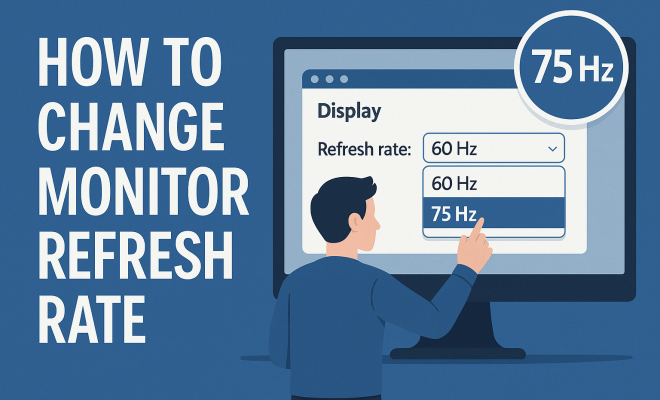
How to change monitor refresh rate
“`html
Are you experiencing stuttering during intense gaming sessions or noticing a lag while scrolling through your favorite web pages? It might be time to change your monitor refresh rate. This simple adjustment can elevate your viewing experience, enhancing not just gaming performance but also everyday tasks on your computer. In this guide, we’ll explore the ins and outs of monitor refresh rates, why they matter, and how you can easily change them to suit your needs.
1. Understanding Refresh Rate
Before diving into how to change monitor refresh rate, it’s essential to grasp what refresh rate really means. The refresh rate, measured in hertz (Hz), indicates how many times per second your monitor updates with new information. A higher refresh rate translates to a smoother image, which can be particularly beneficial for fast-paced activities like gaming or video editing. For instance, a 60Hz display refreshes 60 times a second, while a 144Hz monitor refreshes 144 times, providing a more fluid experience.
Most monitors have a default refresh rate setting, but that doesn’t mean it’s the best setting for your use case. Many users are unaware that their monitors can often handle higher refresh rates than what is set by default, leading to a less-than-optimal experience. Therefore, knowing how to change your monitor’s refresh rate can be a game-changer.
2. Why Change Your Monitor Refresh Rate?
Changing your monitor refresh rate can offer several benefits. Firstly, it can significantly enhance your gaming experience. Gamers often prefer refresh rates of 144Hz or even 240Hz, as these higher rates reduce motion blur and provide a competitive edge in fast-paced games. If you’re playing first-person shooters or racing games, every millisecond counts, and a higher refresh rate can make a noticeable difference.
Beyond gaming, a higher refresh rate can improve general computer usage. Whether you’re scrolling through documents, working on spreadsheets, or watching videos, a higher refresh rate can make these activities feel smoother and more responsive. Additionally, it can reduce eye strain during prolonged usage, creating a more comfortable viewing experience.
3. Check Your Monitor’s Capabilities
Not all monitors support higher refresh rates. To change your monitor refresh rate, first, check your monitor’s specifications. You can usually find this information in the user manual or on the manufacturer’s website. Most modern monitors have a native refresh rate of either 60Hz or higher, but some models can handle much more, especially gaming monitors.
To find out your monitor’s current settings, right-click on the desktop and select ‘Display settings.’ Scroll down and click on ‘Advanced display settings.’ Here, you will see the refresh rate listed next to your monitor’s name. If your monitor supports a higher refresh rate, you will likely find options to adjust it here.
4. How to Change Monitor Refresh Rate on Windows
Changing the refresh rate on Windows is a straightforward process. Start by right-clicking on your desktop and selecting ‘Display settings.’ In the window that appears, scroll down and click on ‘Advanced display settings.’ You will see a dropdown menu labeled ‘Refresh rate’ where you can change the setting. Select a higher refresh rate if available and click ‘Apply.’ You should see a preview of the new setting for a few seconds before confirming.
If you find that the new refresh rate doesn’t seem to work well with your monitor or causes display issues, Windows will automatically revert back to the previous setting after a few seconds. This safety feature ensures that you won’t be stuck with an unusable setting. If you’re using multiple displays, you’ll need to select the monitor you want to adjust before changing the refresh rate.
5. How to Change Monitor Refresh Rate on macOS
If you’re using a Mac, changing the refresh rate is also simple. Click on the Apple menu in the top-left corner and go to ‘System Preferences.’ From there, click on ‘Displays.’ In the ‘Display’ tab, you’ll find a ‘Refresh Rate’ dropdown menu. Here, you can select the refresh rate that best suits your needs.
Similar to Windows, macOS will only show refresh rates that are compatible with your specific monitor. If you’re connected to a high-resolution monitor, be aware that the maximum refresh rate might be limited by the resolution you choose. For instance, running a 4K display at 60Hz is often standard, but you might not be able to push the refresh rate higher without lowering the resolution.
6. Adjusting Refresh Rate for Gaming Consoles
With the rise of gaming consoles like the PlayStation and Xbox, many users want to change their monitor refresh rate to optimize their gaming experience. Most modern consoles can output at higher refresh rates, but you’ll need a compatible monitor and possibly adjust some settings on your console. (See: Understanding refresh rate on monitors.)
For example, the PlayStation 5 can output 120Hz at 1080p and 4K resolutions, but you must ensure that the refresh rate is set correctly within the console’s display settings. Navigate to ‘Settings,’ go to ‘Screen and Video,’ and adjust the output settings to match your monitor’s capabilities. Xbox consoles also have similar settings, allowing gamers to take full advantage of high refresh rates when paired with the right monitors.
7. Common Issues When Changing Refresh Rates
While changing your monitor refresh rate is generally a smooth process, you may encounter some common issues. One of the most prevalent problems is a flickering or unstable display when switching to a higher refresh rate. This can happen if the monitor cannot support the selected refresh rate or if the cable connecting your monitor to your computer isn’t capable of handling the increase.
To resolve these issues, double-check your monitor’s specifications and ensure that you are using a high-quality cable. For high refresh rates, DisplayPort or HDMI 2.0 cables are often recommended. Additionally, if you’re experiencing problems, revert back to a lower refresh rate and try troubleshooting the issue by updating graphics drivers or consulting the manufacturer for support.
8. Final Thoughts on Changing Monitor Refresh Rate
Changing your monitor refresh rate can significantly enhance your viewing and gaming experiences. By understanding the benefits and knowing how to adjust your settings across different platforms, you’ll be able to optimize your display for the tasks at hand. Whether you’re a casual user or a hardcore gamer, having the right refresh rate can make a world of difference.
As technology continues to advance, monitor refresh rates are expected to keep improving, paving the way for even smoother and more immersive experiences. Keeping an eye on your monitor settings and upgrading your hardware as necessary will ensure that you’re always getting the best performance possible. So why not take a few moments to check your settings today? You might be surprised at the difference it can make!
9. The Impact of Refresh Rate on Gaming Performance
When you’re immersed in a fast-paced game, every aspect matters, and the refresh rate can be a significant factor. A study by the tech website Digital Foundry indicates that gamers using a monitor with a 144Hz refresh rate can experience a 50% reduction in input lag compared to a standard 60Hz display. This responsiveness can be critical in competitive gaming, where split-second decisions can determine victory or defeat.
Furthermore, many popular esports titles, such as “Counter-Strike: Global Offensive” and “Fortnite,” are optimized for high refresh rates. Players who invest in high-refresh monitors often report not only improved performance but also a more enjoyable gaming experience overall. The smoothness provided by higher refresh rates can enhance tracking moving targets and improve the overall fluidity of animations, contributing to a more immersive gameplay experience.
10. Refresh Rate and Graphics Cards
Your graphics card plays a crucial role in how well you can utilize a monitor’s refresh rate. For optimal performance, it’s essential to pair a high refresh rate monitor with a robust graphics card. For instance, NVIDIA’s latest RTX series and AMD’s RX series are designed to handle high frame rates and refresh rates effectively.
Many modern graphics cards also support technologies such as G-Sync (NVIDIA) and FreeSync (AMD), which dynamically adjust the refresh rate of the monitor to match the frame rate output by the graphics card. This synchronization helps eliminate screen tearing and stuttering, creating an even smoother gaming experience. Therefore, if you’re planning to upgrade your monitor, it’s worth considering whether your graphics card can support the refresh rate you desire.
11. Examples of Popular High Refresh Rate Monitors
Several monitors on the market have garnered attention for their high refresh rates and performance. Here are a few popular choices:
- ASUS ROG Swift PG259QN – This 24.5-inch gaming monitor boasts a staggering 360Hz refresh rate, making it one of the fastest in the industry. Its G-Sync technology ensures smooth gameplay even at high frame rates.
- Acer Predator X25 – Another gaming powerhouse, this monitor features a 360Hz refresh rate and is designed to minimize motion blur, providing an edge in competitive gaming scenarios.
- Samsung Odyssey G9 – While a bit pricier, this ultra-wide monitor with a 240Hz refresh rate offers an immersive experience for gaming and productivity alike, with its large curved screen and vibrant colors.
Choosing the right monitor depends on your specific needs and budget, but investing in a high refresh rate model can significantly enhance your overall experience.
12. Comparing Refresh Rates: 60Hz vs. 120Hz vs. 144Hz
When shopping for a monitor, you’ll often come across various refresh rates, including 60Hz, 120Hz, and 144Hz. Each serves different purposes:
- 60Hz: This is the standard refresh rate for most casual tasks—web browsing, watching videos, and even office work. While sufficient for non-gaming activities, it may fall short in fast-paced gaming scenarios.
- 120Hz: A middle ground that offers smoother motion than 60Hz, making it a decent choice for gaming and multimedia consumption. Many console gamers find this refresh rate to be quite satisfying, especially for fast-paced titles.
- 144Hz: The preferred choice among competitive gamers, this refresh rate provides a significant improvement in smoothness and responsiveness, enhancing the overall gaming experience.
Understanding these differences can help you make an informed decision tailored to your needs and preferences. (See: Health impacts of computer use.)
13. Frequently Asked Questions (FAQ)
What is the difference between 60Hz and 144Hz?
The main difference lies in how many times the monitor refreshes the image per second. A 60Hz monitor refreshes 60 times per second, while a 144Hz monitor refreshes 144 times, leading to smoother visuals and reduced motion blur, especially in fast-paced gaming.
Can I change my monitor refresh rate on a laptop?
Yes, most laptops also allow you to change the refresh rate. The process is similar to that on desktop systems. Just go to your display settings and look for the refresh rate option. Keep in mind that the available refresh rates will depend on your laptop’s display and graphics hardware.
Does a higher refresh rate consume more power?
Generally, yes. Higher refresh rates may require more power, which can lead to increased energy consumption. However, the difference might not be significant enough to impact your electricity bill drastically. If you’re concerned about power usage, you can adjust the refresh rate based on your current activities to save energy.
Is it worth upgrading to a high refresh rate monitor?
If you’re a gamer or spend a lot of time on your computer, the benefits of a high refresh rate monitor can be substantial. The smoother visuals and reduced input lag can enhance both gaming performance and overall user experience. If you primarily use your computer for standard tasks, a 60Hz monitor may still be sufficient.
Can all games run at higher refresh rates?
Not all games can take full advantage of higher refresh rates. The ability to run at higher frame rates depends on the game’s optimization and your hardware capabilities. Many modern games support high refresh rates, but you may need to adjust the graphics settings for optimal performance.
How do I make sure my graphics card supports high refresh rates?
Check the specifications of your graphics card on the manufacturer’s website. Look for support information related to the maximum refresh rates and resolutions it can handle. Additionally, ensure you have the right cables (like HDMI 2.0 or DisplayPort) to support high refresh rates.
14. Exploring Variable Refresh Rate Technologies
In addition to the fixed refresh rates we usually discuss, technologies like NVIDIA’s G-Sync and AMD’s FreeSync have revolutionized the way we perceive smoother gameplay. These technologies dynamically adjust the monitor’s refresh rate to match the frame rate output from the graphics card, minimizing screen tearing and stuttering.
With the introduction of these variable refresh rates, gamers can enjoy a more immersive experience without worrying about frame drops disrupting gameplay. For those looking to invest in a high-refresh-rate monitor, ensuring it supports one of these technologies can be essential for maximizing performance.
Moreover, many high-end gaming monitors now come with these technologies built-in, making it easier for users to achieve optimal gaming conditions. It’s worth noting that while both G-Sync and FreeSync serve the same purpose, they are not cross-compatible, meaning you need to ensure your monitor and graphics card support the same technology.
15. The Future of Monitor Refresh Rates
As gaming and multimedia experiences evolve, the demand for higher refresh rates continues to grow. Innovations in display technology are paving the way for even higher refresh rates, with some manufacturers already showcasing prototypes capable of 480Hz and beyond.
This race for higher refresh rates is not just about gaming; it also extends to professional applications like graphic design and video editing, where smoothness and responsiveness are critical. Future advancements may also include features that allow monitors to adapt their refresh rates based on the content being displayed, providing the ultimate flexibility for users. (See: Benefits of higher refresh rates.)
Investing in a monitor that can adapt to future technologies will ensure that you are not only equipped for today’s demands but also ready for tomorrow’s innovations.
16. Monitor Refresh Rates and Eye Strain
There’s a growing awareness of how prolonged use of screens can lead to eye strain and discomfort. One way to alleviate these issues is through adjusting your refresh rate. Higher refresh rates can lead to smoother motion, which can reduce flickering and minimize visual fatigue during extended use.
According to a study from the American Optometric Association, users may experience less eye strain with monitors that have higher refresh rates, especially during long gaming sessions or hours spent on video calls. If you’re experiencing discomfort, consider experimenting with different refresh rates to find the optimal setting for your comfort level.
17. Real-World Examples of Refresh Rate Impact
To put the benefits of changing your monitor refresh rate into perspective, let’s look at a couple of real-world scenarios. Imagine a gamer playing “Call of Duty.” At 60Hz, they may struggle to keep up with fast-moving targets, leading to missed shots and frustrating gameplay. However, when switching to a 144Hz monitor, their ability to react quickly improves dramatically, resulting in a higher kill-to-death ratio.
In another scenario, a video editor might be working on a fast-paced action sequence. With a standard 60Hz refresh rate, the playback could appear choppy, making it difficult to assess the fluidity of movements. Transitioning to a 120Hz or even 144Hz refresh rate can provide a much smoother preview, ultimately improving the editing process and resulting in a more polished final product.
18. Choosing the Right Refresh Rate for Your Needs
When deciding on the refresh rate that fits your requirements, consider your primary uses. Gamers should prioritize higher refresh rates for a competitive edge, while general users may find 60Hz sufficient for everyday tasks. However, if you frequently watch videos or engage in graphic design, you may benefit from a higher refresh rate for a smoother experience.
Also, consider your hardware. A high refresh rate won’t be beneficial if your graphics card can’t keep up. Balancing your monitor choice with an adequate graphics card ensures you reap the full benefits of enhanced refresh rates.
19. In Summary
Changing your monitor refresh rate is a small adjustment that can lead to substantial improvements in both gaming and general computing. With the right knowledge and tools, you can optimize your viewing experience to suit your specific needs. As technology advances and we move towards even higher refresh rates, staying informed will help you make the best choices for your setup. Don’t hesitate to explore your options and enjoy the benefits that come with a well-configured monitor.
“`
Trending Now
Frequently Asked Questions
What is the refresh rate of a monitor?
The refresh rate of a monitor, measured in hertz (Hz), indicates how many times per second the display updates with new information. A higher refresh rate results in smoother images, which is particularly beneficial for fast-paced activities like gaming and video editing.
How do I change my monitor's refresh rate?
To change your monitor's refresh rate, go to your computer's display settings. On Windows, right-click on the desktop, choose 'Display settings,' then 'Advanced display settings.' Here, you can select your monitor and choose the desired refresh rate from the dropdown menu.
What are the benefits of a higher refresh rate?
A higher refresh rate can significantly enhance your gaming experience by reducing motion blur and providing smoother visuals. It also improves general computer usage, making tasks like scrolling through documents or watching videos feel more fluid and responsive.
Is 60Hz enough for gaming?
While 60Hz can be sufficient for casual gaming, competitive gamers typically prefer higher refresh rates, such as 144Hz or 240Hz. These rates provide a smoother experience and can offer a competitive edge in fast-paced games where every millisecond matters.
Can my monitor handle a higher refresh rate?
Many users are unaware that their monitors can often support higher refresh rates than the default setting. To find out if your monitor can handle a higher refresh rate, check the manufacturer's specifications or the display settings on your device.
Have you experienced this yourself? We’d love to hear your story in the comments.