The Tech Edvocate

Top Menu

  • Advertisement
  • Apps
  • Home Page
  • Home Page Five (No Sidebar)
  • Home Page Four
  • Home Page Three
  • Home Page Two
  • Home Tech2
  • Icons [No Sidebar]
  • Left Sidbear Page
  • Lynch Educational Consulting
  • My Account
  • My Speaking Page
  • Newsletter Sign Up Confirmation
  • Newsletter Unsubscription
  • Our Brands
  • Page Example
  • Privacy Policy
  • Protected Content
  • Register
  • Request a Product Review
  • Shop
  • Shortcodes Examples
  • Signup
  • Start Here
    • Governance
    • Careers
    • Contact Us
  • Terms and Conditions
  • The Edvocate
  • The Tech Edvocate Product Guide
  • Topics
  • Write For Us
  • Advertise

Main Menu

  • Start Here
    • Our Brands
    • Governance
      • Lynch Educational Consulting, LLC.
      • Dr. Lynch’s Personal Website
      • Careers
    • Write For Us
    • The Tech Edvocate Product Guide
    • Contact Us
    • Books
    • Edupedia
    • Post a Job
    • The Edvocate Podcast
    • Terms and Conditions
    • Privacy Policy
  • Topics
    • Assistive Technology
    • Child Development Tech
    • Early Childhood & K-12 EdTech
    • EdTech Futures
    • EdTech News
    • EdTech Policy & Reform
    • EdTech Startups & Businesses
    • Higher Education EdTech
    • Online Learning & eLearning
    • Parent & Family Tech
    • Personalized Learning
    • Product Reviews
  • Advertise
  • Tech Edvocate Awards
  • The Edvocate
  • Pedagogue
  • School Ratings

logo

The Tech Edvocate

  • Start Here
    • Our Brands
    • Governance
      • Lynch Educational Consulting, LLC.
      • Dr. Lynch’s Personal Website
        • My Speaking Page
      • Careers
    • Write For Us
    • The Tech Edvocate Product Guide
    • Contact Us
    • Books
    • Edupedia
    • Post a Job
    • The Edvocate Podcast
    • Terms and Conditions
    • Privacy Policy
  • Topics
    • Assistive Technology
    • Child Development Tech
    • Early Childhood & K-12 EdTech
    • EdTech Futures
    • EdTech News
    • EdTech Policy & Reform
    • EdTech Startups & Businesses
    • Higher Education EdTech
    • Online Learning & eLearning
    • Parent & Family Tech
    • Personalized Learning
    • Product Reviews
  • Advertise
  • Tech Edvocate Awards
  • The Edvocate
  • Pedagogue
  • School Ratings
  • A Visitor’s Guide to Fresno (CA), United States

  • A Visitors Guide to New Orleans (LA), United States

  • A Visitors Guide to Sacramento (CA), United States

  • A Visitors Guide to Lyon, France

  • JisuLife Ultra2 Portable Fan: A Powerful Multi-Function Cooling Solution

  • A Visitors Guide to Viña del Mar, Chile

  • A Visitors Guide to Århus, Denmark

  • A Visitors Guide to Bakersfield (CA), United States

  • A Visitors Guide to Aurora (CO), United States

  • A Visitor’s Guide to Toledo (OH), United States

Digital & Mobile Technology
Home›Digital & Mobile Technology›How to Connect Two Home Computers Through a Network

How to Connect Two Home Computers Through a Network
By Matthew Lynch
June 12, 2023
0
Spread the love

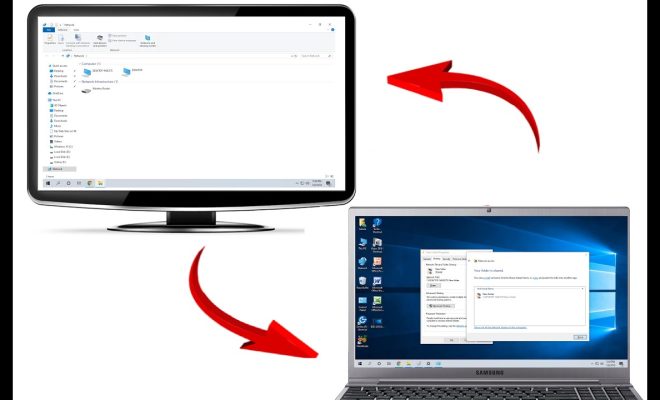
As more and more households have multiple computers, you may find it helpful to connect them together in a network so that they can share files, printers, or an Internet connection. Connecting two home computers through a network sounds daunting, but it can be a simple task with some basic knowledge and the right tools. Here are some steps to help you connect your home computers through a network:

1. Gather Required Equipment – For connecting two computers, you will need two Ethernet cables, a router or switch, and network adapters (if not built into the computer). You can buy these items from any electronics store or online shopping websites.

2. Set a network name – Before connecting the devices, it’s important to set a unique name for your network that identifies it from others in the area. This is called a Workgroup name. To set this up, go to the Control Panel on each computer (Windows), select System and Security followed by System. Click on Change settings and under the Computer name, domain, and workgroup settings section, select Change.

3. Connect the Computers – Connect the Ethernet cables to the Ethernet port on each computer. The second end of each cable should be plugged into an open router or switch’s Ethernet port. The router acts as a central connector, allowing each computer to interact with each other.

4. Check your Computer’s IP Addresses – Each computer must have a unique IP address within the same network. To check the computer’s IP address, go to ‘Network and Sharing Centre’ in Windows and click on ‘Change Adapter Settings.’ Right-click on the Ethernet connection and select ‘Properties’. Select ‘Internet Protocol Version 4’ and click on properties again. Ensure that the ‘Obtain an IP address automatically’ and ‘Obtain DNS server address automatically’ radio buttons are selected.

5. Share Files and Folders – To access files and folders stored on one computer with the other computer, enable file sharing on each computer. You can do this by going to Control Panel > Network and Sharing > Change Advanced Sharing Settings > Turn on file and printer sharing > Save Changes.

6. Ensure Firewall is configured correctly – To prevent unauthorized access to shared folders or printers, Windows default firewall should be switched on. To do this, go to Control Panel > System and Security > Windows Firewall > Turn Windows Firewall on or off. From the screen, select ‘Turn on Windows Firewall’ and select your network type.

7. Enjoy your Network – Your computers are now connected, and files and printers can now be shared between each other. You may also use your network to share your internet connection by connecting your router’s Internet port to an ISP provided modem.

In conclusion, connecting two home computers through a network can seem challenging, but it’s just a few simple steps. By following these instructions and using the right equipment, you can easily connect your home computers and communicate between them seamlessly. Once set up, you can share files, printers, and an internet connection with ease.


Previous Article

Kindle vs. Fire Tablet: What’s the Difference?

Next Article

How to Change Your YouTube Profile Picture

Matthew Lynch

Related articles More from author

  • Digital & Mobile Technology

    How to Find Out if Someone Has Installed Tracking Software on Your Computer

    May 28, 2023
    By Matthew Lynch
  • Digital & Mobile Technology

    Wordle Tips and Tricks to Improve Your Score

    June 7, 2023
    By Matthew Lynch
  • Digital & Mobile Technology

    Quick Ways to Check Your Graphics Card Model on Windows 11

    September 8, 2023
    By Matthew Lynch
  • Digital & Mobile Technology

    What Is E-Ink? How It Works & Why Every Ebook Fan Needs It

    June 12, 2023
    By Matthew Lynch
  • Digital & Mobile Technology

    How to Change Your Fortnite Name

    June 12, 2023
    By Matthew Lynch
  • Digital & Mobile Technology

    ImgOps: Meta-tool to quickly edit online images

    July 31, 2023
    By Matthew Lynch

Search

Login & Registration

  • Register
  • Log in
  • Entries feed
  • Comments feed
  • WordPress.org

Newsletter

Signup for The Tech Edvocate Newsletter and have the latest in EdTech news and opinion delivered to your email address!

About Us

Since technology is not going anywhere and does more good than harm, adapting is the best course of action. That is where The Tech Edvocate comes in. We plan to cover the PreK-12 and Higher Education EdTech sectors and provide our readers with the latest news and opinion on the subject. From time to time, I will invite other voices to weigh in on important issues in EdTech. We hope to provide a well-rounded, multi-faceted look at the past, present, the future of EdTech in the US and internationally.

We started this journey back in June 2016, and we plan to continue it for many more years to come. I hope that you will join us in this discussion of the past, present and future of EdTech and lend your own insight to the issues that are discussed.

Newsletter

Signup for The Tech Edvocate Newsletter and have the latest in EdTech news and opinion delivered to your email address!

Contact Us

The Tech Edvocate
910 Goddin Street
Richmond, VA 23231
(601) 630-5238
[email protected]

Copyright © 2025 Matthew Lynch. All rights reserved.