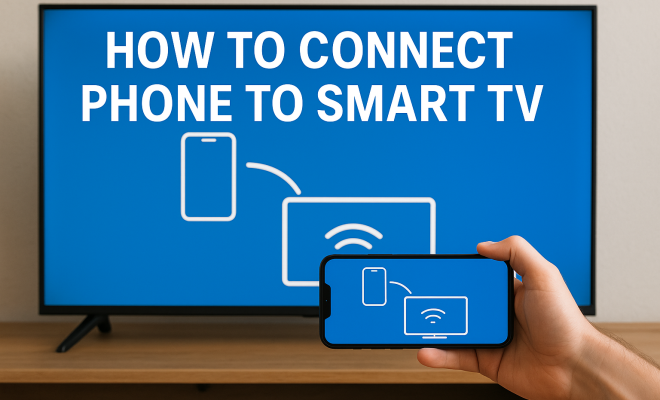
How to connect phone to smart TV
“`html
In today’s digital age, the ability to connect your phone to a smart TV has become increasingly important. Whether you want to share photos with friends, binge a favorite series, or play games on a larger screen, knowing how to connect your phone to a smart TV can vastly enhance your viewing experience. In this comprehensive guide, we’ll explore various methods to achieve a seamless connection, along with tips, tricks, and troubleshooting advice.
1. Understanding Smart TVs
Before diving into the specifics of connecting your phone to a smart TV, it’s crucial to grasp what a smart TV is and its capabilities. Smart TVs are internet-enabled televisions that allow users to stream content, access apps, and utilize various services all from their TV screens. Most modern smart TVs come with built-in wireless connectivity, enabling easy connection with other devices.
The convenience of smart TVs lies in their ability to communicate with smartphones and tablets via technologies like Wi-Fi, Bluetooth, and various app ecosystems, such as Android and iOS. This communication opens the door for seamless streaming and sharing.
2. Common Connection Methods
There are several effective ways to connect your phone to a smart TV. Each method varies by the type of smartphone and smart TV you own. Here are the most common options:
- Bluetooth: Many smart TVs support Bluetooth connectivity, allowing you to connect your phone directly to the TV for music streaming or screen mirroring.
- Wi-Fi Direct: This method allows your phone to connect directly to your TV without a local network, useful in case your Wi-Fi is down.
- Screen Mirroring: Technologies like Miracast, AirPlay, and Chromecast enable you to mirror your phone’s screen onto your TV.
- Casting: This method involves sending media directly from your phone to your TV, perfect for streaming apps.
3. Using Screen Mirroring to Connect Phone to Smart TV
Screen mirroring is one of the most popular methods to connect your phone to a smart TV. It allows you to display your phone’s screen on the TV, making it ideal for presentations, gaming, or watching videos. Here’s a step-by-step guide:
For Android users, go to the settings menu, select ‘Connections,’ then tap on ‘Screen Mirroring’ or ‘Smart View.’ Choose your TV from the list of available devices. For iPhone users, swipe down from the upper right corner to access the Control Center, tap ‘Screen Mirroring,’ and select your TV from the list. Ensure both devices are on the same Wi-Fi network for successful pairing.
Remember that the effectiveness of screen mirroring can vary depending on the brand of your TV and smartphone. Some brands may offer unique interfaces for better connection quality.
4. Using Casting to Stream Content
Casting is another excellent way to connect your phone to a smart TV. This method is particularly effective for streaming apps like Netflix or YouTube. Here’s how to do it:
First, ensure your TV and phone are connected to the same Wi-Fi network. Open the app you want to cast from, look for the cast icon (it resembles a TV with a Wi-Fi signal), and tap it. Your phone will search for devices, and once your TV appears, select it to initiate the connection.
This method allows you to control playback from your phone while your TV displays the content. It’s a smooth, user-friendly way to enjoy your favorite shows and movies on a larger screen.
5. Exploring Third-Party Apps for Connectivity
If you encounter difficulties with built-in features, there are various third-party apps available to help connect your phone to your smart TV. Applications like AllConnect, LocalCast, and BubbleUPnP are popular choices that facilitate media casting and screen mirroring from your device. (See: Understanding Smart TVs.)
These apps often offer additional features, such as the ability to cast local files or access cloud storage. To use these apps, simply download them from your device’s app store, follow the setup instructions, and start casting or mirroring content.
6. Using an HDMI Cable for Connection
For those who prefer a wired connection, using an HDMI cable is a reliable method to connect your phone to your smart TV. This option often results in better quality and fewer latency issues than wireless methods. Here’s how to do it:
You’ll need an HDMI adapter compatible with your phone—this could be a USB-C to HDMI adapter for Android devices or a Lightning to HDMI adapter for iPhones. After connecting the adapter to your phone and plugging the HDMI cable into your TV, switch to the appropriate HDMI input on your TV. You should see your phone’s display mirrored on the TV screen immediately.
While this method requires physical cables, it’s an excellent solution for high-definition streaming, especially for gaming or video playback.
7. Troubleshooting Common Issues
As with any technology, connecting your phone to a smart TV can sometimes come with challenges. Here are a few common issues and their solutions:
- No Devices Found: If your phone can’t find your TV, ensure both devices are connected to the same Wi-Fi network. Also, check if the TV’s Wi-Fi is turned on and in pairing mode.
- Lag or Stuttering: If you experience lag during streaming or mirroring, it might be due to a weak Wi-Fi signal. Try moving the router closer to your TV or using a wired connection.
- Screen Mirroring Not Working: Restart both your phone and TV, as this often resolves connectivity issues. Ensure that both devices are updated with the latest software versions.
8. The Future of Phone-to-TV Connectivity
The landscape of technology continues to evolve, and the way we connect our devices is no exception. Innovations like 5G networks are set to enhance streaming experiences by providing faster and more reliable connections, allowing for even better interactions between your phone and smart TV.
Additionally, advancements in artificial intelligence and machine learning are likely to improve the smart TV’s ability to recognize and connect with devices automatically, making the process even more user-friendly. As smart home ecosystems grow, the ways to connect and control devices will become increasingly integrated and seamless.
9. Conclusion: Maximize Your Viewing Experience
Knowing how to connect your phone to a smart TV opens up a variety of entertainment possibilities. From streaming movies and shows to sharing presentations or gaming on a larger screen, the options are virtually endless. By exploring different connection methods and utilizing available technology, you can enhance your home entertainment experience significantly.
So, whether you’re an Apple user, an Android enthusiast, or simply someone looking for new ways to enjoy content, understanding the different methods to connect your phone to a smart TV can make all the difference in how you consume media today.
10. Advanced Features of Smart TVs
Smart TVs come loaded with advanced features that enhance connectivity, making the overall viewing experience richer. Features such as voice control, integrated streaming services, and app stores allow you to do much more than just connect your phone. For instance, many smart TVs support voice assistants like Amazon Alexa, Google Assistant, and Apple Siri, enabling you to control your TV and connected devices through voice commands.
Moreover, features like screen casting support a plethora of streaming applications, allowing users to access a wide range of media content. This can include everything from Netflix and Hulu to specialized sports apps, giving you ultimate flexibility in what you watch and when.
Many smart TVs also offer multi-room audio, enabling you to connect multiple devices and play music or video content across different rooms in your home. This is particularly useful for parties or family gatherings, allowing for a more immersive experience.
11. Comparing Connection Methods
Choosing the right method to connect your phone to a smart TV can depend on several factors, including the quality of connection you desire, the type of content you’re consuming, and the devices you own. Here’s a quick comparison: (See: Importance of technology in daily life.)
| Connection Method | Quality | Ease of Use | Best For |
|---|---|---|---|
| Bluetooth | Good | Very Easy | Audio streaming |
| Wi-Fi Direct | Good | Moderate | Mirroring without a network |
| Screen Mirroring | Varies | Easy | Presentations, gaming |
| Casting | Excellent | Very Easy | Streaming apps |
| HDMI Cable | Excellent | Moderate | High-quality video playback |
This comparison can help you make informed decisions based on your specific needs, whether you prioritize ease of use, quality, or the type of media you plan to share.
12. Statistics on Phone-to-TV Connectivity
Understanding the trends in phone-to-TV connectivity can give you insight into how widespread this technology has become. Recent statistics show that:
- Over 50% of households in the U.S. own a smart TV, with many of these users regularly connecting their smartphones for streaming.
- Screen mirroring and casting features are expected to grow by over 20% in the next five years as more users seek seamless connectivity between devices.
- A survey found that 65% of users prefer casting content directly from their smartphones compared to traditional remote control methods.
These insights illustrate the growing reliance on mobile devices for media consumption and the increasing importance of connectivity between devices.
13. Expert Perspectives on Connectivity
Experts in the tech industry emphasize the significance of connecting devices for a more integrated experience. Tech analyst Laura Chen states, “The ability to connect phones to smart TVs is crucial as it transforms how we consume content. It’s not just about watching TV anymore; it’s about creating an interactive experience.” This sentiment is echoed by various industry leaders who believe that enhancing connectivity will lead to smarter homes and more engaged users.
Furthermore, experts predict that as more devices become interconnected through the Internet of Things (IoT), the future will see an even greater emphasis on seamless connectivity. It’s envisioned that soon, users will be able to control their entire home entertainment system from their smartphone, further simplifying the user experience.
14. Frequently Asked Questions (FAQ)
Can I connect my phone to a non-smart TV?
Yes, you can use devices like Chromecast or Amazon Fire Stick to connect your smartphone to a regular TV. These devices allow you to cast content from your phone to the TV even if it doesn’t have smart capabilities.
What if my phone’s screen mirroring doesn’t work?
Check if both devices are updated to their latest software versions. Also, ensure that both devices are connected to the same Wi-Fi network and try restarting both devices.
Is there a limit to the distance between my phone and TV when connecting?
For Wi-Fi and Bluetooth connections, the distance can affect quality. Typically, being within 30 feet is ideal for maintaining a stable connection, though it may vary based on the technology used and the environment.
Can I connect multiple phones to one smart TV?
Yes, many smart TVs allow multiple devices to be connected; however, only one device can typically be active at a time for screen mirroring or casting. You may need to switch between devices as needed.
What are the most common brands of smart TVs?
Brand names include Samsung, LG, Sony, Vizio, and TCL. Each brand may feature different connectivity options and compatibility with various smartphones. (See: Trends in smart TV usage.)
What should I do if my TV is not found when trying to connect?
Make sure your TV is turned on, connected to Wi-Fi, and in pairing mode. If the problem persists, try resetting your TV’s settings to factory defaults and ensure your phone’s settings are configured correctly for casting or mirroring.
15. Tips for Optimizing Your Connection
Once you’ve established a connection between your phone and smart TV, consider these tips to optimize your experience:
- Keep Software Updated: Regularly check for updates on your smartphone and smart TV. Updates often include improvements that can enhance connectivity and performance.
- Reduce Interference: Keep your smart TV and phone free from physical obstructions and minimize other electronic devices that might interfere with Wi-Fi signals.
- Use Quality Cables for Wired Connections: If you opt for an HDMI connection, ensure you use high-quality HDMI cables. This can improve video quality and reduce the likelihood of connection issues.
- Consider Resolution Settings: Adjust your phone’s resolution settings based on your TV’s capabilities to prevent issues such as lag or poor video quality.
16. Integrating Smart Home Devices
With the rise of smart home technology, integrating your smart TV with other devices can significantly enhance your media consumption experience. Smart speakers can serve as hubs for controlling playback, while smart lighting can adjust ambiance based on what you’re watching. Here’s how to integrate:
For example, you can set up your smart TV with Philips Hue lights that change color according to the scene on your screen. This creates an immersive viewing experience. Similarly, smart assistants can help you control playback, adjust volume, or switch inputs hands-free.
Many smart TVs also have built-in compatibility with platforms like Google Home or Amazon Alexa, allowing for voice commands that manage your entertainment setup seamlessly.
17. Future Trends in Entertainment Technology
Looking ahead, several exciting trends in entertainment technology may change how we connect and consume content:
- Augmented Reality (AR) and Virtual Reality (VR): As AR and VR technologies improve, they may integrate with smart TVs to create immersive experiences, allowing users to interact with content in new ways.
- Enhanced Streaming Services: With the rise of 8K content and advanced codecs, streaming services are likely to offer even higher quality experiences, making it crucial to have reliable connections between devices.
- Artificial Intelligence: AI will continue playing a role in personalizing content delivery, analyzing viewing habits to recommend shows and movies that match your preferences.
18. Common Misconceptions About Phone-to-TV Connectivity
As phone-to-TV connectivity becomes more commonplace, several misconceptions persist. Understanding these can help you avoid frustration:
- Wired Connections are Always Better: While wired connections offer stability, new wireless technologies have significantly improved latency and quality, making wireless connections a viable option for many users.
- All TVs Support Every Casting Method: Not all smart TVs support every casting method. Always check compatibility with manufacturers’ guidelines before purchasing a device.
- You Don’t Need Internet for Casting: Most casting methods require a stable internet connection. While some can work over local networks, being connected to the internet generally ensures a smoother experience.
By understanding these various methods, features, and troubleshooting tips, you’ll be well on your way to an enhanced smart TV experience. Whether for streaming, gaming, or sharing, connecting your phone to your smart TV opens up endless possibilities for entertainment.
“`
Trending Now
Frequently Asked Questions
How do I connect my phone to my smart TV?
To connect your phone to a smart TV, you can use methods like Bluetooth, Wi-Fi Direct, or screen mirroring technologies such as Miracast, AirPlay, or Chromecast. Each method varies by device compatibility, so choose the one that works best for your setup.
Can I use Bluetooth to connect my phone to my smart TV?
Yes, many smart TVs support Bluetooth connectivity. You can pair your phone with the TV to stream music or mirror your screen. Make sure both devices are in pairing mode to establish a successful connection.
What is screen mirroring and how does it work?
Screen mirroring allows you to display your phone's screen on your smart TV. It uses technologies like Miracast, AirPlay, or Chromecast to wirelessly transmit what’s on your device directly to the TV, making it easy to share photos or videos.
Do I need Wi-Fi to connect my phone to my smart TV?
Not necessarily. You can use Wi-Fi Direct for a direct connection without a local network. However, most screen mirroring and casting methods typically require Wi-Fi to function effectively.
What devices are compatible with smart TVs for casting?
Most modern smartphones and tablets are compatible with smart TVs for casting. Devices running on Android or iOS can use built-in features or apps like Google Home for Chromecast, Apple AirPlay, or third-party applications to connect seamlessly.
What’s your take on this? Share your thoughts in the comments below — we read every one.