How to connect AirPods to Windows
“`html
AirPods have become a popular choice for wireless audio, but many users are unaware of how to connect AirPods to Windows devices. While originally designed for Apple products, AirPods can seamlessly connect to Windows computers, offering the same excellent sound quality and convenience. This guide will cover everything you need to know about pairing your AirPods with Windows, including troubleshooting tips, practical use cases, and insights into connectivity options.
1. Understanding AirPods and Their Compatibility
Before diving into the steps to connect AirPods to Windows, it’s crucial to understand what AirPods are and their compatibility with non-Apple devices. AirPods utilize Bluetooth technology, making them compatible with a variety of devices beyond Apple’s ecosystem. This means you can enjoy the freedom of wireless listening on your Windows machine as well.
Apple has designed AirPods to operate best with their products like iPhones, iPads, and Macs, but the Bluetooth standard they use allows Windows devices to recognize and pair with them. Whether you’re using an older Windows PC or a more recent laptop, the process remains relatively similar.
2. Preparing Your AirPods for Connection
Before you connect AirPods to Windows, ensure they are ready for pairing. Start by placing your AirPods in their charging case and keeping the lid closed for a few moments. This ensures they are fully charged, which can help maintain a stable connection.
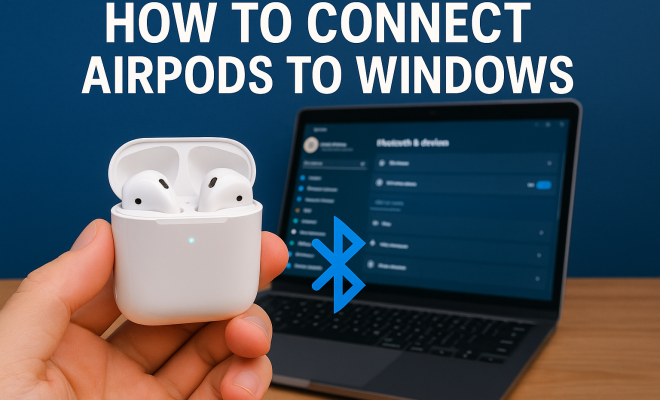
Next, you’ll want to put your AirPods into pairing mode. To do this, open the charging case lid and press and hold the button on the back of the case until you see the LED status light blinking white. This indicates that your AirPods are discoverable and ready to connect to any Bluetooth device.
3. Accessing Bluetooth Settings on Windows
Now that your AirPods are in pairing mode, you need to access the Bluetooth settings on your Windows computer. If you’re running Windows 10 or 11, click on the Start menu and then select ‘Settings’. From there, navigate to ‘Devices’ and then ‘Bluetooth & other devices’. Ensure that Bluetooth is turned on; if it isn’t, toggle the switch to enable it.
For users of older Windows versions, the steps may vary slightly. Generally, look for Bluetooth settings in the Control Panel or in the system tray if you have the Bluetooth icon displayed. Make sure your device is discoverable by following the instructions specific to your version of Windows.
4. Pairing Your AirPods with Windows
With your AirPods in pairing mode and Bluetooth settings open on your Windows device, it’s time to pair them. Click on ‘Add Bluetooth or other device’, then select ‘Bluetooth’ from the options provided. Your computer will search for available devices.
Once your AirPods appear in the list of devices, click on them to begin the pairing process. Windows might prompt you for confirmation, and if everything goes smoothly, you’ll see a message indicating that your AirPods are now connected. You should also hear a chime from the AirPods, confirming the successful connection.
5. Verifying the Connection
After pairing, it’s important to verify that your AirPods are functioning correctly with your Windows device. An easy way to check this is to play some audio on your computer and see if the sound comes through the AirPods. You can adjust the volume using your system controls or the volume controls directly on the AirPods.
If the audio isn’t coming through, you may need to set the AirPods as your default playback device. Right-click on the speaker icon in the system tray, select ‘Playback devices’, and ensure that your AirPods are set as the default device. If they are not listed, try disconnecting and reconnecting them.
6. Troubleshooting Common Issues
Even with straightforward instructions, you might run into issues when trying to connect AirPods to Windows. Here are some common problems and their solutions: (See: Noise and hearing loss information.)
- AirPods won’t connect: Ensure your AirPods are in pairing mode and that Bluetooth is turned on your Windows device. Restarting both your computer and AirPods can also help.
- Audio quality issues: If sound quality is poor, check for any interference from other Bluetooth devices. Try moving closer to your computer or disconnecting other Bluetooth devices.
- Delayed audio: Latency can be an issue with Bluetooth audio. Close any applications that might be using significant resources and ensure your Bluetooth drivers are updated.
7. Enhancing Your AirPods Experience with Windows
Once you’ve connected your AirPods to Windows, there are several ways to enhance your listening experience. One of the advantages of using AirPods is their seamless integration with Apple’s ecosystem, but with some adjustments, you can make them work better with Windows too.
Consider downloading third-party audio applications or enhancements that allow you to modify sound settings, such as equalization options that can tailor the audio output to your preferences. Additionally, keeping your Bluetooth drivers updated will ensure that you have the best possible performance and compatibility.
8. Alternatives to AirPods on Windows
If you find that connecting AirPods to Windows is not meeting your needs, there are plenty of alternatives available. Other brands such as Bose, Sony, and Jabra offer excellent wireless headphones that are known for their compatibility and reliability across various devices.
Moreover, many of these alternatives come with their dedicated software or apps that enhance the audio experience further. For example, Sony’s headphones have the Headphones Connect app, allowing users to customize their sound profile effectively.
9. Final Thoughts on Using AirPods with Windows
Connecting AirPods to Windows devices can open up new avenues for audio enjoyment, especially if you already own a pair. Despite the initial setup, the convenience and quality they offer make them a worthwhile option for Windows users. Ultimately, whether you choose to stick with AirPods or explore other alternatives, there’s a world of wireless audio waiting for you.
10. Why Choose AirPods?
Even though AirPods are primarily designed for Apple devices, their unique features make them appealing for Windows users too. One of the standout features is their remarkable battery life. AirPods can provide up to five hours of listening time on a single charge and, with the charging case, this can extend to over 24 hours. This is particularly advantageous for users who are always on the go.
Another notable feature is the seamless switching capability between devices in the Apple ecosystem. While this may not be functional with Windows, the overall user experience with AirPods remains solid due to comfortable fit and sound isolation, making them a great choice for extended listening sessions.
11. Understanding Bluetooth Audio Codecs
Bluetooth audio quality can sometimes be impacted by the codec being used for transmission. When connecting AirPods to Windows, it’s essential to know that the default codec may not always provide the best sound quality. AirPods primarily use the AAC (Advanced Audio Codec) for audio streaming, which is known for delivering decent audio quality while maintaining lower latency.
However, the codec’s performance can vary based on your Windows device and its Bluetooth capabilities. Some users may experience better audio performance with devices that support aptX or LDAC codecs, often found in high-end headphones. Understanding these codecs can help you troubleshoot audio issues and improve your listening experience on Windows.
12. Using AirPods for Gaming on Windows
Many gamers are finding that they can connect their AirPods to Windows for casual gaming. However, it’s important to note that the latency associated with Bluetooth headphones can be a drawback for serious gamers. While AirPods are excellent for music and video playback, gamers might experience a slight delay in audio, which can affect gameplay.
That said, for casual gaming sessions or when using AirPods for voice chat, they can still perform admirably. To improve latency, consider reducing the number of devices connected to your Bluetooth, or invest in a low-latency Bluetooth adapter designed specifically for gaming.
13. Comparing AirPods with Other Wireless Earbuds
When deciding whether to connect AirPods to Windows or opt for other wireless earbuds, it’s helpful to compare functionalities. For example, the Samsung Galaxy Buds are known for their deep integration with Android devices and offer excellent sound quality and customizable controls via their app. In contrast, Bose earbuds emphasize noise cancellation and sound quality, making them a great choice for those who prioritize an immersive audio experience.
On the other hand, Jabra’s Elite series focuses on battery life and customizable fit, appealing to users who need continuous use throughout the day. Ultimately, the decision depends on your specific preferences, whether it be sound quality, usability, or brand loyalty.
14. Frequently Asked Questions (FAQ)
1. Can I use my AirPods for calls on Windows?
Yes, you can use AirPods for making calls on your Windows device. However, the microphone quality may not be as great as dedicated headsets, so it’s best for casual calls.
2. What if my AirPods disconnect frequently?
Frequent disconnections could be due to Bluetooth interference. Try moving closer to your computer or removing any obstructions between your AirPods and the Bluetooth receiver. Ensure that your Bluetooth drivers are up to date and consider rebooting both the AirPods and your computer.
3. Can I use AirPods with gaming consoles?
AirPods can connect to some gaming consoles that support Bluetooth audio. However, keep in mind that there may be audio latency, which can affect your gaming experience.
4. Is it possible to switch between devices automatically with AirPods and Windows?
Auto-switching does not work with Windows devices. The feature is designed to work within the Apple ecosystem, meaning you will have to manually switch connections between devices.
5. How do I reset my AirPods?
To reset your AirPods, place them in the charging case, open the lid, and hold the button on the back of the charging case for about 15 seconds until the LED light flashes amber and then white. This will clear any connections and allow you to re-pair them with your Windows device.
6. Are there any sound quality differences when using AirPods with Windows compared to Apple devices?
The sound quality can differ slightly due to the Bluetooth codecs used and the audio settings in Windows. You might not experience the full range of features like spatial audio, which is available with Apple devices.
7. How do I check if my Bluetooth drivers are updated on Windows?
To check for Bluetooth driver updates, go to ‘Device Manager’, find ‘Bluetooth’, right-click on your Bluetooth device, and select ‘Update Driver’. You can also visit the manufacturer’s website for the latest drivers.
8. Can I use AirPods while charging my Windows laptop?
Yes, you can use AirPods while your Windows laptop is charging. The charging process will not interfere with your ability to connect and use your AirPods.
9. Do AirPods work with Windows 7 or 8?
Yes, AirPods can work with Windows 7 and 8, but you may need to ensure that your Bluetooth drivers are compatible and updated. The connection process is similar, but some settings may vary slightly.
10. Are there any unique features of AirPods I should know about?
AirPods come with features such as touch controls for accepting calls, skipping tracks, and activating Siri when connected to Apple devices. Some of these features may not function when connected to Windows.
15. Understanding the Limitations of Using AirPods with Windows
While connecting AirPods to Windows offers a lot of benefits, there are some limitations you should be aware of. One of the primary limitations is the lack of access to some features that are exclusive to Apple devices. For instance, features like automatic switching between devices, Spatial Audio, and the “Find My” feature won’t work with Windows. This limitation can reduce the overall experience for users who are accustomed to Apple’s integrated features.
Another point to consider is battery management. Apple devices show an accurate battery percentage of AirPods, which is not available on Windows. You will have to rely on the blinking light indicator on the AirPods case to gauge battery life. This can be inconvenient for users who wish to monitor battery status effectively.
16. The Market for Wireless Earbuds: Trends and Statistics
The market for wireless earbuds is rapidly growing, with an estimated value projected to reach $30 billion by 2025. The rise in remote working and the increasing demand for convenient audio solutions have significantly contributed to this growth. As of 2023, approximately 40% of wireless headphone sales come from true wireless earbuds like AirPods.
Furthermore, the adoption of Bluetooth 5.0 and later versions has enhanced wireless range and audio quality, making Bluetooth headphones more appealing. It’s worth noting that users are becoming increasingly aware of latency and audio quality differences, leading to a growing interest in products equipped with advanced codecs like aptX and LDAC.
17. Expert Opinions on Wireless Earbud Choices
Industry experts often highlight that while AirPods are popular for convenience and brand loyalty, it’s essential to evaluate personal needs when choosing wireless earbuds. Tech reviewers emphasize sound quality, battery life, and comfort as key deciding factors. For instance, an audiophile might lean towards brands like Sennheiser or Bose for superior sound quality, while casual users may prioritize brand recognition and aesthetics that come with AirPods.
Additionally, experts recommend testing earbuds before purchasing, if possible. Comfort and fit can significantly affect your overall experience, especially during prolonged use. The design of the earbuds affects both sound isolation and comfort, making it worthwhile to try different models to find the best fit for your lifestyle.
18. How to Maximize the Longevity of Your AirPods
Caring for your AirPods can extend their lifespan and maintain audio quality. One of the best practices is to keep them clean. Regularly wipe down the earbuds with a soft, dry cloth, and be sure to clean the charging case, paying attention to the charging contacts. Avoid exposing them to moisture and extreme temperatures, as these can damage the internal components.
Additionally, be aware of battery health. As with any rechargeable battery, keeping AirPods in their case when not in use can help preserve battery life. Also, avoid letting them fully discharge regularly, as this can shorten battery life over time.
19. Final Thoughts: The Future of Wireless Audio
The future of wireless audio looks promising, with advancements in technology expected to enhance user experience. As more manufacturers enter the market, competition will likely lead to improved features, such as better battery life, enhanced audio quality, and innovative technologies aimed at reducing latency. Whether you choose to connect AirPods to Windows or explore other options, staying informed about emerging trends can help you make the best choice for your audio needs.
“`
Trending Now
Frequently Asked Questions
How do I connect my AirPods to a Windows laptop?
To connect your AirPods to a Windows laptop, first ensure they are in pairing mode by pressing the button on the back of the charging case until the LED light blinks white. Then, access the Bluetooth settings on your Windows device, search for available devices, and select your AirPods to complete the pairing process.
Can I use AirPods with Windows 10?
Yes, AirPods can be used with Windows 10. They utilize Bluetooth technology, which allows them to connect to your Windows 10 device. Simply put your AirPods in pairing mode and access the Bluetooth settings on your laptop to connect.
What should I do if my AirPods won't connect to Windows?
If your AirPods won't connect to Windows, ensure they are in pairing mode and fully charged. Restart your Windows device and check the Bluetooth settings. If issues persist, try removing the AirPods from the list of Bluetooth devices and reconnecting them.
Do AirPods work with non-Apple devices?
Yes, AirPods work with non-Apple devices as they use Bluetooth technology. This allows them to connect to a variety of devices, including Windows PCs, though they may offer the best experience with Apple products.
How do I put my AirPods in pairing mode?
To put your AirPods in pairing mode, place them in their charging case, open the lid, and press and hold the button on the back of the case until the LED light starts blinking white. This indicates that they are ready to be discovered by other Bluetooth devices.
What’s your take on this? Share your thoughts in the comments below — we read every one.