The Tech Edvocate

Top Menu

  • Advertisement
  • Apps
  • Home Page
  • Home Page Five (No Sidebar)
  • Home Page Four
  • Home Page Three
  • Home Page Two
  • Home Tech2
  • Icons [No Sidebar]
  • Left Sidbear Page
  • Lynch Educational Consulting
  • My Account
  • My Speaking Page
  • Newsletter Sign Up Confirmation
  • Newsletter Unsubscription
  • Our Brands
  • Page Example
  • Privacy Policy
  • Protected Content
  • Register
  • Request a Product Review
  • Shop
  • Shortcodes Examples
  • Signup
  • Start Here
    • Governance
    • Careers
    • Contact Us
  • Terms and Conditions
  • The Edvocate
  • The Tech Edvocate Product Guide
  • Topics
  • Write For Us
  • Advertise

Main Menu

  • Start Here
    • Our Brands
    • Governance
      • Lynch Educational Consulting, LLC.
      • Dr. Lynch’s Personal Website
      • Careers
    • Write For Us
    • The Tech Edvocate Product Guide
    • Contact Us
    • Books
    • Edupedia
    • Post a Job
    • The Edvocate Podcast
    • Terms and Conditions
    • Privacy Policy
  • Topics
    • Assistive Technology
    • Child Development Tech
    • Early Childhood & K-12 EdTech
    • EdTech Futures
    • EdTech News
    • EdTech Policy & Reform
    • EdTech Startups & Businesses
    • Higher Education EdTech
    • Online Learning & eLearning
    • Parent & Family Tech
    • Personalized Learning
    • Product Reviews
  • Advertise
  • Tech Edvocate Awards
  • The Edvocate
  • Pedagogue
  • School Ratings

logo

The Tech Edvocate

  • Start Here
    • Our Brands
    • Governance
      • Lynch Educational Consulting, LLC.
      • Dr. Lynch’s Personal Website
        • My Speaking Page
      • Careers
    • Write For Us
    • The Tech Edvocate Product Guide
    • Contact Us
    • Books
    • Edupedia
    • Post a Job
    • The Edvocate Podcast
    • Terms and Conditions
    • Privacy Policy
  • Topics
    • Assistive Technology
    • Child Development Tech
    • Early Childhood & K-12 EdTech
    • EdTech Futures
    • EdTech News
    • EdTech Policy & Reform
    • EdTech Startups & Businesses
    • Higher Education EdTech
    • Online Learning & eLearning
    • Parent & Family Tech
    • Personalized Learning
    • Product Reviews
  • Advertise
  • Tech Edvocate Awards
  • The Edvocate
  • Pedagogue
  • School Ratings
  • This One Flaw in AI Investment Advice Could Cost You Everything

  • Your Medical Data Exposed: A $2.7M Data Breach Settlement Reveals Shocking Negligence

  • Jaw-Dropping: AI Used to Bug OpenAI, Then AI Caught the Culprit

  • This New Disney Video Game Could Be Its Most Controversial…Here’s Why

  • Ubisoft Layoffs: Why This Studio Closure Is a Heartbreaking Sign of Industry-Wide Rot

  • Your AI Financial Advisor Could Be a Costly Mistake — Here’s Why You’re On The Hook

  • 8 Critical AI Zero-Day Vulnerabilities Exploits That Will Keep You Up At Night

  • Outrageous: 16 Colleges Now Cost Over $100,000 Annually — Here’s Why

  • The Startling Truth About Liberal Arts vs Technical Education in the AI Era

  • Dramatic: Volkswagen’s EV Recall Reveals a Hidden Battery Flaw You Need to Know

Digital & Mobile Technology
Home›Digital & Mobile Technology›How to Compare Documents in Google Docs

How to Compare Documents in Google Docs
By Matthew Lynch
June 14, 2023
0
Spread the love

Google Docs is an incredibly useful tool for creating and collaborating on documents, but what if you need to compare two versions of the same document? Fortunately, Google Docs has a built-in tool for comparing documents that makes this process easy and straightforward. In this article, we’ll go over how to compare documents in Google Docs.

Step 1: Open the Two Documents

The first step in comparing documents is to have both versions of the document open in Google Docs. You can open the documents you want to compare by navigating to the Google Docs homepage and selecting “New” and then “File upload” to upload the documents. Once they’re uploaded, you can open them by clicking on their file names in your Google Drive.

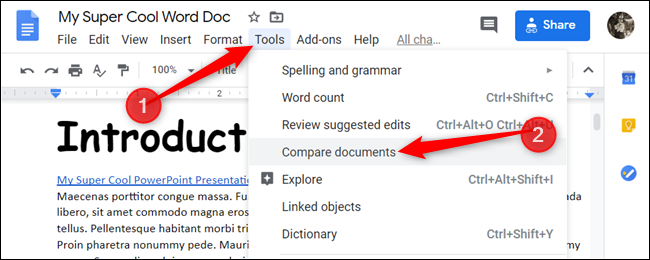
Step 2: Click the “Tools” Menu

Once you have both documents open, click on the “Tools” menu at the top of the page. From there, select “Compare Documents.”

Step 3: Choose the Documents to Compare and Their Versions

In the next window that appears, you’ll need to select the two documents you want to compare. You can do this by clicking the “Choose file” button next to each document’s file name. Once you’ve chosen the documents, select the versions of each document you want to compare. You can choose to compare the current version of each document, or you can compare different versions that have been saved.

Step 4: Compare the Documents

After selecting the documents and their versions, click the “Compare” button at the bottom of the window. Google Docs will then compare the two documents and highlight any differences between them in a new document. Differences will be highlighted in a different color and marked with a comment. You can click on each comment to see what has changed between each version of the document.

Step 5: Review the Changes

Once you’ve compared the documents, you’ll need to review the changes and decide how to incorporate them into the final version of the document. You can accept or reject individual changes by clicking on the comment and selecting the appropriate option. Once you’ve reviewed all the changes, you can save the final version of the document.

Conclusion

Comparing documents in Google Docs is a simple and effective way to keep track of changes in a document over time. By using the built-in comparison tool, you can easily see what has changed between different versions of the same document and incorporate those changes into the final version of your document. With this guide, you should be able to compare any two documents in Google Docs with ease.


Previous Article

How Does Hulu Work and What Does ...

Next Article

How to Check if Two Values Are ...

Matthew Lynch

Related articles More from author

  • Digital & Mobile Technology

    How to Deregister an Amazon Alexa Device Before Giving It Away

    May 28, 2023
    By Matthew Lynch
  • Digital & Mobile Technology

    When Was Office 2010 End of Life?

    June 10, 2023
    By Matthew Lynch
  • Digital & Mobile Technology

    Features That Make a Twitter Circle More Private

    August 5, 2023
    By Matthew Lynch
  • Digital & Mobile Technology

    Huion Kamvas GT-191 Drawing Tablet Review

    July 6, 2023
    By Matthew Lynch
  • Digital & Mobile Technology

    How to Turn Off the Narrator on a Roku

    June 2, 2023
    By Matthew Lynch
  • Digital & Mobile Technology

    Looking to Make New Friends? Check Out These Platforms

    June 15, 2023
    By Matthew Lynch

Search

Login & Registration

  • Log in
  • Entries feed
  • Comments feed
  • WordPress.org

Newsletter

Signup for The Tech Edvocate Newsletter and have the latest in EdTech news and opinion delivered to your email address!

About Us

Since technology is not going anywhere and does more good than harm, adapting is the best course of action. That is where The Tech Edvocate comes in. We plan to cover the PreK-12 and Higher Education EdTech sectors and provide our readers with the latest news and opinion on the subject. From time to time, I will invite other voices to weigh in on important issues in EdTech. We hope to provide a well-rounded, multi-faceted look at the past, present, the future of EdTech in the US and internationally.

We started this journey back in June 2016, and we plan to continue it for many more years to come. I hope that you will join us in this discussion of the past, present and future of EdTech and lend your own insight to the issues that are discussed.

Newsletter

Signup for The Tech Edvocate Newsletter and have the latest in EdTech news and opinion delivered to your email address!

Contact Us

The Tech Edvocate
910 Goddin Street
Richmond, VA 23231
(601) 630-5238
[email protected]

Copyright © 2026 Matthew Lynch. All rights reserved.