How to clean a laptop keyboard
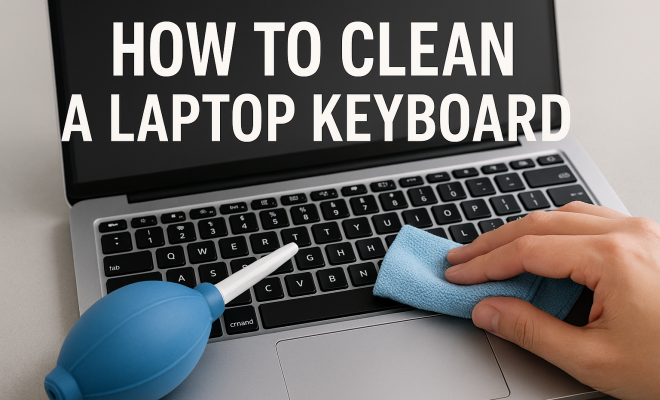
“`html
Keeping your laptop keyboard clean is more than just a matter of aesthetics; it’s crucial for the longevity of your device and your overall health. Over time, keyboards accumulate dirt, crumbs, and bacteria, which can lead to malfunctions and hygiene issues. Whether you’re a heavy typist, a gamer, or someone who simply enjoys browsing the web, knowing how to clean your laptop keyboard properly is essential. Here are 10 vital tips that will help you maintain a sparkling clean laptop keyboard.
1. Understanding the Importance of a Clean Keyboard
Your laptop keyboard serves as the primary interface between you and your device. It’s where you type emails, messages, and documents, making it prone to crumbs, dust, and even spills. An unclean keyboard can lead to sticky keys and, in some cases, hardware failure. Moreover, a dirty keyboard can harbor a variety of bacteria and allergens, which can affect your health.
Studies show that the average keyboard can contain more bacteria than a toilet seat, making regular cleaning a must. Especially in a post-pandemic world, where hygiene is paramount, understanding the importance of a clean laptop keyboard cannot be understated.
2. What You’ll Need for Cleaning
Before diving into the cleaning process, it’s critical to gather the right materials. Here’s a list of essential items you’ll need:
- Microfiber cloths
- Cotton swabs
- Compressed air canister
- Isopropyl alcohol or mild cleaning solution
- Soft-bristled brush
- Distilled water
- Small bowl
Using the right tools ensures that you don’t damage the keyboard while effectively removing dirt and grime. High-quality microfiber cloths and cotton swabs are gentle yet effective, while compressed air helps dislodge debris from hard-to-reach areas.
3. Shut Down and Unplug Your Laptop
Before you start the cleaning process, it’s essential to take safety precautions. Shut down your laptop and unplug it from the power source. This step protects both you and your device from potential electrical hazards.
By turning off your laptop, you also avoid accidental key presses that can disrupt the cleaning process or cause unintended actions. If your laptop has a removable battery, consider taking it out as an extra precaution to ensure complete safety.
4. Using Compressed Air to Remove Debris
One of the most effective methods for keeping your laptop keyboard clean is using compressed air. This tool is designed to blow out dust, crumbs, and other debris that may have settled between the keys. Hold the canister upright and use short bursts to dislodge any particles.
As you spray, angle the canister slightly to ensure that the airflow gets under the keys. Be careful not to tilt it too much; you don’t want any propellant from the can to escape. Regular use of compressed air can significantly reduce the accumulation of dirt and make the deeper cleaning process easier.
5. Wipe Down the Surface with a Microfiber Cloth
After blasting away loose debris, take a microfiber cloth slightly dampened with isopropyl alcohol or a mild cleaner and gently wipe the surface of the keys. Make sure the cloth is not dripping wet; you don’t want excess liquid seeping into the keyboard.
Microfiber is ideal because it not only cleans effectively but also won’t scratch the surface of the keys. Be sure to pay attention to the areas around the keys where grime tends to accumulate. After wiping, use a dry microfiber cloth to remove any remaining moisture. (See: Cleaning computers and keyboards.)
6. Deep Cleaning with Cotton Swabs
For a more thorough clean, cotton swabs dipped in isopropyl alcohol can be used to tackle stubborn dirt and grime in tight spaces. This method allows you to get into crevices that a cloth simply can’t reach. Dampen the swab lightly and run it along the edges of each key.
Do not apply too much pressure, as you could damage the keys. The goal here is to lift away any residue rather than scrub it. After using the swabs, let the keyboard air dry to ensure all moisture evaporates.
7. Consider Removing Keycaps for a Thorough Clean
If you’re comfortable doing so and your laptop allows it, removing keycaps can significantly enhance your cleaning efforts. This typically applies to mechanical keyboards but some laptops allow for key removal as well. Before you begin this process, consult your laptop’s manual or an online guide to ensure you do not damage anything.
After removing the keycaps, you can clean underneath them with a soft brush and some isopropyl alcohol. Once everything is spotless, make sure to replace the keycaps correctly. This method gives you access to the deepest layers of dirt and can result in a truly pristine keyboard.
8. Regular Maintenance is Key
To maintain a clean laptop keyboard, regular upkeep is necessary. Aim to perform a quick clean at least once a week, especially if you frequently eat or drink near your laptop. Regular maintenance not only keeps the keyboard looking fresh but also prevents the build-up of grime and germs.
Consider using a keyboard cover to protect against spills and crumbs. This simple addition can significantly reduce the amount of cleaning required and extend the life of your keyboard. Remember, a little prevention goes a long way!
9. Signs That You Need to Clean Your Keyboard
It’s easy to ignore the signs that indicate you need to clean your keyboard. However, being aware of these signs can help you maintain your laptop better. If your keys feel sticky, if you notice a film buildup, or if your keyboard isn’t registering keystrokes as it should, it’s probably time for a cleaning session.
Additionally, if you notice a persistent odor coming from your keyboard, it could be a sign of bacteria or mold growth. Acting on these signs promptly ensures your laptop remains in good working order and hygienic.
10. Professional Cleaning Services
If your laptop keyboard has suffered significant damage, or if you’re uncomfortable cleaning it yourself, consider hiring a professional cleaning service. These experts have specialized tools and training to clean your device without causing harm.
Professional services can help remove deep-seated muck and ensure that your laptop is sanitized and functioning correctly. While this option may involve a cost, it can save you money in the long run by preventing more severe issues down the line.
11. Common Mistakes to Avoid When Cleaning Your Keyboard
While cleaning your keyboard may seem straightforward, there are common pitfalls that many people fall into. Here are some mistakes to avoid:
- Using Excessive Liquid: One of the most common mistakes is using too much liquid while cleaning. Always ensure that your cloth or swab is damp and not soaking wet, as excess moisture can seep into the keyboard and cause damage.
- Neglecting to Dry Thoroughly: After cleaning, it’s crucial to allow your keyboard to air dry completely before using it again. This helps prevent moisture from affecting the internal components.
- Scrubbing Too Hard: Aggressive scrubbing can damage the keys or remove the lettering. Always use a gentle touch, especially when dealing with delicate parts.
- Skipping the Inner Areas: Focusing only on the surface of the keys while neglecting the areas in between can lead to a buildup of dirt. Remember to clean thoroughly!
12. DIY Cleaning Solutions:
If you’re looking for cost-effective and natural cleaning solutions, you can make your own cleaning solution at home. Here’s a simple recipe:
- Vinegar Solution: Mix equal parts of distilled white vinegar and water in a small spray bottle. This solution is effective in cutting through grime and disinfecting surfaces.
- Citrus Cleaner: Combine the zest of a lemon with water and a few drops of dish soap. The lemon not only adds a refreshing scent but also has natural antibacterial properties.
Before applying any DIY solution, make sure to do a spot test on a small area of your keyboard to ensure there’s no adverse reaction. Always use a microfiber cloth for application to avoid scratches. (See: How to clean your laptop.)
13. Keyboard Covers: Are They Worth It?
Using a keyboard cover can be a great way to protect your laptop’s keyboard from dust, spills, and crumbs. But are they really worth the investment? Here’s a look at both sides:
Pros:
- Protection: A keyboard cover can safeguard against spills and prevent particles from getting lodged between the keys.
- Easy to Clean: Most covers can be easily removed and washed, making it simpler to maintain a clean keyboard.
- Customization: Keyboard covers come in a variety of colors and styles, allowing you to personalize your laptop.
Cons:
- Typing Experience: Some users report that typing can feel different or less responsive with a cover on.
- Heat Buildup: A cover may trap heat, potentially affecting the performance of the laptop.
- Installation Issues: Not all covers fit perfectly, which can lead to creases that collect dust.
Ultimately, the decision to use a keyboard cover depends on your personal preference and how often you’re willing to clean your keyboard manually.
14. Maintaining a Healthy Work Environment
Your keyboard is just one part of your workspace, and keeping the entire area clean can contribute to a better overall experience. Here are some tips to maintain a tidy workspace:
- Regular Dusting: Make it a habit to dust your desk and surrounding areas regularly to prevent buildup.
- Organize Cables: Tidy up cables to avoid dust traps and reduce clutter. Cable clips can be helpful for keeping everything in place.
- Personal Items: Limit the number of personal items on your desk. Fewer items mean less dust and dirt accumulation.
- Cleaning Routine: Schedule a cleaning routine that includes your laptop, desk, and any other equipment you use frequently.
15. Frequently Asked Questions (FAQ)
How often should I clean my laptop keyboard?
It’s recommended to clean your keyboard at least once a week, but if you use your laptop frequently or eat and drink near it, you may want to clean it more often.
Can I use disinfecting wipes on my laptop keyboard?
Yes, but make sure the wipes are safe for electronics and do not contain bleach or harsh chemicals. Always wring out excess moisture before wiping your keyboard.
What should I do if liquid spills on my keyboard?
If a spill occurs, immediately turn off your laptop and unplug it. If possible, remove the battery. Clean the keyboard with a dry cloth and allow it to air dry thoroughly before turning it back on.
Are there specific products I should avoid?
Avoid harsh cleaning agents like ammonia, bleach, or any abrasive cleaners that can damage the keyboard. Stick to isopropyl alcohol or mild soap solutions.
Can I vacuum my keyboard?
While vacuuming can be effective, it’s crucial to use a vacuum with a soft brush attachment to avoid damaging the keys. Be gentle to prevent any accidental removal or damage.
Is it worth investing in a professional cleaning service?
If your keyboard is heavily soiled, or if you’re concerned about damaging your laptop, a professional cleaning service can be a good investment. They have the right tools and expertise to clean without causing harm. (See: Impact of bacteria on keyboards.)
16. Additional Tips for Keeping Your Keyboard in Top Shape
In addition to the cleaning methods outlined above, there are several other practices you can adopt to keep your keyboard in excellent condition:
- Eat and Drink Carefully: If you often snack or sip beverages while using your laptop, try to keep food and drinks at a safe distance to prevent spills and crumbs from falling onto your keyboard.
- Use a Tray: Place a small tray on your desk to contain snacks or drinks during use. This will create a designated space and minimize the risk of spills.
- Wash Your Hands: Before using your laptop, wash your hands to reduce the transfer of oils, dirt, and bacteria onto the keyboard surface.
17. Why Regular Cleaning Affects Performance
Cleaning your laptop keyboard isn’t just about removing dirt; it also impacts performance. Over time, debris can affect the functionality of keys, leading to missed keystrokes or keys that stick. A dirty keyboard can also affect the connectivity of the keyboard itself, especially if you have a laptop with integrated keyboards. Keeping the keyboard clean ensures that it functions smoothly and helps extend the lifespan of your device.
Additionally, the presence of bacteria can lead to health issues, particularly for those with allergies or respiratory conditions. Regular cleaning minimizes these risks, providing a healthier working environment.
18. The Long-Term Benefits of a Clean Keyboard
Investing time in cleaning your keyboard can offer numerous long-term benefits:
- Improved Longevity: A clean keyboard can function properly for a more extended period, reducing the need for costly repairs or replacements.
- Enhanced Productivity: A clean keyboard allows for a smoother typing experience, which can improve typing speed and accuracy.
- Healthier Environment: Regular cleaning helps maintain a hygienic workspace, reducing the spread of germs and bacteria.
19. Comparing Different Keyboards: Which is Easier to Clean?
Not all keyboards are created equal when it comes to cleaning. Here’s a quick comparison of common keyboard types and their cleaning requirements:
- Mechanical Keyboards: Generally easier to clean due to removable keycaps. However, they can attract dust in the switches, which may require more detailed cleaning.
- Chiclet Keyboards: These keyboards have flat keys that are easier to wipe down, but may not provide as much access for cleaning underneath the keys.
- Standard Laptop Keyboards: These often have low-profile keys that can be tricky to clean thoroughly without removing keycaps, making regular maintenance critical.
20. Environmental Considerations When Cleaning
When cleaning your laptop keyboard, it’s essential to consider the impact of the products you use on the environment. Opt for eco-friendly cleaning solutions, such as vinegar or biodegradable cleaners, to minimize your carbon footprint. Additionally, use reusable microfiber cloths instead of disposable wipes to reduce waste.
By being mindful of your cleaning practices, you can contribute to a healthier planet while keeping your laptop in peak condition.
In summary, knowing how to clean a laptop keyboard is an essential skill for every laptop user. By following these steps, you can ensure that your keyboard remains not only visually appealing but also functional and hygienic. Regular maintenance, proper cleaning tools, and being aware of signs that indicate a need for cleaning will go a long way in keeping your laptop in top shape.
“`
Trending Now
Frequently Asked Questions
How often should you clean your laptop keyboard?
It's recommended to clean your laptop keyboard at least once a month, or more frequently if you use it heavily or eat near it. Regular cleaning helps prevent the buildup of dirt, crumbs, and bacteria, which can affect both the functionality of the keyboard and your health.
What is the best way to clean a laptop keyboard?
The best way to clean a laptop keyboard involves using a combination of compressed air to dislodge debris, a microfiber cloth dampened with isopropyl alcohol for wiping surfaces, and cotton swabs for hard-to-reach areas. Always ensure the laptop is powered off and unplugged before cleaning.
Can I use water to clean my laptop keyboard?
It's not advisable to use plain water directly on your laptop keyboard, as moisture can seep into the device and cause damage. Instead, use distilled water mixed with isopropyl alcohol or a mild cleaning solution on a microfiber cloth to safely clean the keys.
What materials do I need to clean my keyboard?
To clean your keyboard effectively, you'll need microfiber cloths, cotton swabs, a compressed air canister, isopropyl alcohol or a mild cleaning solution, a soft-bristled brush, and distilled water. These tools will help you remove dirt and grime without damaging the keyboard.
Is it safe to use disinfectant wipes on a laptop keyboard?
While some disinfectant wipes are safe for electronics, it's important to check the ingredients first. Avoid wipes that contain bleach or strong solvents. Instead, use wipes specifically designed for electronics or a cloth dampened with isopropyl alcohol to safely clean your keyboard.
Have you experienced this yourself? We’d love to hear your story in the comments.